How Do I Set Up the Eve Energy Outlet?
- No Apple home hub for remote control/automations
- Bluetooth out of range during pairing
- No Thread border router (stays Bluetooth-only)
Problem Description
You are setting up the Eve Energy smart outlet for the first time. Plug the Eve Energy into a wall outlet and open the Eve app on your iPhone. The outlet connects via Bluetooth initially and can use Thread if you have a Thread border router (like a HomePod mini). This guide covers plugging in, app pairing, and HomeKit configuration.
Why This Happens in Real Homes
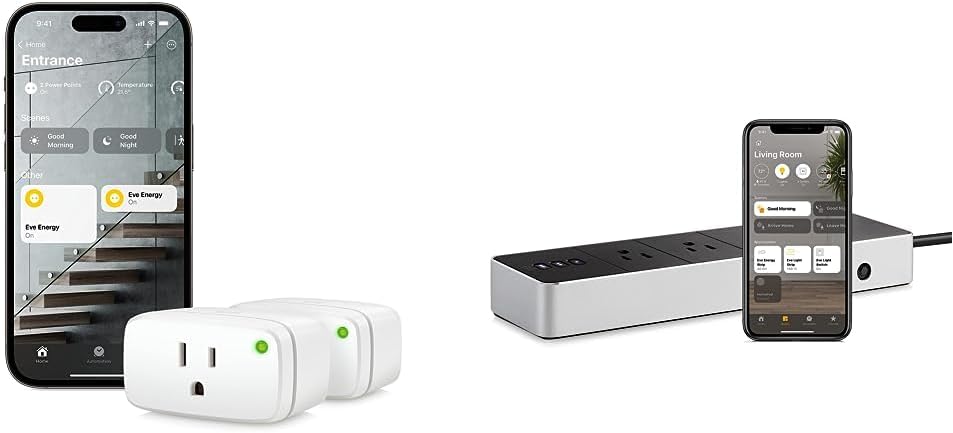
The Eve Energy is a HomeKit-native smart plug, and understanding that shapes the whole setup: it has no WiFi radio of its own and no separate hub - it connects over Bluetooth and, if you have a Thread border router, over Thread, and it's controlled through Apple Home (and the Eve app). So pairing is the HomeKit flow: plug it in, open the Eve or Apple Home app, and scan the HomeKit setup code. Keep your iPhone near the plug during pairing, since the initial handshake is over Bluetooth.
Two things determine how well it works after setup. First, remote access and automations require an Apple home hub - a HomePod, HomePod mini, or Apple TV signed into your home - because that hub is what relays commands when you're away and runs your automations; without one, control is local-only. Second, Thread: if you have a Thread border router (a HomePod mini, HomePod 2, or Apple TV 4K), the Eve Energy joins the Thread mesh for faster, more reliable response than Bluetooth. If the plug was previously paired to another home it needs a factory reset first, and keeping iOS, the Eve app, and the plug firmware current avoids setup snags.
Symptoms
- Plugging in and pairing the Eve Energy
- Eve/Home app can't find the plug during setup
- Pairing fails at the HomeKit code step
- Plug pairs then shows No Response
- No Thread option / stuck on Bluetooth
- Plug works locally but not remotely
- LED not indicating setup mode
- Adding it to Apple Home vs the Eve app
Recognize these? Here's what usually causes it.
Common Causes
- No Apple home hub for remote control/automations
- Bluetooth out of range during pairing
- No Thread border router (stays Bluetooth-only)
- HomeKit setup code damaged or already used
- Plug not reset into pairing mode
- iPhone/iOS or Eve app out of date
- Home hub offline or on a different network
- Plug previously paired to another home
Most fixes happen in the first 3 steps.
Never exceed the smart plug maximum wattage rating listed on the device or packaging. Do not use smart plugs with space heaters, high-wattage appliances, or devices that must not be interrupted like medical equipment. Smart plugs are not designed for outdoor use unless specifically rated for it.
Step-by-Step Solution
Plug in the Eve Energy and open the Eve app
Plug the Eve Energy into a wall outlet. The LED indicator turns on. Open the Eve app on your iPhone (requires iOS 16.4 or later for Thread-enabled models). Tap Add Accessory. The app scans for nearby Eve devices via Bluetooth. If the Eve Energy does not appear, move your phone within 3 feet of the plug and try again.
Scan the HomeKit setup code
The Eve Energy has a HomeKit setup code printed on the plug body and on a sticker in the box. When prompted, scan this code with your iPhone camera or enter the 8-digit code manually. This pairs the Eve Energy with your Apple Home. Choose a room for the plug (Kitchen, Living Room, etc.) and give it a name (e.g., Desk Lamp, Coffee Maker). Clear names make Siri voice control easier.
Verify Thread connection (newer models)
Eve Energy models from 2022 onward support Thread. After setup, check the connection type in the Eve app: tap the device > gear icon > look for Thread under connectivity. Thread requires a border router — either a HomePod mini or Apple TV 4K (2021 or later). If no border router is present, the Eve Energy falls back to Bluetooth, which limits range and responsiveness. Adding a HomePod mini upgrades all Thread devices automatically.
Test on/off control and Siri commands
In the Home app, tap the Eve Energy tile to toggle the connected appliance on and off. The plug clicks audibly when switching. Test Siri: say the name you gave the plug — for example, 'Hey Siri, turn off the Desk Lamp.' If Siri does not recognize the name, check the device name in the Home app. Avoid special characters in device names — simple names like 'Office Fan' work best with Siri.
Set up energy monitoring
The Eve Energy tracks real-time power consumption (Watts), voltage, and total energy usage (kWh). In the Eve app, tap the device to see live power draw. The app shows hourly, daily, weekly, and monthly consumption graphs. Use this to identify energy-hungry appliances. Set a budget alert in the Eve app to notify you when an appliance exceeds a daily kWh threshold. Energy data is stored locally and in iCloud — not sent to Eve servers.
Quick Solutions
Still having issues? This is usually the deeper cause below.
If this comes back after following these steps, check whether a recent app or firmware update reset a default setting — the fix works, but the setting gets reverted silently.
Use smart plugs with energy monitoring to track exactly how much electricity each appliance uses. Set up Away Mode schedules that randomly toggle lamps on and off to make your home look occupied when you are traveling.
This issue almost always looks more complex than it is — the majority of cases trace back to a single setting, a stale credential, or a default that shipped wrong.
- No Apple home hub for remote control/automations
- Bluetooth out of range during pairing
- No Thread border router (stays Bluetooth-only)
- HomeKit setup code damaged or already used
- Plug not reset into pairing mode
Before you go — try one of these (they fix most cases).
Most popular upgrades chosen by Eve Energy Outlet owners.

Eve Energy Outlet (Matter) 3-Pack – Smart Outlet & Power ...

Eve Energy Outlet (Matter) – Smart Outlet & Power Meter, ...
As an Amazon Associate we earn from qualifying purchases.
Official Manufacturer Manual
Eve provides official product documentation through their online manual rather than downloadable PDF. Access setup guides, troubleshooting steps, and product specifications for your Eve Energy Outlet.
Source: evehome.com
Need More Help? Eve Support
Note: The contact information below connects you directly to Eve's official customer support team, not Trunetto. They can help with warranty claims, device replacements, and advanced technical issues.
Accessories owners commonly pair with Eve Energy Outlet.

As an Amazon Associate we earn from qualifying purchases.