

How Does the Eve Room Air Quality Monitor Work?
- VOC sensor reads relative air quality, not a single pollutant
- Placed near a window, vent, kitchen, or cleaning products
- Sensor still acclimating/baselining after a move
Problem Description
You want to understand how the Eve Room indoor air quality monitor works. The Eve Room measures temperature, humidity, and VOC (volatile organic compound) levels. Place the sensor on a shelf or table away from windows and vents for accurate readings. It displays data on its built-in screen and in the Eve and Apple Home apps.
Why This Happens in Real Homes
The Eve Room measures temperature, humidity, and VOC (volatile organic compound) levels, showing them on its e-ink display and in the Eve and Apple Home apps. The most important thing to understand is what the air-quality number means: it's a relative measure of VOCs in the air, not a reading of one specific pollutant, so it responds to things like cooking, aerosol sprays, cleaning products, off-gassing paint or furniture, and even people breathing in a closed room. A reading that looks 'high' in a room you think is clean is usually the sensor correctly picking up VOCs you can't smell - opening a window and watching the number drop confirms it's working, and trends over time are more useful than any single value.
Placement drives accuracy. Put the Eve Room on a shelf or table in the living space, away from windows, vents, and the kitchen, so it samples representative room air rather than a draft or a cooking plume. After moving it, give it time to acclimate and establish a new baseline. On the data side, the Eve Room is a Bluetooth/Thread HomeKit device, so a stale connection can make readings look outdated - open the Eve app near it to sync, and keep an Apple home hub online so history uploads. It's rechargeable via USB-C, so a low battery affects updates; recharge it, and keep the firmware current.
Symptoms
- Understanding the VOC air-quality reading
- Reading seems high or low unexpectedly
- On-screen or app data not updating
- Readings differ from another monitor
- Air quality reads poor in a clean room
- Values drift after moving it
- Data not syncing to Apple Home
- Not sure where to place it
Recognize these? Here's what usually causes it.
Common Causes
- VOC sensor reads relative air quality, not a single pollutant
- Placed near a window, vent, kitchen, or cleaning products
- Sensor still acclimating/baselining after a move
- Nearby VOC sources (paint, aerosols, cooking) raising readings
- Bluetooth/Thread sync stale, so data looks old
- Home hub offline so history isn't syncing
- Firmware out of date
- Battery low (needs recharge via USB-C)
Most fixes happen in the first 3 steps.
Do not rely solely on smart sensors for life-safety alerts like smoke or carbon monoxide detection. Always maintain dedicated code-compliant smoke and CO detectors. Smart water leak sensors can alert you but cannot stop a leak so know where your water shut-off valve is located.
Tools & Requirements
These tools will help you complete this fix.

As an Amazon Associate we earn from qualifying purchases.
Step-by-Step Solution
Place the sensor correctly
The Eve Room measures temperature, humidity, and VOC (volatile organic compound) levels. Place it at breathing height (3-5 feet above the floor) on a shelf or table, not on the floor or near a ceiling. Keep it away from windows, heating vents, and cooking areas — these create localized readings that do not represent the room's actual air quality. The sensor needs 15-30 minutes after placement to stabilize.
Read the air quality rating
The Eve Room rates air quality on a 1-5 star scale based on VOC concentration (measured in ppb — parts per billion). 5 stars = excellent (under 250 ppb). 1 star = poor (above 2000 ppb). Common VOC sources: cleaning products, paint, new furniture, cooking fumes, nail polish. The number updates every 10 minutes. If the rating drops after cooking or cleaning, open a window — it should recover within 30-60 minutes.
View historical data and trends
The Eve app stores air quality history on-device and in iCloud. Tap the Eve Room device to see hourly, daily, weekly, and monthly graphs for temperature, humidity, and air quality. Look for patterns: if air quality drops every evening, it could be cooking or a lack of ventilation when windows are closed at night. The E Ink display on the device shows current readings without opening the app.
Calibrate temperature and humidity readings
The Eve Room sensors are factory-calibrated but can drift over time. If temperature readings seem off, compare with a known accurate thermometer placed next to the sensor for 30 minutes. The Eve Room is rated ±0.3°C accuracy for temperature and ±3% for humidity. If readings are significantly off, perform a factory reset (press and hold the button for 10 seconds) and let the sensor recalibrate for 24 hours.
Set up automations based on air quality
In the Eve app or Home app, create automations triggered by air quality readings. Example: when air quality drops below 3 stars, turn on a smart fan or air purifier plugged into an Eve Energy. Another example: when humidity rises above 60%, trigger a dehumidifier. These automations require an Apple home hub (HomePod, HomePod mini, or Apple TV) to run automatically when you are not home.
Quick Solutions
Still having issues? This is usually the deeper cause below.
If this comes back after following these steps, check whether a recent app or firmware update reset a default setting — the fix works, but the setting gets reverted silently.
Pair motion sensors with smart lights to create automatic lighting that turns on when you enter a room and off after a few minutes of no motion. This is one of the simplest and most useful smart home automations you can set up.
This issue almost always looks more complex than it is — the majority of cases trace back to a single setting, a stale credential, or a default that shipped wrong.
- VOC sensor reads relative air quality, not a single
- Placed near a window, vent, kitchen, or cleaning products
- Sensor still acclimating/baselining after a move
- Nearby VOC sources (paint, aerosols, cooking) raising readings
- Bluetooth/Thread sync stale, so data looks old
Before you go — try one of these (they fix most cases).
Most popular upgrades chosen by Eve Room owners.
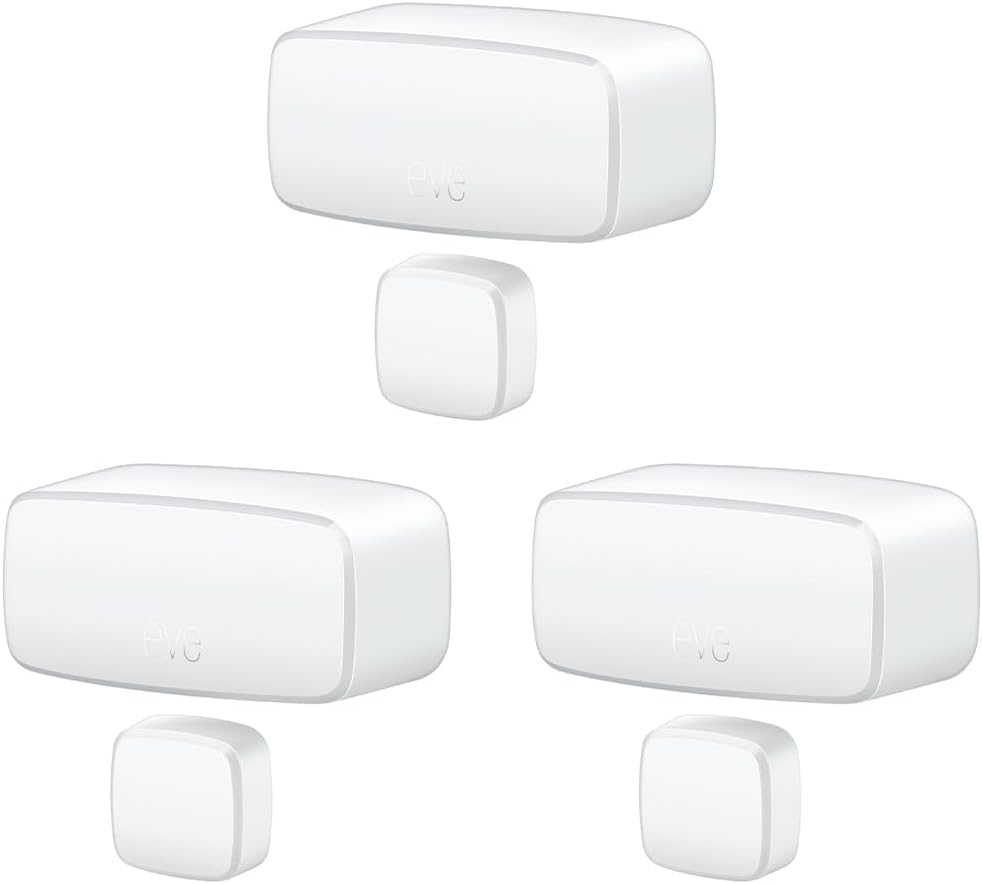
Eve Door & Window (Matter) 3 Pack – Smart Contact Sensor ...

Eve Door & Window (Matter) – Smart Contact Sensor for Doo...
As an Amazon Associate we earn from qualifying purchases.
Official Manufacturer Manual
Eve provides official product documentation through their online manual rather than downloadable PDF. Access setup guides, troubleshooting steps, and product specifications for your Eve Room.
Source: evehome.com
Need More Help? Eve Support
Note: The contact information below connects you directly to Eve's official customer support team, not Trunetto. They can help with warranty claims, device replacements, and advanced technical issues.
Accessories owners commonly pair with Eve Room.

As an Amazon Associate we earn from qualifying purchases.

