

Why Is My Govee Water Leak Detector Not Sending Alerts to My Phone When It Detects Water
- Push notifications disabled in phone settings
- Govee app notification permission revoked
- Detector not connected to WiFi (Bluetooth only)
Problem Description
Your Govee water leak detector sounds its local alarm when it touches water but you never receive push notifications on your phone. The detector works locally but the remote alerts that let you know about leaks while away from home are not coming through. This defeats the main purpose of a smart water sensor.
Why This Happens in Real Homes
A Govee leak detector that sounds locally but never alerts your phone is missing the cloud path — many are Bluetooth-only and need a Govee WiFi gateway to send remote alerts, or push notifications are disabled.
Start by confirming you have the required setup: a WiFi gateway (for Bluetooth-only detectors) so alerts reach the cloud, and push notifications enabled for Govee Home on your phone. Without the gateway, the detector only alarms locally; that missing hub is the usual reason the siren works but your phone stays silent.
Symptoms
- Local alarm sounds but no phone notification
- App shows leak was detected but no push alert
- Notifications worked before but stopped
- Some detectors alert and others do not
- Notification settings appear correct in app
- Phone receives other Govee alerts but not water sensor
Recognize these? Here's what usually causes it.
Common Causes
- Push notifications disabled in phone settings
- Govee app notification permission revoked
- Detector not connected to WiFi (Bluetooth only)
- Do Not Disturb blocking Govee alerts
- Alert settings turned off for this specific sensor
- App background activity restricted on phone
Most fixes happen in the first 3 steps.
Water leak detectors should be tested monthly by touching the probes to a wet surface. Sensors can fail silently and you will not know until you need them. Make testing part of your routine.
Tools & Requirements
Step-by-Step Solution
Verify WiFi Connection Not Just Bluetooth
Many Govee water leak detectors are Bluetooth-only and require a WiFi gateway or hub for remote alerts. Check your specific model. If Bluetooth-only, you will only get alerts when your phone is nearby. For remote alerts, you need the WiFi version (H5055) or a Govee WiFi gateway hub connected to your Bluetooth sensors.
Check Phone Notification Permissions
Go to your phone Settings, then Apps or Notifications. Find Govee Home and make sure notifications are fully enabled. On iOS, also check Settings > Notifications > Govee Home and enable Allow Notifications, Sounds, and Badges. On Android, check that the app is not in battery optimization mode that restricts background activity.
Verify In-App Alert Settings
Open the Govee Home app and select your water leak detector. Go to device settings and find Alert or Notification settings. Make sure alerts are enabled. Some sensors have separate toggles for sound alert and push notification. Both should be on. Also check if there is a schedule that might disable alerts during certain hours.
Test With Intentional Water Contact
Place a small amount of water on a paper towel and touch the sensor probes to it. Verify the local alarm sounds. Then check your phone within 30 seconds for the push notification. If the alarm sounds but no notification comes, the issue is connectivity or notification settings, not the sensor itself.
Check Do Not Disturb Settings
If your phone is in Do Not Disturb mode, Govee alerts may be silenced. Add Govee Home to your allowed apps list or disable DND temporarily to test. On iPhone, check Focus modes. On Android, check DND settings and app exceptions.
Quick Solutions
Still having issues? This is usually the deeper cause below.
If the sensor still misses events after repositioning, check whether a scheduled 'home' or 'away' mode is overriding the sensitivity setting silently.
For critical water leak monitoring in areas like basements or near water heaters, use the WiFi-connected models rather than Bluetooth-only. Bluetooth range is limited and requires your phone to be home.
Notification delays over 2 minutes are almost never the device's fault — background app restrictions quietly re-enable themselves after every OS update.
- Push notifications disabled in phone settings
- Govee app notification permission revoked
- Detector not connected to WiFi (Bluetooth only)
- Do Not Disturb blocking Govee alerts
- Alert settings turned off for this specific sensor
Before you go — try one of these (they fix most cases).
Most popular upgrades chosen by Govee Water Leak Detector owners.

Govee Water Leak Detectors 5 Pack, 100dB Adjustable Audio...
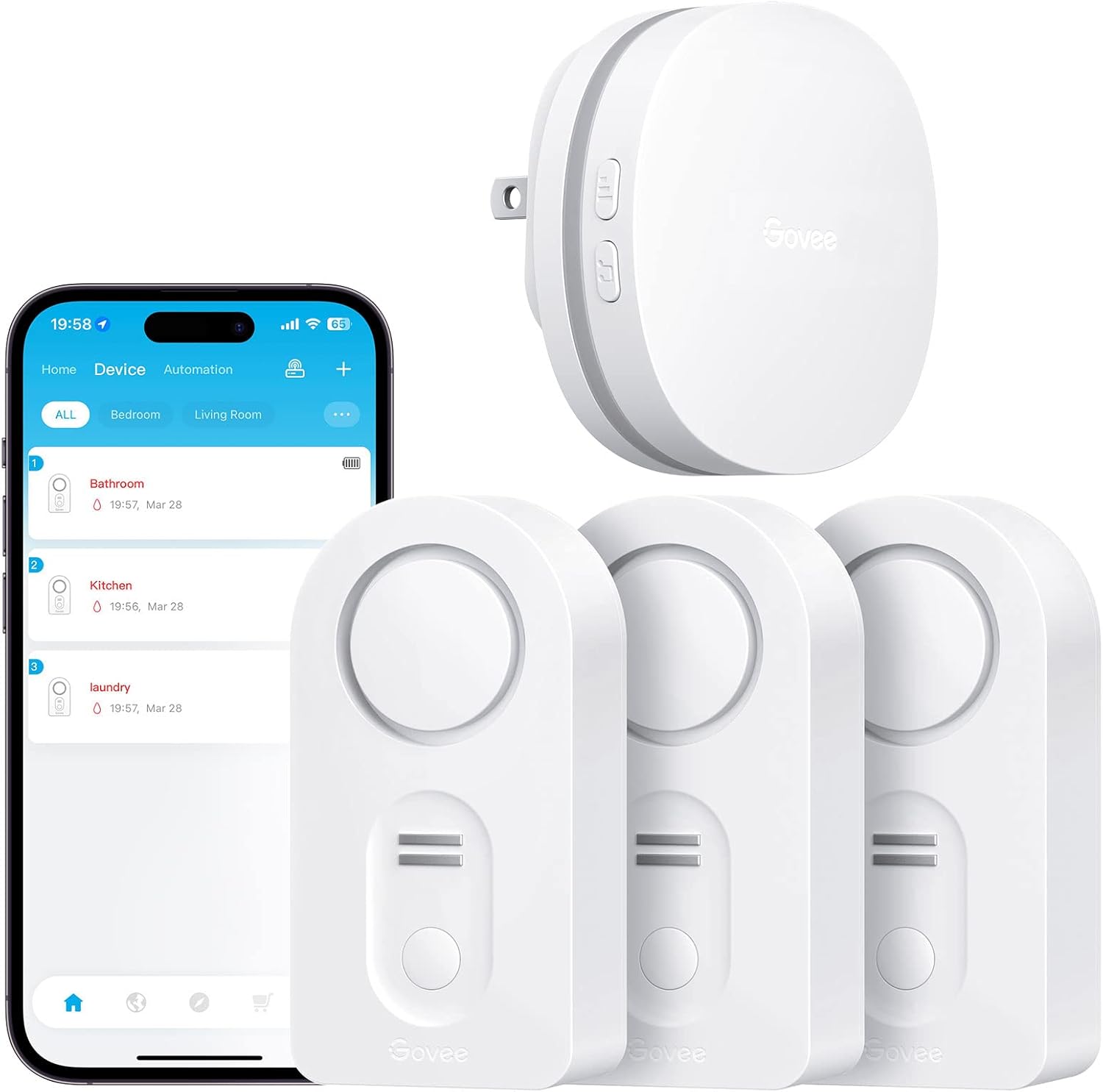
Govee WiFi Water Leak Detector 3 Packs, Leak Alert with R...

Govee WiFi Water Sensor 2 Pack, Smart Water Leak Detector...
As an Amazon Associate we earn from qualifying purchases.
Official Manufacturer Manual
Govee provides official product documentation through their online manual rather than downloadable PDF. Access setup guides, troubleshooting steps, and product specifications for your Govee Water Leak Detector.
Source: govee.com
Need More Help? Govee Support
Note: The contact information below connects you directly to Govee's official customer support team, not Trunetto. They can help with warranty claims, device replacements, and advanced technical issues.
How Does Govee Compare?
Before replacing your Govee device, see how it stacks up against alternatives in our full comparison guides.
Accessories owners commonly pair with Govee Water Leak Detector.

Govee TV Backlight 3 Lite with Fish-Eye Correction Functi...

Govee TV Backlight 3 Lite with Fish-Eye Correction Functi...

Govee TV Backlight 3 Lite with Fish-Eye Correction Functi...
As an Amazon Associate we earn from qualifying purchases.
