

How Does the Clock Display Work on the Echo Dot 5th Gen?
- Clock display turned off in settings
- Adaptive brightness dimming it in low light
- Temperature/format toggle off
Problem Description
You want to understand how the clock display works on the Amazon Echo Dot 5th Gen with Clock. The LED display on the front shows the time, outdoor temperature, timers, and alarms. You can adjust brightness and display preferences in the Alexa app under Device Settings. This guide covers what the display shows and how to customize it.
Why This Happens in Real Homes
The Echo Dot with Clock shows the time, and optionally temperature, timers, and now-playing info, on a small LED dot-matrix display — and most "clock issues" are settings: the display or a specific readout is toggled off, or adaptive brightness has dimmed it in a dark room.
Start in the device's settings (in the Alexa app) to confirm the clock display is on and enable temperature or format options you want, then check adaptive brightness and Do Not Disturb, which can dim or hide the display. Keeping the ambient light sensor uncovered lets brightness adjust correctly.
Symptoms
- Clock not showing
- Display too dim/bright
- Will not show temperature
- Clock format wrong
- Display stays off
- Scrolling info unclear
- Adaptive brightness issue
- Will not show timer countdown
Recognize these? Here's what usually causes it.
Common Causes
- Clock display turned off in settings
- Adaptive brightness dimming it in low light
- Temperature/format toggle off
- Display disabled during Do Not Disturb
- Ambient light sensor covered
- Feature not enabled in the Alexa app
- Timer/weather display toggles off
- Firmware out of date
Most fixes happen in the first 3 steps.
Smart speakers are always listening for the wake word when unmuted. Review and delete your voice history regularly in the app privacy settings. Never place the speaker in bathrooms or near water sources as moisture can permanently damage internal components.
Tools & Requirements
Step-by-Step Solution
What the clock display shows
The Echo Dot 5th Gen with Clock has an improved LED dot-matrix display on the front that shows more than just the time. It displays the current temperature when you ask for weather, scrolls song titles and artist names during music playback, shows timer countdowns, alarm times, volume level when you adjust it, and small icons for notifications and weather conditions. The display uses dots instead of the traditional bar segments, which allows it to render icons and scrolling text.
Adjust clock brightness
Open the Alexa app, go to Devices, select your Echo Dot with Clock, and tap the gear icon for settings. Under Display, adjust the brightness slider. You can also enable Adaptive Brightness, which uses a light sensor to automatically dim the display in dark rooms and brighten it in well-lit rooms. For bedrooms, set a low manual brightness or use Adaptive Brightness so the display does not light up the room at night.
Change the clock format and appearance
On the device, go to Settings > Clock and select 12-hour or 24-hour format. You can also choose from several clock face styles — digital with large numbers, digital with date, or a minimal display. Say "Alexa, set the clock to 24-hour" for a quick switch. The display always shows the time when idle unless you disable it entirely in settings, which most people do not want since it is the main selling point over the standard Echo Dot.
Use tap gestures on the display
The Echo Dot 5th Gen supports tap controls on the top surface. Tap the top to pause or resume music, snooze an alarm, or end a timer. Double-tap to skip to the next track. The display responds to taps with a brief visual confirmation. These gestures work even when the device is across the room and you do not want to use your voice — useful for silencing a morning alarm quickly.
Fix display issues
If the clock display is blank, check that it is enabled in the Alexa app under the device Display settings. If the display shows the wrong time, say "Alexa, what time is it" to force a time sync. If the time is wrong because of the time zone, go to Settings > Device Options > Time Zone in the Alexa app and set it correctly. If individual dots on the display are dead or stuck, the LED panel may be defective — this is rare but covered under Amazon warranty.
Quick Solutions
Still having issues? This is usually the deeper cause below.
If the keypad rejects valid codes, a lockout timer may be running — five failed entries locks most keypads silently for 5–10 minutes.
Place your speaker in a central location at ear height for best voice pickup. Avoid corners and bookshelves which muffle the microphones. If you have multiple speakers, set up multi-room audio groups so music plays in sync across rooms.
Most smart lock failures people label as hardware issues turn out to be a code wiped during a sync, or a setting reset nobody remembers triggering.
- Clock display turned off in settings
- Adaptive brightness dimming it in low light
- Temperature/format toggle off
- Display disabled during Do Not Disturb
- Ambient light sensor covered
Before you go — try one of these (they fix most cases).
Most popular upgrades chosen by Amazon Echo Dot 5th Gen owners.

Amazon eero Pro 6E mesh wifi router (1-pack) with Amazon ...

Amazon Echo Dot Kids (newest model) - Dragon including Am...
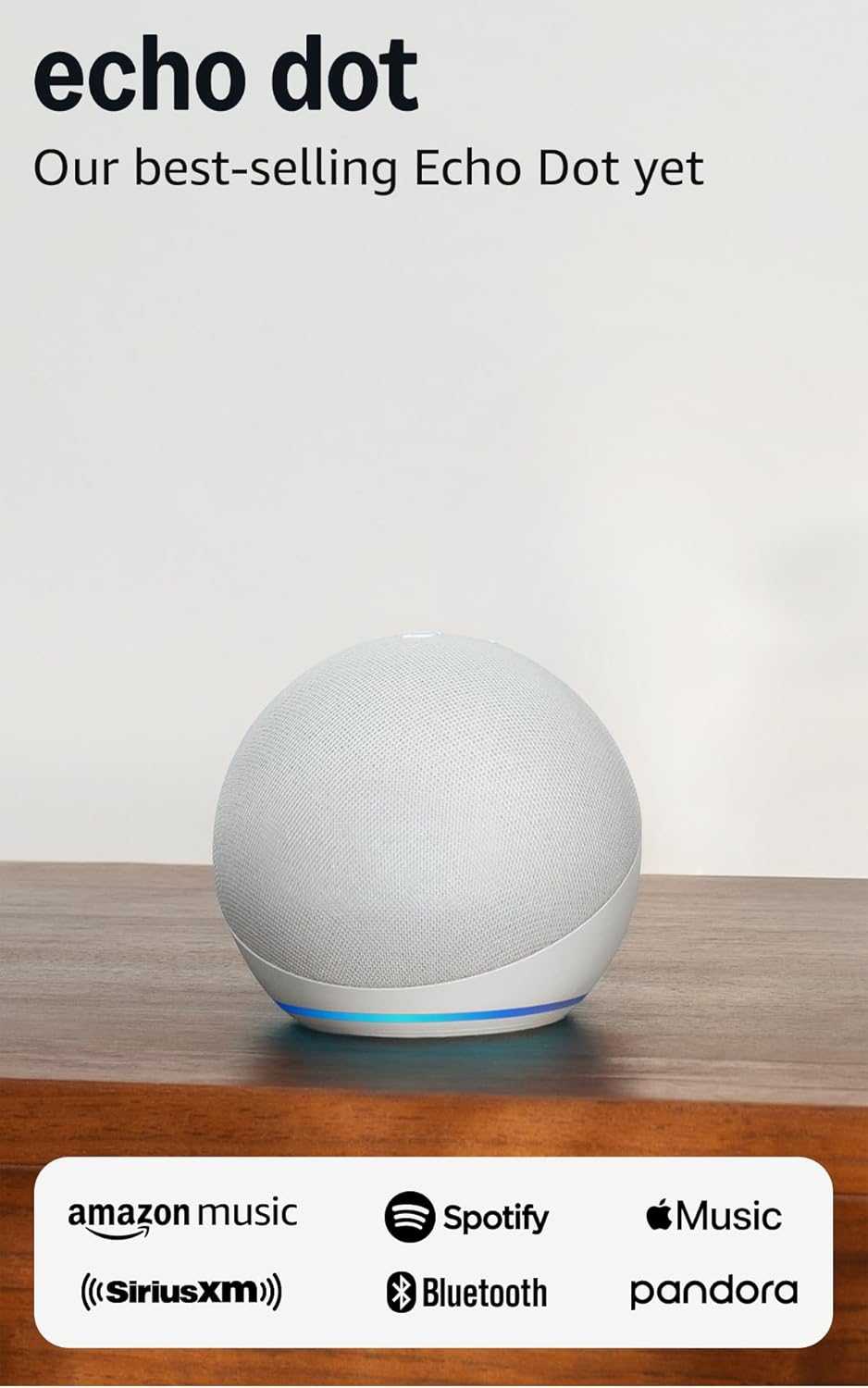
Amazon Echo Dot (newest model) - Vibrant sounding speaker...
As an Amazon Associate we earn from qualifying purchases.
Official Manufacturer Manual
Amazon provides official product documentation through their online manual rather than downloadable PDF. Access setup guides, troubleshooting steps, and product specifications for your Amazon Echo Dot 5th Gen.
Source: amazon.com
Need More Help? Amazon Support
Note: The contact information below connects you directly to Amazon's official customer support team, not Trunetto. They can help with warranty claims, device replacements, and advanced technical issues.
How Does Amazon Compare?
Before replacing your Amazon device, see how it stacks up against alternatives in our full comparison guides.
Accessories owners commonly pair with Amazon Echo Dot 5th Gen.

Amazon Basics 65 Piece Home Repair Tool Kit Set With Carr...

Amazon Basics Smart Plug, Matter Compatible, Compatible w...

Amazon Basics Dual Smart Plug with Motion Sensor and Nigh...
As an Amazon Associate we earn from qualifying purchases.



