

How Do I Set Up the Amazon Echo Flex?
- Not fully seated in the outlet
- App/phone not in setup range
- Weak WiFi at the outlet
Problem Description
You are setting up the Amazon Echo Flex for the first time. The Echo Flex plugs directly into a wall outlet (no cord needed) and adds Alexa to any room. It has a built-in speaker, microphone, and a USB port on the bottom for charging or accessories. This guide covers plugging in, app setup, and configuring the device.
Why This Happens in Real Homes
The Echo Flex plugs straight into a wall outlet with no cable — it's a basic, ultra-compact Alexa access point, not a music speaker, so set expectations on sound. Setup is standard Alexa: seat it firmly, put it in setup mode (solid orange ring), and add it in the app near the device.
Choose an outlet with decent WiFi, since a low or hidden outlet can be a weak-signal spot, and re-enter the password carefully. Its optional accessories (motion sensor, night light) clip onto the bottom USB port; only supported ones work.
Symptoms
- Echo Flex will not set up
- App cannot find it
- Will not connect to WiFi
- No sound / very quiet
- Setup stalls
- Accessory not working
- Will not enter setup mode
- Placement questions
Recognize these? Here's what usually causes it.
Common Causes
- Not fully seated in the outlet
- App/phone not in setup range
- Weak WiFi at the outlet
- Wrong WiFi password
- Not in setup mode (orange ring)
- Expecting full-speaker sound (it is basic)
- Accessory not attached/supported
- Firmware update pending
Most fixes happen in the first 3 steps.
Smart speakers are always listening for the wake word when unmuted. Review and delete your voice history regularly in the app privacy settings. Never place the speaker in bathrooms or near water sources as moisture can permanently damage internal components.
Step-by-Step Solution
Plug it directly into a wall outlet
The Echo Flex is a plug-in device — it goes directly into a wall outlet with no cable. Push it firmly into the outlet until it is seated flush. Avoid power strips or extension cords, as the Flex draws power from the outlet and its weight can cause it to sag in a loose strip socket. The Flex has a USB-A port on the bottom for charging a phone or powering optional accessories like a night light or motion sensor.
Set up through the Alexa app
Open the Alexa app, tap Devices > + > Add Device > Amazon Echo > Echo Flex. The app searches for the device via Bluetooth — make sure Bluetooth is enabled on your phone and you are standing within 10 feet of the Flex. Connect to your WiFi network and assign the device to a room. Setup takes about 3 minutes. The Flex connects to 2.4GHz and 5GHz WiFi.
Understand its strengths and limitations
The Echo Flex has a tiny speaker designed for Alexa voice responses, not music. Audio quality is adequate for hearing the weather, timers, and smart home confirmations, but poor for music. If you want music in that room, pair it to a Bluetooth speaker or use it as part of a multi-room music group with better Echo speakers. The Flex is best used as an Alexa access point in rooms where you do not need a full speaker — a hallway, bathroom, or garage.
Add optional accessories
The Echo Flex has a USB-A accessory port that supports plug-in add-ons. The most useful is the motion sensor, which detects movement and triggers Alexa routines — useful for hallway lights that turn on when you walk past. The night light accessory adds a soft glow. Plug the accessory into the USB port on the bottom of the Flex. Set up the accessory in the Alexa app under Devices once it is connected.
Use it as a smart home voice point
The Flex works well as an Alexa endpoint in rooms too small for a full Echo. Set up routines triggered by voice commands from the Flex: "Alexa, goodnight" from the bedroom Flex to lock doors, turn off lights, and set the thermostat. It can also act as an intercom — use Announce or Drop In to communicate between the Flex and other Echo devices in the house.
Quick Solutions
Still having issues? This is usually the deeper cause below.
If this comes back after following these steps, check whether a recent app or firmware update reset a default setting — the fix works, but the setting gets reverted silently.
Place your speaker in a central location at ear height for best voice pickup. Avoid corners and bookshelves which muffle the microphones. If you have multiple speakers, set up multi-room audio groups so music plays in sync across rooms.
This issue almost always looks more complex than it is — the majority of cases trace back to a single setting, a stale credential, or a default that shipped wrong.
- Not fully seated in the outlet
- App/phone not in setup range
- Weak WiFi at the outlet
- Wrong WiFi password
- Not in setup mode (orange ring)
Before you go — try one of these (they fix most cases).
Most popular upgrades chosen by Amazon Echo Flex owners.

Amazon eero Pro 6E mesh wifi router (1-pack) with Amazon ...

Amazon Echo Dot Kids (newest model) - Dragon including Am...
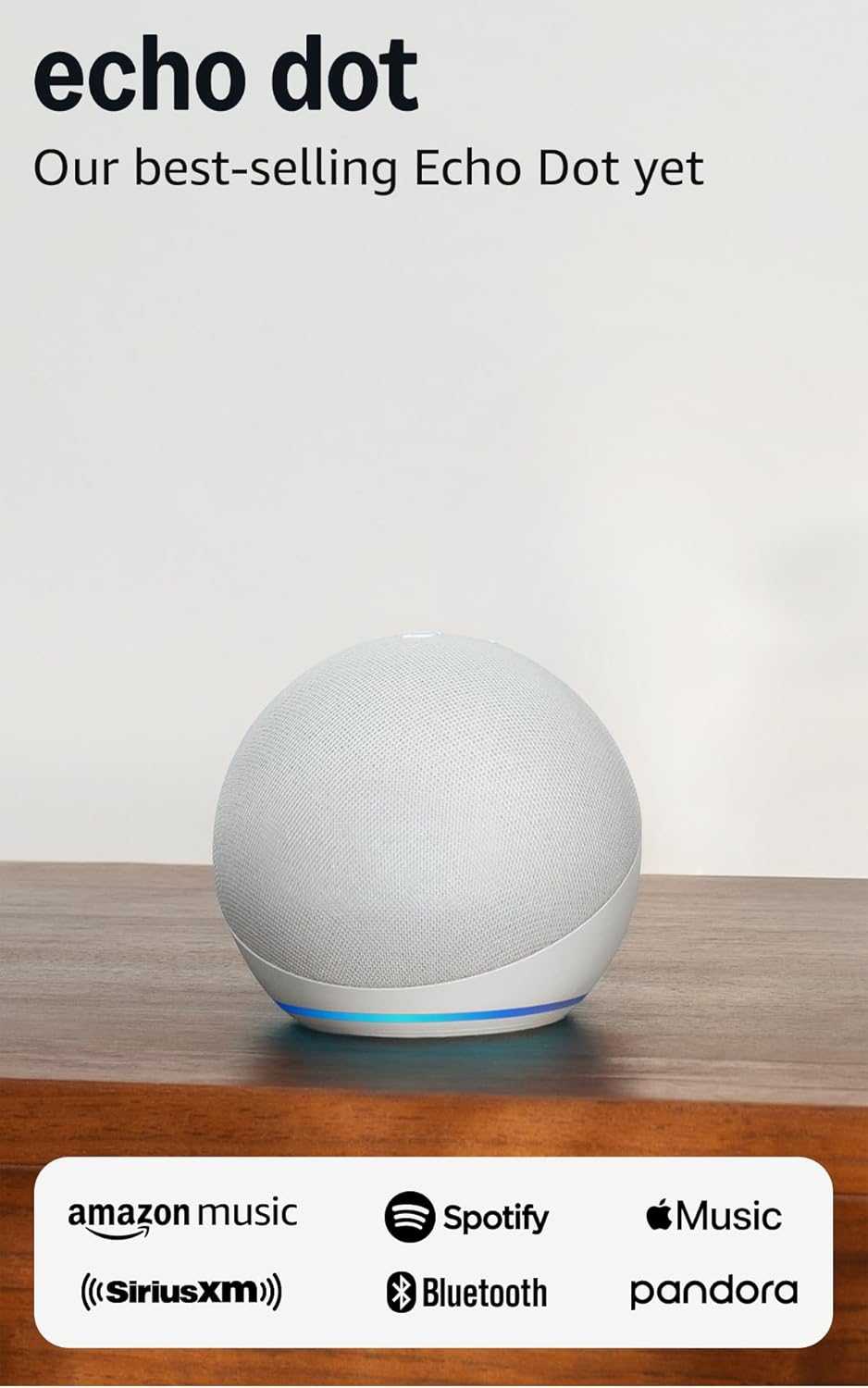
Amazon Echo Dot (newest model) - Vibrant sounding speaker...
As an Amazon Associate we earn from qualifying purchases.
Official Manufacturer Manual
Amazon provides official product documentation through their online manual rather than downloadable PDF. Access setup guides, troubleshooting steps, and product specifications for your Amazon Echo Flex.
Source: amazon.com
Need More Help? Amazon Support
Note: The contact information below connects you directly to Amazon's official customer support team, not Trunetto. They can help with warranty claims, device replacements, and advanced technical issues.
How Does Amazon Compare?
Before replacing your Amazon device, see how it stacks up against alternatives in our full comparison guides.
Accessories owners commonly pair with Amazon Echo Flex.

Amazon Basics 65 Piece Home Repair Tool Kit Set With Carr...

Amazon Basics Smart Plug, Matter Compatible, Compatible w...

Amazon Basics Dual Smart Plug with Motion Sensor and Nigh...
As an Amazon Associate we earn from qualifying purchases.



