

How Do I Use My Amazon Echo Show as a Photo Frame?
- Amazon Photos not set as the home content
- No album selected or empty album
- Home content set to clock/widgets instead
Problem Description
You want to use your Echo Show as a digital photo frame, or the photo-frame feature isn't showing your pictures when it's idle. The Show displays photos from Amazon Photos on its home/ambient screen, so most issues are the photo source not set up, the wrong album selected, or the home content settings.
Why This Happens in Real Homes
The Echo Show doubles as a digital photo frame by pulling from Amazon Photos on its idle/ambient screen — so if it's not showing your pictures, the usual reasons are that Amazon Photos isn't selected as the home content, no album is chosen, or your photos aren't actually in Amazon Photos.
Start in the Alexa app under the device's Home & Clock (or Photo) settings: set Amazon Photos as the ambient content and pick an album, then confirm those photos are uploaded to the same Amazon account. Turning on the slideshow rotation and checking Do Not Disturb isn't blanking the screen handles the rest.
Symptoms
- No photos showing when idle
- Wrong photos displayed
- Photos will not rotate
- Only clock/widgets show
- Album not appearing
- Photos low quality
- Home screen not cycling photos
- Amazon Photos not linked
Recognize these? Here's what usually causes it.
Common Causes
- Amazon Photos not set as the home content
- No album selected or empty album
- Home content set to clock/widgets instead
- Photos not uploaded to Amazon Photos
- Rotation/slideshow not enabled
- Do Not Disturb hiding the ambient screen
- Account mismatch
- Firmware out of date
Most fixes happen in the first 3 steps.
Smart speakers are always listening for the wake word when unmuted. Review and delete your voice history regularly in the app privacy settings. Never place the speaker in bathrooms or near water sources as moisture can permanently damage internal components.
Tools & Requirements
Step-by-Step Solution
Enable the photo frame feature
The Echo Show doubles as a digital photo frame when idle. Open the Alexa app, go to Devices, select your Echo Show, tap Photo Display, and choose which Amazon Photos albums to display. You can select multiple albums, favourites only, or the "This Day" feature that shows photos taken on today's date in previous years. The slideshow starts automatically when the Echo Show is idle — no screensaver needed.
Upload and organise your photos
The Echo Show pulls photos exclusively from Amazon Photos. Download the Amazon Photos app on your phone and enable auto-backup, or upload photos manually. With Amazon Prime, you get unlimited full-resolution photo storage. Create a dedicated album called something like "Photo Frame" and add only the photos you want displayed — this avoids showing screenshots, work documents, or unflattering shots. Open Amazon Photos, tap Albums > Create, and add your curated picks.
Adjust slideshow timing and transitions
On the Echo Show, swipe down, tap Settings > Display > Clock & Photo Display. Set how long each photo stays on screen before transitioning — options range from a few seconds to several minutes. Choose a transition style. For a calm ambient display, set a longer interval (30-60 seconds per photo). If the slideshow feels too slow or fast, adjust until it matches how you want to use it — background ambiance versus actively watching.
Display photos from shared albums
If multiple household members want their photos on the Echo Show, each person uploads to their own Amazon Photos account and shares albums with the primary account linked to the Echo Show. In the Amazon Photos app, open an album, tap Share, and enter the email of the Echo Show account holder. Shared albums then appear in the Echo Show Photo Display settings. Each person controls which of their photos are shared.
Fix common display issues
If photos appear cropped or zoomed, the Echo Show auto-crops to fill its screen ratio (landscape on most models). Shoot photos in landscape orientation for the best fit. If photos are not updating after you add them to an album, say "Alexa, show my photos" to force a sync. If the display goes black instead of showing photos when idle, check that the photo display feature is enabled and that Do Not Disturb is not active — DND on some models dims the screen entirely.
Quick Solutions
Still having issues? This is usually the deeper cause below.
If this comes back after following these steps, check whether a recent app or firmware update reset a default setting — the fix works, but the setting gets reverted silently.
Place your speaker in a central location at ear height for best voice pickup. Avoid corners and bookshelves which muffle the microphones. If you have multiple speakers, set up multi-room audio groups so music plays in sync across rooms.
This issue almost always looks more complex than it is — the majority of cases trace back to a single setting, a stale credential, or a default that shipped wrong.
- Amazon Photos not set as the home content
- No album selected or empty album
- Home content set to clock/widgets instead
- Photos not uploaded to Amazon Photos
- Rotation/slideshow not enabled
Before you go — try one of these (they fix most cases).
Most popular upgrades chosen by Amazon Echo Show owners.

Amazon eero Pro 6E mesh wifi router (1-pack) with Amazon ...

Amazon Echo Dot Kids (newest model) - Dragon including Am...
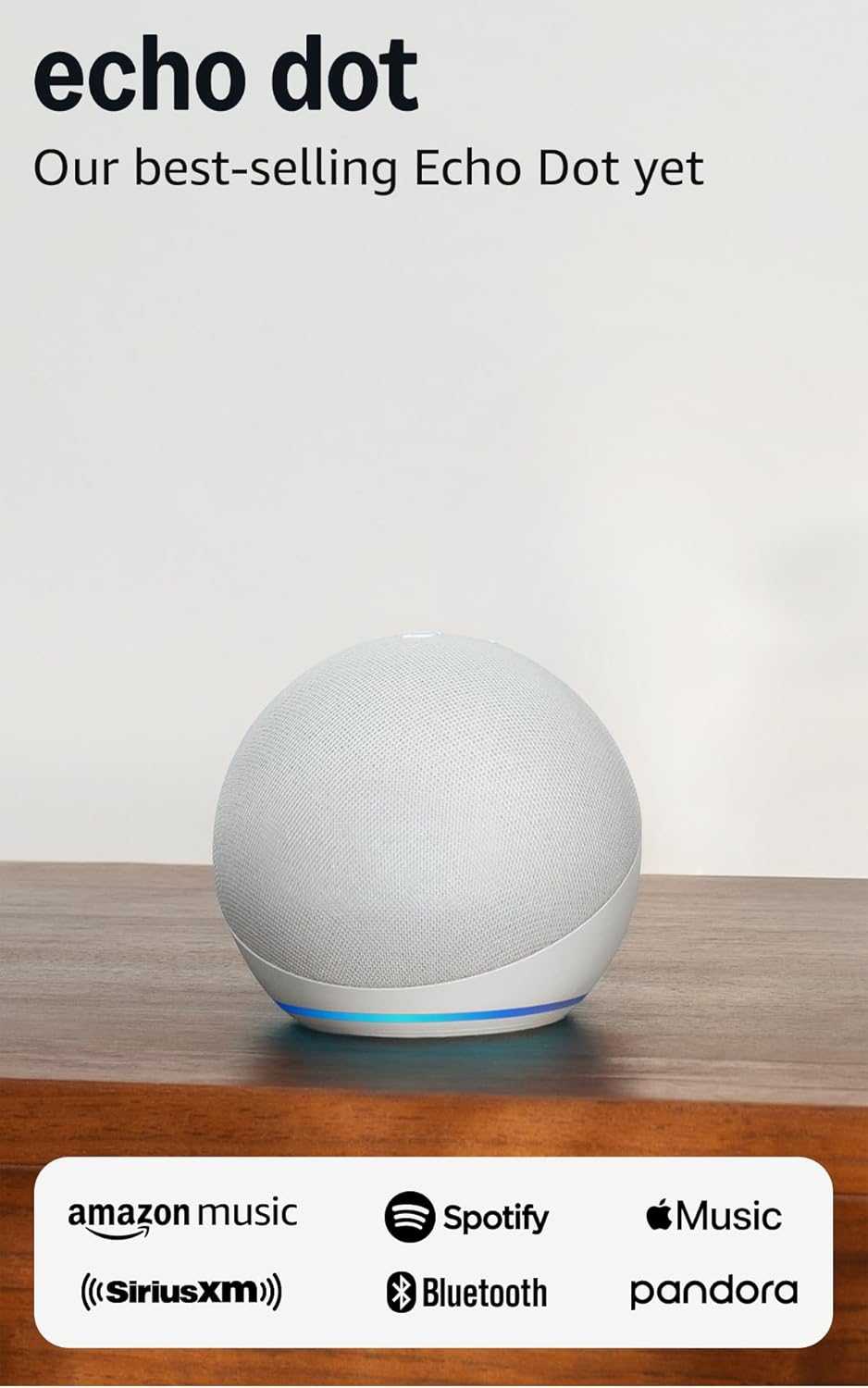
Amazon Echo Dot (newest model) - Vibrant sounding speaker...
As an Amazon Associate we earn from qualifying purchases.
Official Manufacturer Manual
Amazon provides official product documentation through their online manual rather than downloadable PDF. Access setup guides, troubleshooting steps, and product specifications for your Amazon Echo Show.
Source: amazon.com
Need More Help? Amazon Support
Note: The contact information below connects you directly to Amazon's official customer support team, not Trunetto. They can help with warranty claims, device replacements, and advanced technical issues.
How Does Amazon Compare?
Before replacing your Amazon device, see how it stacks up against alternatives in our full comparison guides.
Accessories owners commonly pair with Amazon Echo Show.

Amazon Echo Show 5 (newest model), Smart display, Designe...

Amazon Echo Show 5 (newest model), Smart display, Designe...

Amazon Echo Show 10 (newest model)
As an Amazon Associate we earn from qualifying purchases.



