

Why Is My Amazon Echo Show Touch Screen Unresponsive?
- Oil/moisture/dust on the screen
- Screen protector interfering
- Software freeze needing a reboot
Problem Description
Your Amazon Echo Show is not responding to commands from the app, voice assistants, or physical controls. The Echo Show appears powered on but ignores inputs, which prevents you from controlling it remotely or through any smart home integration. Specifically, the issue involves touch unresponsive. The steps below walk you through diagnosing the root cause and applying proven fixes so your Echo Show works reliably again.
Why This Happens in Real Homes
An unresponsive Echo Show touchscreen is most often a surface or software issue, not a broken digitizer. Capacitive touch is thrown off by oil, moisture, dust, or a bubbled screen protector, and a frozen UI simply needs a restart.
Start by wiping the screen with a dry microfiber cloth and removing any screen protector to test, then force-restart the device (hold the buttons per your model). Make sure your fingers are dry and bare; if the screen stays dead after cleaning and a reboot, the touch layer may have failed and it's an Amazon support matter.
Symptoms
- Touchscreen not responding
- Some areas dead
- No response to taps
- Responds to voice but not touch
- Screen frozen
- Touch works then stops
- Unresponsive after a cleaning product
- Intermittent touch
Recognize these? Here's what usually causes it.
Common Causes
- Oil/moisture/dust on the screen
- Screen protector interfering
- Software freeze needing a reboot
- Overheating
- Wet or gloved fingers
- Static image froze the UI
- Firmware glitch
- Digitizer fault (rare)
Most fixes happen in the first 3 steps.
Smart speakers are always listening for the wake word when unmuted. Review and delete your voice history regularly in the app privacy settings. Never place the speaker in bathrooms or near water sources as moisture can permanently damage internal components.
Tools & Requirements
These tools will help you complete this fix.
As an Amazon Associate we earn from qualifying purchases.
Step-by-Step Solution
Clean the screen surface
Oil, moisture, and dust on the touchscreen interfere with capacitive touch detection. Wipe the screen with a clean, dry microfibre cloth. Do not use household cleaners, window spray, or wet wipes — chemicals can damage the oleophobic coating and make touch issues worse. If the screen has sticky residue (common in kitchens), dampen the cloth slightly with plain water, wipe, then dry immediately. A clean screen resolves most intermittent touch problems.

Needed for this step
BELLEMOND「Samurai Cloth」Japanese Microfiber Cle...
This helps complete the fix you are currently reading.
$18.99Check if the screen is partially or fully unresponsive
Test touch in different areas of the screen. If only one region is dead (e.g., the bottom edge), the touch digitiser may be physically damaged or a ribbon cable may be loose. If the entire screen is unresponsive but content still displays and Alexa responds to voice, the touch controller has crashed. Say "Alexa, restart" to reboot the device — this usually fixes a software-level touch freeze.
Restart the device
If you cannot use voice either, unplug the Echo Show from power, wait 30 seconds, and plug it back in. A full power cycle resets the touch controller hardware. After it boots (about 60-90 seconds), test touch immediately by swiping down from the top to open the quick settings panel. If touch works after restart but fails again within hours, a specific app or skill may be causing the crash — note what you were doing when touch stopped and avoid that trigger.
Check for screen protectors or cases
Aftermarket screen protectors, especially thick tempered glass ones, can reduce touch sensitivity enough to make the screen seem unresponsive. If you have a screen protector installed, remove it and test. Some Echo Show cases also press on the screen edges, triggering phantom touches that lock out real input. Remove any case and test with the bare device.
Factory reset if nothing else works
If touch remains unresponsive after cleaning, restarting, and removing accessories, perform a factory reset. Press and hold the Mute button and the Volume Down button simultaneously for about 15 seconds until the device resets. Set it up fresh through the Alexa app. If the touchscreen is still unresponsive after a factory reset on a clean, bare device, the touch hardware is defective — contact Amazon support for replacement.
Quick Solutions
Still having issues? This is usually the deeper cause below.
If this comes back after following these steps, check whether a recent app or firmware update reset a default setting — the fix works, but the setting gets reverted silently.
Place your speaker in a central location at ear height for best voice pickup. Avoid corners and bookshelves which muffle the microphones. If you have multiple speakers, set up multi-room audio groups so music plays in sync across rooms.
This issue almost always looks more complex than it is — the majority of cases trace back to a single setting, a stale credential, or a default that shipped wrong.
- Oil/moisture/dust on the screen
- Screen protector interfering
- Software freeze needing a reboot
- Overheating
- Wet or gloved fingers
Before you go — try one of these (they fix most cases).
Most popular upgrades chosen by Amazon Echo Show owners.

Amazon eero Pro 6E mesh wifi router (1-pack) with Amazon ...

Amazon Echo Dot Kids (newest model) - Dragon including Am...
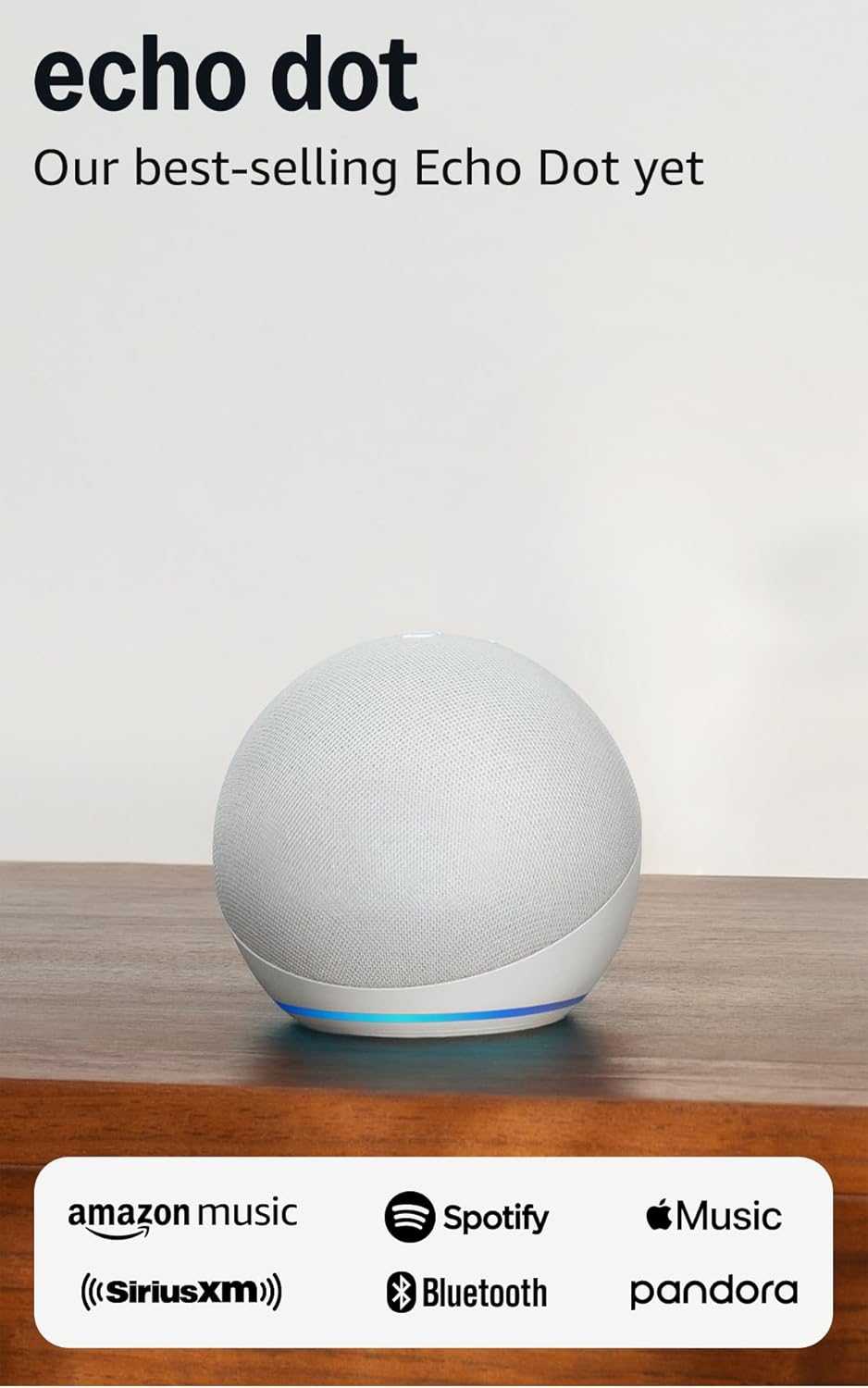
Amazon Echo Dot (newest model) - Vibrant sounding speaker...
As an Amazon Associate we earn from qualifying purchases.
Official Manufacturer Manual
Amazon provides official product documentation through their online manual rather than downloadable PDF. Access setup guides, troubleshooting steps, and product specifications for your Amazon Echo Show.
Source: amazon.com
Need More Help? Amazon Support
Note: The contact information below connects you directly to Amazon's official customer support team, not Trunetto. They can help with warranty claims, device replacements, and advanced technical issues.
How Does Amazon Compare?
Before replacing your Amazon device, see how it stacks up against alternatives in our full comparison guides.
Accessories owners commonly pair with Amazon Echo Show.

Amazon Echo Show 5 (newest model), Smart display, Designe...

Amazon Echo Show 5 (newest model), Smart display, Designe...

Amazon Echo Show 10 (newest model)
As an Amazon Associate we earn from qualifying purchases.



