

Why Is My Amazon Echo Stuck on Updating Your Device With a Spinning Orange Ring After the Fire OS 7.6.4 Update?
- Software update download stalled due to slow or unstable WiFi connection to Amazon servers
- Echo internal storage full from cached skills and data preventing update extraction
- Update file corrupted during download and Echo cannot verify checksum to proceed
Problem Description
Your Amazon Echo is stuck on the Fire OS 7.6.4.3 update, displaying a spinning orange light ring and repeating the message Updating your device I will let you know when I am done. This state has persisted for hours or even overnight. The Echo does not respond to voice commands, the Action button, or the mute button. The Alexa app shows the device as offline or in update mode. This is a well-documented issue affecting Echo Dot 3rd through 5th generation models where the software update download or installation stalls and the Echo enters an unrecoverable update loop. The Amazon forums and Reddit r/alexa have hundreds of reports of this exact symptom.
Why This Happens in Real Homes
A spinning orange light with "updating your device" means the Echo is applying a software update — normally it finishes on its own, but a stalled download (slow or dropped internet) can leave it spinning for a long time.
Start by giving it time on a solid connection (updates can take 15-45 minutes), and make sure your WiFi and internet are stable. If it's still stuck after an hour, reboot it (unplug 30 seconds) so it retries the download; orange spinning that never completes is almost always a slow or interrupted connection.
Symptoms
- Echo displays spinning orange light ring continuously for more than one hour
- Echo repeats Updating your device I will let you know when I am done when pressed
- Alexa does not respond to any voice commands or wake word during the stuck update
- Action button and volume buttons produce no response during stuck update state
- Alexa app shows Echo device as offline or currently updating software
- Echo was working normally then started the spinning orange ring and never recovered
Recognize these? Here's what usually causes it.
Common Causes
- Software update download stalled due to slow or unstable WiFi connection to Amazon servers
- Echo internal storage full from cached skills and data preventing update extraction
- Update file corrupted during download and Echo cannot verify checksum to proceed
- Amazon server delivered incompatible update package for specific Echo hardware revision
- Echo WiFi module overheating during extended download attempt causing connection drops
- Previous interrupted update left partial files blocking new update from installing
Most fixes happen in the first 3 steps.
Do not repeatedly unplug and replug the Echo in rapid succession trying to force the update. Each interrupted download wastes the partial progress. Unplug once, wait 30 seconds, replug once, then wait 15 full minutes before trying anything else.
Step-by-Step Solution
Power Cycle the Echo
Unplug the Echo from its power adapter completely. Wait 30 full seconds. Plug it back in. The Echo will show a blue ring during boot then transition to orange while it checks for updates. If the previous update was stuck due to a temporary server or WiFi issue the power cycle gives it a fresh attempt. Wait up to 15 minutes after plugging in. If the Echo completes the update the ring will turn blue then Alexa will say Hello or play the setup sound. If it goes back to spinning orange for more than 15 minutes proceed to the next step.
Force Soft Reset With Mute Button
While the Echo is still plugged in and showing the spinning orange ring press and hold the mute button on top of the device for 20 to 25 seconds. On Echo Dot 3rd Gen and later models this triggers a soft reset that interrupts the stuck update process and forces the Echo to reboot. The light ring will turn off briefly then the Echo will restart. This method is documented on Amazon support forums and has resolved the stuck update for many users. After the reboot the Echo may successfully complete the update or return to normal operation.
Factory Reset to Clear Stuck State
If the soft reset did not work perform a full factory reset. On Echo Dot 4th and 5th Gen and Echo 4th Gen press and hold the Action button for 25 seconds. The orange ring will turn off. Wait 10 seconds then the ring lights up blue indicating the Echo has reset to factory defaults. For Echo Dot 3rd Gen hold the Action button for 25 seconds until the light ring pulses orange. The Echo will restart in setup mode. Open the Alexa app and set up the Echo as a new device. During setup the Echo downloads and installs the latest software from Amazon servers bypassing whatever corrupted state caused the loop.
Improve WiFi Before Re-Setup
Before setting up the reset Echo make sure the WiFi signal is strong at the Echo location. Place the Echo within 3 metres of your router for the initial setup and software update. The update files for Echo devices can be several hundred megabytes. A weak or intermittent WiFi connection causes partial downloads that trigger the stuck update loop. After the software update completes successfully and Alexa responds normally you can move the Echo back to its permanent location. Check that the permanent location has at least 3 bars of WiFi signal.
Deregister and Re-Register If Still Stuck
If factory reset did not fix the problem the Echo may have a corrupted device record on Amazon servers. Open the Alexa app on your phone. Go to Devices then Echo and Alexa then select the stuck Echo. Tap Deregister. This removes the device from your Amazon account completely. Now set up the Echo again from scratch. The Alexa app will detect it in setup mode and register it as a new device with Amazon. This creates a fresh device record on Amazon servers and the Echo receives a clean software update package targeted at its specific hardware generation.
Quick Solutions
Still having issues? This is usually the deeper cause below.
If the device became unresponsive after a firmware update, a factory reset usually clears the corrupted state — the update itself is rarely the root cause.
Amazon pushes Echo software updates automatically overnight. If your Echo has weak WiFi it may repeatedly fail the overnight update and get stuck in the orange ring loop every morning. Permanently improve the WiFi signal at the Echo location to prevent recurring stuck updates.
This issue almost always looks more complex than it is — the majority of cases trace back to a single setting, a stale credential, or a default that shipped wrong.
- Software update download stalled
- Echo internal storage full from cached skills and data
- Update file corrupted during download and Echo cannot verify
- Amazon server delivered incompatible update package for specific Echo
- Echo WiFi module overheating during extended download attempt
Before you go — try one of these (they fix most cases).
Most popular upgrades chosen by Amazon Echo Smart Speaker owners.

Amazon eero Pro 6E mesh wifi router (1-pack) with Amazon ...

Amazon Echo Dot Kids (newest model) - Dragon including Am...
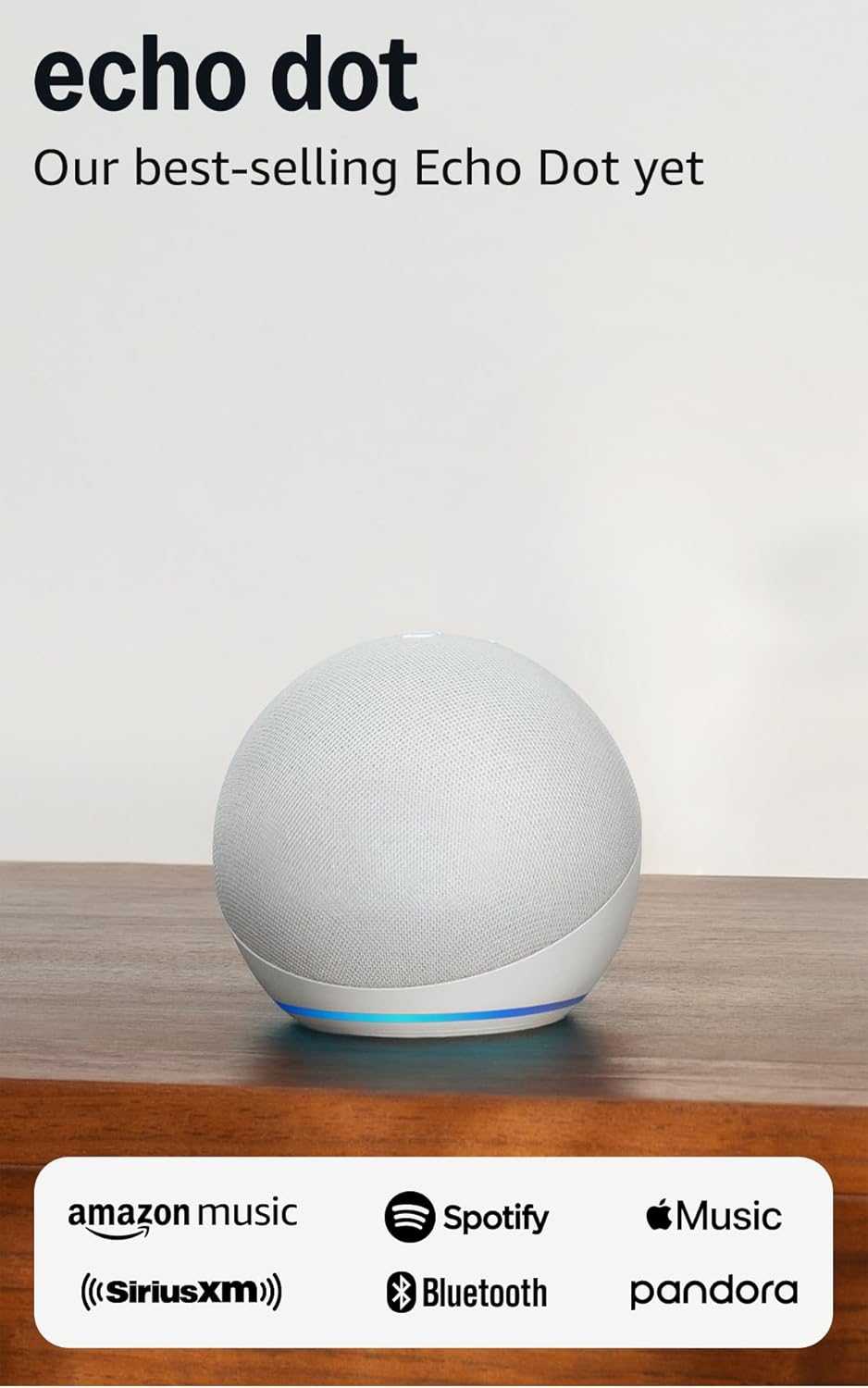
Amazon Echo Dot (newest model) - Vibrant sounding speaker...
As an Amazon Associate we earn from qualifying purchases.
Official Manufacturer Manual
Amazon provides official product documentation through their online manual rather than downloadable PDF. Access setup guides, troubleshooting steps, and product specifications for your Amazon Echo Smart Speaker.
Source: amazon.com
Need More Help? Amazon Support
Note: The contact information below connects you directly to Amazon's official customer support team, not Trunetto. They can help with warranty claims, device replacements, and advanced technical issues.
How Does Amazon Compare?
Before replacing your Amazon device, see how it stacks up against alternatives in our full comparison guides.
Accessories owners commonly pair with Amazon Echo Smart Speaker.

Amazon Basics 65 Piece Home Repair Tool Kit Set With Carr...

Amazon Basics Smart Plug, Matter Compatible, Compatible w...

Amazon Basics Dual Smart Plug with Motion Sensor and Nigh...
As an Amazon Associate we earn from qualifying purchases.


