

Why Is My Echo Device Stuck in Setup Mode?
- Wrong WiFi password entered
- Weak WiFi at the setup spot
- Phone not near the device
Problem Description
Your Echo device is stuck in setup mode with the spinning orange light and won't complete setup. The orange light ring means the Echo is waiting to be configured through the Alexa app. If setup has stalled, the Echo may have lost WiFi during configuration. This guide covers waiting for completion, restarting setup, and factory resetting if needed.
Why This Happens in Real Homes
Solid or spinning orange means the Echo is in setup mode and hasn't finished connecting — so "stuck on orange" is a setup that didn't complete, usually a wrong WiFi password, a weak signal, or the app not able to reach the device. It's waiting for you to finish, not broken.
Start by re-running setup near the router with your phone right beside the Echo, re-entering the WiFi password carefully, and making sure a 2.4GHz band is available. Disable router AP isolation if the app can't find it, and reboot the device to retry; a spinning orange that never clears is almost always the WiFi hand-off failing.
Symptoms
- Stuck on spinning orange
- Will not complete setup
- Orange ring will not stop
- App cannot connect during setup
- Setup times out
- Repeats setup mode
- Will not join WiFi in setup
- Endless orange
Recognize these? Here's what usually causes it.
Common Causes
- Wrong WiFi password entered
- Weak WiFi at the setup spot
- Phone not near the device
- 5GHz-only network confusing setup
- Router AP isolation
- App/account issue
- Device needs a reboot to retry
- Firmware download stalling
Most fixes happen in the first 3 steps.
Smart speakers are always listening for the wake word when unmuted. Review and delete your voice history regularly in the app privacy settings. Never place the speaker in bathrooms or near water sources as moisture can permanently damage internal components.
Tools & Requirements
These tools will help you complete this fix.

Drill optional
DEWALT 20V MAX Cordless Drill and Impact Driver, Pow...

Level
9 Inch Torpedo Level Magnetic, Shock-Proof Small Lev...

Screwdriver
STREBITO 155 in 1 Electric Screwdriver Set, Small El...
As an Amazon Associate we earn from qualifying purchases.
Step-by-Step Solution
Wait for the setup process to complete
When the Echo LED ring shows solid orange, the device is in setup mode. If you just plugged it in for the first time, it stays in setup mode until you complete configuration in the Alexa app. Open the Alexa app, go to Devices > + > Add Device > Amazon Echo, and follow the prompts. If the app does not find the device, make sure Bluetooth is enabled on your phone and you are within 10 feet of the Echo. Setup mode is not a stuck state if the device is genuinely new or factory-reset.
Fix an Echo that keeps returning to setup mode
If the Echo completes setup but reverts to orange setup mode after a restart, it failed to save the WiFi credentials. This usually means the WiFi connection dropped during the final step of setup. Move the Echo closer to your router, make sure stable WiFi, and run setup again. If it keeps reverting, your router may be rejecting the device — check your router admin page for MAC filtering or a device blacklist. Some routers also have a maximum device limit that silently rejects new connections.
Force restart the Echo
If the Echo is stuck with a pulsing orange ring and the Alexa app cannot find it, unplug the device for 60 seconds (not just 10 — give it a full minute), then plug it back in. The longer power-off drains residual power from the microcontroller and forces a clean boot. After it starts up, the ring should pulse orange and the app should detect it. If the ring shows a different colour (spinning blue, solid red), the device is in a different state — check the LED colour guide in the Alexa app.
Factory reset the device
If nothing works, factory reset to clear corrupted setup data. The method varies by model: on the Echo Dot (3rd gen and later), press and hold the Action button for 25 seconds until the ring turns orange. On the Echo Show, press and hold the Mute and Volume Down buttons for 15 seconds. On the Echo Studio, press and hold the Action button for 20 seconds. After the reset, the device returns to factory-fresh setup mode. Run setup from the Alexa app as if it is a brand new device.
Check for account or regional issues
If the Echo completes setup but immediately returns to setup mode, your Amazon account may have a regional mismatch. The Echo must be registered to an Amazon account for the same country where the device was purchased. An Echo bought in the US will not register to a UK Amazon account. Check your Amazon account country settings at amazon.com/hz/mycd/myx. Also verify that your account does not have two-factor authentication blocking device registration — temporarily disable 2FA during setup if it keeps failing.
Quick Solutions
Still having issues? This is usually the deeper cause below.
If this comes back after following these steps, check whether a recent app or firmware update reset a default setting — the fix works, but the setting gets reverted silently.
Place your speaker in a central location at ear height for best voice pickup. Avoid corners and bookshelves which muffle the microphones. If you have multiple speakers, set up multi-room audio groups so music plays in sync across rooms.
This issue almost always looks more complex than it is — the majority of cases trace back to a single setting, a stale credential, or a default that shipped wrong.
- Wrong WiFi password entered
- Weak WiFi at the setup spot
- Phone not near the device
- 5GHz-only network confusing setup
- Router AP isolation
Before you go — try one of these (they fix most cases).
Most popular upgrades chosen by Amazon Echo owners.

Amazon eero Pro 6E mesh wifi router (1-pack) with Amazon ...

Amazon Echo Dot Kids (newest model) - Dragon including Am...
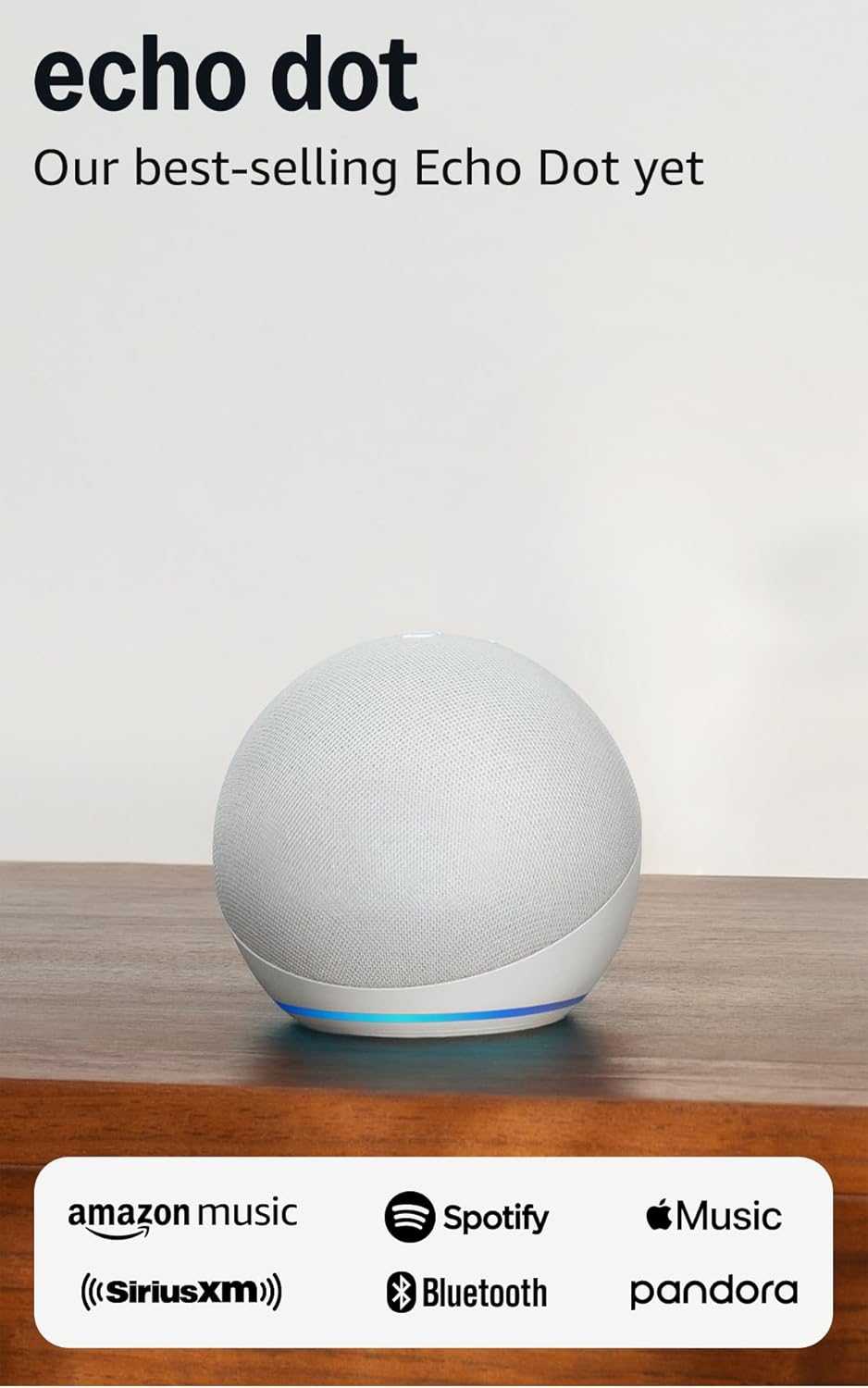
Amazon Echo Dot (newest model) - Vibrant sounding speaker...
As an Amazon Associate we earn from qualifying purchases.
Official Manufacturer Manual
Amazon provides official product documentation through their online manual rather than downloadable PDF. Access setup guides, troubleshooting steps, and product specifications for your Amazon Echo.
Source: amazon.com
Need More Help? Amazon Support
Note: The contact information below connects you directly to Amazon's official customer support team, not Trunetto. They can help with warranty claims, device replacements, and advanced technical issues.
How Does Amazon Compare?
Before replacing your Amazon device, see how it stacks up against alternatives in our full comparison guides.
Accessories owners commonly pair with Amazon Echo.

Amazon Echo Show 5 (newest model), Smart display, Designe...

Amazon Echo Show 5 (newest model), Smart display, Designe...

Amazon Echo Show 10 (newest model)
As an Amazon Associate we earn from qualifying purchases.



