

How Do I Adjust Equalizer Settings on My Echo Dot 5th Gen?
- EQ not adjusted in app or by voice
- Looking in the wrong menu
- Wanting per-device vs group EQ
Problem Description
You want to adjust the equalizer (bass, midrange, treble) on your Echo Dot 5th Gen to customize the sound. The EQ settings are in the Alexa app under the device settings, or you can say "Alexa, set bass to maximum." This guide covers accessing the equalizer, adjusting each frequency band, and finding the best settings for your room.
Why This Happens in Real Homes
The Echo Dot's equalizer is simple — bass, midrange, and treble — and you can set it two ways: in the Alexa app under the device's Audio Settings, or by voice ("Alexa, set the bass to maximum"). Most "can't adjust EQ" cases are just not knowing where the sliders live.
Start in the Alexa app: Devices > your Echo Dot > Audio Settings, and drag the bands, or use voice for quick tweaks. Settings are per device, so adjust each one; if EQ seems to reset, it's usually after a software update, and you just re-apply your preferences.
Symptoms
- Want to adjust bass/treble
- EQ change not sticking
- Sound too flat/boomy
- Cannot find EQ settings
- EQ only via voice
- EQ reset after update
- Per-device EQ question
- Stereo pair EQ
Recognize these? Here's what usually causes it.
Common Causes
- EQ not adjusted in app or by voice
- Looking in the wrong menu
- Wanting per-device vs group EQ
- Update reset the EQ
- Voice EQ command misheard
- Stereo pair applying EQ jointly
- Bluetooth source bypassing EQ
- Firmware out of date
Most fixes happen in the first 3 steps.
Smart speakers are always listening for the wake word when unmuted. Review and delete your voice history regularly in the app privacy settings. Never place the speaker in bathrooms or near water sources as moisture can permanently damage internal components.
Tools & Requirements
Step-by-Step Solution
Access the equalizer in the Alexa app
Open the Alexa app, go to Devices, select your Echo Dot 5th Gen, and tap Audio Settings > Equalizer. You see three sliders: Bass, Midrange, and Treble, each adjustable from -6 to +6. The default is 0 for all three. You can also adjust by voice: say "Alexa, set bass to plus four" or "Alexa, set treble to minus two." Changes apply immediately and persist until you change them again.
Best settings for music on the Echo Dot
The Echo Dot 5th Gen has a 1.73-inch front-firing speaker that sounds thin at default settings. For most music, try Bass +4, Midrange 0, Treble +1. This adds warmth without muddying vocals. For hip-hop and electronic music, push Bass to +6 — the Dot distorts slightly at max bass on high volume, so keep volume at 80% or lower. For podcasts and spoken word, set Bass -2, Midrange +2, Treble +1 for clearer voice.
Use voice to adjust on the fly
Instead of opening the app every time, use voice commands for quick adjustments. "Alexa, increase bass" bumps it up by one notch. "Alexa, reset equalizer" returns all three bands to 0. "Alexa, set treble to maximum" sets it to +6. This is faster than navigating the app and useful when you switch between music and podcasts. The Echo confirms each change with a brief tone.
Pair with a subwoofer for better bass
The Echo Dot 5th Gen can pair with an Echo Sub for real bass that the tiny internal speaker cannot produce. In the Alexa app, go to your Echo Dot settings and select Create Speaker Set. Add the Echo Sub. The Dot handles midrange and treble while the Sub delivers bass. With this setup, you can set the Dot EQ bass to 0 and let the Sub do the heavy lifting. Two Echo Dots plus one Echo Sub creates a 2.1 stereo system.
Save different presets for different uses
Alexa does not have built-in EQ presets, but you can create routines that set specific EQ values. In the Alexa app, go to More > Routines > Create Routine. Set a trigger phrase like "Alexa, movie mode" and add actions to set Bass +4, Midrange -1, Treble -1. Create another routine for "Alexa, podcast mode" with Bass -2, Midrange +2, Treble +1. This gives you switchable presets without manually adjusting each slider.
Quick Solutions
Still having issues? This is usually the deeper cause below.
If this comes back after following these steps, check whether a recent app or firmware update reset a default setting — the fix works, but the setting gets reverted silently.
Place your speaker in a central location at ear height for best voice pickup. Avoid corners and bookshelves which muffle the microphones. If you have multiple speakers, set up multi-room audio groups so music plays in sync across rooms.
This issue almost always looks more complex than it is — the majority of cases trace back to a single setting, a stale credential, or a default that shipped wrong.
- EQ not adjusted in app or by voice
- Looking in the wrong menu
- Wanting per-device vs group EQ
- Update reset the EQ
- Voice EQ command misheard
Before you go — try one of these (they fix most cases).
Most popular upgrades chosen by Amazon Echo Dot 5th Gen owners.

Amazon eero Pro 6E mesh wifi router (1-pack) with Amazon ...

Amazon Echo Dot Kids (newest model) - Dragon including Am...
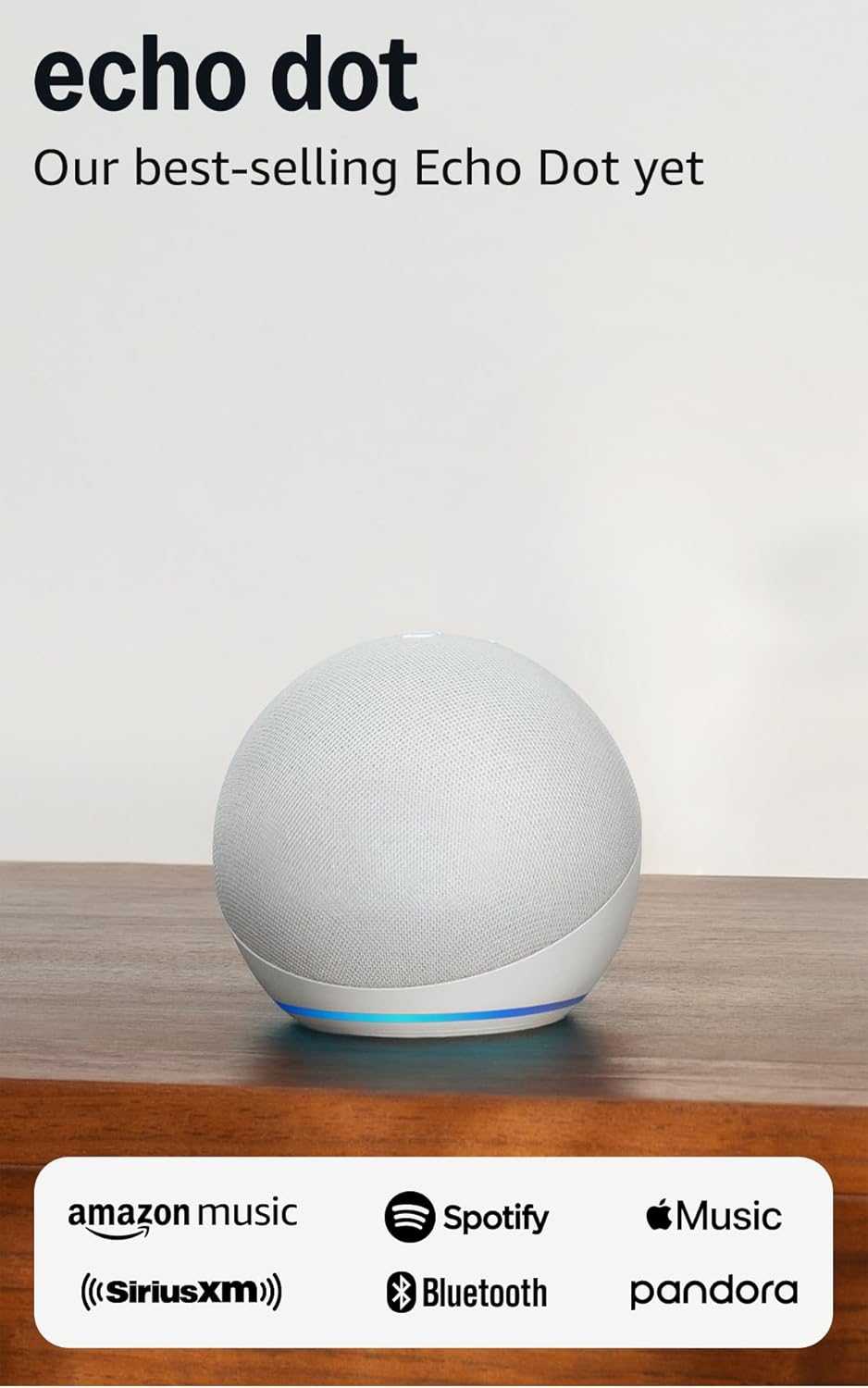
Amazon Echo Dot (newest model) - Vibrant sounding speaker...
As an Amazon Associate we earn from qualifying purchases.
Official Manufacturer Manual
Amazon provides official product documentation through their online manual rather than downloadable PDF. Access setup guides, troubleshooting steps, and product specifications for your Amazon Echo Dot 5th Gen.
Source: amazon.com
Need More Help? Amazon Support
Note: The contact information below connects you directly to Amazon's official customer support team, not Trunetto. They can help with warranty claims, device replacements, and advanced technical issues.
How Does Amazon Compare?
Before replacing your Amazon device, see how it stacks up against alternatives in our full comparison guides.
Accessories owners commonly pair with Amazon Echo Dot 5th Gen.

Amazon Basics 65 Piece Home Repair Tool Kit Set With Carr...

Amazon Basics Smart Plug, Matter Compatible, Compatible w...

Amazon Basics Dual Smart Plug with Motion Sensor and Nigh...
As an Amazon Associate we earn from qualifying purchases.



