

Why Won't My Echo Dot Respond to Alexa?
- Microphone muted (solid red ring)
- Background noise drowning the wake word
- Weak WiFi/no internet
Problem Description
Your Echo Dot is not responding when you say "Alexa" or any voice command. The most common cause is the microphone being muted — the mute button on top of the Echo shows a red ring when muted. When muted, the device ignores all voice input. This guide covers checking mute status, WiFi connectivity, and other common causes of unresponsiveness.
Why This Happens in Real Homes
An Echo Dot that ignores "Alexa" almost always has its microphone muted — the mic button on top, showing a solid red ring. It's the single most common cause and easy to bump. After that, it's noise, a weak connection, or distance.
Start by pressing the mic button to unmute (the red ring disappears), then reduce background noise and confirm it's online. Move closer or speak toward it if it half-hears you, and reboot for a glitch; a red ring is the giveaway that it can't hear you no matter how loudly you ask.
Symptoms
- Ignores 'Alexa'
- No response to voice
- Red ring on top
- Lights up but does not answer
- Responds only sometimes
- Mic seems off
- Works for touch not voice
- No wake
Recognize these? Here's what usually causes it.
Common Causes
- Microphone muted (solid red ring)
- Background noise drowning the wake word
- Weak WiFi/no internet
- Too far to hear clearly
- Wake word changed/misheard
- Device needs a reboot
- Software glitch
- Firmware out of date
Most fixes happen in the first 3 steps.
Smart speakers are always listening for the wake word when unmuted. Review and delete your voice history regularly in the app privacy settings. Never place the speaker in bathrooms or near water sources as moisture can permanently damage internal components.
Step-by-Step Solution
Check that the microphone is not muted
Press the microphone button on top of the Echo Dot. If the LED ring glows solid red, the mic is muted and the device will not respond to any voice commands. Press the button again to unmute — the red ring turns off and Alexa is listening again. This is the most common cause of "Alexa not responding" and is easily triggered by accidentally pressing the button while moving the device.
Make sure the device has power and internet
Check that the LED ring shows some activity — even a dim blue light when idle confirms the device is powered and connected. If the ring is completely dark, the power adapter may have come loose. Unplug and replug the USB-C cable at both ends. If the ring lights up but Alexa says she cannot connect, check your WiFi. Say "Alexa, are you connected to WiFi" or check in the Alexa app under Devices > your Echo Dot > Network.
Restart the Echo Dot
Unplug the power cable, wait 15-20 seconds, and plug it back in. The Echo Dot takes about 45-60 seconds to boot. The LED ring cycles through a startup animation and then turns off, indicating it is ready. After restarting, say "Alexa" and watch for the blue ring to light up. If it responds after a restart, the device had a software hang — this happens occasionally and is not a sign of a hardware problem.
Check for background noise interference
The Echo Dot has multiple far-field microphones, but persistent background noise (TV, fan, air conditioner, music from another speaker) can prevent it from hearing the wake word. Move the Echo Dot away from noise sources. If it sits next to a TV, consider muting the TV briefly and testing. In noisy kitchens, the Echo Dot 5th Gen performs better than older generations due to improved noise cancellation, but constant 70+ dB noise overwhelms any microphone.
Change the wake word if recognition is poor
If the Echo Dot responds to other household members but not to you, your voice may not trigger the default "Alexa" wake word reliably. Try a different wake word: say "Alexa, change your wake word" and choose from Echo, Amazon, Computer, or Ziggy. Some voices match certain wake words better. You can also retrain Alexa to recognise your voice by going to the Alexa app > Settings > Account Settings > Recognised Voices and creating a new voice profile.
Quick Solutions
Still having issues? This is usually the deeper cause below.
If voice commands stopped working after relinking the account, check that the skill or action is still enabled — relinking sometimes disables it silently.
Place your speaker in a central location at ear height for best voice pickup. Avoid corners and bookshelves which muffle the microphones. If you have multiple speakers, set up multi-room audio groups so music plays in sync across rooms.
This issue almost always looks more complex than it is — the majority of cases trace back to a single setting, a stale credential, or a default that shipped wrong.
- Microphone muted (solid red ring)
- Background noise drowning the wake word
- Weak WiFi/no internet
- Too far to hear clearly
- Wake word changed/misheard
Before you go — try one of these (they fix most cases).
Most popular upgrades chosen by Amazon Echo Dot owners.

Amazon eero Pro 6E mesh wifi router (1-pack) with Amazon ...

Amazon Echo Dot Kids (newest model) - Dragon including Am...
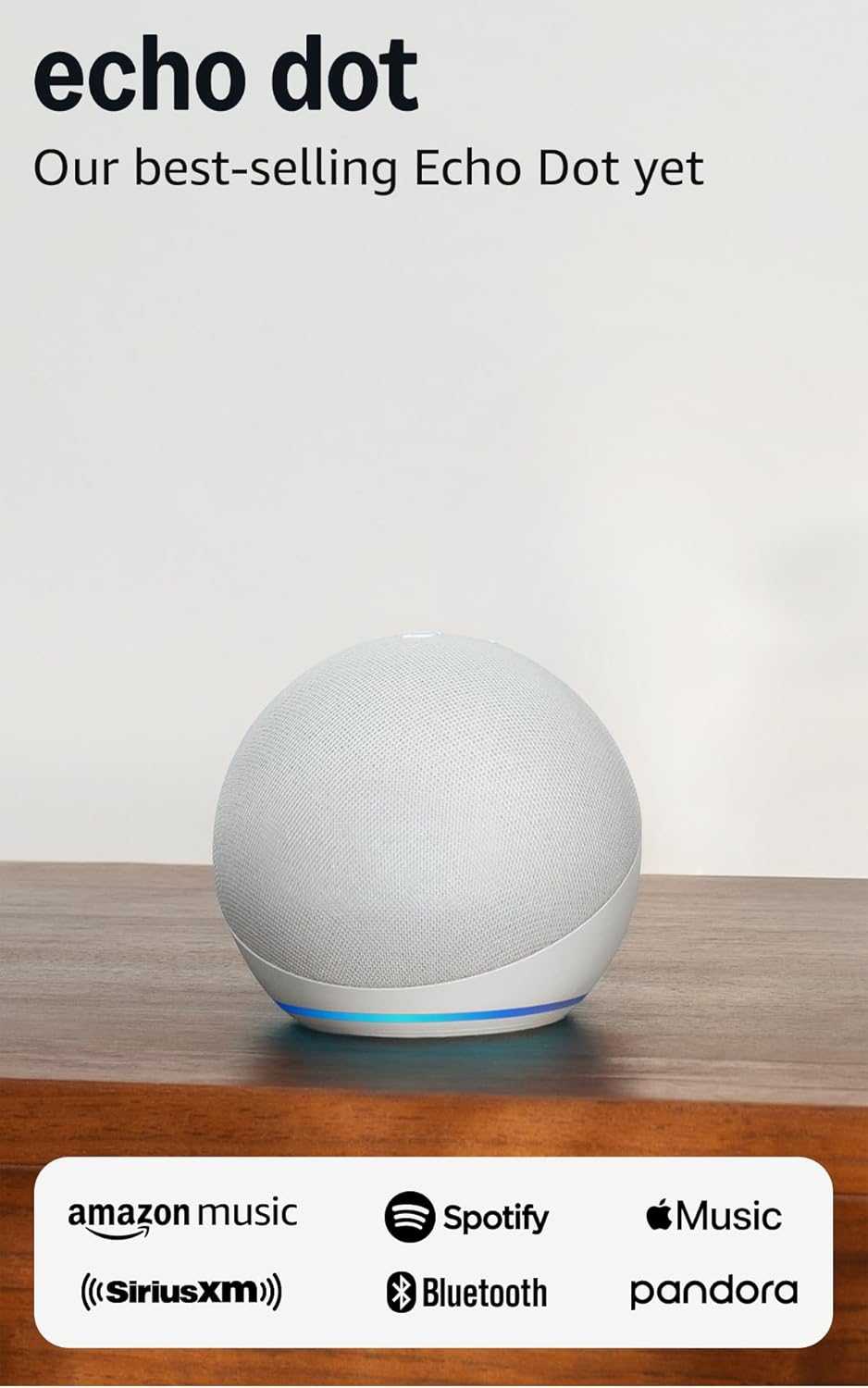
Amazon Echo Dot (newest model) - Vibrant sounding speaker...
As an Amazon Associate we earn from qualifying purchases.
Official Manufacturer Manual
Amazon provides official product documentation through their online manual rather than downloadable PDF. Access setup guides, troubleshooting steps, and product specifications for your Amazon Echo Dot.
Source: amazon.com
Need More Help? Amazon Support
Note: The contact information below connects you directly to Amazon's official customer support team, not Trunetto. They can help with warranty claims, device replacements, and advanced technical issues.
How Does Amazon Compare?
Before replacing your Amazon device, see how it stacks up against alternatives in our full comparison guides.
Accessories owners commonly pair with Amazon Echo Dot.

Amazon Basics 65 Piece Home Repair Tool Kit Set With Carr...

Amazon Basics Smart Plug, Matter Compatible, Compatible w...

Amazon Basics Dual Smart Plug with Motion Sensor and Nigh...
As an Amazon Associate we earn from qualifying purchases.



