

Why Won't My Amazon Echo Understand What I Say?
- Background noise interference
- Accent not recognized well
- Device names too similar
Problem Description
Your Amazon Echo is not understanding voice commands — it either doesn't respond, responds to the wrong thing, or says it doesn't understand. Speaking clearly and pausing briefly after the wake word ("Alexa") helps. Background noise, accents, and speaking too quickly can cause recognition failures. This guide covers improving voice recognition accuracy.
Why This Happens in Real Homes
When Alexa mishears commands, it's usually environmental: background noise (TV, kitchen), an accent or phrasing it struggles with, or the device too far to hear clearly. It hears something, just not what you meant.
Start by reducing background noise and speaking clearly toward the device, and use the Alexa app's Voice History to see what it actually heard (which reveals mishearing vs not-hearing). Retraining Voice ID and turning on Follow-up mode help; moving the Echo away from noise sources is the biggest single improvement.
Symptoms
- Alexa hears you but responds incorrectly
- Frequently says I don't understand
- Commands work sometimes not others
- Wrong smart home device activated
- Music plays wrong song
Recognize these? Here's what usually causes it.
Common Causes
- Background noise interference
- Accent not recognized well
- Device names too similar
- Skill conflicts
- Voice profile not trained
Most fixes happen in the first 3 steps.
Echo learns from interactions. The more you use it correctly, the better it understands your specific speech patterns.
Step-by-Step Solution
Speak clearly and pause after the wake word
Say "Alexa" and wait for the blue ring to light up before continuing your command. Speaking too quickly or starting your command before Alexa is listening causes it to miss the beginning of your request. Speak at a normal conversational pace — you do not need to speak slowly, but avoid mumbling or trailing off at the end. The Echo processes your command only after detecting a pause, so finish your entire request before stopping.
Rephrase commands that Alexa misunderstands
Alexa interprets commands literally. "Turn off the lamp" works; "kill the light" may not. If Alexa responds with "I did not understand" or does the wrong thing, try rephrasing with standard command patterns: "Turn on/off [device name]", "Set [device] to [value]", "Play [song/artist] on [service]". Avoid complex multi-step commands in one sentence — break them into two commands instead.
Check your voice history for clues
Open the Alexa app, go to More > Activity & Privacy > Review Voice History. This shows exactly what Alexa heard (the transcription) for each command. If the transcription is wrong, the issue is speech recognition — speak more clearly, reduce background noise, or move closer to the device. If the transcription is correct but Alexa did the wrong thing, the issue is command interpretation — rephrase using simpler language.
Fix device name conflicts
If you say "turn off the kitchen light" and Alexa says she cannot find that device, the device name in the Alexa app may not match what you are saying. Open the Alexa app, go to Devices, and check the exact names of your smart home devices. Rename devices to match natural speech — "Kitchen Light" is better than "Hue-LightStrip-Kitchen-1". Avoid duplicate names across rooms, as Alexa may not know which one you mean.
Improve recognition in noisy environments
Background noise (TV, music, conversations) degrades speech recognition accuracy. The Echo picks up competing audio and tries to interpret it along with your voice. Move the Echo away from speakers, TVs, and windows facing busy streets. If you are in a noisy room, walk closer to the Echo before giving a command. The Echo Dot 5th Gen and Echo Studio have better noise cancellation than older models — upgrading from a 3rd Gen Dot makes a noticeable difference in noisy kitchens.
Quick Solutions
Still having issues? This is usually the deeper cause below.
If this comes back after following these steps, check whether a recent app or firmware update reset a default setting — the fix works, but the setting gets reverted silently.
Creating distinct groups (like Bedroom for all bedroom devices) lets you control multiple devices with one command.
This issue almost always looks more complex than it is — the majority of cases trace back to a single setting, a stale credential, or a default that shipped wrong.
- Background noise interference
- Accent not recognized well
- Device names too similar
- Skill conflicts
- Voice profile not trained
Before you go — try one of these (they fix most cases).
Most popular upgrades chosen by Amazon Echo owners.

Amazon eero Pro 6E mesh wifi router (1-pack) with Amazon ...

Amazon Echo Dot Kids (newest model) - Dragon including Am...
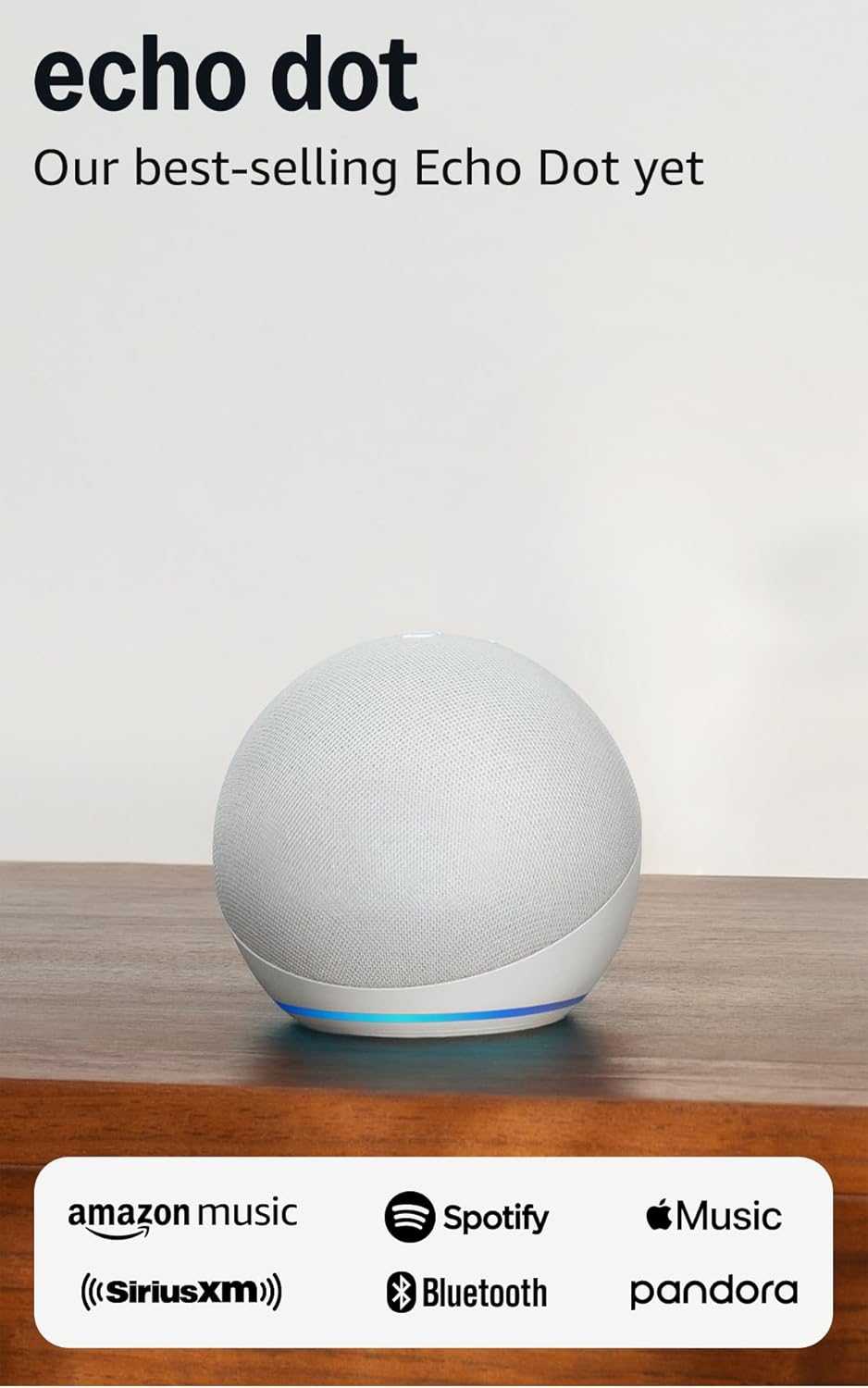
Amazon Echo Dot (newest model) - Vibrant sounding speaker...
As an Amazon Associate we earn from qualifying purchases.
Official Manufacturer Manual
Amazon provides official product documentation through their online manual rather than downloadable PDF. Access setup guides, troubleshooting steps, and product specifications for your Amazon Echo.
Source: amazon.com
Need More Help? Amazon Support
Note: The contact information below connects you directly to Amazon's official customer support team, not Trunetto. They can help with warranty claims, device replacements, and advanced technical issues.
How Does Amazon Compare?
Before replacing your Amazon device, see how it stacks up against alternatives in our full comparison guides.
Accessories owners commonly pair with Amazon Echo.

Amazon Smart Plug, Works with Alexa, Simple Setup, Endles...

Sengled Alexa Light Bulb, S1 Auto Pairing with Alexa Devi...

Sengled Smart Light Bulbs, Color Changing Alexa/Bluetooth...
As an Amazon Associate we earn from qualifying purchases.



