

Why Is My Echo Show 5 Not Responding to Alexa
- Microphone muted
- Device offline
- Wake word changed
Problem Description
If Alexa is not responding, the microphone may be muted or the device is offline. This guide restores voice control and connectivity.
Why This Happens in Real Homes
If Alexa is not responding, the microphone may be muted or the device is offline. This guide restores voice control and connectivity. In day-to-day use, this usually looks like Alexa ignores voice; Blue light does not appear; Mic button shows red.
Most cases trace back to Microphone muted; Device offline; Wake word changed. The fix works best when you go step by step instead of changing multiple settings at once.
A practical order for this issue is: Check Mic Button -> Verify WiFi -> Restart Device -> Update Software. After each step, test the exact behavior that was failing so you can confirm what actually solved it.
Symptoms
- Alexa ignores voice
- Blue light does not appear
- Mic button shows red
- Device online
- Wake word not detected
- Recent WiFi change
Recognize these? Here's what usually causes it.
Common Causes
- Microphone muted
- Device offline
- Wake word changed
- Firmware update pending
- Do Not Disturb enabled
- WiFi signal weak
Most fixes happen in the first 3 steps.
Avoid placing the device near loud audio sources that mask the wake word.
Tools & Requirements
Step-by-Step Solution
Check the Microphone Button on Top
The Echo Show 5 has a physical microphone on/off button on the top edge of the device. When the microphone is muted, a red bar appears on screen and the device will not respond to wake words. Press the mic button to unmute — the red bar should disappear and the device will listen for "Alexa" again.
Verify the Wake Word Setting
Open the Alexa app, go to Devices > Echo & Alexa > select your Echo Show 5 > Settings > Wake Word. Confirm it is set to the wake word you are using (Alexa, Echo, Amazon, or Computer). If someone changed it, you may be saying the wrong wake word. Change it back and test.
Check Do Not Disturb Mode
Swipe down from the top of the Echo Show 5 screen and check if Do Not Disturb (moon icon) is enabled. When DND is on, the device still listens but may suppress responses or notifications. Toggle DND off. Also check if there is a scheduled DND period set in the Alexa app under Device Settings > Do Not Disturb.
Restart the Echo Show 5
Unplug the Echo Show 5 from power for 15 seconds and plug it back in. Wait for the Amazon logo to appear and the device to fully boot (about 60 seconds). A restart clears temporary software glitches that can cause the microphone to stop processing commands even when unmuted.
Test Microphone Hardware
If the Echo Show 5 still does not respond after restarting and unmuting, test the microphone by saying "Alexa, what time is it?" from 3-4 feet away in a quiet room. If there is no response at all (no blue ring, no animation), the microphone hardware may be defective. Try a factory reset: go to Settings > Device Options > Reset to Factory Defaults.
Quick Solutions
Still having issues? This is usually the deeper cause below.
If voice commands stopped working after relinking the account, check that the skill or action is still enabled — relinking sometimes disables it silently.
Keep the Echo Show within strong WiFi range for faster responses.
This issue almost always looks more complex than it is — the majority of cases trace back to a single setting, a stale credential, or a default that shipped wrong.
- Microphone muted
- Device offline
- Wake word changed
- Firmware update pending
- Do Not Disturb enabled
Before you go — try one of these (they fix most cases).
Most popular upgrades chosen by Amazon Echo Show 5 owners.

Amazon eero Pro 6E mesh wifi router (1-pack) with Amazon ...

Amazon Echo Dot Kids (newest model) - Dragon including Am...
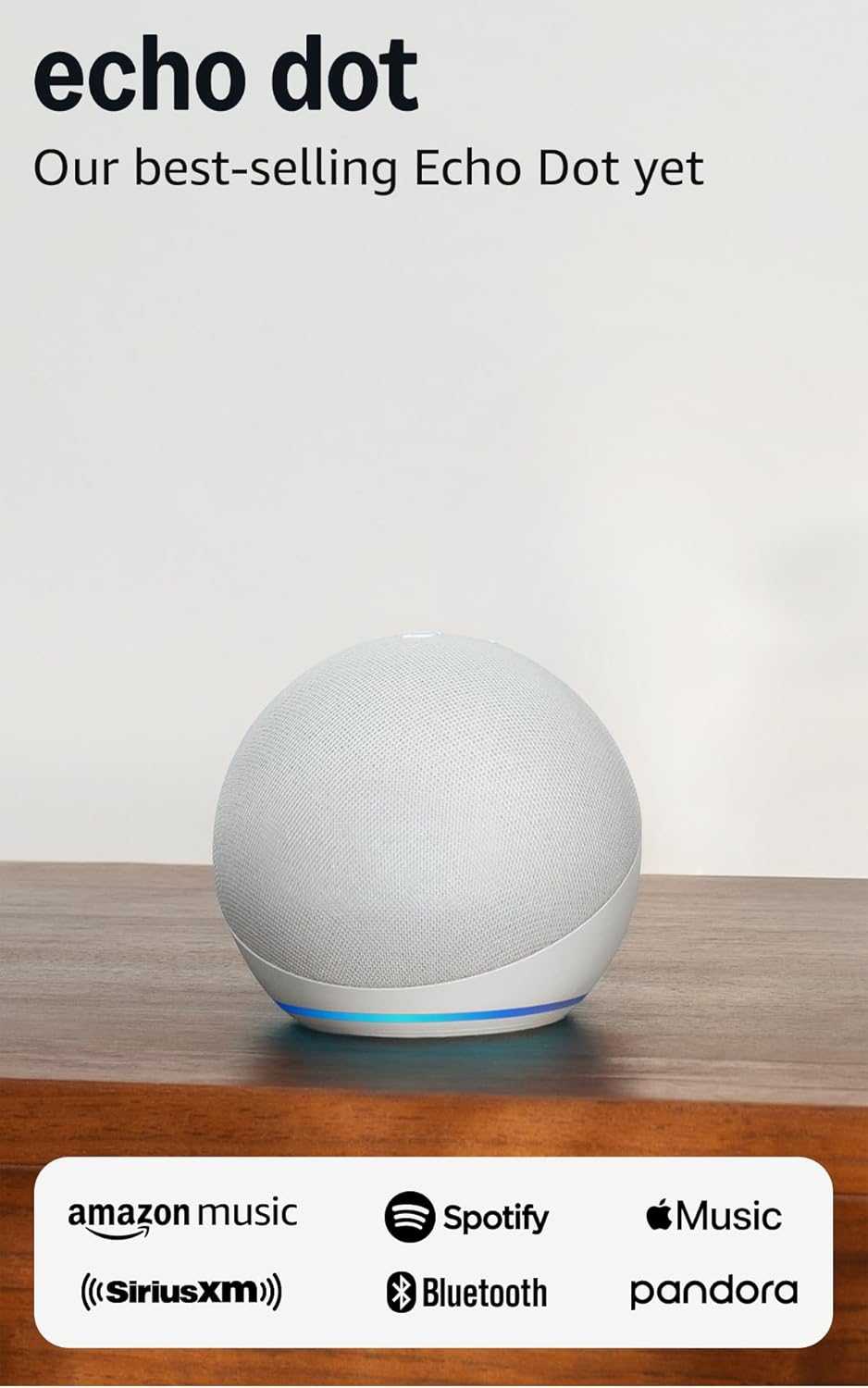
Amazon Echo Dot (newest model) - Vibrant sounding speaker...
As an Amazon Associate we earn from qualifying purchases.
Official Manufacturer Manual
Amazon provides official product documentation through their online manual rather than downloadable PDF. Access setup guides, troubleshooting steps, and product specifications for your Amazon Echo Show 5.
Source: amazon.com
Need More Help? Amazon Support
Note: The contact information below connects you directly to Amazon's official customer support team, not Trunetto. They can help with warranty claims, device replacements, and advanced technical issues.
How Does Amazon Compare?
Before replacing your Amazon device, see how it stacks up against alternatives in our full comparison guides.
Accessories owners commonly pair with Amazon Echo Show 5.

Amazon Echo Show 5 (newest model), Smart display, Designe...

Amazon Echo Show 5 (newest model), Smart display, Designe...
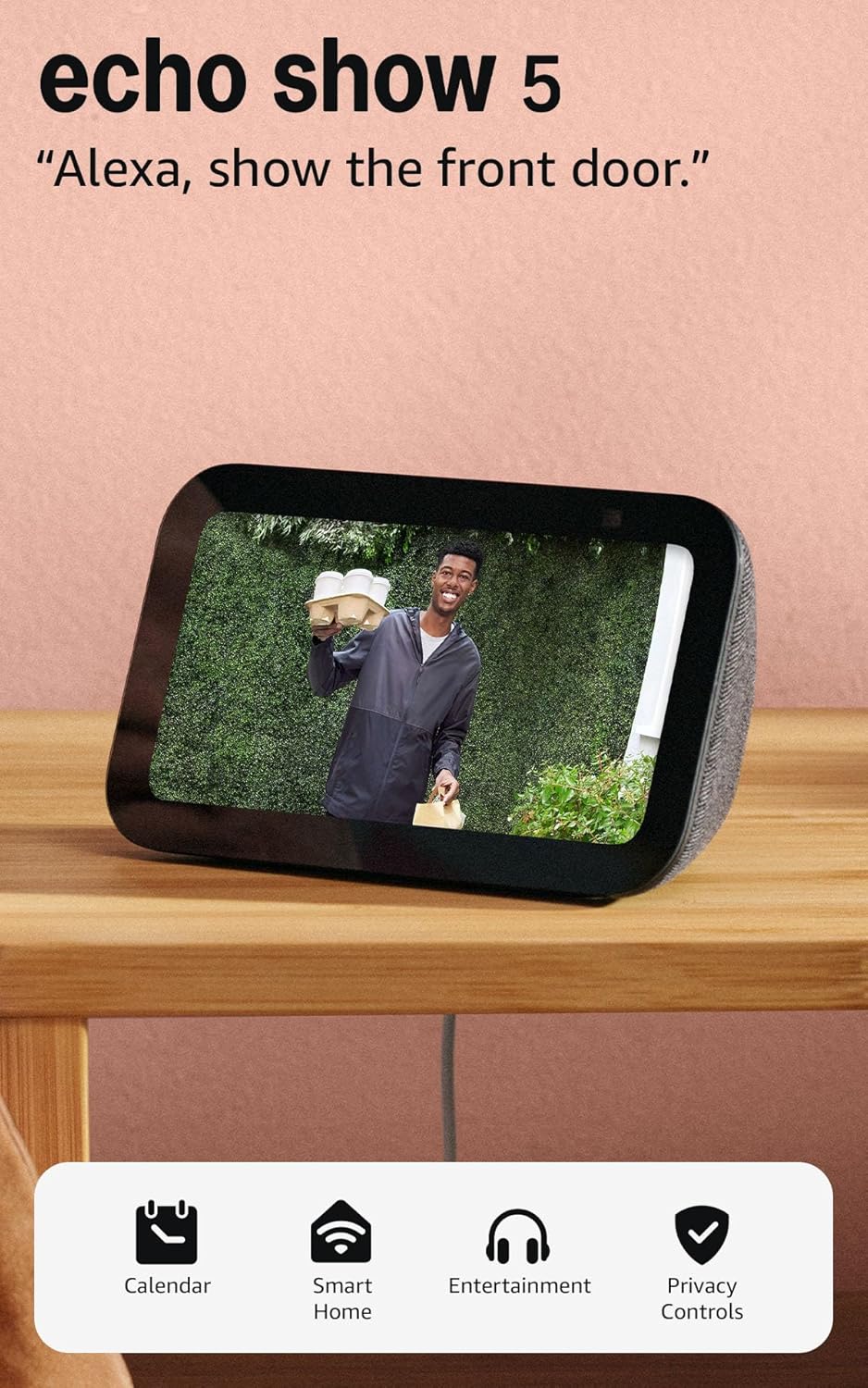
Like-New Amazon Echo Show 5 (newest model), Smart display...
As an Amazon Associate we earn from qualifying purchases.



