

Why Does My Echo Keep Saying Sorry Something Went Wrong and Not Playing Music
- Streaming service authentication expired
- Amazon Music subscription lapsed
- WiFi connected but internet slow or down
Problem Description
Your Amazon Echo says sorry something went wrong every time you ask it to play music. Alexa responds to other commands fine but music fails every time. This is usually an account authentication issue where your Amazon Music or streaming service link expired or a WiFi problem preventing the Echo from reaching streaming servers.
Why This Happens in Real Homes
"Sorry, something went wrong" on a music request usually means Alexa can't complete the streaming action — an expired service login, an Amazon-side hiccup, or the device losing internet mid-request. It's a connection/authorization error, not a speaker fault.
Start by checking the Echo's internet, then re-link the music service in the Alexa app to refresh its authentication, and set a default provider. A quick reboot and confirming the service subscription is active clear most cases; a broad outage shows the same message across skills.
Symptoms
- Alexa says sorry something went wrong for music
- Other commands work but music fails
- Music played fine yesterday but not today
- Specific streaming service stopped working
- Echo plays music briefly then stops with error
- All Echos in house have same music issue
Recognize these? Here's what usually causes it.
Common Causes
- Streaming service authentication expired
- Amazon Music subscription lapsed
- WiFi connected but internet slow or down
- Alexa app needs re-link to streaming service
- Echo firmware needs update
- Default music service changed accidentally
Most fixes happen in the first 3 steps.
Re-linking Spotify disconnects any active Spotify Connect sessions on other devices. You may need to restart playback on other Spotify devices after re-linking.
Step-by-Step Solution
Restart the Echo
Unplug the Echo for 30 seconds then plug back in. Wait 2 minutes for full boot. A restart clears cached authentication tokens and forces the Echo to re-authenticate with streaming services. This fixes the majority of sudden music failures.
Re-Link Streaming Service
In the Alexa app go to Settings then Music and Podcasts. Tap your streaming service like Spotify Apple Music or Amazon Music. Disable and re-enable the link. Sign in again with your credentials. Authentication tokens expire periodically and must be refreshed.
Check Subscription
If using Amazon Music verify your subscription is active at amazon.com/music/settings. A lapsed payment cancels the subscription and music fails with a generic error. Free Amazon Music has limited playback and specific songs may fail while radio stations work.
Check Default Music Service
In Alexa app go to Settings then Music then Default Services. Verify the correct service is selected. If someone changed the default to a service without a subscription music requests fail. Set it back to your active subscription.
Test Internet Speed
Ask Alexa to tell you a joke or the weather. If those work the Echo has internet but streaming may be bandwidth limited. Run a speed test on your phone on the same WiFi. Music streaming needs at least 1 Mbps. If speed is low restart your router.
Quick Solutions
Still having issues? This is usually the deeper cause below.
If this comes back after following these steps, check whether a recent app or firmware update reset a default setting — the fix works, but the setting gets reverted silently.
If the issue affects all Echos simultaneously the problem is your account or internet not individual devices. Fix it once in the Alexa app and all Echos recover.
This issue almost always looks more complex than it is — the majority of cases trace back to a single setting, a stale credential, or a default that shipped wrong.
- Streaming service authentication expired
- Amazon Music subscription lapsed
- WiFi connected but internet slow or down
- Alexa app needs re-link to streaming service
- Echo firmware needs update
Before you go — try one of these (they fix most cases).
Most popular upgrades chosen by Amazon Echo owners.

Amazon eero Pro 6E mesh wifi router (1-pack) with Amazon ...

Amazon Echo Dot Kids (newest model) - Dragon including Am...
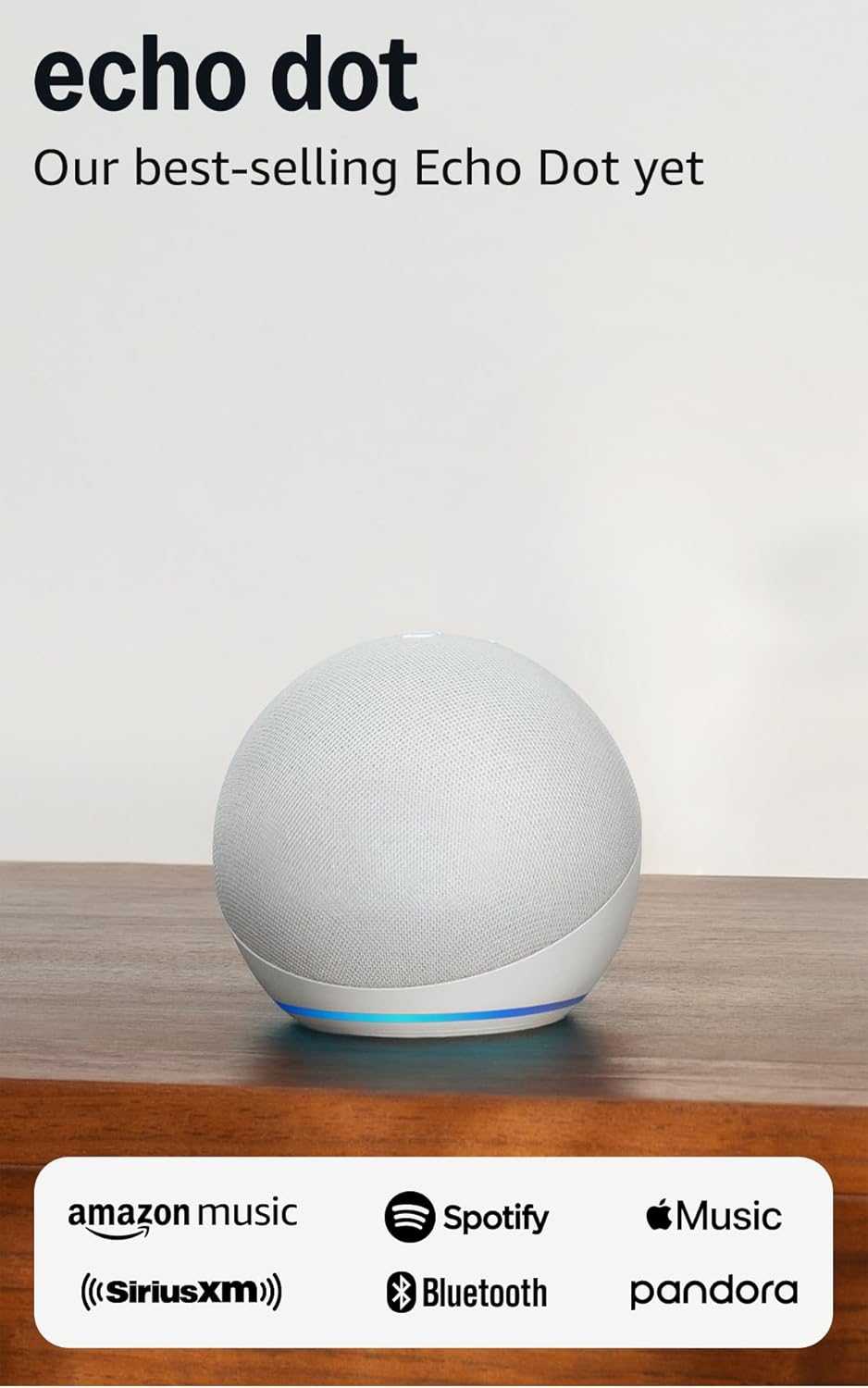
Amazon Echo Dot (newest model) - Vibrant sounding speaker...
As an Amazon Associate we earn from qualifying purchases.
Official Manufacturer Manual
Amazon provides official product documentation through their online manual rather than downloadable PDF. Access setup guides, troubleshooting steps, and product specifications for your Amazon Echo.
Source: amazon.com
Need More Help? Amazon Support
Note: The contact information below connects you directly to Amazon's official customer support team, not Trunetto. They can help with warranty claims, device replacements, and advanced technical issues.
How Does Amazon Compare?
Before replacing your Amazon device, see how it stacks up against alternatives in our full comparison guides.
Accessories owners commonly pair with Amazon Echo.

Amazon Smart Plug, Works with Alexa, Simple Setup, Endles...

Sengled Alexa Light Bulb, S1 Auto Pairing with Alexa Devi...

Sengled Smart Light Bulbs, Color Changing Alexa/Bluetooth...
As an Amazon Associate we earn from qualifying purchases.



