

Why Won't My Leviton Decora Smart Switch Pair With My Smart Home Hub?
- Switch not put into the correct inclusion/setup mode
- Wrong radio path (WiFi model vs Z-Wave model vs no-neutral+bridge)
- Network config blocking the switch (isolation/guest/5GHz)
Problem Description
Your Leviton Decora Smart switch will not complete pairing with your smart home hub or the My Leviton app. The pairing wizard may time out, fail to find the switch, or pair successfully but then show the switch as unreachable. Pairing failures with Decora Smart switches are caused by the switch WiFi or Z-Wave radio not being put in the correct inclusion mode before the hub search, or network configuration issues preventing the switch from connecting.
Why This Happens in Real Homes
Pairing failures with Leviton Decora Smart switches usually come down to two things: the switch not being in the right mode when the hub searches, and a mismatch between the model and the pairing method. Leviton makes several radios — direct-to-WiFi Decora Smart (2.4GHz, My Leviton app), Z-Wave DZ models (join a Z-Wave hub), and no-neutral DN models that require Leviton's MLWSB Wi-Fi Bridge — so the first step is knowing which one you have and pairing it the correct way.
For WiFi models, get everything onto 2.4GHz, disable client isolation, and avoid guest networks that hide the switch from the hub. For Z-Wave models, a switch that "won't pair" has often never been excluded from a previous network — run a general exclusion first, then include within range, adding a Z-Wave repeater near the door if the signal is weak. No-neutral DN dimmers and switches simply won't pair without the MLWSB bridge on the network. Match the method to the model and put the switch in inclusion mode before the hub searches, and pairing completes.
Symptoms
- Switch won't pair with the hub
- Pairing wizard times out
- Hub can't find the switch
- Pairs then shows unreachable
- Inclusion fails
- App can't add the device
- Found but won't complete
- Drops off the hub after adding
Recognize these? Here's what usually causes it.
Common Causes
- Switch not put into the correct inclusion/setup mode
- Wrong radio path (WiFi model vs Z-Wave model vs no-neutral+bridge)
- Network config blocking the switch (isolation/guest/5GHz)
- Z-Wave: not excluded before re-including
- Too far from the hub for reliable pairing
- No-neutral DN model missing its MLWSB bridge
- Firmware/app out of date
- Weak 2.4GHz signal (WiFi models)
Most fixes happen in the first 3 steps.
Do not use extension wires to extend the load or neutral wire connections on Leviton Decora Smart switches. All wire connections must be made in the electrical box with approved wire connectors to meet electrical code.
Tools & Requirements
Step-by-Step Solution
Enter Pairing Mode Correctly
For WiFi Decora Smart switches press the top paddle 3 times quickly within 3 seconds to enter WiFi setup mode. The LED bar will flash rapidly. Immediately open the My Leviton app and follow the Add Device wizard. For Z-Wave switches put the hub in inclusion mode first then press the switch top paddle 3 times. The switch must enter pairing mode and the hub must be scanning simultaneously. Missing this timing is the most common pairing failure cause.
Confirm 2.4GHz Network for WiFi Models
The Leviton Decora Smart WiFi switch only supports 2.4GHz WiFi. If your phone is connected to a 5GHz or combined band network during setup the provisioning fails. Before opening My Leviton app go to your phone WiFi settings and connect to the 2.4GHz SSID. If your router uses a combined name temporarily create separate SSIDs. After connecting to 2.4GHz retry the switch pairing wizard.
Move Z-Wave Hub Close for Initial Inclusion
Z-Wave inclusion requires the switch and hub to be within a short range for the initial pairing handshake. Temporarily move the hub to within 2 metres of the switch being added. After successful inclusion return the hub to its normal location. The Z-Wave mesh network maintains the pairing at full room distances through routing via other Z-Wave devices once the inclusion is complete.
Factory Reset the Switch
For WiFi models hold the top paddle for 7 seconds until the LED bar turns off and blinks 3 times to confirm factory reset. For Z-Wave models hold the paddle for 7 seconds until the LED blinks rapidly. After reset attempt a fresh pairing immediately. A factory reset clears any incomplete or corrupted pairing state that prevents new inclusion attempts from succeeding.
Grant App Network Permissions
On iPhone go to Settings then My Leviton then Local Network and confirm the toggle is on. On Android go to App Permissions for My Leviton and confirm Location and WiFi permissions are granted. The My Leviton app uses local network discovery to find the switch during setup and without these permissions the phone cannot detect the switch's setup broadcast even when both are on the same network.
Quick Solutions
Still having issues? This is usually the deeper cause below.
If pairing fails after multiple attempts, the device may still be registered to a previous account — factory-reset it before trying to add it to a new one.
After successfully pairing use the My Leviton scheduling feature to create daily on and off schedules for lights that should follow a routine. Scheduled control is more reliable than motion-triggered or app-manual control.
Pairing failures almost always come down to distance during the initial handshake — manufacturers seriously understate how close you actually need to be.
- Switch not put into the correct inclusion/setup mode
- Wrong radio path (WiFi model vs Z-Wave model vs
- Network config blocking the switch (isolation/guest/5GHz)
- Z-Wave: not excluded before re-including
- Too far from the hub for reliable pairing
Before you go — try one of these (they fix most cases).
Most popular upgrades chosen by Leviton Decora Smart Switch owners.

Leviton Decora Digital/Decora Smart Switch Color Change K...

Leviton Decora Digital/Decora Smart Switch Color Change K...

Leviton Decora Smart Switch Z-Wave 800 Series, ZW15S-1RW
As an Amazon Associate we earn from qualifying purchases.
Official Manufacturer Manual
Leviton provides official product documentation through their online manual rather than downloadable PDF. Access setup guides, troubleshooting steps, and product specifications for your Leviton Decora Smart Switch.
Source: leviton.com
Need More Help? Leviton Support
Note: The contact information below connects you directly to Leviton's official customer support team, not Trunetto. They can help with warranty claims, device replacements, and advanced technical issues.
Accessories owners commonly pair with Leviton Decora Smart Switch.
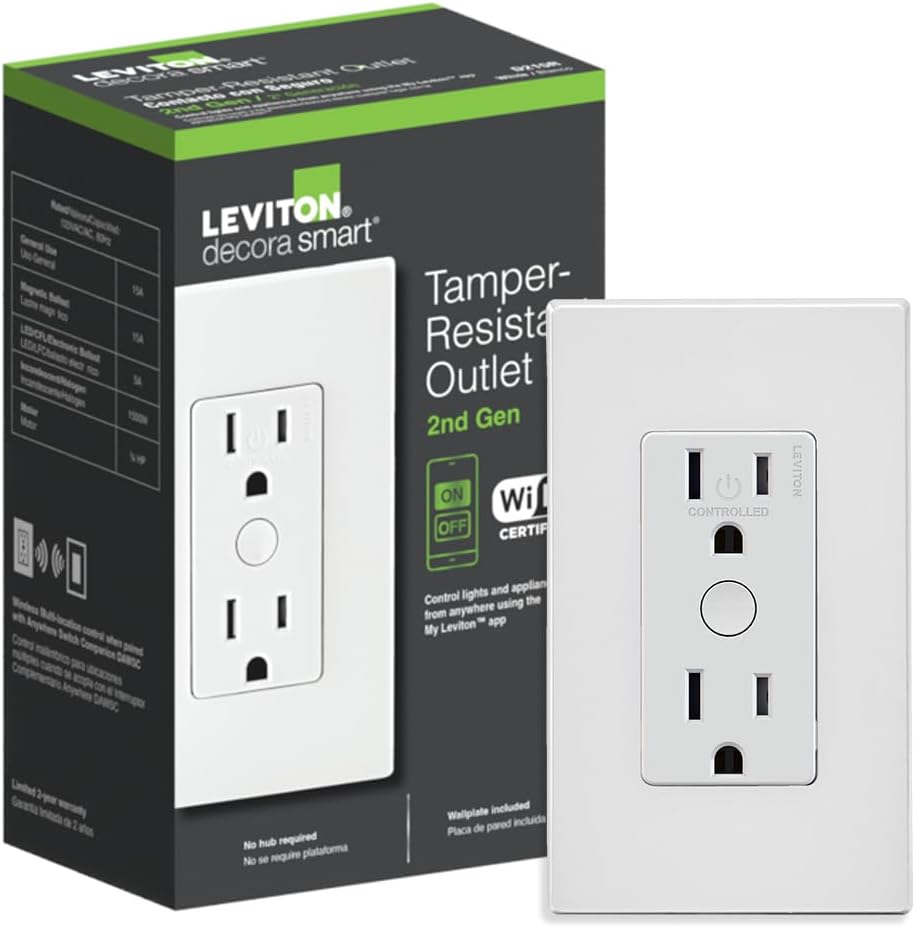
Leviton Decora Smart Outlet, Tamper-Resistant 15A, Wi-Fi ...

Leviton Decora Smart Plug, Wi-Fi 2nd Gen, Works with Matt...

Leviton Decora Smart Fan Speed Controller, Wi-Fi 2nd Gen,...
As an Amazon Associate we earn from qualifying purchases.


