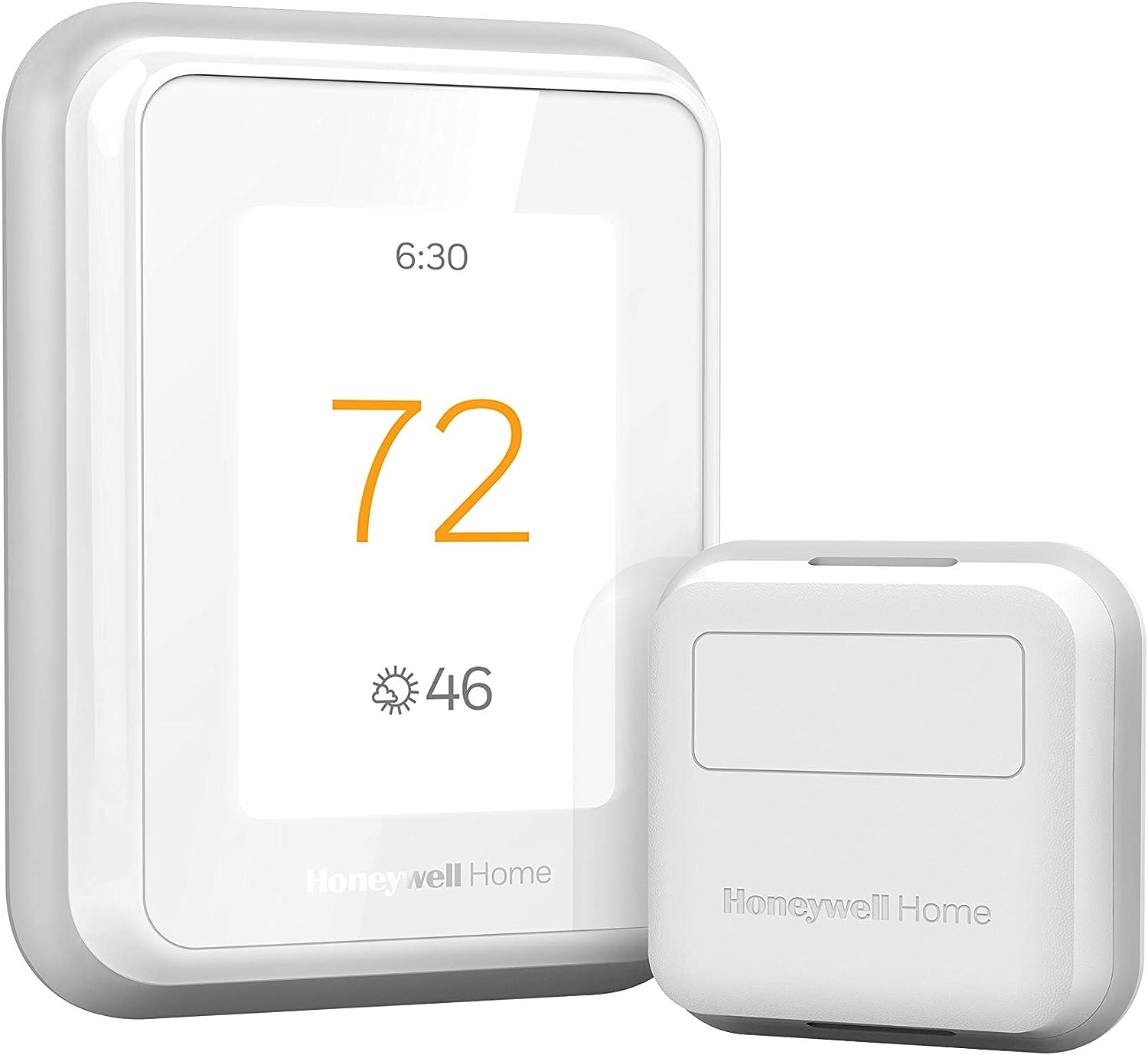
Why Won't My Honeywell Home T6 Pro Follow My Scheduled Heating and Cooling Setpoints
- Thermostat in Hold / Permanent Hold overriding the schedule
- Scheduling turned off / thermostat set to non-programmable mode
- Schedule not saved or synced to the thermostat
Problem Description
Your Honeywell Home T6 Pro thermostat ignores your programmed schedule and either holds at one temperature or changes at the wrong times. You carefully set up your heating and cooling schedule but the thermostat does not transition between periods as programmed. The actual temperature behavior does not match your schedule.
Why This Happens in Real Homes
A Honeywell T6 Pro that ignores its schedule and just holds one temperature is nearly always in a Hold. A "Permanent Hold" tells the thermostat to stay at the set temperature indefinitely and ignore every scheduled period, and even a "Temporary Hold" left in place suppresses the next transition — so the schedule is programmed correctly but simply overridden.
Clear the hold first (look for "Hold" or "Permanent Hold" on the screen and cancel it) so the thermostat resumes following its program. Then confirm scheduling is actually enabled and that the schedule saved and synced, and check the thermostat's day, time, and timezone, since a wrong clock makes transitions fire at the wrong hours. One easy-to-miss cause on a connected T6 Pro is geofencing overriding scheduled setpoints when it thinks you're away — reconciling the app and thermostat so they aren't fighting resolves the "won't follow setpoints" behavior for good.
Symptoms
- T6 Pro ignores the schedule
- Holds one temperature all day
- Changes at the wrong times
- Setpoints not honored
- Schedule set but not running
- Reverts to a fixed temp
- Won't transition between periods
- Manual temp sticks instead of schedule
Recognize these? Here's what usually causes it.
Common Causes
- Thermostat in Hold / Permanent Hold overriding the schedule
- Scheduling turned off / thermostat set to non-programmable mode
- Schedule not saved or synced to the thermostat
- Geofencing overriding the schedule
- Wrong day/time or timezone on the thermostat
- A manual temporary hold left in place
- Conflicting app vs thermostat schedule
- Wrong schedule type selected
Most fixes happen in the first 3 steps.
Making extensive schedule changes while recovery mode is enabled can cause confusing behavior as the thermostat recalculates optimal start times. Consider disabling recovery while testing schedule changes.
Step-by-Step Solution
Cancel Active Temperature Holds
If you manually adjusted the temperature, a hold may be overriding the schedule indefinitely. On the T6 Pro, press the Cancel or Hold button to clear any active hold. The thermostat should immediately revert to the current scheduled setpoint. Check that Following Schedule appears on the display.
Verify Schedule Is Active
Go to the thermostat menu or Honeywell Home app and check that the schedule is enabled. Some T6 Pro models have a Schedule On/Off setting that must be enabled. Also verify you are editing the correct schedule for your system mode (heat, cool, or auto).
Check System Mode
The schedule has separate heating and cooling setpoints. If your system mode is Heat Only, cooling schedule points are ignored. If in Emergency Heat or Off modes, no schedule runs. Make sure the system mode matches the schedule you expect to follow.
Correct Time and Date
Schedule transitions are based on the thermostat clock. If time or date is wrong, transitions happen at the wrong real-world times. Go to settings and verify the time, date, and day of week are all correct. Enable automatic time updates if connected to WiFi.
Review Recovery Mode Settings
The T6 Pro has Smart Recovery or Adaptive Recovery that starts heating or cooling early to reach setpoint by the scheduled time. This can make it seem like transitions happen before the programmed time. If this behavior is confusing, disable recovery mode in advanced settings.
Quick Solutions
Still having issues? This is usually the deeper cause below.
Schedules that skip randomly are usually a daylight-saving holdover — delete and recreate the schedule to clear the corrupted entry.
The T6 Pro displays a small clock icon or Following Schedule text when actively following the program. Look for these indicators to confirm schedule mode is active.
Thermostat issues that keep returning are often caused by stale backup-battery memory holding old settings across power cycles without the user realising.
- Thermostat in Hold / Permanent Hold overriding the schedule
- Scheduling turned off / thermostat set to non-programmable mode
- Schedule not saved or synced to the thermostat
- Geofencing overriding the schedule
- Wrong day/time or timezone on the thermostat
Before you go — try one of these (they fix most cases).
Most popular upgrades chosen by Honeywell Home T6 Pro owners.

As an Amazon Associate we earn from qualifying purchases.
Official Manufacturer Manual
Honeywell Home provides official product documentation through their online manual rather than downloadable PDF. Access setup guides, troubleshooting steps, and product specifications for your Honeywell Home T6 Pro.
Source: honeywellhome.com
Need More Help? Honeywell Home Support
Note: The contact information below connects you directly to Honeywell Home's official customer support team, not Trunetto. They can help with warranty claims, device replacements, and advanced technical issues.
How Does Honeywell Home Compare?
Before replacing your Honeywell Home device, see how it stacks up against alternatives in our full comparison guides.
Accessories owners commonly pair with Honeywell Home T6 Pro.

As an Amazon Associate we earn from qualifying purchases.