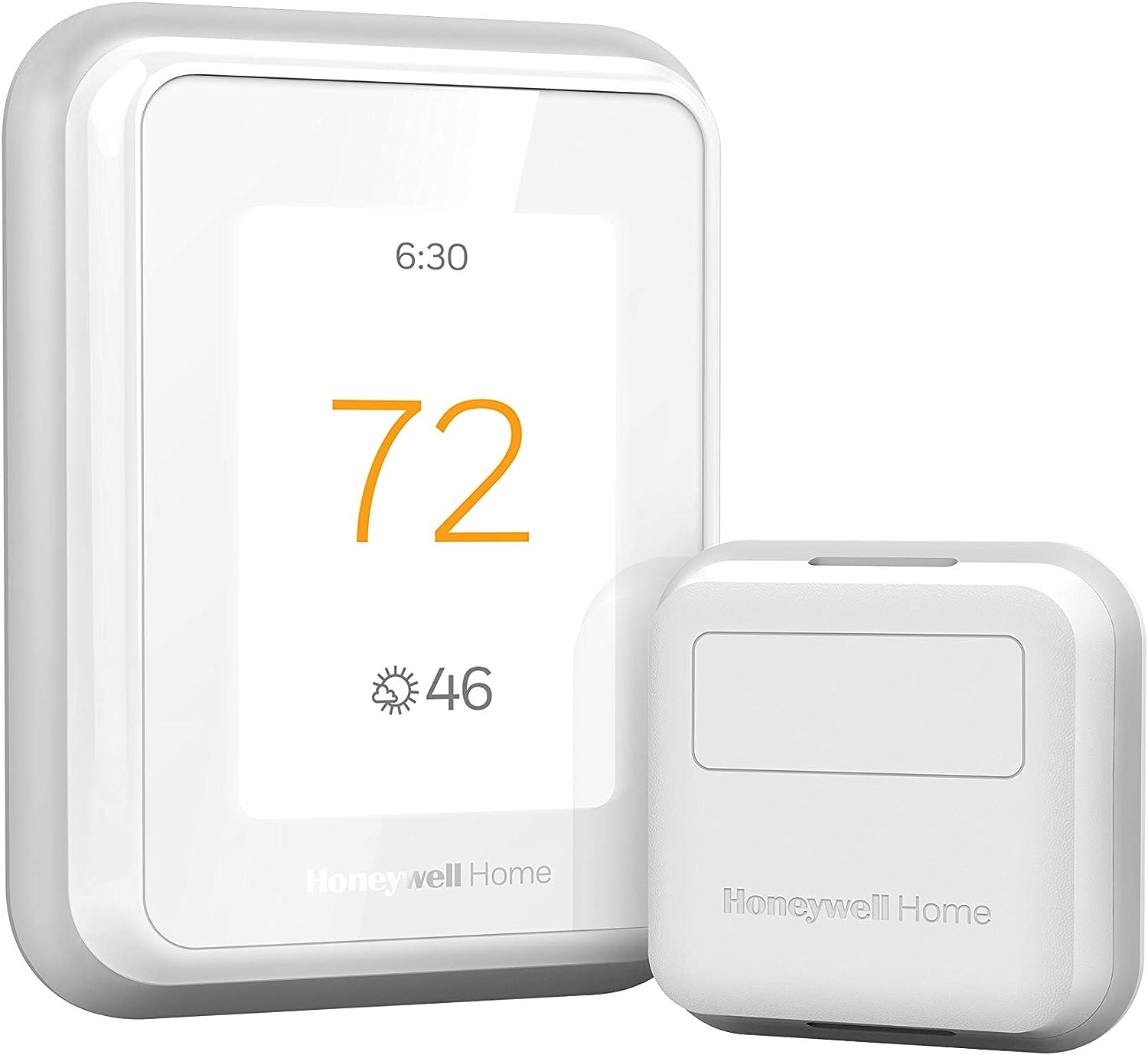
Why Won't My Honeywell Thermostat Connect to the App?
- Thermostat not connected to WiFi first
- Thermostat offline / weak signal
- Wrong or unverified Resideo account
Problem Description
Your Honeywell thermostat won't connect to the Resideo or Honeywell Home app. The thermostat must first be connected to your WiFi network (configured through the thermostat's touchscreen menu). If the thermostat is offline, the app can't reach it. This guide covers verifying WiFi connection on the thermostat and linking it to your app account.
Why This Happens in Real Homes
A Honeywell thermostat connects to the Resideo (Honeywell Home) app in two stages that people often collapse into one: first the thermostat joins your WiFi through its own on-screen menu, and only then can the app find and link it through the cloud. If the thermostat isn't actually on WiFi, or it's online but not linked to your account, the app can't reach it.
Confirm the thermostat shows connected to your 2.4GHz network on its own screen first (it won't see 5GHz), then sign in to a verified Resideo account in the app and link the thermostat to it. Because control routes through the Resideo cloud, both the thermostat and the cloud have to be online — a weak signal or a cloud hiccup shows the same "won't connect." Updating the app and firmware, and making sure you're on the correct account and region, resolves the pairing itself.
Symptoms
- Thermostat won't connect to the app
- App can't find the thermostat
- Shows offline in Resideo/Honeywell Home
- Added but won't link
- Lost app connection
- Can't control from the phone
- App pairing fails
- Works locally, not in app
Recognize these? Here's what usually causes it.
Common Causes
- Thermostat not connected to WiFi first
- Thermostat offline / weak signal
- Wrong or unverified Resideo account
- App not linked to the thermostat
- Joining 5GHz instead of 2.4GHz
- Resideo cloud dependency (thermostat or cloud offline)
- App or firmware out of date
- Account region/login mismatch
Most fixes happen in the first 3 steps.
T-series thermostats use Honeywell Home app. Round/Lyric use different apps.
Tools & Requirements
Step-by-Step Solution
Verify the thermostat is connected to WiFi
On the thermostat screen, check for the WiFi icon. On T-series models (T6, T9, T10), go to Menu > WiFi Setup — it should show Connected with your network name. If it shows Disconnected or No Network, the thermostat lost WiFi. Reconnect by selecting your network and re-entering the password. The thermostat must be on 2.4GHz WiFi — if your router only broadcasts 5GHz, the thermostat cannot connect.
Check the Resideo app and account
Make sure you are using the Resideo app (not the discontinued Honeywell Home app). Log in with the same Resideo account used during thermostat setup. If you see no devices, the thermostat may have been registered under a different email address. Try other email addresses you may have used. If someone else set up the thermostat (previous homeowner, HVAC installer), the thermostat is linked to their account and must be removed before you can add it to yours.
Re-add the thermostat in the app
If the thermostat is on WiFi but not showing in the app: open the Resideo app, tap Add Device, select your thermostat model, and follow the on-screen steps. You may need to scan the QR code on the thermostat (found under the faceplate or on the packaging). If the app says the device is already registered, the thermostat is still linked to another account. On the thermostat, do a WiFi reset (Menu > Installer Settings > Reset > WiFi Reset) and re-add from scratch.
Fix intermittent app disconnections
If the app works sometimes but frequently shows Device Offline: the issue is usually WiFi instability at the thermostat location. Thermostats are mounted on walls that may be far from the router. Check WiFi signal strength — if below 2 bars, add a WiFi extender. Also check your router for firmware updates, and make sure the router is not aggressively putting idle devices to sleep (power saving or idle timeout settings). Some mesh WiFi systems have compatibility issues with IoT devices — check your mesh system settings for an IoT-specific network or band.
Check Resideo server status for widespread outages
If the app connected fine yesterday but not today, and the thermostat shows it is on WiFi: the Resideo cloud servers may be down. Check the Resideo status page or search social media for Resideo outage reports. During a cloud outage, the thermostat still heats and cools on its local schedule — you just cannot control it remotely. Local control on the thermostat touchscreen always works regardless of cloud status.
Quick Solutions
Still having issues? This is usually the deeper cause below.
Schedules that skip randomly are usually a daylight-saving holdover — delete and recreate the schedule to clear the corrupted entry.
Honeywell Home app is different from Total Connect Comfort app - use correct one for your model.
Thermostat issues that keep returning are often caused by stale backup-battery memory holding old settings across power cycles without the user realising.
- Thermostat not connected to WiFi first
- Thermostat offline / weak signal
- Wrong or unverified Resideo account
- App not linked to the thermostat
- Joining 5GHz instead of 2.4GHz
Before you go — try one of these (they fix most cases).
Most popular upgrades chosen by Honeywell Home Thermostat owners.

Honeywell Home RCHT9510WF T9 Smart Thermostat + Wall Plate

Honeywell Home X7S Smart Thermostat with Advanced Occupan...

Honeywell Home X7B Smart Thermostat with Humidity Monitor...
As an Amazon Associate we earn from qualifying purchases.
Official Manufacturer Manual
Honeywell Home provides official product documentation through their online manual rather than downloadable PDF. Access setup guides, troubleshooting steps, and product specifications for your Honeywell Home Thermostat.
Source: honeywellhome.com
Need More Help? Honeywell Home Support
Note: The contact information below connects you directly to Honeywell Home's official customer support team, not Trunetto. They can help with warranty claims, device replacements, and advanced technical issues.
How Does Honeywell Home Compare?
Before replacing your Honeywell Home device, see how it stacks up against alternatives in our full comparison guides.
Accessories owners commonly pair with Honeywell Home Thermostat.

As an Amazon Associate we earn from qualifying purchases.