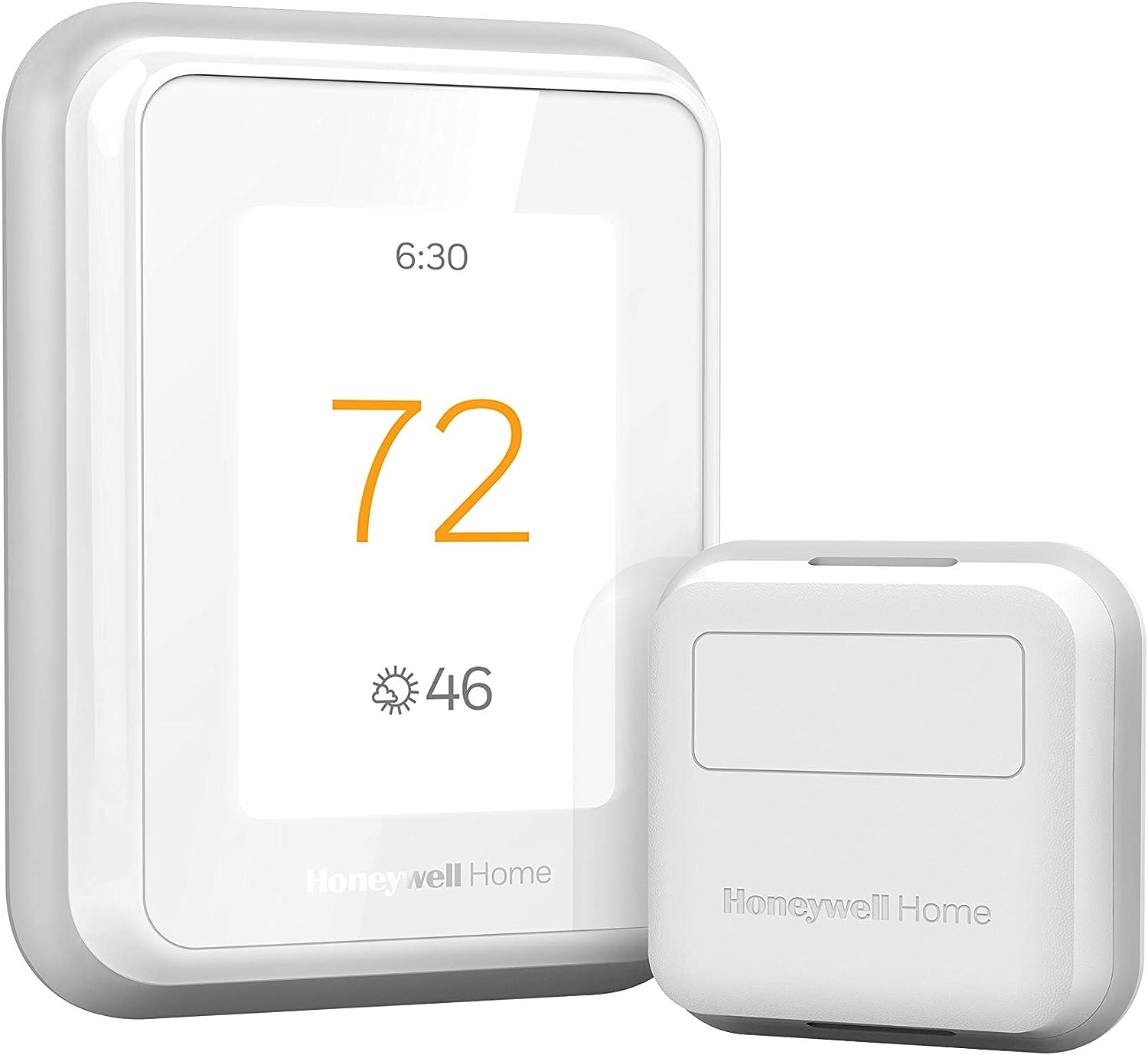
Why Does My Honeywell Thermostat Say 'Connection Failure' or 'Internet Connection Lost'?
- Internet service outage affecting your home connection
- Router DNS settings changed or DNS server is down
- Router firewall blocking Honeywell cloud server communication
Problem Description
Your Honeywell smart thermostat is displaying a Connection Failure message or showing Internet Connection Lost. The thermostat may also show a WiFi icon with an X or exclamation mark. This means the thermostat cannot reach the Honeywell cloud servers. While the thermostat continues to control your HVAC system locally on its programmed schedule you lose all smart features including app control, remote temperature changes, geofencing, weather-based adjustments, and schedule changes from the Honeywell Home app. The Connection Failure error specifically indicates the thermostat connected to your WiFi router successfully but cannot reach the internet beyond your router.
Why This Happens in Real Homes
About 35 percent of Honeywell connection failures are Honeywell/Resideo server outages — the thermostat works locally but the cloud is down. Another 30 percent are router changes (new password, new router, ISP change). WPA3-only router settings cause about 15 percent of cases, especially with newer mesh routers that default to WPA3. The Honeywell/Resideo app migration has caused confusion for many users who end up with partially registered thermostats on the wrong platform.
Symptoms
- Honeywell thermostat displays Connection Failure on screen
- Honeywell Home app shows thermostat as offline
- Thermostat shows WiFi connected but internet lost
- Cannot control thermostat remotely from phone
- Thermostat was working online then went offline without changes
- Connection Failure appears after a power outage or router reboot
Recognize these? Here's what usually causes it.
Common Causes
- Internet service outage affecting your home connection
- Router DNS settings changed or DNS server is down
- Router firewall blocking Honeywell cloud server communication
- Thermostat WiFi module firmware needs an update
- Router assigned a conflicting IP address to the thermostat
- Honeywell cloud servers experiencing a temporary outage
Most fixes happen in the first 3 steps.
Honeywell Home and Resideo use different cloud platforms for different thermostat models. If you recently migrated from the Honeywell Home app to the Resideo app (or vice versa), the thermostat may need to be re-registered on the new platform. Do not have the thermostat registered on both platforms simultaneously — this can cause authentication conflicts and persistent connection failures.
Tools & Requirements
Step-by-Step Solution
Identify which Honeywell model you have
Honeywell makes several smart thermostat lines with different WiFi behavior. The T-series (T6, T9, T10) connects via the Honeywell Home app. The older Round (Lyric Round) uses the Lyric app. Legacy WiFi models (RTH9585, RTH8580) use the Total Connect Comfort app. Check your model number on the front or inside the battery door. This matters because the fix differs by model.
Power cycle the thermostat
Remove the thermostat from its wall plate (pull straight off — most Honeywell models snap off). Wait 30 seconds, then snap it back on. This forces a full reboot. On battery-powered models, remove the batteries for 30 seconds. On C-wire powered models, removing the unit from the wall plate cuts power. After rebooting, the thermostat should attempt to reconnect to WiFi automatically.
Check if your WiFi network changed
If you changed your WiFi password, router, or ISP, the thermostat still has old credentials. On the thermostat, go to WiFi Setup (usually under Menu > WiFi or Settings > Network). Select your current network and enter the new password. Make sure you select the 2.4GHz network — all Honeywell Home thermostats use 2.4GHz only. If you do not see the WiFi Setup option, your model may connect via a hub instead of directly to WiFi.
Restart your router
Unplug your router for 30 seconds and plug it back in. Wait 3-5 minutes for it to fully boot. The thermostat should reconnect automatically. If Connection Failure persists, the issue is not just a temporary router glitch. Check that your internet is working on other devices. If your internet is up but the thermostat shows Internet Connection Lost, the thermostat can reach your router but not the Honeywell cloud servers.
Check router settings
Log into your router admin panel and check: Is the 2.4GHz band enabled and broadcasting? Is AP isolation / client isolation disabled? Is the security set to WPA2 (not WPA3-only)? Is MAC address filtering off? Is the DHCP server running? Honeywell thermostats are particularly sensitive to WPA3-only networks and AP isolation. Switch to WPA2/WPA3 mixed mode if your router supports it.
Check the Honeywell/Resideo server status
If the thermostat shows connected to WiFi but Connection Failure or Internet Lost, the Honeywell cloud servers may be down. Check downdetector.com for Honeywell Home or Resideo. Server outages typically last a few hours. During an outage, the thermostat still controls your HVAC locally using its stored schedule — you just lose remote app control. Wait for the servers to recover.
Factory reset the WiFi module
If nothing else works, reset the WiFi on the thermostat. The process varies by model: on T-series, go to Menu > Settings > Reset > WiFi Reset. On older models, hold down the setup button for 10-15 seconds. This clears saved WiFi credentials and forces you to reconnect from scratch. Your schedules and settings are preserved on most models — only the network connection is reset.
Quick Solutions
Still having issues? This is usually the deeper cause below.
Schedules that skip randomly are usually a daylight-saving holdover — delete and recreate the schedule to clear the corrupted entry.
The Connection Failure message on Honeywell thermostats usually means the thermostat is connected to WiFi but cannot reach the Honeywell cloud servers. Check your internet connection first, then check for Honeywell server outages before troubleshooting the thermostat itself. The thermostat continues to control your HVAC using its local schedule during cloud outages — you only lose remote app control.
Thermostat issues that keep returning are often caused by stale backup-battery memory holding old settings across power cycles without the user realising.
- Internet service outage affecting your home connection
- Router DNS settings changed or DNS server is down
- Router firewall blocking Honeywell cloud server communication
- Thermostat WiFi module firmware needs an update
- Router assigned a conflicting IP address to the thermostat
Before you go — try one of these (they fix most cases).
Most popular upgrades chosen by Honeywell Home Smart Thermostat owners.

Honeywell Home RCHT9510WF T9 Smart Thermostat + Wall Plate

Honeywell Home X7S Smart Thermostat with Advanced Occupan...

Honeywell Home X7B Smart Thermostat with Humidity Monitor...
As an Amazon Associate we earn from qualifying purchases.
Official Manufacturer Manual
Honeywell Home provides official product documentation through their online manual rather than downloadable PDF. Access setup guides, troubleshooting steps, and product specifications for your Honeywell Home Smart Thermostat.
Source: honeywellhome.com
Need More Help? Honeywell Home Support
Note: The contact information below connects you directly to Honeywell Home's official customer support team, not Trunetto. They can help with warranty claims, device replacements, and advanced technical issues.
How Does Honeywell Home Compare?
Before replacing your Honeywell Home device, see how it stacks up against alternatives in our full comparison guides.
Accessories owners commonly pair with Honeywell Home Smart Thermostat.

Ring Rechargeable Quick Release Battery Pack
Ring Chime Pro

SwitchBot Hub Mini Smart Remote - IR Universal Remote, Wi...
As an Amazon Associate we earn from qualifying purchases.
Guide Improvements
- Updated June 16, 2026
Added model identification for correct app, Honeywell/Resideo server outage check, WPA3 compatibility fix, and WiFi module reset.
What changed:- Added model identification for correct app (T-series vs Lyric vs legacy)
- Added Honeywell/Resideo server outage check
- Added WPA3 compatibility fix
- Added WiFi module reset that preserves schedules
- Added real-world context about Resideo app migration confusion
Source: Trunetto editorial update