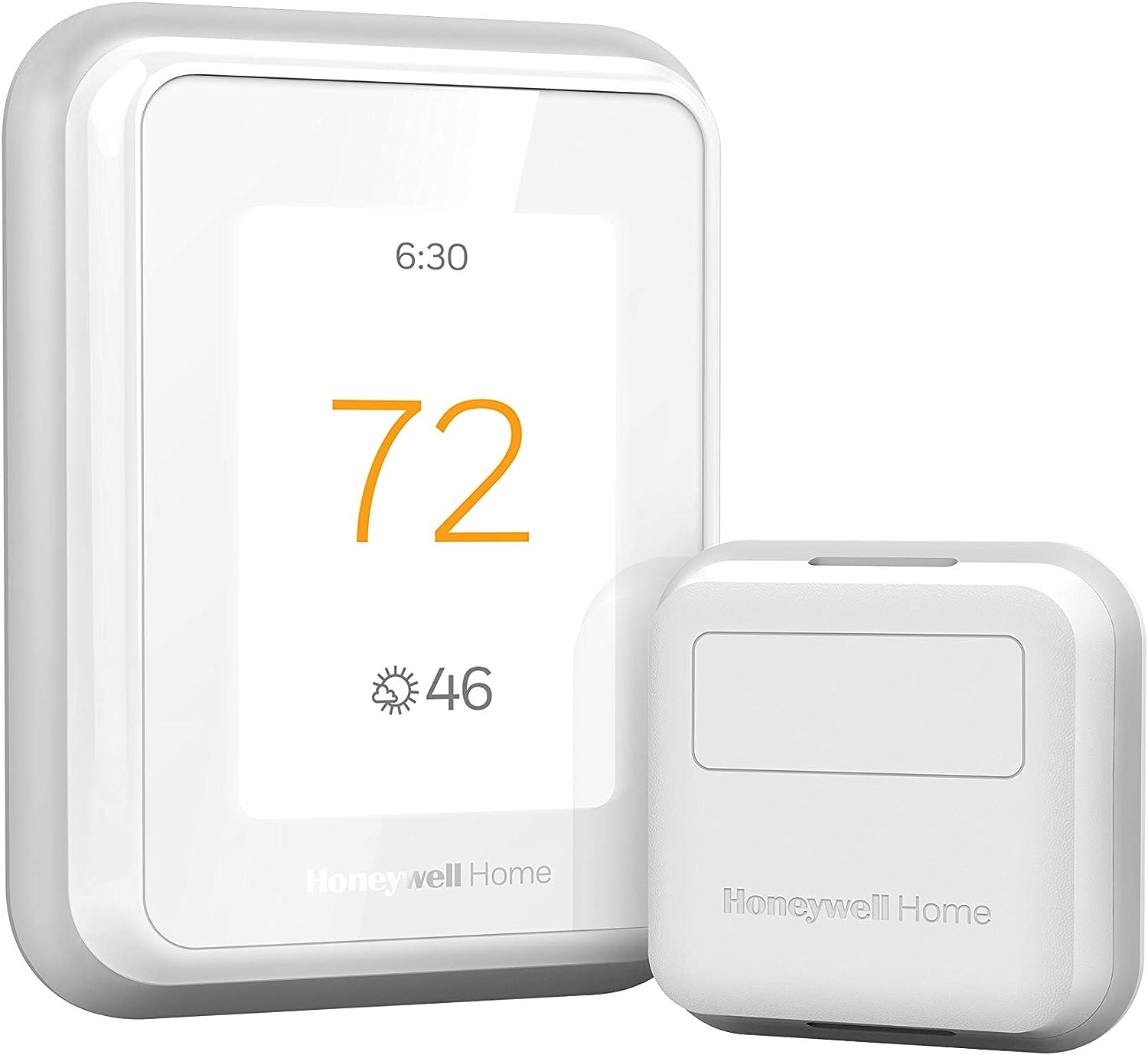
Why Does My Honeywell T6 Keep Dropping WiFi?
- Weak 2.4GHz signal at the wall plate
- No C-wire (power-stealing brownouts drop WiFi)
- Band-steering / one SSID for 2.4 and 5GHz
Problem Description
Your Honeywell T6 Pro keeps dropping its WiFi connection — it shows offline in the Resideo app, often after working fine for a while, and you lose remote control and schedule changes until it reconnects. Heating and cooling still run from the thermostat itself, but the repeated disconnects break automation and app access. The cause is usually weak signal, a router setting, or unstable power at the thermostat rather than a fault in the unit.
Why This Happens in Real Homes
A Honeywell T6 Pro that keeps dropping WiFi is almost always fighting one of two things: weak signal or unstable power. The thermostat uses 2.4GHz only, and a wall plate far from the router or behind metal ductwork sits right at the edge of usable signal. Just as common on the T6 Pro is running without a C-wire — power-stealing works for the HVAC relays but leaves too little for the WiFi radio, so the thermostat browns out and drops offline under load.
Address both: improve the 2.4GHz signal (move the router closer or add a mesh node) and add a C-wire so the radio has steady power. Then clean up the router side — separate the 2.4GHz SSID so band-steering can't shove it toward 5GHz, reserve a DHCP IP, pick a less congested channel, and set WPA2 or mixed mode for older-firmware compatibility. Updating router and thermostat firmware closes out the intermittent auth and idle-timeout drops.
Symptoms
- T6 keeps dropping WiFi
- Goes offline then reconnects
- Offline in the app intermittently
- Loses connection daily/weekly
- Drops after router activity
- Reconnect needed repeatedly
- Signal weak at the thermostat
- Automations stop when it drops
Recognize these? Here's what usually causes it.
Common Causes
- Weak 2.4GHz signal at the wall plate
- No C-wire (power-stealing brownouts drop WiFi)
- Band-steering / one SSID for 2.4 and 5GHz
- Router DHCP lease expiring and not renewing cleanly
- WiFi channel congestion/interference
- WPA3 or mixed-mode auth issues with older firmware
- Router firmware or thermostat firmware out of date
- Too many devices / router dropping idle clients
Most fixes happen in the first 3 steps.
Position router centrally if multiple smart devices have connection issues.
Tools & Requirements
Step-by-Step Solution
Verify T6 signal strength at thermostat
Check wireless strength where thermostat is mounted and identify dead-zone behavior. Weak signal at the wall plate drives periodic disconnects.
Confirm router security and band compatibility
Use supported 2.4GHz security settings and avoid unsupported mixed enterprise options. Authentication mismatch causes recurring rejoin loops.
Restart router and thermostat cleanly
Reboot router first, then restart thermostat WiFi setup to refresh DHCP and DNS state. Sequenced restart often resolves intermittent drops.
Inspect thermostat power stability
Verify C-wire and transformer output to prevent brownout-induced radio resets. Power dips can look like pure WiFi instability.
Update firmware and monitor connection logs
Apply updates and track uptime/disconnect events for at least 24 hours. Persistent drops after updates indicate coverage or hardware radio faults.
Quick Solutions
Still having issues? This is usually the deeper cause below.
This usually happens right after a router reboot or ISP change — the device rejoins the network but drops its cloud session silently.
Use the thermostat energy reports to find patterns in your heating and cooling usage. Setting back the temperature just 3 degrees when you leave for work can save 5 to 10 percent on your annual energy bill without any comfort sacrifice.
Most WiFi drop-offs happen right after a router reboot or ISP swap — the device reconnects to the network but silently loses its cloud registration.
- Weak 2.4GHz signal at the wall plate
- No C-wire (power-stealing brownouts drop WiFi)
- Band-steering / one SSID for 2.4 and 5GHz
- Router DHCP lease expiring and not renewing cleanly
- WiFi channel congestion/interference
Before you go — try one of these (they fix most cases).
Most popular upgrades chosen by Honeywell T6 Pro owners.

Honeywell Home RCHT9510WF T9 Smart Thermostat + Wall Plate

Honeywell Home X7B Smart Thermostat with Humidity Monitor...

Honeywell Home X7S Smart Thermostat with Advanced Occupan...
As an Amazon Associate we earn from qualifying purchases.
Official Manufacturer Manual
Honeywell Home provides official product documentation through their online manual rather than downloadable PDF. Access setup guides, troubleshooting steps, and product specifications for your Honeywell T6 Pro.
Source: honeywellhome.com
Need More Help? Honeywell Home Support
Note: The contact information below connects you directly to Honeywell Home's official customer support team, not Trunetto. They can help with warranty claims, device replacements, and advanced technical issues.
How Does Honeywell Home Compare?
Before replacing your Honeywell Home device, see how it stacks up against alternatives in our full comparison guides.
Accessories owners commonly pair with Honeywell T6 Pro.

Ring Rechargeable Quick Release Battery Pack
Ring Chime Pro

SwitchBot Hub Mini Smart Remote - IR Universal Remote, Wi...
As an Amazon Associate we earn from qualifying purchases.