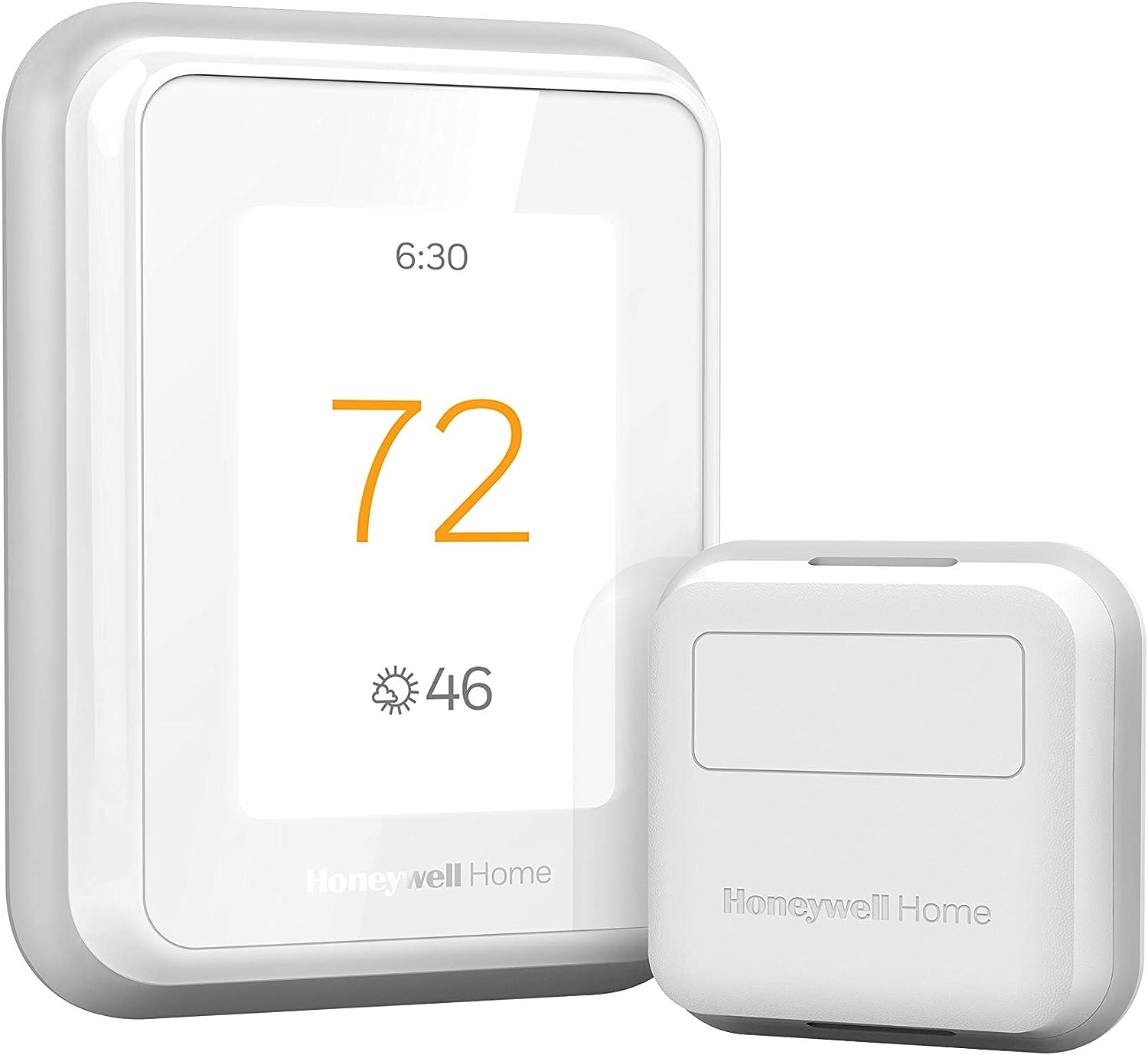
Why My Honeywell Home T6 Pro WiFi Will Not Reconnect
- WiFi password changed
- 2.4GHz disabled
- DHCP lease stuck
Problem Description
WiFi reconnect failures usually happen after a router change or password update. This guide re-runs WiFi setup and restores connectivity.
Why This Happens in Real Homes
WiFi reconnect failures usually happen after a router change or password update. This guide re-runs WiFi setup and restores connectivity. In day-to-day use, this usually looks like Thermostat shows offline; WiFi icon flashing; App cannot connect.
Most cases trace back to WiFi password changed; 2.4GHz disabled; DHCP lease stuck. The fix works best when you go step by step instead of changing multiple settings at once.
A practical order for this issue is: Check WiFi Status -> Forget Network -> Enable 2.4GHz -> Run Setup. After each step, test the exact behavior that was failing so you can confirm what actually solved it.
Symptoms
- Thermostat shows offline
- WiFi icon flashing
- App cannot connect
- Router replaced
- Other devices online
- Schedules still run
Recognize these? Here's what usually causes it.
Common Causes
- WiFi password changed
- 2.4GHz disabled
- DHCP lease stuck
- Router isolation enabled
- Firmware outdated
- WiFi reset needed
Most fixes happen in the first 3 steps.
Avoid hidden SSIDs during setup.
Tools & Requirements
Step-by-Step Solution
Check WiFi Status on the Thermostat
On the Honeywell T6 Pro WiFi thermostat touchscreen, go to Menu > WiFi Setup. Check the current WiFi status — it should show Connected with a signal strength indicator. If it shows Disconnected or No Network, the thermostat has lost its WiFi connection. Note the error message if one is displayed, as different errors have different solutions.
Forget and Reconnect to WiFi
On the T6 Pro, go to Menu > WiFi Setup > select your network > Forget Network. Then select your WiFi network from the scan results and re-enter your password. If your WiFi password recently changed (or you switched ISPs/routers), the thermostat is still trying to connect with the old credentials. The T6 Pro connects to 2.4GHz WiFi only.
Verify 2.4GHz SSID is Available
The Honeywell T6 Pro does not support 5GHz WiFi. If your router uses a combined network name for both bands, the thermostat may attempt 5GHz and fail. Log into your router and either create a separate 2.4GHz SSID or check the band steering settings. During setup, make sure the 2.4GHz band is active and broadcasting.
Power Cycle the Thermostat
Pull the T6 Pro off its wall plate (pull straight out from the bottom). Wait 30 seconds and snap it back on. This forces a full reboot. Also restart your router by unplugging it for 30 seconds. After both devices restart, the thermostat should automatically attempt to rejoin your WiFi network. Wait 2-3 minutes and check the WiFi status screen.
Verify Connection in the Honeywell Home App
Open the Honeywell Home app on your phone and check if the T6 Pro shows as online. If it shows offline, pull down to refresh. If the thermostat's WiFi status screen shows Connected but the app still shows offline, the thermostat may be connected to WiFi but unable to reach Honeywell's cloud servers. Check if your router has any content filtering or firewall rules blocking the thermostat.
Quick Solutions
Still having issues? This is usually the deeper cause below.
This usually happens right after a router reboot or ISP change — the device rejoins the network but drops its cloud session silently.
Keep the thermostat within strong WiFi range during setup.
Most WiFi drop-offs happen right after a router reboot or ISP swap — the device reconnects to the network but silently loses its cloud registration.
- WiFi password changed
- 2.4GHz disabled
- DHCP lease stuck
- Router isolation enabled
- Firmware outdated
Before you go — try one of these (they fix most cases).
Most popular upgrades chosen by Honeywell Home T6 Pro owners.

As an Amazon Associate we earn from qualifying purchases.
Official Manufacturer Manual
Honeywell Home provides official product documentation through their online manual rather than downloadable PDF. Access setup guides, troubleshooting steps, and product specifications for your Honeywell Home T6 Pro.
Source: honeywellhome.com
Need More Help? Honeywell Home Support
Note: The contact information below connects you directly to Honeywell Home's official customer support team, not Trunetto. They can help with warranty claims, device replacements, and advanced technical issues.
How Does Honeywell Home Compare?
Before replacing your Honeywell Home device, see how it stacks up against alternatives in our full comparison guides.
Accessories owners commonly pair with Honeywell Home T6 Pro.

Ring Rechargeable Quick Release Battery Pack
Ring Chime Pro

SwitchBot Hub Mini Smart Remote - IR Universal Remote, Wi...
As an Amazon Associate we earn from qualifying purchases.