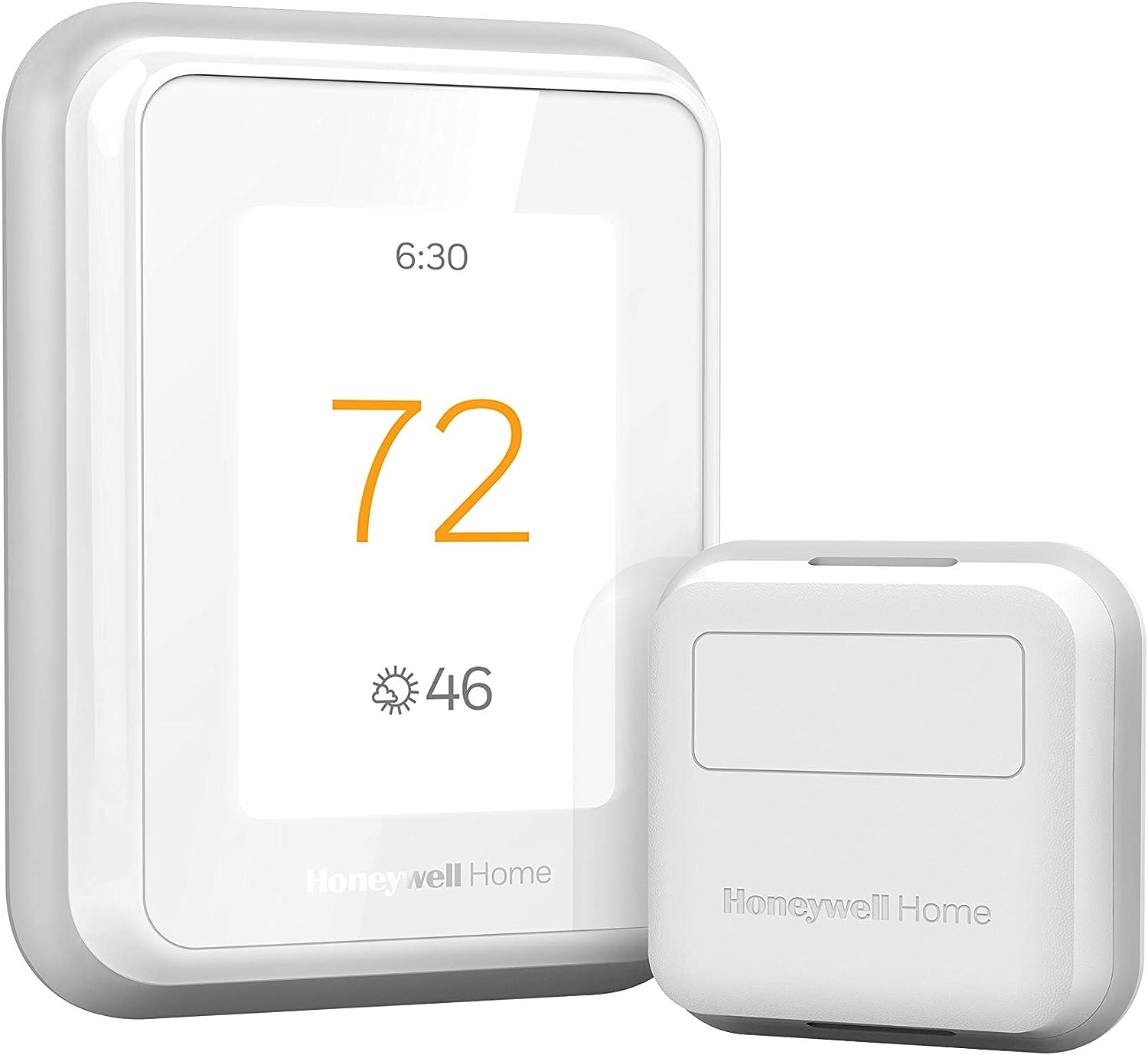
Why Does My Honeywell Thermostat Keep Losing WiFi?
- 2.4GHz signal weak or congested
- Network changed (new router/password/channel)
- Band-steering pushing it to 5GHz
Problem Description
Your Honeywell thermostat keeps losing WiFi connection. The thermostat connects to 2.4GHz WiFi, which is more susceptible to interference from other devices. If your WiFi network changes (new router, new password, channel change), the thermostat loses connection. This guide covers checking network availability, re-entering credentials, and improving signal.
Why This Happens in Real Homes
Honeywell thermostats connect on 2.4GHz WiFi, which reaches farther than 5GHz but is also the more crowded, interference-prone band — so repeated disconnects usually trace to weak or congested signal at the thermostat, or to a network change (new router, password, or channel) that left it with stale settings. On models without a C-wire, unstable power adds a second cause.
Check signal strength at the wall plate first and improve it if it's marginal (relocate the router or add a mesh node), and re-enter credentials if anything about the network changed. Separating the 2.4GHz SSID keeps band-steering from pushing the thermostat toward a 5GHz radio it can't use, reserving a DHCP IP stops lease-renewal drops, and a less congested channel reduces interference. Where a C-wire is missing, adding one gives the WiFi radio the steady power it needs to stay connected.
Symptoms
- Thermostat keeps losing WiFi
- Offline in the app repeatedly
- Drops after a router change
- Reconnect needed each time
- Loses connection at intervals
- Weak signal warnings
- Won't hold a connection
- Automations break on disconnect
Recognize these? Here's what usually causes it.
Common Causes
- 2.4GHz signal weak or congested
- Network changed (new router/password/channel)
- Band-steering pushing it to 5GHz
- No C-wire causing power drops
- Interference from nearby 2.4GHz devices
- DHCP lease not renewing cleanly
- Router firmware/config issues
- Thermostat firmware out of date
Most fixes happen in the first 3 steps.
Always turn off your HVAC system at the breaker before removing the thermostat or touching wires. Incorrect wiring can damage both the thermostat and your HVAC equipment resulting in expensive repairs. If unsure about wiring consult an HVAC technician.
Tools & Requirements
Step-by-Step Solution
Check if the WiFi network is still available
On the thermostat, go to Menu > WiFi Setup. If it shows Disconnected or Searching, the thermostat lost the WiFi connection. First check that your home WiFi is working — can your phone connect to the same 2.4GHz network? If the router was replaced, the password changed, or the network name changed, the thermostat cannot reconnect with the old credentials. You need to update the WiFi settings on the thermostat.
Reconnect to the WiFi network
On the thermostat, go to Menu > WiFi Setup > Change Network. Select your 2.4GHz network from the list and enter the current password. The T6 Pro, T9, and T10 Pro do not support 5GHz WiFi. If your router combines 2.4GHz and 5GHz under one network name (band steering), the thermostat should still connect to the 2.4GHz band automatically. If it does not, temporarily create a separate 2.4GHz-only SSID in your router settings and connect the thermostat to that.
Fix a thermostat that disconnects repeatedly
Frequent disconnections usually indicate weak WiFi signal at the thermostat location. The thermostat WiFi radio is low-power and has a small internal antenna. Solutions: move the router closer, add a WiFi extender near the thermostat, or upgrade to a mesh WiFi system that provides consistent coverage throughout the house. Also check your router for a setting that disconnects inactive clients — the thermostat may go idle between temperature updates and get kicked off.
Check for router compatibility issues
Some router configurations block IoT devices. Check your router for: AP isolation or client isolation (must be off — it prevents devices from communicating on the same network), MAC address filtering (add the thermostat MAC address to the allow list), and minimum security settings (the thermostat supports WPA2 but some routers set to WPA3-only will reject it). The thermostat MAC address is printed on the back of the device or shown in Menu > WiFi Setup > MAC Address.
Do a WiFi reset on the thermostat
If you cannot get the thermostat to connect after trying the above: go to Menu > Installer Settings (enter code 1234) > Reset > WiFi Reset. This clears all saved WiFi credentials and the cloud registration. After the reset, set up WiFi from scratch through the thermostat menu. You also need to re-add the thermostat in the Resideo app — remove the old entry from the app first, then add it as a new device. This is the nuclear option but resolves most persistent WiFi issues.
Quick Solutions
Still having issues? This is usually the deeper cause below.
This usually happens right after a router reboot or ISP change — the device rejoins the network but drops its cloud session silently.
Use the thermostat energy reports to find patterns in your heating and cooling usage. Setting back the temperature just 3 degrees when you leave for work can save 5 to 10 percent on your annual energy bill without any comfort sacrifice.
Most WiFi drop-offs happen right after a router reboot or ISP swap — the device reconnects to the network but silently loses its cloud registration.
- 2.4GHz signal weak or congested
- Network changed (new router/password/channel)
- Band-steering pushing it to 5GHz
- No C-wire causing power drops
- Interference from nearby 2.4GHz devices
Before you go — try one of these (they fix most cases).
Most popular upgrades chosen by Honeywell Thermostat owners.

Honeywell Home RCHT9510WF T9 Smart Thermostat + Wall Plate

Honeywell Home X7B Smart Thermostat with Humidity Monitor...

Honeywell Home X7S Smart Thermostat with Advanced Occupan...
As an Amazon Associate we earn from qualifying purchases.
Official Manufacturer Manual
Honeywell Home provides official product documentation through their online manual rather than downloadable PDF. Access setup guides, troubleshooting steps, and product specifications for your Honeywell Thermostat.
Source: honeywellhome.com
Need More Help? Honeywell Home Support
Note: The contact information below connects you directly to Honeywell Home's official customer support team, not Trunetto. They can help with warranty claims, device replacements, and advanced technical issues.
How Does Honeywell Home Compare?
Before replacing your Honeywell Home device, see how it stacks up against alternatives in our full comparison guides.
Accessories owners commonly pair with Honeywell Thermostat.

As an Amazon Associate we earn from qualifying purchases.