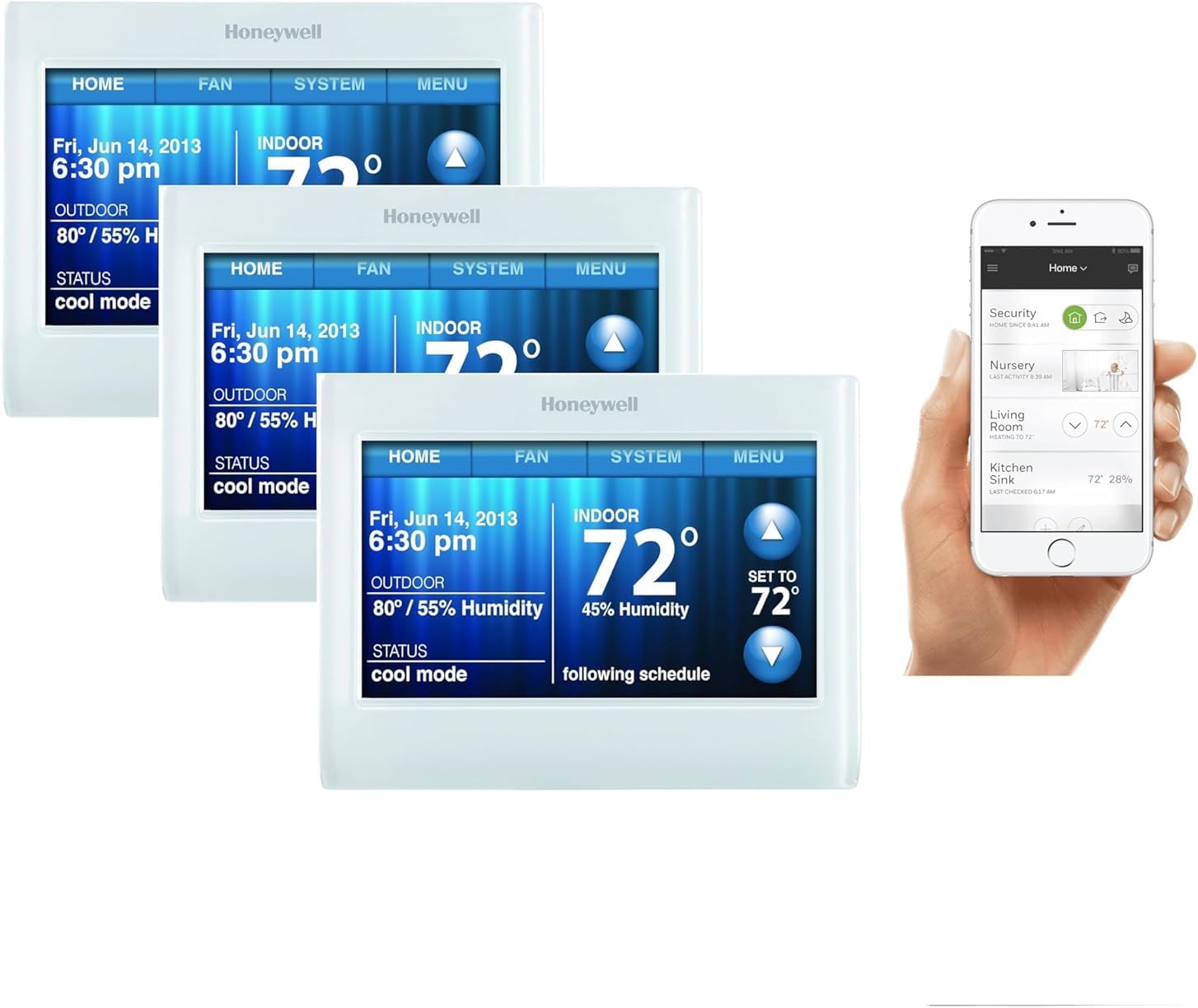
Why Won't My Wyze Thermostat Heat or Cool?
- Mode set to Off or setpoint not calling
- Wire in the wrong terminal after install
- No or weak C-wire leaving it underpowered
Problem Description
Your Wyze Thermostat is not heating or cooling — you set a temperature but the system does not turn on, or it runs the wrong mode. This usually comes down to the mode or setpoint (set to Off, or a setpoint that is not calling), a wiring or C-wire power issue, or the thermostat losing its connection to the HVAC, rather than a broken furnace or AC.
Why This Happens in Real Homes
When a Wyze Thermostat won't heat or cool, start with the simple stuff before blaming the HVAC: the mode may be Off, the setpoint may not actually be calling, or the system type was set wrong during setup. After that, it's power and wiring — a wire in the wrong terminal, or not enough power without a C-wire, keeps the thermostat from switching the system on.
Confirm the mode and setpoint, then check the equipment side: breaker on, furnace door switch closed, control-board fuse intact, and each wire seated in the right terminal. If it only fails on one mode (say cooling), that mode's wire or the O/B setting is the place to look.
Symptoms
- System will not turn on for heat or cool
- Set a temperature but nothing happens
- Runs the wrong mode
- Thermostat display dim or resetting
- Fan runs but no heating/cooling
- Short delays then nothing
- Heating works but not cooling (or vice versa)
- Thermostat offline
Recognize these? Here's what usually causes it.
Common Causes
- Mode set to Off or setpoint not calling
- Wire in the wrong terminal after install
- No or weak C-wire leaving it underpowered
- Loose wire at the thermostat or furnace
- Wrong system type set in the app
- HVAC breaker or furnace switch off
- Furnace door safety switch open
- Blown low-voltage fuse on the control board
Most fixes happen in the first 3 steps.
If furnace clicks on then off immediately, likely a wiring issue.
Tools & Requirements
These tools will help you complete this fix.

As an Amazon Associate we earn from qualifying purchases.
Step-by-Step Solution
Check the system mode
In the Wyze app, tap your thermostat and check the mode: Heat, Cool, Auto, or Off. If it is set to Off, the thermostat will not activate the HVAC system regardless of the temperature. If it is set to Heat but you want cooling, switch to Cool or Auto. Auto mode enables both heating and cooling with separate setpoints. Also check that the setpoint temperature is actually higher (for heat) or lower (for cool) than the current room temperature — the HVAC will not activate if the room is already at or beyond the target.
Check the wiring
Pull the Wyze Thermostat off its wall plate. Check that all wires are firmly inserted into the correct terminals. The Wyze Thermostat uses standard HVAC wiring: R or Rh (24V power), W (heat), Y (cool), G (fan), C (common for continuous power). If the C wire is not connected, the thermostat runs on battery power from the R wire and may not have enough power to activate the HVAC system reliably. If you do not have a C wire, use the included C-wire adapter installed at the furnace or air handler.
Check the HVAC system itself
If the thermostat sends a call for heat or cool but nothing happens, the issue may be downstream. Check the furnace or air handler: is the power switch on? Is the circuit breaker tripped? Is the filter clogged (some systems have a safety shutoff when the filter is restricted)? For cooling, check the outdoor condenser unit — is it running? Is the disconnect switch on? Listen for the contactor clicking when the thermostat calls for cool. If you hear nothing, the issue is between the thermostat signal and the HVAC equipment.
Run a system test from the Wyze app
In the Wyze app, go to Thermostat > Settings > Advanced > Test Equipment. This lets you activate heat, cool, or fan individually to verify each function works. Run the heat test — you should feel warm air from the vents within 2-3 minutes. Run the cool test — the AC should start and cold air should flow within 5 minutes. Run the fan test — the blower should run. If heat works but cool does not (or vice versa), the wiring for that mode may be disconnected or the HVAC equipment for that mode has a separate issue.
Check for safety lockout or delay
Most HVAC systems have a compressor delay — after the AC turns off, it will not restart for 5 minutes to protect the compressor. If you switch between heat and cool rapidly, the system may appear unresponsive during this delay. The Wyze app may show Waiting or a countdown timer. Let the delay complete. If the system shows a lockout or error code on the furnace control board (usually a blinking LED pattern), consult the furnace manual for the specific code. Common lockouts: flame sensor failure (heat), high-pressure switch (cool), or overheating.
Quick Solutions
Still having issues? This is usually the deeper cause below.
Schedules that skip randomly are usually a daylight-saving holdover — delete and recreate the schedule to clear the corrupted entry.
Use the thermostat energy reports to find patterns in your heating and cooling usage. Setting back the temperature just 3 degrees when you leave for work can save 5 to 10 percent on your annual energy bill without any comfort sacrifice.
Thermostat issues that keep returning are often caused by stale backup-battery memory holding old settings across power cycles without the user realising.
- Mode set to Off or setpoint not calling
- Wire in the wrong terminal after install
- No or weak C-wire leaving it underpowered
- Loose wire at the thermostat or furnace
- Wrong system type set in the app
Before you go — try one of these (they fix most cases).
Official Manufacturer Manual
Wyze provides official product documentation through their online manual rather than downloadable PDF. Access setup guides, troubleshooting steps, and product specifications for your Wyze Thermostat.
Source: wyze.com
Need More Help? Wyze Support
Note: The contact information below connects you directly to Wyze's official customer support team, not Trunetto. They can help with warranty claims, device replacements, and advanced technical issues.
How Does Wyze Compare?
Before replacing your Wyze device, see how it stacks up against alternatives in our full comparison guides.
Accessories owners commonly pair with Wyze Thermostat.

Ring Rechargeable Quick Release Battery Pack
Ring Chime Pro

SwitchBot Hub Mini Smart Remote - IR Universal Remote, Wi...
As an Amazon Associate we earn from qualifying purchases.