Why Does My Fire TV Keep Freezing and Lagging
- Storage full
- Too many background apps
- Cache bloated
Problem Description
Your Fire TV interface is slow, stutters when navigating menus, or freezes during video playback. Apps take an abnormally long time to launch and the overall device feels significantly slower than it did when new. Fire TV performance degrades over time as app caches accumulate, background processes compete for limited RAM, and storage fills.
Why This Happens in Real Homes
A slow, stuttering Fire TV interface is almost always storage and memory pressure — full storage, too many background apps, and cache buildup leave little headroom on the device's modest hardware.
Start by freeing storage (uninstall apps you don't use), clearing app caches, and restarting the device; then limit how many apps run in the background. Keeping the software updated helps, and on an older, storage-starved stick, a factory reset and reinstalling only the apps you use restores a lot of speed.
Symptoms
- Home screen freezes
- Apps slow to open
- Scrolling choppy
- Button presses delayed
- Video playback stutters
- Started gradually getting worse
Recognize these? Here's what usually causes it.
Common Causes
- Storage full
- Too many background apps
- Cache bloated
- Overheating
- Outdated software
- HDMI bandwidth issue
Most fixes happen in the first 3 steps.
Factory reset should be last resort. It erases all apps logins and settings.
Step-by-Step Solution
Restart the Fire TV Device
Go to Settings then My Fire TV then Restart, or hold the Select and Play buttons on the remote simultaneously for 5 seconds to trigger a soft restart. A clean restart clears memory leaks and stops background processes that accumulate over days of continuous operation. Many Fire TV devices are left running 24 hours a day — weekly restarts prevent the slowdown from building up.
Clear Cache on All Major Streaming Apps
Go to Settings then Applications then Manage Installed Applications. Open each major streaming app — Netflix, YouTube, Prime Video, Disney Plus, Hulu — and tap Clear Cache. Streaming apps cache thumbnails, UI assets, and partially downloaded content that collectively occupies hundreds of MB. Clearing cache does not delete preferences or login credentials. Do this monthly to prevent cache from contributing to storage pressure and slowdown.
Force Stop All Background Applications
From Manage Installed Applications, tap each app you are not currently using and select Force Stop. On a standard Fire TV Stick, background apps that remain in memory reduce the RAM available to the active app, causing choppy animations and slow response. Force-stopping idle apps frees memory immediately. If the UI feels noticeably faster after this step, the RAM contention from background apps was the primary cause.
Check Storage and Remove Unused Apps
Go to Settings then My Fire TV then About then Storage. If storage is above 75% full, low storage is compounding the performance issue. Uninstall apps you have not used in the past 30 days. Each app removed frees both storage space and background process overhead. Fire TV Sticks have limited RAM and storage — keeping the installed app count under 10 maintains significantly better long-term performance.
Install Available System Updates
Go to Settings then My Fire TV then About then Check for Updates. Install any available update and allow the device to restart. Amazon releases OS updates that include performance optimizations specifically for older Fire TV hardware. Running an outdated OS version means missing speed improvements applied to the animation system, app launch time, and memory management. After updating, test performance before concluding the device needs replacement.
Quick Solutions
Still having issues? This is usually the deeper cause below.
If this comes back after following these steps, check whether a recent app or firmware update reset a default setting — the fix works, but the setting gets reverted silently.
Restart your Fire TV weekly. This clears memory leaks and keeps performance snappy.
This issue almost always looks more complex than it is — the majority of cases trace back to a single setting, a stale credential, or a default that shipped wrong.
- Storage full
- Too many background apps
- Cache bloated
- Overheating
- Outdated software
Before you go — try one of these (they fix most cases).
Most popular upgrades chosen by Amazon Fire TV owners.

Amazon eero Pro 6E mesh wifi router (1-pack) with Amazon ...

Amazon Fire TV Stick 4K (newest model)
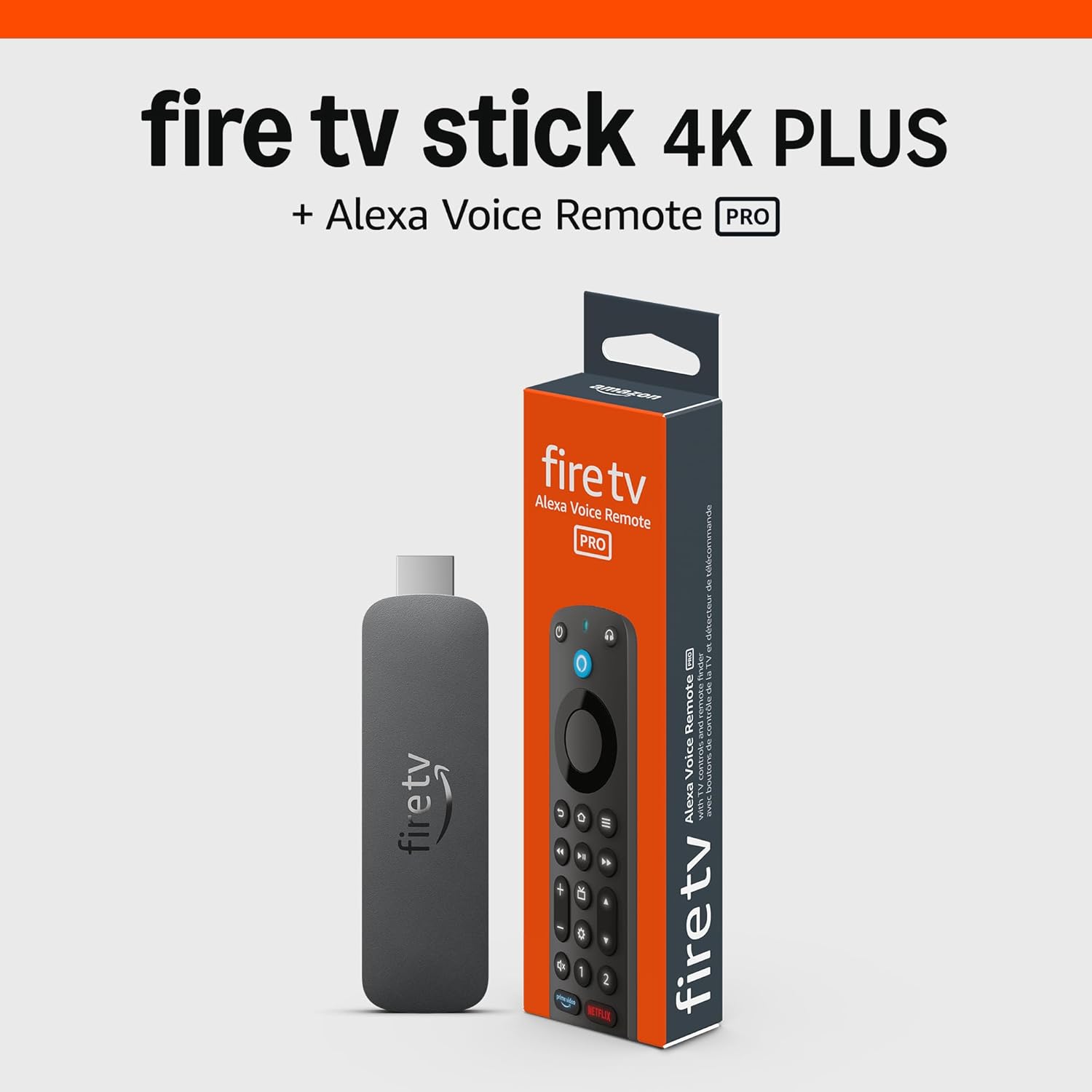
Amazon Fire TV Stick 4K Plus (newest model) with AI-power...
As an Amazon Associate we earn from qualifying purchases.
Official Manufacturer Manual
Amazon provides official product documentation through their online manual rather than downloadable PDF. Access setup guides, troubleshooting steps, and product specifications for your Amazon Fire TV.
Source: amazon.com
Need More Help? Amazon Support
Note: The contact information below connects you directly to Amazon's official customer support team, not Trunetto. They can help with warranty claims, device replacements, and advanced technical issues.
How Does Amazon Compare?
Before replacing your Amazon device, see how it stacks up against alternatives in our full comparison guides.
Accessories owners commonly pair with Amazon Fire TV.

Amazon Basics microSDXC Memory Card with Full Size Adapte...

Amazon Basics microSDXC Memory Card with Full Size Adapte...

Amazon eero 6 mesh wifi system - Supports internet plans ...
As an Amazon Associate we earn from qualifying purchases.