Why Is My Amazon Fire TV Stick Buffering and Slow?
- Weak WiFi signal to the Fire TV Stick
- Internet speed too slow for streaming quality
- Too many apps running in background
Problem Description
Your Amazon Fire TV Stick is constantly buffering during video playback. Shows and movies pause frequently to load, video quality drops to blurry, or content takes a long time to start. This is usually caused by network issues, cache buildup, or too many background apps.
Why This Happens in Real Homes
Constant buffering is a bandwidth problem to the stick — a weak WiFi signal at the TV, internet too slow for the stream quality, or network congestion. The stick can't pull data fast enough to stay ahead of playback.
Start by checking the WiFi signal at the Fire TV (Settings > Network) and improving it — move the router, add a mesh point, or use the 5GHz band if close — and test your internet speed. Lowering stream quality helps thin connections; a weak signal at the TV, especially in a far room, is the usual culprit.
Symptoms
- Constant buffering circles during playback
- Video starts in low quality then never improves
- Content takes over 30 seconds to begin playing
- Audio plays but video freezes
- Buffering only on certain apps
- Streaming works on phone but not Fire TV
Recognize these? Here's what usually causes it.
Common Causes
- Weak WiFi signal to the Fire TV Stick
- Internet speed too slow for streaming quality
- Too many apps running in background
- Fire TV cache is full
- HDMI extender not being used causing WiFi interference
- ISP throttling streaming traffic
Most fixes happen in the first 3 steps.
Avoid using VPN apps on Fire TV as they can significantly reduce streaming speeds and cause constant buffering.
Step-by-Step Solution
Use the HDMI Extender
The Fire TV Stick comes with a short HDMI extender cable. If you plugged the stick directly into the TV use the extender instead. This moves the stick away from the TV body which can block WiFi signals. This one change fixes buffering for many users.
Check Network Speed
Go to Settings then Network on your Fire TV. Select your WiFi network and press play to run a speed test. You need at least 5 Mbps for HD and 25 Mbps for 4K. If speeds are low move your router closer or connect to 5GHz WiFi.
Clear App Caches
Go to Settings then Applications then Manage Installed Applications. Select the app that buffers most like Netflix or Prime Video. Choose Clear Cache. Do not clear data or you will lose your login. Repeat for other streaming apps.
Force Stop Background Apps
Go to Settings then Applications then Manage Installed Applications. Select apps you are not using and tap Force Stop. Fire TV has limited RAM and too many background apps steal resources from your active streaming app.
Restart the Fire TV Stick
Hold the Select and Play buttons together for 5 seconds to force restart. Or go to Settings then My Fire TV then Restart. A fresh restart clears temporary memory and often resolves buffering that has built up over time.
Quick Solutions
Still having issues? This is usually the deeper cause below.
If this comes back after following these steps, check whether a recent app or firmware update reset a default setting — the fix works, but the setting gets reverted silently.
Connect your Fire TV Stick to the 5GHz WiFi band for faster speeds and less interference. The 5GHz band is better for video streaming in most homes.
This issue almost always looks more complex than it is — the majority of cases trace back to a single setting, a stale credential, or a default that shipped wrong.
- Weak WiFi signal to the Fire TV Stick
- Internet speed too slow for streaming quality
- Too many apps running in background
- Fire TV cache is full
- HDMI extender not being used causing WiFi interference
Before you go — try one of these (they fix most cases).
Most popular upgrades chosen by Amazon Fire TV Stick owners.

Amazon eero Pro 6E mesh wifi router (1-pack) with Amazon ...

Amazon Fire TV Stick 4K (newest model)
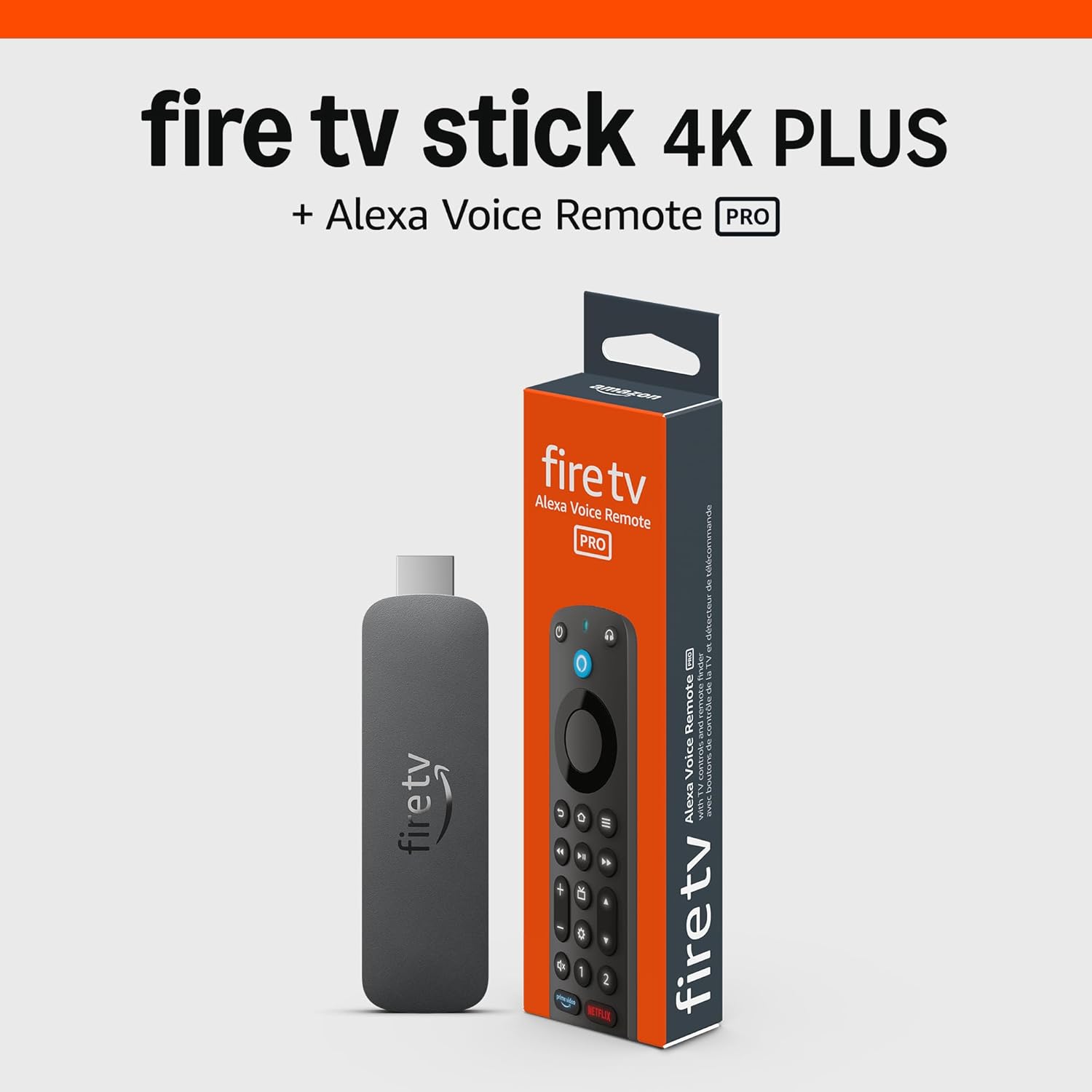
Amazon Fire TV Stick 4K Plus (newest model) with AI-power...
As an Amazon Associate we earn from qualifying purchases.
Official Manufacturer Manual
Amazon provides official product documentation through their online manual rather than downloadable PDF. Access setup guides, troubleshooting steps, and product specifications for your Amazon Fire TV Stick.
Source: amazon.com
Need More Help? Amazon Support
Note: The contact information below connects you directly to Amazon's official customer support team, not Trunetto. They can help with warranty claims, device replacements, and advanced technical issues.
How Does Amazon Compare?
Before replacing your Amazon device, see how it stacks up against alternatives in our full comparison guides.
Accessories owners commonly pair with Amazon Fire TV Stick.

Amazon Basics microSDXC Memory Card with Full Size Adapte...

Amazon Basics microSDXC Memory Card with Full Size Adapte...

Amazon eero 6 mesh wifi system - Supports internet plans ...
As an Amazon Associate we earn from qualifying purchases.