Why Does My Fire TV Stick Say No Signal on My TV
- Wrong HDMI input selected on TV
- Fire TV not receiving power
- HDMI port on TV faulty
Problem Description
Your Fire TV Stick shows no signal, no input, or a black screen when connected to your TV. The TV detects no HDMI device, or the Fire TV boot animation appears briefly then disappears. This is almost always a power delivery issue (TV USB vs wall adapter), a wrong HDMI input selection, or an HDCP handshake failure between the Fire TV and the TV.
Why This Happens in Real Homes
"No signal" usually isn't the stick failing — it's the wrong HDMI input selected on the TV, or the stick not getting power to boot. The TV literally sees nothing on that port.
Start by selecting the correct HDMI input on the TV (match the port the stick is in) and confirming the stick has power from its adapter (its light should be on). Reseat the stick in the port (try another HDMI port), and power-cycle both; a wrong input or an unpowered stick explains almost every no-signal.
Symptoms
- TV shows No Signal message
- Fire TV remote light blinks but no picture
- Worked yesterday but blank today
- TV does not detect HDMI input
- Switching inputs shows nothing on Fire TV port
- Other HDMI devices work on same TV
Recognize these? Here's what usually causes it.
Common Causes
- Wrong HDMI input selected on TV
- Fire TV not receiving power
- HDMI port on TV faulty
- HDCP handshake failure
- Fire TV Stick overheated and shut down
- HDMI extender cable needed
Most fixes happen in the first 3 steps.
Do not force the Fire TV Stick into a tight HDMI port at an angle. This can damage both the stick HDMI connector and the TV port permanently.
Tools & Requirements
These tools will help you complete this fix.

Power adapter
JcBlaon Outlet Extender Surge Protector - 6 Outlet S...
As an Amazon Associate we earn from qualifying purchases.
Step-by-Step Solution
Cycle Through All TV Input Sources
Press the Input or Source button on your TV remote and cycle through every HDMI port listed. Many TVs have 3 to 4 HDMI ports and the Fire TV Stick may be connected to HDMI 2 or 3 while the TV is set to HDMI 1. Some TVs require you to hold the Input button for a full second. If your TV auto-detect is off, manually selecting the correct input is the fix.
Verify Power Source Is a Wall Adapter, Not TV USB
The Fire TV Stick requires the included 1A wall adapter. The USB ports built into most TVs only supply 0.5A, which is not enough power. Plug the Fire TV power cable directly into the wall adapter and into a wall outlet — not the TV USB port. An underpowered Fire TV will show a brief boot screen then display no signal or go dark immediately.
Needed for this step
JcBlaon Outlet Extender Surge Protector - 6 Out...
This helps complete the fix you are currently reading.
$9.99Try a Different HDMI Port
Move the Fire TV Stick to a different HDMI port on your TV. Individual HDMI ports can fail or develop HDCP handshake issues that prevent signal output. HDMI 1 or the port labeled ARC tends to be the most reliable on most TVs. If the Fire TV works on a different port, the original port has a hardware fault.
Use the Included HDMI Extender Cable
If the Fire TV Stick is plugged directly into the TV, it may not seat fully in some recessed HDMI ports. Use the included HDMI extender cable to move the stick 2 to 3 inches away from the TV body. This also provides airflow around the device, preventing thermal issues that can cause signal loss during longer sessions.
Power Cycle Both TV and Fire TV Stick
Unplug the TV from the wall for 60 full seconds — not just using the remote standby. Unplug the Fire TV Stick power for 30 seconds. Plug the TV back in first and wait for it to fully boot. Then plug the Fire TV Stick in. This clears the HDCP handshake state between both devices, which is a common cause of No Signal even when the physical connection is intact.
Quick Solutions
Still having issues? This is usually the deeper cause below.
If this comes back after following these steps, check whether a recent app or firmware update reset a default setting — the fix works, but the setting gets reverted silently.
If your TV has an HDMI port labeled ARC or eARC use that one. It typically provides the best compatibility and also passes audio to a soundbar.
Battery-related failures are almost always flagged too late — the device degrades silently for days before the app catches up to what's actually happening.
- Wrong HDMI input selected on TV
- Fire TV not receiving power
- HDMI port on TV faulty
- HDCP handshake failure
- Fire TV Stick overheated and shut down
Before you go — try one of these (they fix most cases).
Most popular upgrades chosen by Amazon Fire TV Stick owners.

Amazon eero Pro 6E mesh wifi router (1-pack) with Amazon ...

Amazon Fire TV Stick 4K (newest model)
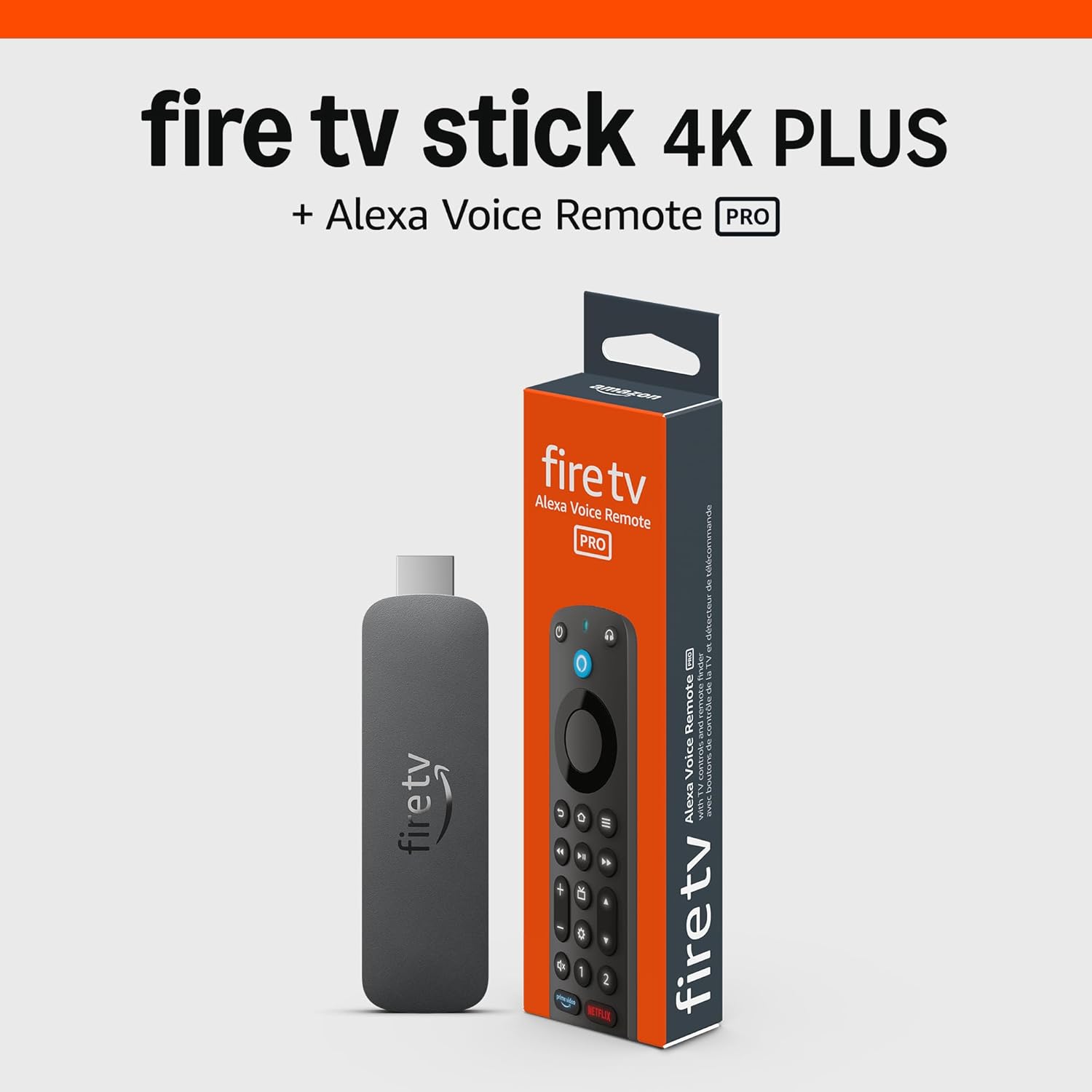
Amazon Fire TV Stick 4K Plus (newest model) with AI-power...
As an Amazon Associate we earn from qualifying purchases.
Official Manufacturer Manual
Amazon provides official product documentation through their online manual rather than downloadable PDF. Access setup guides, troubleshooting steps, and product specifications for your Amazon Fire TV Stick.
Source: amazon.com
Need More Help? Amazon Support
Note: The contact information below connects you directly to Amazon's official customer support team, not Trunetto. They can help with warranty claims, device replacements, and advanced technical issues.
How Does Amazon Compare?
Before replacing your Amazon device, see how it stacks up against alternatives in our full comparison guides.
Accessories owners commonly pair with Amazon Fire TV Stick.

Amazon Basics microSDXC Memory Card with Full Size Adapte...

Amazon Basics microSDXC Memory Card with Full Size Adapte...

Amazon eero 6 mesh wifi system - Supports internet plans ...
As an Amazon Associate we earn from qualifying purchases.