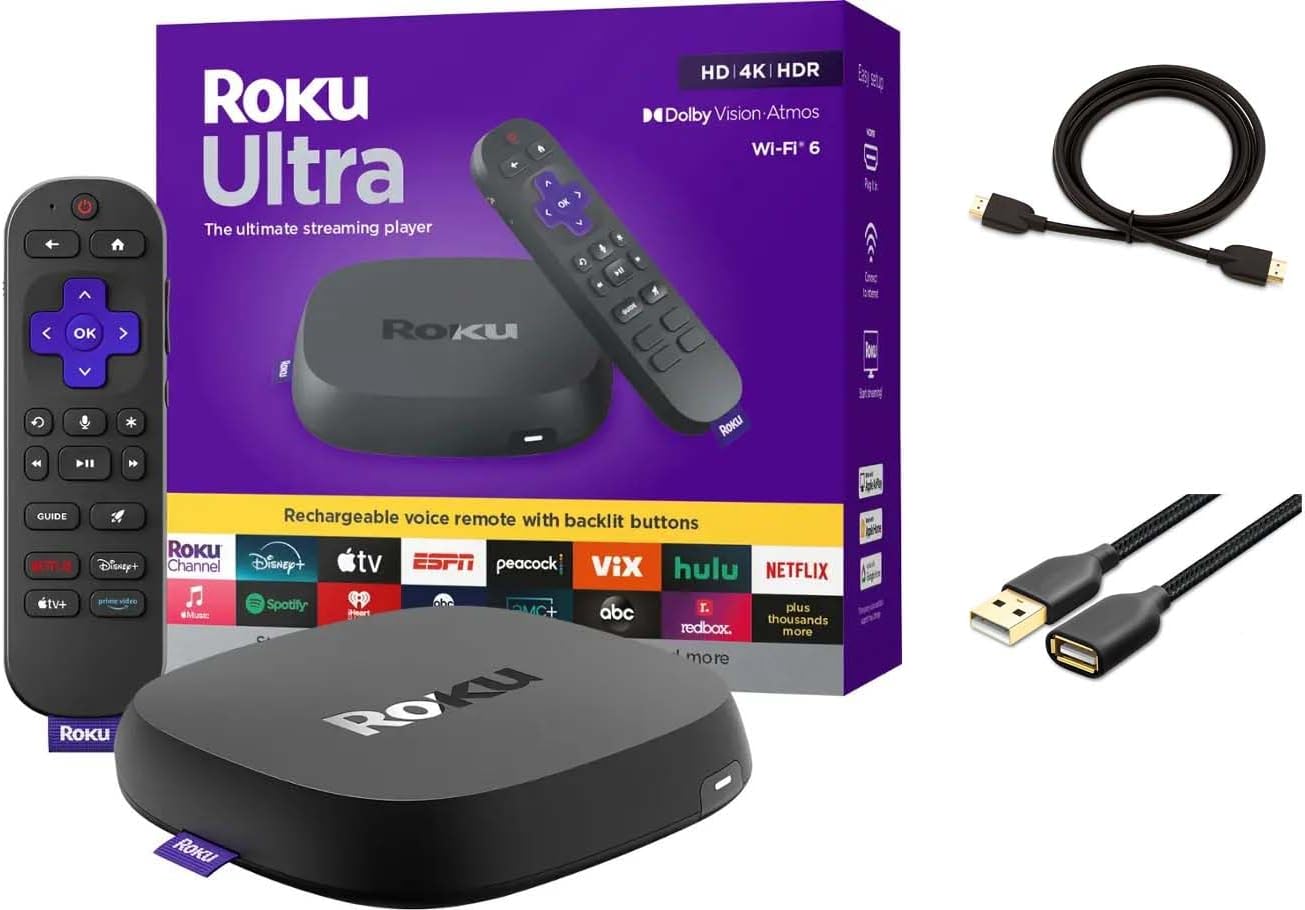
Why Does My Roku Ultra Keep Losing WiFi During 4K Streaming?
- Weak signal can't sustain 4K bitrate
- Bandwidth insufficient for 4K
- 2.4GHz interference under load
Problem Description
Your Roku Ultra repeatedly drops its WiFi connection during 4K streaming sessions, causing the video to buffer, freeze, or show a network error requiring a reconnect. The Roku Ultra supports dual-band WiFi but 4K streaming places higher bandwidth demands than HD content and marginal WiFi signal conditions that work for HD will fail under 4K load. Signal strength, channel congestion, and router QoS settings are the most common causes.
Why This Happens in Real Homes
A Roku Ultra that holds WiFi fine until you start a 4K stream, then drops, is being pushed past what its wireless link can sustain — 4K's high, steady bitrate demands more than HD, so a signal or bandwidth that's marginal shows up only under that load. Interference and heat under sustained streaming can compound it.
The clean fix is Ethernet: the Ultra has a wired port, and a cable easily carries 4K without the wireless strain. If you stay on WiFi, strengthen the 5GHz signal (move closer, reduce interference), confirm your bandwidth can sustain around 25 Mbps, and disable band steering so it isn't bounced under load. Ensure the Ultra is ventilated, reserve a DHCP IP, and keep firmware current.
Symptoms
- Ultra drops WiFi during 4K
- Disconnects on high-bitrate content
- Drops only during 4K, not HD
- Buffers then disconnects
- Loses connection mid-4K
- Reconnects after dropping
- 4K stalls the connection
- Worse on demanding streams
Recognize these? Here's what usually causes it.
Common Causes
- Weak signal can't sustain 4K bitrate
- Bandwidth insufficient for 4K
- 2.4GHz interference under load
- Router struggling with sustained throughput
- Band steering dropping it under load
- Overheating during heavy streaming
- Firmware issue
- Distance to the router
Most fixes happen in the first 3 steps.
Do not stream 4K content over a WiFi extender using a wired backhaul connection. The extra hop doubles latency and often halves available throughput below the 25 Mbps 4K minimum requirement.
Tools & Requirements
Step-by-Step Solution
Switch to 5GHz WiFi Band
In Roku settings go to Network then WiFi. If your router broadcasts separate 2.4GHz and 5GHz SSIDs select the 5GHz network for the Roku Ultra. The 5GHz band has shorter range but much higher bandwidth suitable for 4K streaming. If only one combined SSID is available log into your router admin and separate them into distinct names. After connecting to 5GHz run the Roku network check and verify speed is above 25 Mbps for stable 4K streams.
Run the Roku Network Check
Go to Roku Settings then Network then Check Connection. This tests the connection to Roku servers and shows download speed. For 4K HDR content Roku recommends a minimum of 25 Mbps. If the check shows under 25 Mbps the bandwidth is insufficient for 4K. Check your router for other devices consuming bandwidth at the same time. If the speed test shows adequate bandwidth but streams still drop the issue is intermittent congestion rather than overall bandwidth.
Move Roku or Improve Signal Path
The Roku Ultra 5GHz radio has shorter range than 2.4GHz. If the Roku is more than 10 metres from the router or separated by multiple walls the 5GHz signal may be marginal. Move the Roku closer to the router or add a WiFi 6 access point in the room where the TV is located. Alternatively use the Roku Ethernet adapter which plugs into the Roku Ultra USB port and provides a wired connection that eliminates all WiFi-related streaming interruptions.
Improve Roku Ultra Ventilation
The Roku Ultra generates heat during 4K decoding and overheating causes the WiFi chipset to throttle performance. Make sure the Roku Ultra has at least 5 centimetres of open space on all sides. Do not place it in a closed entertainment cabinet or stack it under other devices. If the unit feels hot to the touch allow it to cool for 10 minutes then resume streaming. Consider a small USB-powered fan near the unit in enclosed cabinet setups.
Set Router QoS for Streaming Priority
Log into your router admin panel and find the Quality of Service or QoS settings. If QoS is enabled and categorises traffic add the Roku Ultra MAC address as a high priority device. Alternatively set streaming applications or the Roku Ultra IP address as guaranteed bandwidth clients. Routers with smart QoS may be throttling the Roku during peak household network usage when other devices like downloads or gaming are competing for the same bandwidth.
Quick Solutions
Still having issues? This is usually the deeper cause below.
This usually happens right after a router reboot or ISP change — the device rejoins the network but drops its cloud session silently.
Use the Roku Secret Menu by pressing Home 5 times, Fast Forward 3 times, Rewind 2 times to see WiFi signal strength in real time. A signal above -65 dBm is needed for reliable 4K streaming.
Most WiFi drop-offs happen right after a router reboot or ISP swap — the device reconnects to the network but silently loses its cloud registration.
- Weak signal can't sustain 4K bitrate
- Bandwidth insufficient for 4K
- 2.4GHz interference under load
- Router struggling with sustained throughput
- Band steering dropping it under load
Before you go — try one of these (they fix most cases).
Most popular upgrades chosen by Roku Ultra owners.
Roku Ultra - Ultimate Streaming Player - 4K Streaming Dev...

Roku Ultra 2024 (Renewed) – 4K Streaming Device with HDR1...
As an Amazon Associate we earn from qualifying purchases.
Official Manufacturer Manual
Roku provides official product documentation through their online manual rather than downloadable PDF. Access setup guides, troubleshooting steps, and product specifications for your Roku Ultra.
Source: support.roku.com
Need More Help? Roku Support
Note: The contact information below connects you directly to Roku's official customer support team, not Trunetto. They can help with warranty claims, device replacements, and advanced technical issues.