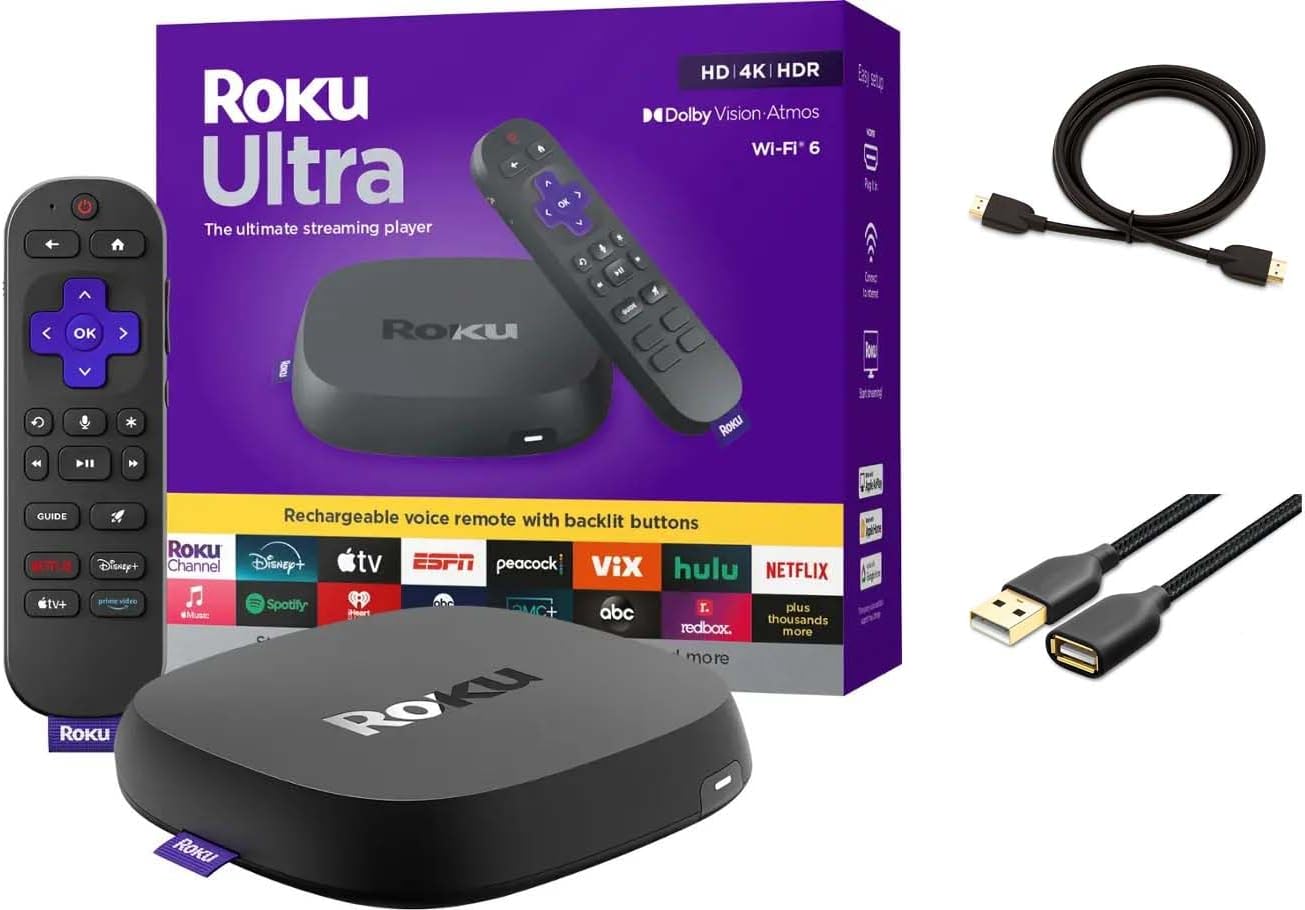
Why Does My Roku Ultra Keep Buffering Even Though I Have a WiFi 6 Router?
- Roku's radio doesn't fully use WiFi 6
- Band steering pushing it to a poor band
- WiFi 6 router compatibility quirks
Problem Description
Your Roku Ultra constantly buffers during streaming even though you have a WiFi 6 router with fast internet speeds. Speed tests on your phone show excellent performance but the Roku buffers on 4K content, drops to lower resolution mid-stream, or pauses to load every few minutes. This commonly occurs because WiFi 6 routers use features like OFDMA and BSS Coloring that some Roku models do not fully support, causing packet delivery issues that appear as buffering.
Why This Happens in Real Homes
When a Roku Ultra buffers specifically after moving to a WiFi 6 router while other devices are fine, it's usually a compatibility quirk — the Roku doesn't fully speak WiFi 6, and features like aggressive band steering or wide channel settings can leave it on a poor connection even though the router is fast. The router being modern doesn't guarantee the Roku gets the best of it.
The Roku Ultra has an Ethernet port, and using it is the most reliable fix — it bypasses the WiFi issue entirely. If you prefer wireless, disable band steering and give the Roku a dedicated 5GHz SSID, enable any WiFi 6/legacy compatibility mode on the router, and update both firmwares. Adjusting channel-width settings and improving signal at the Roku help too.
Symptoms
- Ultra buffers on a WiFi 6 router
- Constant buffering despite fast internet
- Buffers on 4K
- Worse after upgrading to WiFi 6
- Slow speeds to the Roku only
- Other devices fine
- Drops quality often
- Freezes then buffers
Recognize these? Here's what usually causes it.
Common Causes
- Roku's radio doesn't fully use WiFi 6
- Band steering pushing it to a poor band
- WiFi 6 router compatibility quirks
- Weak signal at the Roku
- Wide channel / 6GHz settings confusing the Roku
- 2.4GHz congestion
- Firmware mismatch
- Router needs a compatibility mode
Most fixes happen in the first 3 steps.
Do not place your Roku Ultra inside a closed TV cabinet or directly behind the TV. The WiFi antenna in the Roku Ultra is weak compared to phones and laptops. Blocking it with furniture or metal reduces signal strength dramatically.
Tools & Requirements
These tools will help you complete this fix.
As an Amazon Associate we earn from qualifying purchases.
Step-by-Step Solution
Check Roku Network Speed
On your Roku go to Settings then Network then Check Connection. Note the download speed. Then go to Settings then Network then About and note the signal strength. If the Roku shows 50 Mbps but your phone shows 300 Mbps on the same network the issue is between the router and the Roku not your internet connection. Roku Ultra needs at least 25 Mbps for stable 4K HDR streaming. If it shows less than that the WiFi 6 features are likely causing the degradation.
Switch to WPA2-WPA3 Mixed Mode
Log into your router admin panel and go to WiFi security settings. If it is set to WPA3 Only change it to WPA2-WPA3 Mixed or WPA2 Personal. Some Roku Ultra models have WiFi chips that do not fully support WPA3 encryption handshakes. The connection appears to work but packet delivery is unreliable causing buffering during sustained high-bitrate streaming. Mixed mode allows the Roku to negotiate WPA2 while other devices can still use WPA3.
Reduce Channel Width to 80MHz
In your router 5GHz settings change the channel width from 160MHz to 80MHz. While 160MHz provides faster theoretical speeds the Roku Ultra WiFi radio cannot reliably maintain a 160MHz connection especially when there are other 5GHz networks nearby causing interference. An 80MHz channel provides more stable throughput that eliminates buffering. You will not notice slower speeds on the Roku because streaming services cap at around 40 Mbps even for 4K Dolby Vision content.
Disable OFDMA in Router Settings
WiFi 6 introduced OFDMA which divides WiFi channels into smaller sub-channels to serve multiple devices simultaneously. However some Roku models handle OFDMA resource allocations poorly causing delayed packet delivery that manifests as buffering. In your router WiFi 6 or 802.11ax advanced settings disable OFDMA for the 5GHz band. This forces the router to use the traditional WiFi 5 channel access method which the Roku handles reliably.
Use Ethernet If Available
The Roku Ultra has a built-in Ethernet port which bypasses all WiFi issues. Connect a Cat5e or Cat6 Ethernet cable from your router to the Roku Ultra. Go to Settings then Network then Set Up Connection and choose Wired. This provides the most stable connection for 4K HDR streaming with zero buffering. If your router is not near the TV use a powerline Ethernet adapter kit to extend the wired connection through your electrical wiring without running visible cables.

Needed for this step
Jadaol Cat 6 Ethernet Cable 25 ft, 10Gbps Suppo...
This helps complete the fix you are currently reading.
$9.99Quick Solutions
Still having issues? This is usually the deeper cause below.
This usually happens right after a router reboot or ISP change — the device rejoins the network but drops its cloud session silently.
After changing router settings always restart the Roku Ultra by going to Settings then System then System Restart. This forces the Roku to negotiate a fresh WiFi connection using the updated router configuration.
Most WiFi drop-offs happen right after a router reboot or ISP swap — the device reconnects to the network but silently loses its cloud registration.
- Roku's radio doesn't fully use WiFi 6
- Band steering pushing it to a poor band
- WiFi 6 router compatibility quirks
- Weak signal at the Roku
- Wide channel / 6GHz settings confusing the Roku
Before you go — try one of these (they fix most cases).
Most popular upgrades chosen by Roku Ultra owners.
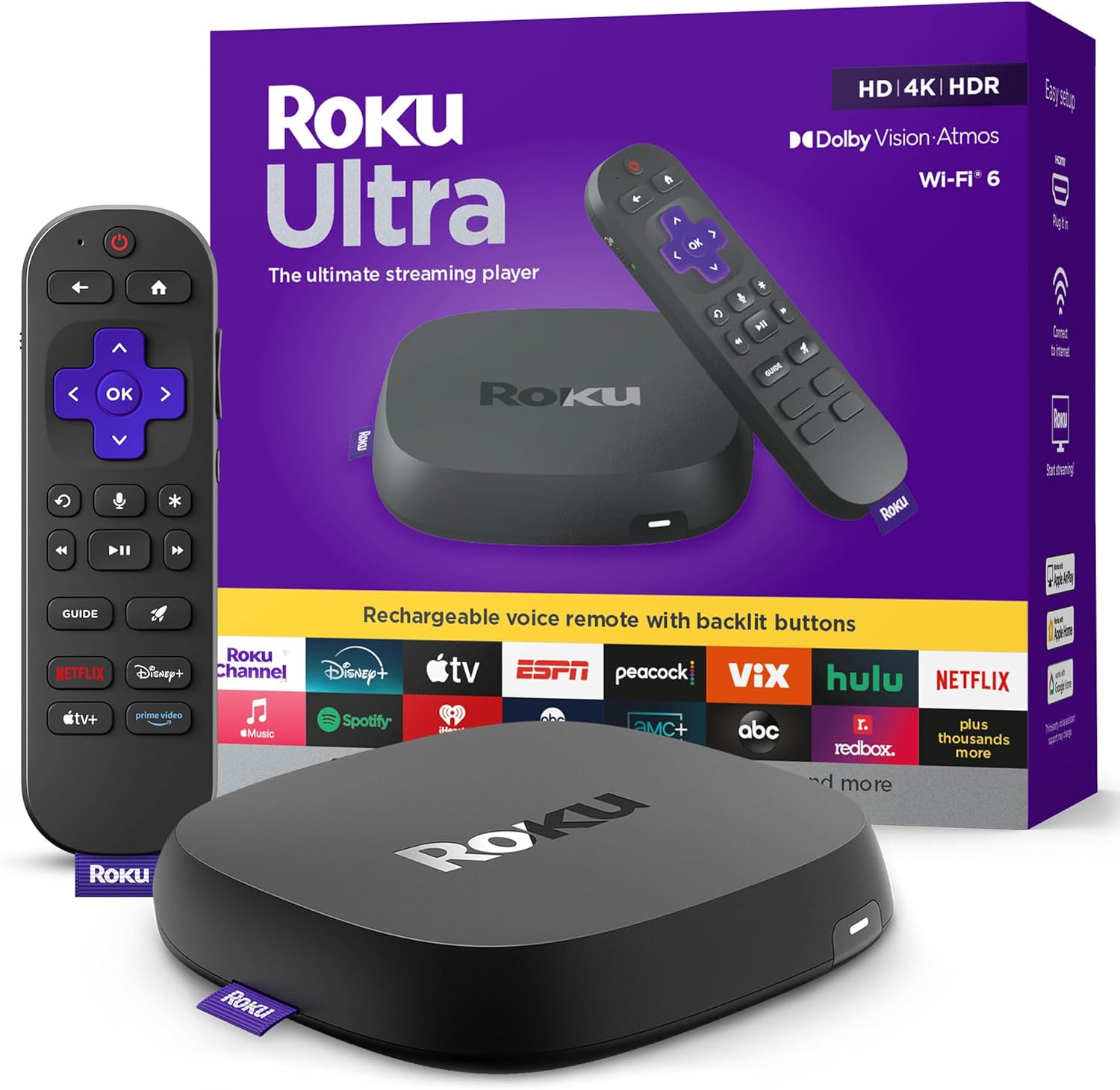
Roku Ultra - Ultimate Streaming Player - 4K Streaming Dev...

Roku Ultra 2024 (Renewed) – 4K Streaming Device with HDR1...
As an Amazon Associate we earn from qualifying purchases.
Official Manufacturer Manual
Roku provides official product documentation through their online manual rather than downloadable PDF. Access setup guides, troubleshooting steps, and product specifications for your Roku Ultra.
Source: support.roku.com
Need More Help? Roku Support
Note: The contact information below connects you directly to Roku's official customer support team, not Trunetto. They can help with warranty claims, device replacements, and advanced technical issues.