

What Does Roku Error 014.30 Mean and How Do I Fix WiFi Connection Failure
- Weak WiFi signal at the Roku
- 2.4GHz interference/congestion
- Wrong password (sometimes)
Problem Description
Roku Error 014.30 usually means the device can see your wireless network but fails to complete internet connection. Streaming becomes unavailable and setup cannot continue. This error commonly appears after router changes, password updates, channel mismatch, or weak signal quality near the TV location.
Why This Happens in Real Homes
Roku Error 014.30 means the device can see your network but can't complete the connection — most often a weak or congested signal at the Roku, or a router setting it doesn't like. It sits between "wrong password" and "no network," so signal and router configuration are the usual culprits.
Improve the signal by moving the Roku closer to the router or reducing 2.4GHz interference (change the channel, move away from microwaves and cordless phones), and re-enter the password to rule out a typo. Set the router to WPA2 (or WPA2/WPA3 mixed) and restart both devices. On a Roku with an Ethernet port, a wired connection sidesteps the issue entirely.
Symptoms
- Error 014.30 WiFi connection
- Sees the network but can't connect
- Fails to join WiFi
- Connection drops during setup
- 014.30 on the network step
- Weak signal warning
- Can't complete WiFi join
- Authentication seems ok but fails
Recognize these? Here's what usually causes it.
Common Causes
- Weak WiFi signal at the Roku
- 2.4GHz interference/congestion
- Wrong password (sometimes)
- Router band/security settings
- Too far from the router
- Router overloaded / device limit
- Temporary router glitch
- Firmware issue
Most fixes happen in the first 3 steps.
Avoid repeated factory resets before checking router settings. Resetting Roku without fixing network policy conflicts often recreates the same error loop.
These tools will help you complete this fix.
As an Amazon Associate we earn from qualifying purchases.
Step-by-Step Solution
Clear Stored Network Profile
Go to Roku network settings, remove saved WiFi profile, and restart setup from scratch. Error 014.30 often persists when stale credentials remain cached after router updates. Re-enter password carefully and verify capitalization to eliminate simple credential mismatches before deeper network troubleshooting.

Needed for this step
Amazon eero 6+ mesh wifi system with 1 month fr...
This helps complete the fix you are currently reading.
$239.99Reboot Router and Roku Properly
Power-cycle router first, wait for full internet sync, then restart Roku. This reset order ensures DHCP and DNS services are available when Roku reconnects. Simultaneous random reboots can mask root issues, so use a controlled sequence and wait for each device to stabilize before retesting connectivity.
Test WiFi Band Compatibility
If your router supports both 2.4GHz and 5GHz, test each band separately. Some Roku models perform better on one band depending on distance and interference. If using mixed SSIDs, temporarily split them for testing so you can verify exactly which band produces stable network onboarding without 014.30 failures.
Review Router Restrictions
Temporarily disable MAC filtering, strict access control, and advanced isolation policies while testing. Roku may be discoverable but blocked from full internet handshake under restrictive rules. Once connection succeeds, re-enable protections gradually and whitelist the Roku device to keep security without recurring setup errors.
Validate with Streaming and Update Test
After reconnecting, run a system update check and open a high-bitrate streaming app to confirm stable internet operation. If 014.30 returns intermittently, adjust router channel to reduce congestion and consider relocating the Roku or router for stronger link quality in the media area.
Quick Solutions
Still having issues? This is usually the deeper cause below.
This usually happens right after a router reboot or ISP change — the device rejoins the network but drops its cloud session silently.
When troubleshooting Roku network codes, always test one variable at a time: credentials, reboot sequence, band choice, then router restrictions.
Most WiFi drop-offs happen right after a router reboot or ISP swap — the device reconnects to the network but silently loses its cloud registration.
- Weak WiFi signal at the Roku
- 2.4GHz interference/congestion
- Wrong password (sometimes)
- Router band/security settings
- Too far from the router
Before you go — try one of these (they fix most cases).
Most popular upgrades chosen by Roku Streaming Device owners.
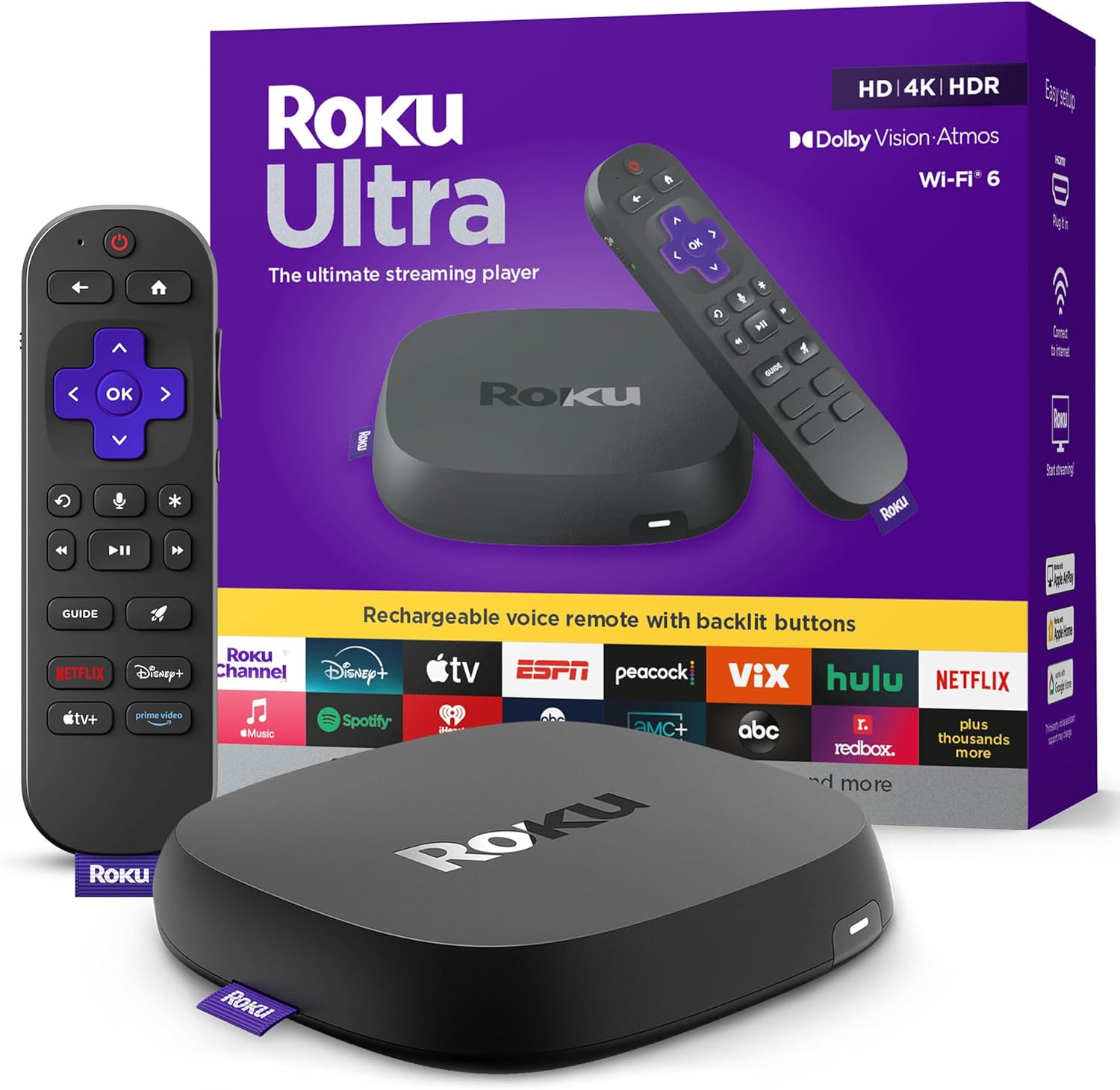
Roku Ultra - Ultimate Streaming Player - 4K Streaming Dev...

Roku Streaming Stick 4K - HDR & D. Vision Roku Streaming ...
As an Amazon Associate we earn from qualifying purchases.
Official Manufacturer Manual
Roku provides official product documentation through their online manual rather than downloadable PDF. Access setup guides, troubleshooting steps, and product specifications for your Roku Streaming Device.
Source: roku.com
Need More Help? Roku Support
Note: The contact information below connects you directly to Roku's official customer support team, not Trunetto. They can help with warranty claims, device replacements, and advanced technical issues.


