What Does Roku Error 009 Mean and How Do I Fix No Internet Connection?
- Internet/ISP outage
- Modem needs a restart
- Router connected but no WAN
Problem Description
Roku Error 009 means the device connected to your router but cannot reach the internet. This often appears when launching channels or checking updates. In most homes, the fix is correcting gateway or DNS path stability rather than replacing the Roku player.
Why This Happens in Real Homes
Roku Error 009 is specific: the Roku connected to your router fine, but the router has no internet — so the problem is between your router and your ISP, not the Roku. Other devices in the house are usually affected too, which is the quickest way to confirm it.
Restart your modem and router (unplug both for 30 seconds), and check whether phones or laptops can reach the internet — if they can't, it's an ISP or modem issue to resolve there. Setting a reliable DNS and updating router firmware help if the connection is flaky rather than fully down. Once the router has real internet again, the Roku streams normally.
Symptoms
- Error 009: connected to router, no internet
- WiFi connected but no streaming
- Can't reach the internet
- Apps won't load
- 009 on the network screen
- Local network works, internet doesn't
- No internet despite WiFi
- Streaming fails
Recognize these? Here's what usually causes it.
Common Causes
- Internet/ISP outage
- Modem needs a restart
- Router connected but no WAN
- DNS issue
- Too many devices / router overloaded
- Captive portal (some networks)
- Router firmware issue
- ISP-side problem
Most fixes happen in the first 3 steps.
Do not assume Wi-Fi bars mean internet is healthy because Roku can join LAN while still failing WAN or DNS resolution.
Tools & Requirements
Step-by-Step Solution
Run built-in network check first
On Roku, go to Settings, Network, Check connection and confirm whether failure is wireless join or internet reachability. Error 009 is usually internet stage failure. Capturing this detail keeps troubleshooting focused on WAN path and DNS instead of Wi-Fi password mistakes.
Validate home internet outside Roku
Use a phone or laptop on the same router to verify real internet access. If those devices also fail, contact your ISP first. If they work while Roku still shows 009, continue with Roku-specific route and DNS refresh steps.
Restart network path in the correct order
Reboot modem or gateway first, then router, then Roku. Wait for all internet and WAN indicators to stabilize before restarting Roku. This order prevents Roku from rejoining a half-initialized network state that can keep Error 009 recurring.
Reconnect Roku network profile cleanly
Forget the current network profile, reconnect to the intended SSID, and rerun connection test. If the wrong SSID or guest network was used, Roku may join Wi-Fi but still fail internet policy checks and present Error 009 repeatedly.
Use hotspot or Ethernet for final isolation
If possible, test Roku with Ethernet or a phone hotspot. If either works, your Roku hardware is fine and home network policy is the root cause. Keep logs of when 009 appears to help pinpoint ISP outages or router firmware instability.
Quick Solutions
Still having issues? This is usually the deeper cause below.
If this comes back after following these steps, check whether a recent app or firmware update reset a default setting — the fix works, but the setting gets reverted silently.
Roku Error 009 is usually a network path problem, so test reachability first before replacing the player.
This issue almost always looks more complex than it is — the majority of cases trace back to a single setting, a stale credential, or a default that shipped wrong.
- Internet/ISP outage
- Modem needs a restart
- Router connected but no WAN
- DNS issue
- Too many devices / router overloaded
Before you go — try one of these (they fix most cases).
Most popular upgrades chosen by Roku Internet Connectivity owners.
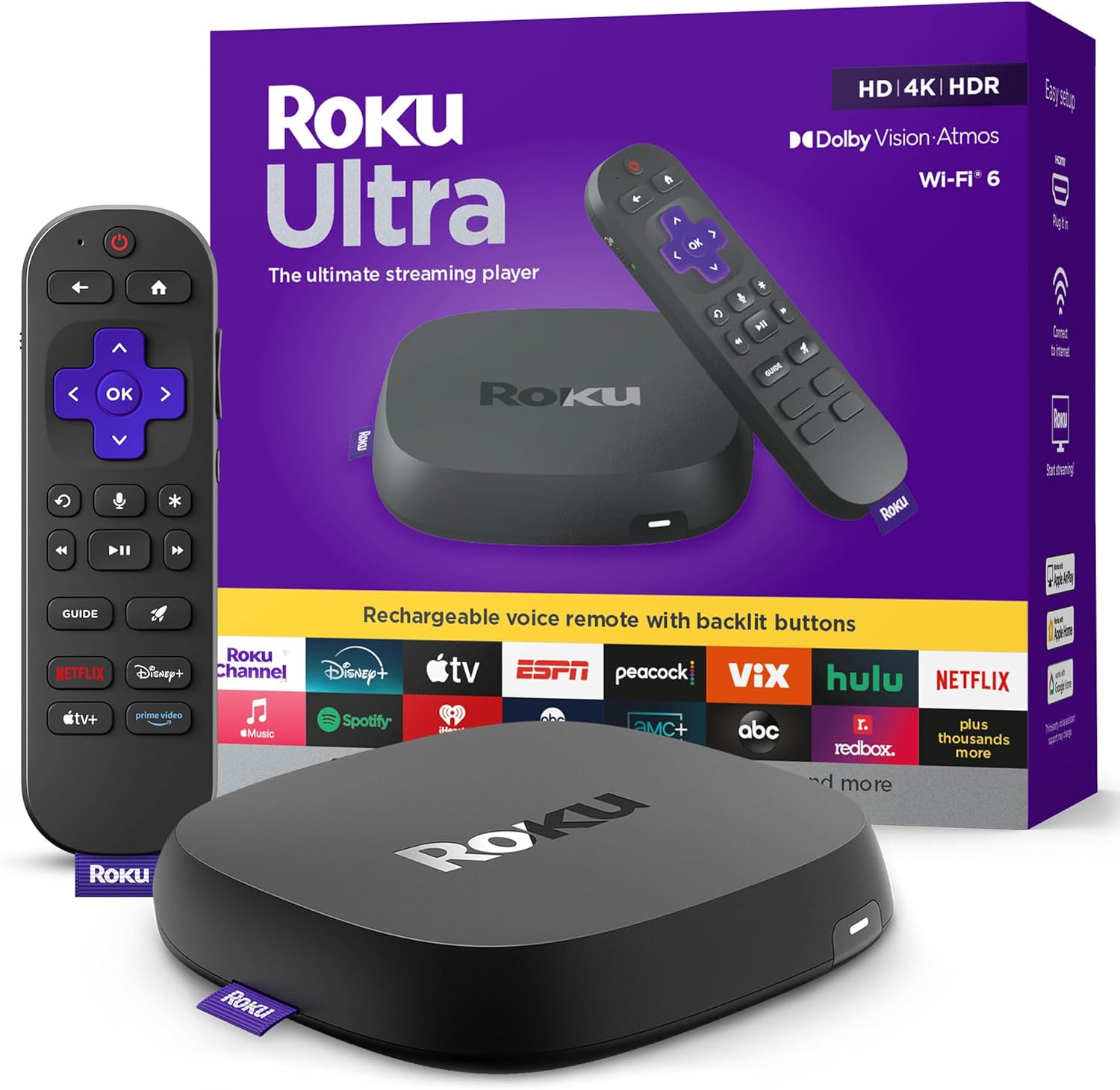
Roku Ultra - Ultimate Streaming Player - 4K Streaming Dev...

Roku Streaming Stick 4K - HDR & D. Vision Roku Streaming ...
As an Amazon Associate we earn from qualifying purchases.
Official Manufacturer Manual
Roku provides official product documentation through their online manual rather than downloadable PDF. Access setup guides, troubleshooting steps, and product specifications for your Roku Internet Connectivity.
Source: support.roku.com
Need More Help? Roku Support
Note: The contact information below connects you directly to Roku's official customer support team, not Trunetto. They can help with warranty claims, device replacements, and advanced technical issues.
Accessories owners commonly pair with Roku Internet Connectivity.

SANDISK 64GB Extreme microSDXC UHS-I Memory Card with Ada...

SANDISK 32GB (Pack of 2) Ultra microSDHC UHS-I Memory Car...

SANDISK 128GB Ultra microSDXC UHS-I Memory Card with Adap...
As an Amazon Associate we earn from qualifying purchases.