What Does Roku Error 016 Mean and How Do I Fix Lost Internet Connection?
- Weak WiFi signal at the Roku
- Too far from the router
- 2.4GHz interference
Problem Description
Roku Error 016 appears when the network or internet connection drops during playback or app use. It is usually tied to weak wireless conditions, gateway instability, or interference. Most fixes involve stabilizing signal quality and reducing mid-stream disconnections.
Why This Happens in Real Homes
Roku Error 016 means the network or internet connection was lost, usually flagged with a weak-signal warning — so it's most often a coverage problem: the Roku is too far from the router or fighting interference, and the connection drops during use. It's about signal strength and stability more than a total outage.
Move the Roku closer to the router or improve line-of-sight, reduce 2.4GHz interference by changing the channel, and restart the router and modem. On models with Ethernet, a wired connection is the most reliable fix. Reserve a DHCP IP so the router doesn't drop it, reduce congestion from other heavy devices, and update router firmware. Stronger, steadier signal clears Error 016.
Symptoms
- Error 016: internet connection lost
- Weak signal warning
- Streaming stops mid-play
- Connection drops
- 016 during use
- Buffering then 016
- Loses internet intermittently
- Signal too low
Recognize these? Here's what usually causes it.
Common Causes
- Weak WiFi signal at the Roku
- Too far from the router
- 2.4GHz interference
- Intermittent ISP/router drops
- Router overloaded
- Network congestion
- Router firmware issue
- Obstructions between Roku and router
Most fixes happen in the first 3 steps.
Do not trust short menu tests alone because intermittent drops usually surface under sustained streaming load.
Tools & Requirements
Step-by-Step Solution
Confirm intermittent pattern with Error 016
Track when Error 016 appears and whether it happens during high-bitrate playback or random menu use. This helps identify signal or congestion patterns. Intermittent timing usually points to wireless quality rather than account or app credential issues.
Measure and improve signal quality
Move Roku out from behind the TV, reduce barriers, and place router for cleaner line of signal. Weak signal that barely works in menus can still fail under sustained stream load. Better placement alone often removes recurring Error 016 events.
Restart all network components cleanly
Reboot modem or gateway, then router, then Roku after internet is fully restored. This clears stale wireless sessions and route issues. If you use mesh, make sure nodes fully return before retesting to avoid unstable roaming state.
Reduce interference and congestion
Switch router channel if crowded and keep Roku away from microwave ovens, cordless bases, and dense AV stacks. If available, use 5GHz for shorter distance reliability or Ethernet on supported models for stable throughput.
Run sustained playback validation
Test at least 30 minutes of continuous playback in two apps. If Error 016 still appears, compare behavior on hotspot or another network path. Persistent failures only on home network indicate router or ISP quality issues, not Roku device failure.
Quick Solutions
Still having issues? This is usually the deeper cause below.
If this comes back after following these steps, check whether a recent app or firmware update reset a default setting — the fix works, but the setting gets reverted silently.
Error 016 is often solved by improving signal quality and reducing interference, not by factory resetting the player.
This issue almost always looks more complex than it is — the majority of cases trace back to a single setting, a stale credential, or a default that shipped wrong.
- Weak WiFi signal at the Roku
- Too far from the router
- 2.4GHz interference
- Intermittent ISP/router drops
- Router overloaded
Before you go — try one of these (they fix most cases).
Most popular upgrades chosen by Roku Playback Connectivity owners.
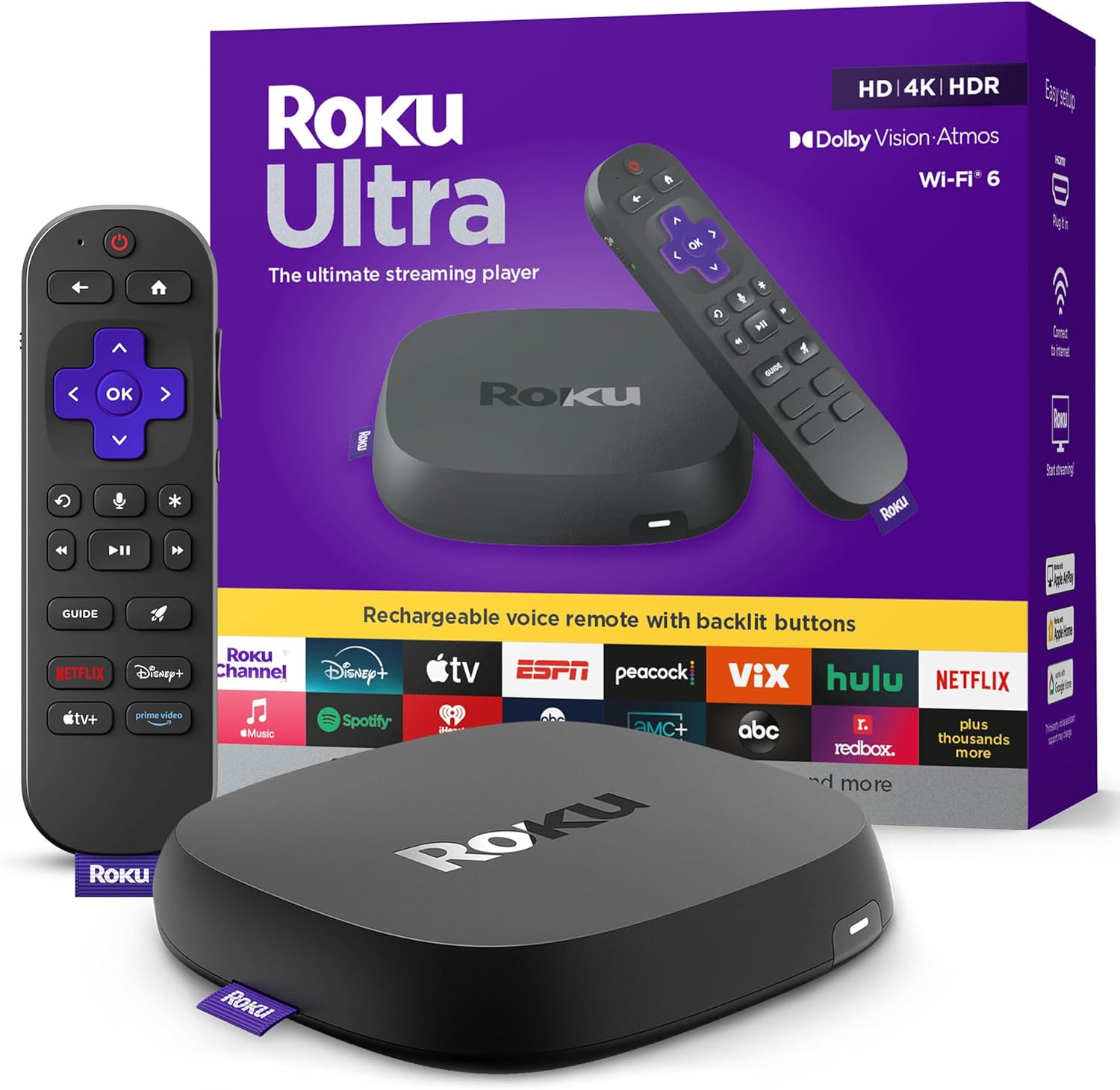
Roku Ultra - Ultimate Streaming Player - 4K Streaming Dev...

Roku Streaming Stick 4K - HDR & D. Vision Roku Streaming ...
As an Amazon Associate we earn from qualifying purchases.
Official Manufacturer Manual
Roku provides official product documentation through their online manual rather than downloadable PDF. Access setup guides, troubleshooting steps, and product specifications for your Roku Playback Connectivity.
Source: support.roku.com
Need More Help? Roku Support
Note: The contact information below connects you directly to Roku's official customer support team, not Trunetto. They can help with warranty claims, device replacements, and advanced technical issues.
Accessories owners commonly pair with Roku Playback Connectivity.

SANDISK 64GB Extreme microSDXC UHS-I Memory Card with Ada...

SANDISK 32GB (Pack of 2) Ultra microSDHC UHS-I Memory Car...

SANDISK 128GB Ultra microSDXC UHS-I Memory Card with Adap...
As an Amazon Associate we earn from qualifying purchases.