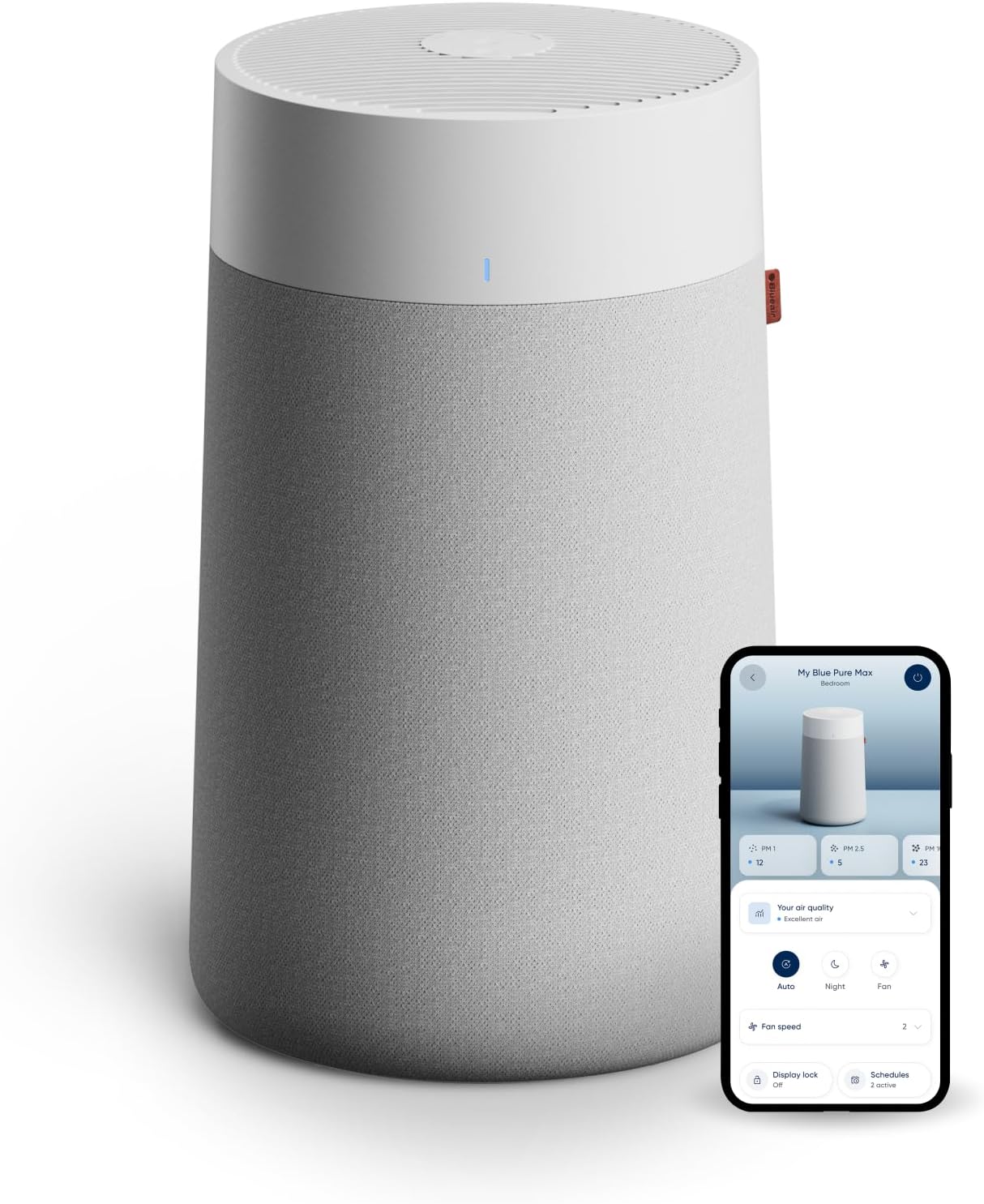
Blueair Air Purifier Won't Connect to WiFi or the App
- A 5GHz-only or merged network
- Bluetooth off on the phone
- A VPN blocking the connection
Problem Description
Your Blueair purifier will not pair with the Blueair app or keeps failing during WiFi setup. On Blueair units it is usually the 2.4GHz requirement, Bluetooth or a VPN blocking the handshake, or the phone being too far from the unit during setup.
Why This Happens in Real Homes
Blueair pairs over 2.4GHz using Bluetooth to start, so failures are usually the band, Bluetooth or a VPN blocking it, or the phone being too far during setup. In real homes the two most common misses are a VPN left running on the phone and standing across the room, since Blueair setup is sensitive to distance.
Use 2.4GHz within about three feet, turn Bluetooth on and the VPN off, and power-cycle the unit before assuming a fault. It still runs on its manual controls while offline.
Symptoms
- Blueair app will not pair the purifier
- Setup fails partway through
- The app cannot see the unit
- Pairing keeps dropping
- Will not connect after a router change
- Fails when standing across the room
- Repeated connection errors
- Connects then goes offline
Recognize these? Here's what usually causes it.
Common Causes
- A 5GHz-only or merged network
- Bluetooth off on the phone
- A VPN blocking the connection
- Phone too far from the unit and router
- A stuck wireless radio
- A stale app session
- Home internet down
- Weak signal at the unit
Most fixes happen in the first 3 steps.
Step-by-Step Solution
Use a 2.4GHz network
Blueair connects over 2.4GHz WiFi, so select the 2.4GHz band for both the purifier and your phone. If your router merges the bands under one name, split them or use the 2.4GHz network name for the setup. Trying to pair against a 5GHz-only network is a frequent reason it never completes.
Enable Bluetooth and turn off VPN
The Blueair app uses Bluetooth to begin pairing, so make sure Bluetooth is switched on in your phone settings, and turn off any VPN, which blocks the app from finishing the connection to Blueair's servers. Also confirm your home internet is actually up before you start, since the app needs it to register the unit.
Stay within 3 feet during setup
Keep the phone with the Blueair app open within about 3 feet, or 1 meter, of both the air purifier and the router while pairing. Blueair setup is sensitive to distance, and standing across the room is a common reason it gets partway and then fails, even when everything else is correct.
Power-cycle the purifier
For a unit that will not pair or keeps dropping, turn it off and unplug it for 30 seconds, then plug it back in, turn it on, and wait a full 2 minutes for it to boot before retrying. This resets the wireless radio and clears a stuck state that blocks the app from seeing the unit.
Log out and back into the app
If the app still cannot see the unit, log out of your Blueair app account and log back in, which refreshes the app's connection to Blueair's servers, then start pairing again from the beginning. A stale app session is an easy thing to miss and a quick fix.
Reboot the router and retry, then escalate
Reboot the router, keep the phone, purifier, and router close together, and pair again. If it still will not connect on a confirmed 2.4GHz network with Bluetooth on and VPN off, Blueair has app and WiFi support at blueair.com. The purifier keeps running on its manual controls while offline.
Quick Solutions
Still having issues? This is usually the deeper cause below.
This usually happens right after a router reboot or ISP change — the device rejoins the network but drops its cloud session silently.
Blueair app and WiFi troubleshooting is at blueair.com. The two most common misses are a VPN left running on the phone and standing too far from the unit during setup, so fix those before anything else.
Most WiFi drop-offs happen right after a router reboot or ISP swap — the device reconnects to the network but silently loses its cloud registration.
- A 5GHz-only or merged network
- Bluetooth off on the phone
- A VPN blocking the connection
- Phone too far from the unit and router
- A stuck wireless radio
Before you go — try one of these (they fix most cases).
Most popular upgrades chosen by Blueair Air Purifier owners.

As an Amazon Associate we earn from qualifying purchases.
Official Manufacturer Manual
Blueair provides official product documentation through their online manual rather than downloadable PDF. Access setup guides, troubleshooting steps, and product specifications for your Blueair Air Purifier.
Source: blueair.com
Need More Help? Blueair Support
Note: The contact information below connects you directly to Blueair's official customer support team, not Trunetto. They can help with warranty claims, device replacements, and advanced technical issues.
Accessories owners commonly pair with Blueair Air Purifier.

Ring Rechargeable Quick Release Battery Pack
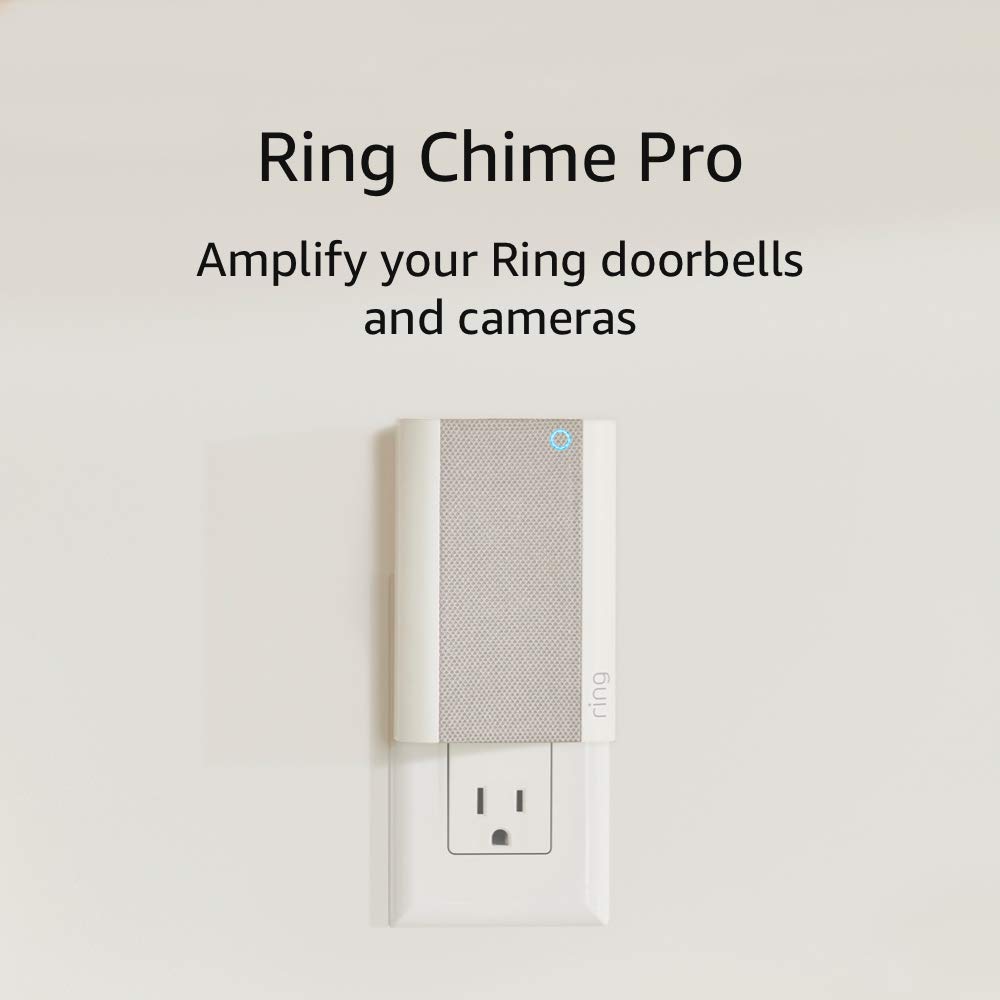
Ring Chime Pro

SwitchBot Hub Mini Smart Remote - IR Universal Remote, Wi...
As an Amazon Associate we earn from qualifying purchases.