

Why Won't My Dyson Pure Cool TP07 Auto Mode Adjust Fan Speed Based on Air Quality
- Air-quality sensor blocked by dust
- Sensor calibration drifted, needs a reset
- Auto mode target/sensitivity set too low
Problem Description
Your Dyson Pure Cool TP07 is set to Auto mode but the fan speed stays constant instead of automatically adjusting based on detected air quality levels. The air quality sensor shows readings on the display but the purifier does not increase speed when pollution is detected or decrease when air is clean. Auto mode should dynamically change fan speed to maintain good air quality.
Why This Happens in Real Homes
In Auto mode the TP07 sets its own fan speed from the air-quality sensors, so if those sensors aren't reading real air, the fan has no reason to change and just sits at one speed - even when the display itself shows poor air. The mismatch is the giveaway: the display can show a bad reading while the fan stays slow because the sensor feeding Auto is dirty, drifted, or the Auto sensitivity is set so low that only extreme pollution triggers a response. The first fix is cleaning the sensor inlet with compressed air and giving the unit clearance from walls, followed by adjusting the Auto sensitivity so it reacts to everyday cooking and dust.
If cleaning and sensitivity don't restore it, work the supporting causes. Sensor calibration can drift over time - resetting it through the Dyson app re-baselines it - and an overdue filter can skew both readings and the Auto response, so replace the HEPA/carbon if it's due. A firmware update fixes known Auto-algorithm bugs. And remember VOC saturation from cleaning products or fresh paint can pin the sensor high or confuse Auto until the room is ventilated. A quick confidence test is to hold a mild pollution source near the sensor inlet: a healthy machine in Auto ramps up within seconds, and one that ignores it has a sensor or calibration problem rather than a broken fan.
Symptoms
- Fan stays at one speed regardless of air quality
- Auto indicator on but speed never changes
- Air-quality display shows poor but the fan stays slow
- No ramp-up when cooking or smoking is detected
- Speed stuck at minimum with high PM2.5
- Manual mode works but Auto seems broken
- Fan doesn't step down when air clears
- Auto response feels absent
Recognize these? Here's what usually causes it.
Common Causes
- Air-quality sensor blocked by dust
- Sensor calibration drifted, needs a reset
- Auto mode target/sensitivity set too low
- Filter overdue, affecting sensor readings
- Firmware bug affecting the Auto algorithm
- Sensor exposed to VOC chemicals and skewed
- Purifier against a wall starving the sensor
- Machine still in its post-power-on calibration window
Most fixes happen in the first 3 steps.
Never attempt to clean the internal sensors by disassembling the purifier. The sensors are delicate and can be permanently damaged. Only clean external sensor vents as described.
Tools & Requirements
These tools will help you complete this fix.

As an Amazon Associate we earn from qualifying purchases.
Step-by-Step Solution
Clean the Air Quality Sensors
The TP07 has an air quality sensor behind a small rectangular slot on the lower-left side of the base (when facing the display). Dust buildup on this inlet blocks airflow to the internal PM2.5 and VOC sensors. Power off and unplug the unit. Use a dry cotton swab to gently clean inside the sensor slot, and blow compressed air into the opening. Do not use water or cleaning solutions.
Reset Sensor Calibration
Open the Dyson Link app and select your TP07. Go to Settings and find the option to recalibrate or reset sensors. The purifier will run a calibration cycle that takes about 30 minutes. During this time, keep windows closed and avoid activities that affect air quality. The sensor needs stable conditions to establish a baseline.
Check Auto Mode Target Setting
In the Dyson app, go to your purifier settings and look for Auto mode sensitivity or target air quality. If this is set to a very low sensitivity, the purifier will not react to moderate air quality changes. Set it to Normal or High sensitivity to see more responsive automatic speed adjustments.
Inspect and Replace Filters
Clogged filters can affect airflow and sensor readings. Check the filter life indicator in the app or on the display. If filters are over 80% used, replace them. When installing new filters, make sure you remove all packaging material and seat the filters properly until they click into place.
Update Firmware
Connect your purifier to WiFi if not already connected. In the Dyson app, go to Settings and check for firmware updates. Install any available updates. After updating, power cycle the unit by unplugging for 30 seconds. Some Auto mode bugs have been fixed in recent firmware versions.
Quick Solutions
Still having issues? This is usually the deeper cause below.
If this comes back after following these steps, check whether a recent app or firmware update reset a default setting — the fix works, but the setting gets reverted silently.
Place your Dyson purifier away from windows and vents where outdoor air can directly hit the sensor. This causes erratic readings that prevent Auto mode from working smoothly.
This issue almost always looks more complex than it is — the majority of cases trace back to a single setting, a stale credential, or a default that shipped wrong.
- Air-quality sensor blocked by dust
- Sensor calibration drifted, needs a reset
- Auto mode target/sensitivity set too low
- Filter overdue, affecting sensor readings
- Firmware bug affecting the Auto algorithm
Before you go — try one of these (they fix most cases).
Most popular upgrades chosen by Dyson Pure Cool owners.
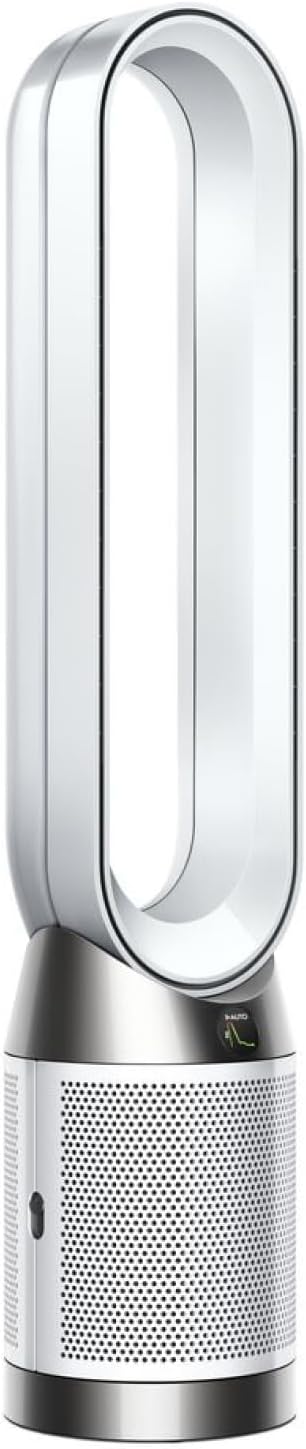
As an Amazon Associate we earn from qualifying purchases.
Official Manufacturer Manual
Dyson provides official product documentation through their online manual rather than downloadable PDF. Access setup guides, troubleshooting steps, and product specifications for your Dyson Pure Cool.
Source: dyson.com
Need More Help? Dyson Support
Note: The contact information below connects you directly to Dyson's official customer support team, not Trunetto. They can help with warranty claims, device replacements, and advanced technical issues.
Accessories owners commonly pair with Dyson Pure Cool.

Ring Rechargeable Quick Release Battery Pack
Ring Chime Pro

SwitchBot Hub Mini Smart Remote - IR Universal Remote, Wi...
As an Amazon Associate we earn from qualifying purchases.


