

Why Is My Dyson Purifier Cool Not Oscillating
- Oscillation disabled in settings
- Base obstructed by furniture/wall
- Child lock enabled
Problem Description
Oscillation can stop if the setting is disabled or the base is obstructed. This guide restores oscillation and checks firmware settings.
Why This Happens in Real Homes
Oscillation can stop if the setting is disabled or the base is obstructed. This guide restores oscillation and checks firmware settings. In day-to-day use, this usually looks like Oscillation button does nothing; Head stays fixed; App shows oscillation on.
Most cases trace back to Oscillation disabled; Base obstructed; Child lock enabled. The fix works best when you go step by step instead of changing multiple settings at once.
A practical order for this issue is: Enable Oscillation -> Check Clearance -> Power Cycle -> Update Firmware. After each step, test the exact behavior that was failing so you can confirm what actually solved it.
Symptoms
- Oscillation button does nothing
- Head stays fixed
- App shows oscillation on
- Fan runs normally
- Recent power outage
- Unit recently moved
- Base won't rotate
- Oscillation stops mid-sweep
Recognize these? Here's what usually causes it.
Common Causes
- Oscillation disabled in settings
- Base obstructed by furniture/wall
- Child lock enabled
- Firmware outdated
- Power cycle needed
- Internal calibration error
- Dust buildup in the base
- Unit not on a level surface
Most fixes happen in the first 3 steps.
Keep fingers clear of the moving head during testing.
Tools & Requirements
Step-by-Step Solution
Enable Oscillation from Remote or App
Press the oscillation button on the Dyson remote control (the curved arrow icon) to toggle oscillation on or off. You can also enable it in the Dyson Link or MyDyson app by tapping the oscillation control. Check the oscillation angle setting — the Pure Cool supports multiple ranges (45, 90, 180, and 350 degrees depending on model).
Check for Physical Obstructions
Make sure nothing is blocking the base of the unit where the oscillation motor is located. Objects pressed against the base or an uneven surface can prevent the motor from turning. Place the purifier on a flat, stable surface. If the unit makes a clicking or grinding sound when oscillation is on, the motor may be obstructed internally.
Clean the Oscillation Mechanism
Dust accumulation in the base where the oscillation motor sits can cause the unit to stop rotating. Unplug the unit and gently tilt it to inspect the underside of the base. Wipe the outside of the base joint with a dry cloth. Do not use water or spray cleaners near the motor area.
Update Firmware via the Dyson App
Open the Dyson Link or MyDyson app, go to your purifier's device page, and check for firmware updates under Settings. Some firmware versions have bugs that disable oscillation after the unit enters standby. Install any available updates and test oscillation again after the update completes.
Factory Reset the Purifier
Press and hold the power button on the body of the unit (not the remote) for 10 seconds until the display resets. This clears all settings including oscillation preferences. Re-enable oscillation from the remote or app after the reset. If the unit still will not oscillate, the internal motor may have failed and the unit needs repair.
Quick Solutions
Still having issues? This is usually the deeper cause below.
If this comes back after following these steps, check whether a recent app or firmware update reset a default setting — the fix works, but the setting gets reverted silently.
Give the purifier ample clearance so the head can rotate smoothly.
This issue almost always looks more complex than it is — the majority of cases trace back to a single setting, a stale credential, or a default that shipped wrong.
- Oscillation disabled in settings
- Base obstructed by furniture/wall
- Child lock enabled
- Firmware outdated
- Power cycle needed
Before you go — try one of these (they fix most cases).
Most popular upgrades chosen by Dyson Purifier Cool owners.
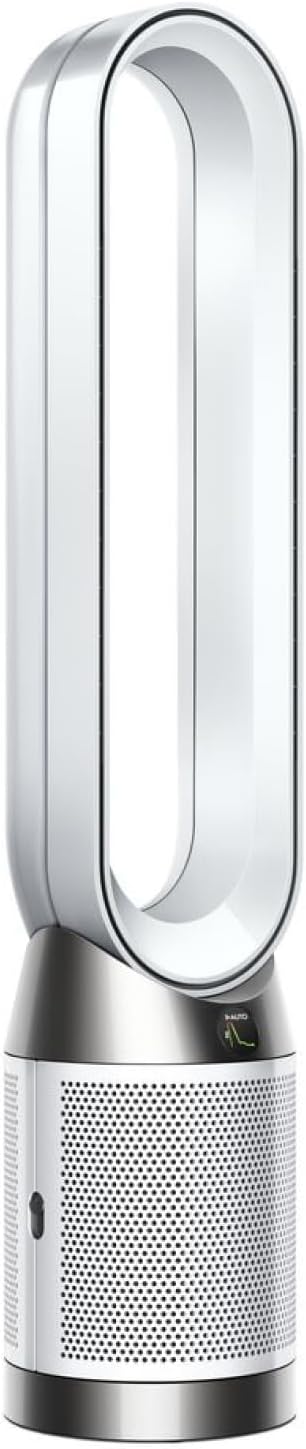
As an Amazon Associate we earn from qualifying purchases.
Official Manufacturer Manual
Dyson provides official product documentation through their online manual rather than downloadable PDF. Access setup guides, troubleshooting steps, and product specifications for your Dyson Purifier Cool.
Source: dyson.com
Need More Help? Dyson Support
Note: The contact information below connects you directly to Dyson's official customer support team, not Trunetto. They can help with warranty claims, device replacements, and advanced technical issues.


