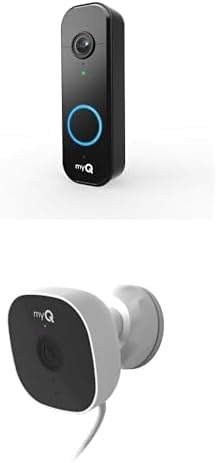
How Do I Set Up the MyQ Garage Camera?
- Camera on 5GHz / band-steered (needs 2.4GHz)
- Weak 2.4GHz signal at the garage
- Camera mounted poorly for the view
Problem Description
You are setting up the myQ Smart Garage Camera to add video monitoring to your garage. The camera mounts inside the garage above the door and streams live video through the myQ app. This guide covers mounting, connecting to WiFi, and pairing the camera with your myQ account.
Why This Happens in Real Homes
The myQ Smart Garage Camera adds live video to your garage, mounting inside above the door and streaming through the myQ app - useful on its own and required for features like Key by Amazon in-garage delivery. Setup is a standard WiFi-camera flow with the usual myQ constraint: it connects to 2.4GHz WiFi only, so a phone or setup pointed at 5GHz, or a band-steered router, causes pairing to fail. Get it onto a clean 2.4GHz network in the myQ app, and because the garage is a weak-signal spot, a mesh node nearby keeps the video stream reliable.
Mounting matters for what you actually see: position it above the door aimed to cover the door and the parking area, with a clear, unobstructed view. During setup the camera has to be in pairing mode and linked to your myQ account, and it needs solid power from the supplied adapter. A camera that pairs but then drops offline usually just has a weak 2.4GHz signal at its location or is on a guest/isolated network that limits it - moving it onto the main network and improving coverage fixes that. Keep the firmware current for reliable streaming and any feature updates.
Symptoms
- Choosing where to mount the camera
- Camera won't join WiFi during setup
- Camera won't pair with the myQ account
- No live video in the myQ app
- Camera offline after setup
- Poor image/angle of the garage
- Camera drops offline repeatedly
- Two-way audio not working
Recognize these? Here's what usually causes it.
Common Causes
- Camera on 5GHz / band-steered (needs 2.4GHz)
- Weak 2.4GHz signal at the garage
- Camera mounted poorly for the view
- Not in pairing mode during setup
- myQ account not linked correctly
- Power/USB adapter issue
- Firmware out of date
- Router isolating the camera
Most fixes happen in the first 3 steps.
Garage doors are extremely heavy and the springs are under high tension. Never attempt to repair or adjust the door springs, cables, or tracks yourself as this can cause serious injury. Only troubleshoot the smart controller and electronic components. Call a professional for any mechanical issues.
Tools & Requirements
These tools will help you complete this fix.

As an Amazon Associate we earn from qualifying purchases.
Step-by-Step Solution
Mount the myQ Smart Garage Camera
The myQ Smart Garage Camera mounts on the ceiling of your garage, aimed at the garage door. It includes a wide-angle lens to capture the full door area. Use the included mounting plate and screws to attach it to the ceiling, 4-6 feet back from the garage door. The camera connects via the included power cable to a standard outlet. Do not mount it on the garage door opener unit — vibration causes blurry video.
Connect to WiFi through the myQ app
In the myQ app, go to Add Device > Smart Garage Camera. The app guides you through WiFi setup. The camera creates a temporary WiFi hotspot — connect your phone to it, then transfer your home 2.4GHz WiFi credentials. The camera connects and appears in the myQ app. Live view and recorded clips are accessible from the camera tile in the app.
Configure motion detection zones
In the myQ app, tap the camera > Settings > Motion Zones. Draw a zone that covers the garage door area and the immediate interior. Exclude areas with constant movement (windows with passing traffic, a pet area). Motion detection triggers clip recording and sends push notifications. Person detection (available on some camera models) filters alerts to human-only events.
View live feed and recorded clips
Tap the camera in the myQ app to see the live feed. Recorded clips appear in the Events tab, sorted by time. Each motion event records a 30-60 second clip. You can download clips to your phone. The myQ app provides free clip storage (limited retention) with the camera — no subscription required for basic clip storage. Extended storage with longer retention requires a myQ+ subscription.
Use the camera with the garage door for smart alerts
The camera integrates with the myQ garage door sensor. When the garage door opens, the camera starts recording automatically — you get a video clip of who opened the door and what happened in the garage. When combined with Left-Open alerts, you can check the camera to see if you forgot to close the door and verify whether the garage is secure before remotely closing it.
Quick Solutions
Still having issues? This is usually the deeper cause below.
Camera issues that start suddenly almost always trace back to an upload bandwidth drop — run a speed test before assuming hardware failure.
Set a nightly auto-close schedule at your usual bedtime so the garage door closes automatically even if you forget. Combine it with a phone notification 10 minutes before so you know it is about to close.
Live view problems that start suddenly usually trace back to an upload speed drop — the camera itself is fine, the bandwidth path to the cloud isn't.
- Camera on 5GHz / band-steered (needs 2.4GHz)
- Weak 2.4GHz signal at the garage
- Camera mounted poorly for the view
- Not in pairing mode during setup
- myQ account not linked correctly
Before you go — try one of these (they fix most cases).
Most popular upgrades chosen by MyQ Smart Garage Camera owners.

myQ Smart Garage Door Video Keypad + myQ Smart Indoor Sec...

myQ Smart Garage Security Camera – 1080p HD Video, Night ...
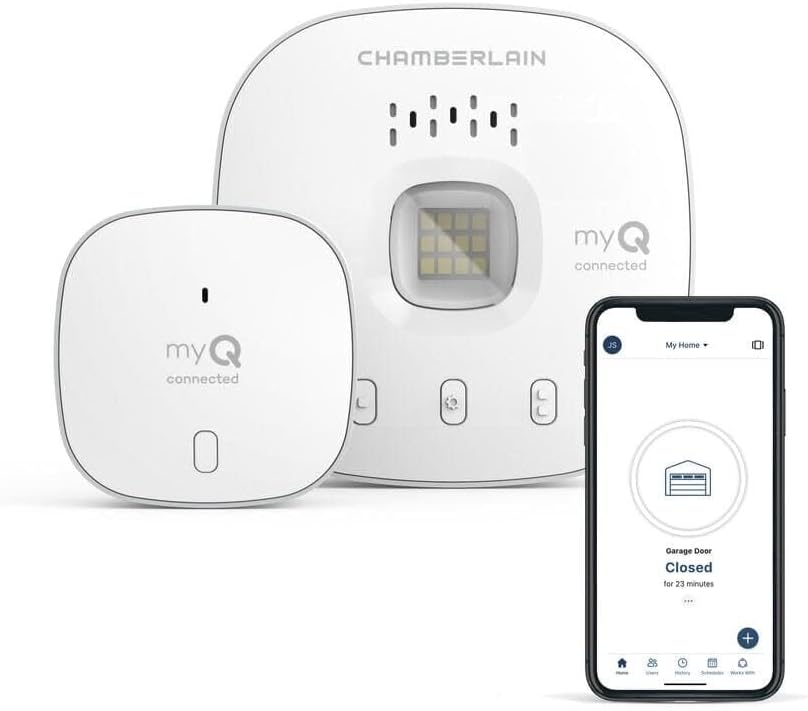
Chamberlain MYQ-G0401 myQ Wi-Fi Smart Garage Door Opener ...
As an Amazon Associate we earn from qualifying purchases.
Official Manufacturer Manual
MyQ provides official product documentation through their online manual rather than downloadable PDF. Access setup guides, troubleshooting steps, and product specifications for your MyQ Smart Garage Camera.
Source: support.chamberlaingroup.com
Need More Help? MyQ Support
Note: The contact information below connects you directly to MyQ's official customer support team, not Trunetto. They can help with warranty claims, device replacements, and advanced technical issues.