How Do I Set Up MyQ HomeKit Bridge?
- Bridge not on 2.4GHz WiFi (or weak garage signal)
- No Apple home hub (HomePod/Apple TV) for remote/automations
- HomeKit code damaged or already added to another home
Problem Description
You want to set up the myQ Home Bridge to control your garage door in Apple Home, or the setup is failing. The myQ Home Bridge connects your myQ garage to Apple HomeKit so you can use the Home app and Siri. Setup needs the bridge online on 2.4GHz WiFi, an Apple home hub for remote/automations, and the HomeKit code scanned. This guide covers pairing the bridge to HomeKit and fixing setup failures.
Why This Happens in Real Homes
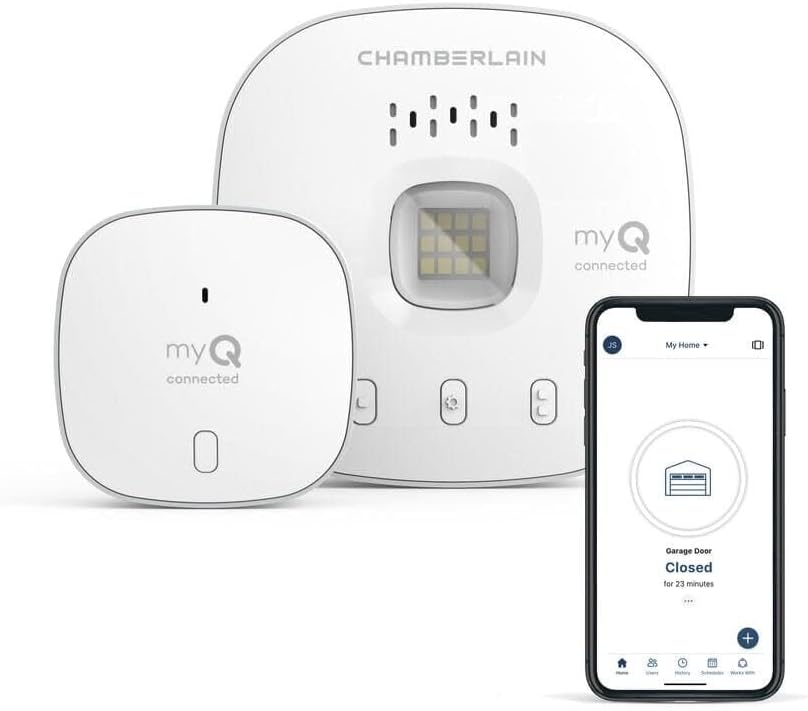
The myQ Home Bridge exists to bring your myQ garage into Apple HomeKit, so you can open, close, and automate the door with the Home app and Siri - a nice option given Chamberlain has restricted many other third-party integrations. Setup is the standard HomeKit flow with myQ specifics: get the bridge online on 2.4GHz WiFi first (it's 2.4GHz-only, and garages have weak signal, so a mesh node helps), then add it in the Apple Home app by scanning its HomeKit setup code. For remote control and automations - not just when you're standing next to it - you need an Apple home hub (a HomePod or Apple TV) signed into your home.
The failures cluster around the network. HomeKit relies on local mDNS/Bonjour discovery, so a router that blocks that, or a setup where the bridge and your home hub sit on different VLANs or SSIDs, causes pairing failures and 'No Response' after adding - keeping everything on one flat network resolves most of it. A HomeKit code that won't scan can be entered manually, and a code already tied to another home has to be removed there first. Set up your myQ account and bridge on the myQ side before adding to HomeKit, keep the bridge firmware current, and make sure it's in pairing mode when you scan.
Symptoms
- Bridge won't add to Apple Home
- HomeKit setup code won't scan/rejected
- Garage works in myQ app but not Home app
- Siri can't control the garage
- Bridge shows No Response after adding
- Home automations for the garage don't run
- Bridge won't join WiFi
- Pairing times out
Recognize these? Here's what usually causes it.
Common Causes
- Bridge not on 2.4GHz WiFi (or weak garage signal)
- No Apple home hub (HomePod/Apple TV) for remote/automations
- HomeKit code damaged or already added to another home
- Bridge and hub on split LAN/VLAN, breaking mDNS
- Bridge firmware out of date
- Router blocking mDNS/Bonjour discovery
- Bridge not in pairing mode
- myQ account/bridge not fully set up first
Most fixes happen in the first 3 steps.
Garage doors are extremely heavy and the springs are under high tension. Never attempt to repair or adjust the door springs, cables, or tracks yourself as this can cause serious injury. Only troubleshoot the smart controller and electronic components. Call a professional for any mechanical issues.
Tools & Requirements
These tools will help you complete this fix.

As an Amazon Associate we earn from qualifying purchases.
Step-by-Step Solution
Check if your myQ device supports HomeKit
The myQ Chamberlain Smart Garage Control Hub (model myQ-G0401) and the myQ Home Bridge (model myQ-G0303) support Apple HomeKit. Built-in WiFi openers with myQ also support HomeKit through a bridge. Note: Chamberlain removed the free HomeKit integration in 2023 and moved it behind a paid subscription (myQ+). Check the current pricing and availability of myQ HomeKit support before purchasing a bridge.
Add the myQ Home Bridge to your network
Plug the myQ Home Bridge into an Ethernet port on your router (the bridge uses Ethernet, not WiFi). Power it using the included adapter. The bridge LED turns on and begins initializing. In the myQ app, add the bridge as a device. The bridge connects to the myQ cloud and makes your garage door available to Apple HomeKit.
Add the garage door to Apple Home
In the Apple Home app, tap + > Add Accessory. The myQ Home Bridge should appear as an available accessory (or scan the HomeKit setup code on the bridge). Add it to your home and assign it to a room (Garage). The garage door appears as a garage door opener accessory in the Home app with Open and Close controls. You can now control it via Siri: Hey Siri, close the garage door.
Create HomeKit automations with the garage door
In the Home app, create automations: When I leave home, close the garage door (uses your iPhone location). When I arrive home, open the garage door. At 10 PM, close the garage door if it is open. Note: for security reasons, Apple HomeKit requires confirmation before opening a garage door — opening automations require manual approval. Closing automations can run automatically.
Fix the bridge going offline in HomeKit
If the garage door shows Not Responding in the Home app: check the bridge Ethernet connection — make sure the cable is plugged in. Check the bridge LED — it should be solid, not blinking or off. Restart the bridge by unplugging it for 15 seconds. If the bridge is online but HomeKit still shows Not Responding, restart your Home Hub (HomePod, Apple TV). Also check if your myQ+ subscription is active — without the subscription, the HomeKit connection may be blocked.
Quick Solutions
Still having issues? This is usually the deeper cause below.
If the hub reconnects then drops every few minutes, check for an IP conflict — two devices sharing the same DHCP address fight each other continuously.
Set a nightly auto-close schedule at your usual bedtime so the garage door closes automatically even if you forget. Combine it with a phone notification 10 minutes before so you know it is about to close.
Hub disconnections that cycle repeatedly are almost always IP conflicts — two devices fighting over the same DHCP lease after a router restart.
- Bridge not on 2.4GHz WiFi (or weak garage signal)
- No Apple home hub (HomePod/Apple TV) for remote/automations
- HomeKit code damaged or already added to another home
- Bridge and hub on split LAN/VLAN, breaking mDNS
- Bridge firmware out of date
Before you go — try one of these (they fix most cases).
Most popular upgrades chosen by MyQ Smart Garage owners.
As an Amazon Associate we earn from qualifying purchases.
Official Manufacturer Manual
MyQ provides official product documentation through their online manual rather than downloadable PDF. Access setup guides, troubleshooting steps, and product specifications for your MyQ Smart Garage.
Source: support.chamberlaingroup.com
Need More Help? MyQ Support
Note: The contact information below connects you directly to MyQ's official customer support team, not Trunetto. They can help with warranty claims, device replacements, and advanced technical issues.
Accessories owners commonly pair with MyQ Smart Garage.

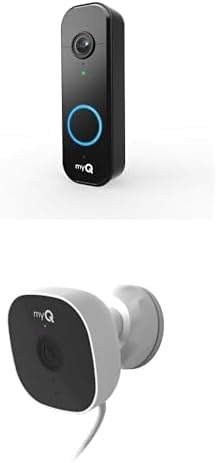
myQ Smart Garage Security Camera – 1080p HD Video, Night ...

myQ Chamberlain Garage Smart Hub ToolFree Mounting Bracke...

myQ Smart Garage Door Video Keypad + myQ Smart Indoor Sec...
As an Amazon Associate we earn from qualifying purchases.