Why Won't My MyQ Garage Door Opener Respond to the App?
- Weak WiFi signal at the garage
- myQ hub lost power or was unplugged
- Door sensor misaligned or low battery (blocks status/close)
Problem Description
Your myQ garage door opener won't respond to app or voice commands - the app shows it offline, commands fail, or the status won't update. Because myQ is cloud-dependent, this is almost always a connectivity problem: weak 2.4GHz WiFi at the garage, the hub losing power, an expired account session, or a myQ server issue. The door itself still works from the wall button and remote. This guide covers restoring app control.
Why This Happens in Real Homes
When a myQ opener stops responding to the app while still working from the wall button and remote, the fault is in the smart layer, not the opener - and since myQ is entirely cloud-based, it's usually connectivity. The garage's weak 2.4GHz WiFi is the leading cause, so improving coverage there with a mesh node is the highest-value fix, followed by simply confirming the hub has power and power-cycling it to clear a glitch. Because the whole system routes through myQ's cloud, checking the status page rules out a Chamberlain outage before you keep chasing your own network.
A couple of myQ-specific things are worth checking. An expired account session can make the app fail even when the hub is online, so logging out and back in refreshes it. And the door position sensor matters more than people expect: myQ needs the sensor to report reliably, and a misaligned sensor, dead CR2032 battery, or one out of range can make the app show a wrong status or refuse a remote close even when open works. For chronic drops, the usual network fixes apply - a reserved DHCP IP, a fixed 2.4GHz channel, and reconnecting WiFi after any router change.
Symptoms
- Garage door shows offline in the myQ app
- Open/close commands don't work
- App says 'unable to connect'
- Door operates but the app doesn't update status
- Notification delays of several minutes
- Alexa/Google says myQ isn't responding
- Works from the wall button and remote
- Reconnects then drops again
Recognize these? Here's what usually causes it.
Common Causes
- Weak WiFi signal at the garage
- myQ hub lost power or was unplugged
- Door sensor misaligned or low battery (blocks status/close)
- Account authentication/session expired
- myQ cloud servers having issues
- Router changed password or channel
- 2.4GHz congestion or band-steering
- DHCP/nightly reboot dropping the hub
Most fixes happen in the first 3 steps.
Never test garage door commands when people or objects are in the door's path. Always verify visually that the area is clear.
Tools & Requirements
These tools will help you complete this fix.

As an Amazon Associate we earn from qualifying purchases.
Step-by-Step Solution
Check the myQ hub LED status
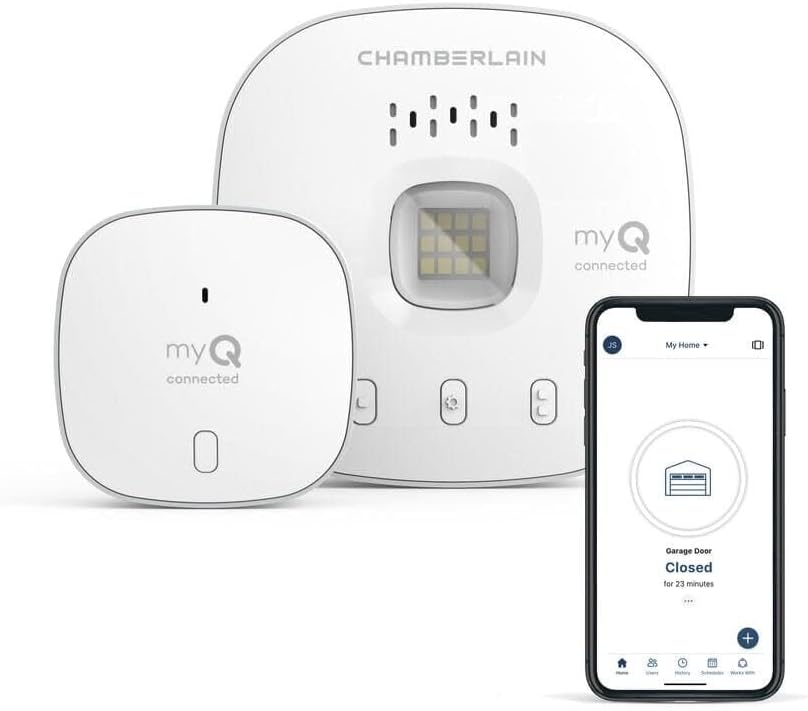
Look at the myQ Smart Garage Hub. The LED indicates connection status: solid blue = connected to WiFi and myQ cloud, blinking blue = connecting, solid green = WiFi connected but no cloud connection, blinking green = in setup mode. If the LED is off, the hub has no power. If blinking blue continuously, it cannot connect to WiFi. Fix the underlying connection issue before testing the door response.
Test the wall button
Press the physical wall button inside the garage. If the door operates from the wall button but not from the myQ app, the issue is between the hub and the app (WiFi, cloud, app). If the door does not respond to the wall button either, the problem is the opener itself — check the opener power, circuit breaker, and the disconnect cord (the red pull cord should be engaged, not hanging loose).
Restart the myQ hub
Unplug the myQ hub from power. Wait 15 seconds. Plug it back in. The hub LED cycles through its boot sequence and should turn solid blue within 2 minutes. After reconnection, try operating the door from the myQ app. A simple restart clears most communication glitches between the hub and the myQ cloud.
Check the hub-to-opener connection
The myQ Smart Garage Hub connects to the garage door opener via two wires — the same terminals used by the wall button. Check that the wires from the hub are firmly attached to the opener terminals. A loose wire means the hub sends the open/close signal but the opener does not receive it. Also check that the hub is within range of the opener — it should be mounted on the ceiling within 4-6 feet of the opener unit.
Check for myQ service outages
If the hub is connected (solid blue LED) but the app says the door is Not Responding: the myQ cloud service may be experiencing issues. Check the myQ status page or social media for outage reports. During a cloud outage, the myQ app cannot reach the hub and all remote commands fail. The wall button always works regardless of cloud status. If there is an outage, wait for Chamberlain/LiftMaster to resolve it — there is nothing to fix on your end.
Quick Solutions
Still having issues? This is usually the deeper cause below.
If this comes back after following these steps, check whether a recent app or firmware update reset a default setting — the fix works, but the setting gets reverted silently.
MyQ works best with WiFi signal strength of -60 dBm or better in your garage. Use a WiFi analyzer app to check.
Battery-related failures are almost always flagged too late — the device degrades silently for days before the app catches up to what's actually happening.
- Weak WiFi signal at the garage
- myQ hub lost power or was unplugged
- Door sensor misaligned or low battery (blocks status/close)
- Account authentication/session expired
- myQ cloud servers having issues
Before you go — try one of these (they fix most cases).
Most popular upgrades chosen by Chamberlain MyQ owners.
As an Amazon Associate we earn from qualifying purchases.
Official Manufacturer Manual
MyQ provides official product documentation through their online manual rather than downloadable PDF. Access setup guides, troubleshooting steps, and product specifications for your Chamberlain MyQ.
Source: support.chamberlaingroup.com
Need More Help? MyQ Support
Note: The contact information below connects you directly to MyQ's official customer support team, not Trunetto. They can help with warranty claims, device replacements, and advanced technical issues.
Accessories owners commonly pair with Chamberlain MyQ.

As an Amazon Associate we earn from qualifying purchases.