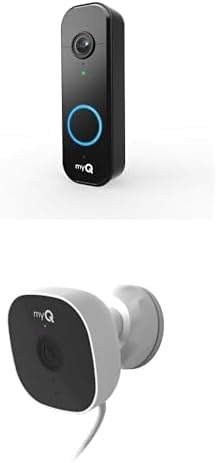
How Do I Set Up the MyQ Pet Portal?
- Garage door type/size not compatible with the Pet Portal
- Panel installed incorrectly
- Not connected to myQ / not on 2.4GHz WiFi
Problem Description
You are setting up the myQ Pet Portal to create a smart pet door in your garage. The Pet Portal lets you open a small section of your garage door for pet access, controlled through the myQ app. This guide covers checking compatibility with your garage door type and size, installing the pet door panel, and configuring app controls.
Why This Happens in Real Homes
The myQ Pet Portal turns your garage door into a smart pet door: it opens a small dedicated section of the door for pet access, controlled and scheduled through the myQ app, so pets can come and go without leaving the whole garage open. The most important first step is compatibility - the Pet Portal only works with certain garage door types and sizes, so verify your door matches before installing, since this is a physical modification to the door panel, not a simple accessory.
Once compatibility is confirmed and the pet-door panel is installed per the instructions, the smart side connects to myQ over 2.4GHz WiFi like the rest of the ecosystem, so give it a solid garage signal (a mesh node helps) and put it in pairing mode when adding it in the app. From there you configure app controls and schedules for when the pet section can open. If it won't open or respond, it's usually connectivity (offline/weak WiFi) or the app controls not being set up. Size the opening appropriately for your pet, and keep firmware current for reliable operation.
Symptoms
- Checking compatibility with your garage door
- Installing the pet-door panel
- Pet Portal won't open the pet section
- Won't control from the myQ app
- Portal offline in the app
- Door size/type not compatible
- Pet won't use or fit the opening
- Portal won't pair to myQ
Recognize these? Here's what usually causes it.
Common Causes
- Garage door type/size not compatible with the Pet Portal
- Panel installed incorrectly
- Not connected to myQ / not on 2.4GHz WiFi
- Weak garage WiFi signal
- Portal not in pairing mode
- Opening sized wrong for the pet
- App control/automation not configured
- Firmware out of date
Most fixes happen in the first 3 steps.
Garage doors are extremely heavy and the springs are under high tension. Never attempt to repair or adjust the door springs, cables, or tracks yourself as this can cause serious injury. Only troubleshoot the smart controller and electronic components. Call a professional for any mechanical issues.
Tools & Requirements
These tools will help you complete this fix.

As an Amazon Associate we earn from qualifying purchases.
Step-by-Step Solution
Check pet portal compatibility
The myQ Pet Portal is a smart pet door that integrates with the myQ ecosystem. It installs in an exterior wall or door and uses sensors to allow your pet through while keeping the door locked when not in use. The portal includes a microchip reader that identifies your pet and unlocks the door only for registered pets — preventing stray animals from entering. Check sizing: the portal comes in different sizes for small, medium, and large pets.
Install the pet portal hardware
The pet portal mounts in a standard door (interior panel cut-out required) or through an exterior wall (requires framing an opening). Follow the included template to cut the opening. Insert the portal frame from one side and attach the exterior trim piece. The portal needs a power outlet within 6 feet for the control unit. Professional installation is recommended for exterior wall installations to maintain weatherproofing.
Register your pet in the myQ app
Open the myQ app and add the Pet Portal as a new device. Follow the setup wizard to connect the portal to your 2.4GHz WiFi. Then register your pet: hold your pet near the portal sensor (the sensor reads the pet implanted microchip or the included collar tag). Enter your pet name and save. You can register multiple pets. Only registered pets can activate the door — unregistered animals are locked out.
Configure curfew and access schedules
In the myQ app, go to the Pet Portal settings > Schedule. Set curfew hours — during curfew, the door locks and does not open even for registered pets. This prevents late-night outdoor access. You can also set specific pet access windows — for example, allow the dog out from 6 AM to 9 PM but keep the cat indoors after sunset. Each registered pet can have its own schedule.
Monitor pet activity
The myQ app logs every time a registered pet enters or exits through the portal — with timestamps. You can see how many times your pet went outside, when, and for how long. This data is useful for monitoring pet health (changes in activity patterns can indicate health issues) and ensuring your pet came back inside. Push notifications alert you when your pet goes out or comes in.
Quick Solutions
Still having issues? This is usually the deeper cause below.
If this comes back after following these steps, check whether a recent app or firmware update reset a default setting — the fix works, but the setting gets reverted silently.
Set a nightly auto-close schedule at your usual bedtime so the garage door closes automatically even if you forget. Combine it with a phone notification 10 minutes before so you know it is about to close.
This issue almost always looks more complex than it is — the majority of cases trace back to a single setting, a stale credential, or a default that shipped wrong.
- Garage door type/size not compatible with the Pet Portal
- Panel installed incorrectly
- Not connected to myQ / not on 2.4GHz WiFi
- Weak garage WiFi signal
- Portal not in pairing mode
Before you go — try one of these (they fix most cases).
Most popular upgrades chosen by MyQ Pet Portal owners.
As an Amazon Associate we earn from qualifying purchases.
Official Manufacturer Manual
MyQ provides official product documentation through their online manual rather than downloadable PDF. Access setup guides, troubleshooting steps, and product specifications for your MyQ Pet Portal.
Source: support.chamberlaingroup.com
Need More Help? MyQ Support
Note: The contact information below connects you directly to MyQ's official customer support team, not Trunetto. They can help with warranty claims, device replacements, and advanced technical issues.
Accessories owners commonly pair with MyQ Pet Portal.

As an Amazon Associate we earn from qualifying purchases.