

How Do I Set Up the Shark AI Ultra Self-Empty Base?
- Base not against a flat wall or on carpet/uneven floor, so alignment drifts
- Not enough side or front clearance for the robot to line up on the contacts
- Power cord not fully seated or the outlet is on a wall switch
Problem Description
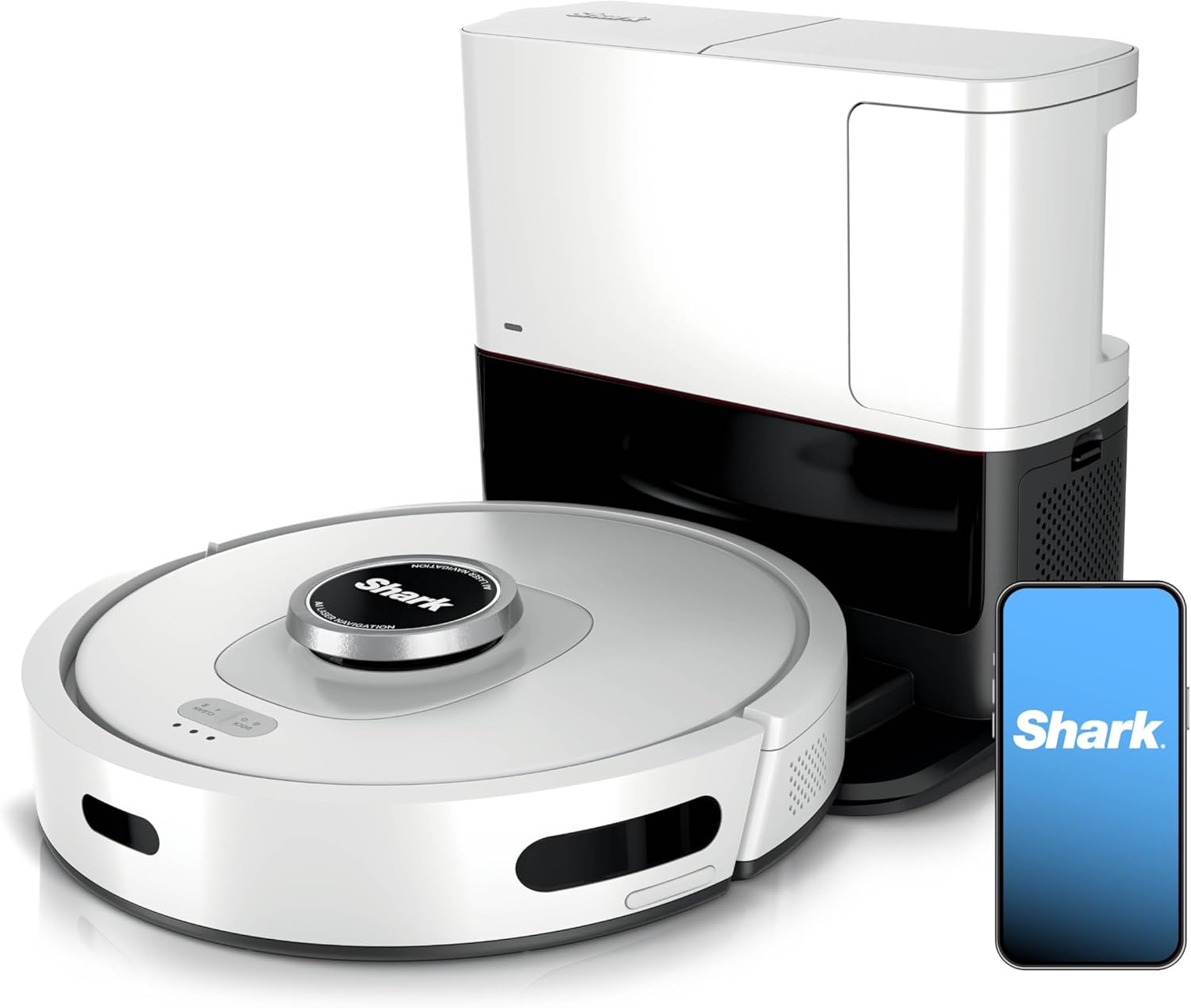
You are setting up the Shark AI Ultra self-empty base for the first time. After each run the robot returns and the base's own suction motor pulls debris out of the robot into the base's bagless dust bin, which holds up to about 60 days of debris behind a HEPA filter, so there are no bags to buy or replace. The base needs a flat wall, a level hard floor, and clearance on the sides and front so the robot can line up on the metal charging contacts and dock. This guide covers positioning, power, and first use.
Why This Happens in Real Homes
The Shark AI Ultra base is bagless: it has its own suction motor that pulls debris out of the robot and stores it in a dust bin behind a HEPA filter for up to about 60 days, and you empty that bin rather than buying bags. Two things make first setup go smoothly. First, the floor: the base needs to sit dead flat against a wall on a hard, level surface, because the robot docks by feeling its way onto two metal charging contacts, and a base on carpet or a slight slope lets the robot nudge it out of position over time. Give it the side and front clearance the manual specifies so the robot can straighten up on approach instead of bumping in crooked. Second, docking and emptying are separate steps: the robot charges through the contacts, but the empty cycle only fires once the robot is fully seated and the evac port lines up, so if it charges but never empties, reseat the robot's bin and wipe the contacts. Keep the bin and HEPA filter clicked in, or suction at the base drops and debris gets left behind.
Symptoms
- Robot will not dock or misses the charging contacts on the base
- Base has no power and the charging light does not come on
- Robot docks but the base never runs its empty cycle
- Robot charges but bounces off and re-approaches repeatedly
- Base positioned but the robot cannot find it to return
- Debris blows around the base instead of into the bin
- Base tips or shifts when the robot docks
- HEPA filter or bin not seated, so suction is weak
Recognize these? Here's what usually causes it.
Common Causes
- Base not against a flat wall or on carpet/uneven floor, so alignment drifts
- Not enough side or front clearance for the robot to line up on the contacts
- Power cord not fully seated or the outlet is on a wall switch
- Charging contacts on the base or robot dirty or corroded
- Bagless dust bin or HEPA filter not clicked into place
- Base moved after the map was made, so the robot returns to the old spot
- Robot dustbin or evac port not seated, breaking the empty seal
- Robot needs a full charge cycle before the first empty runs
Most fixes happen in the first 3 steps.
Keep small objects, loose cables, and thin rugs with fringe off the floor before running the vacuum. These can tangle in the brush roll and damage the motor. Do not use the vacuum to pick up liquids, sharp objects, or fine construction dust as this can permanently damage internal components.
Tools & Requirements
Step-by-Step Solution
Position the self-empty base
Place the Shark AI Ultra self-empty base against a flat wall on a hard floor. Leave at least 3 feet of clearance in front and 1 foot on each side for the robot to dock. The base needs a power outlet nearby. Place it in a central location where the robot can easily go to and from it. Avoid placing on thick carpet — the base should be on hard floor or low-pile carpet for reliable docking.
Install the dust bag
Open the top lid of the self-empty base. Insert a SharkDERA self-empty bag — slide it into the holder until it clicks. Close the lid. The base automatically empties the robot's dustbin into this bag after each cleaning session. One bag holds approximately 30 days of dirt (for average homes with pets). The SharkClean app notifies you when the bag is full. Replace and dispose of the sealed bag.
Dock the robot for the first time
Place the robot in front of the base, aligned with the charging contacts. The robot should drive forward and dock automatically. If it does not: pick it up and place it directly on the base, aligning the charging contacts on the bottom with the base contacts. The robot LED indicates charging status. Let it fully charge before the first cleaning session (approximately 3-4 hours).
Configure auto-empty settings in the app
In the SharkClean app, go to the robot settings > Self-Empty Base. Choose: empty after every run, empty only when the bin is full, or empty on schedule. 'After every run' keeps the dustbin clean but runs the suction motor more frequently (brief noise burst). 'When full' uses the robot's bin-full sensor to trigger emptying. For homes with pets that shed heavily, 'after every run' prevents clogging.
Fix docking or emptying issues
If the robot cannot find the base: check that the base IR sensors (small windows on the front face) are clean. Dust on the sensors prevents the robot from detecting the base. Wipe with a dry cloth. If the robot docks but does not empty: check that the dust bag is installed correctly (it must be seated fully). Check for clogs in the transfer tube (where dust travels from robot to base) — use the included cleaning tool or a flashlight to inspect.
Quick Solutions
Still having issues? This is usually the deeper cause below.
If this comes back after following these steps, check whether a recent app or firmware update reset a default setting — the fix works, but the setting gets reverted silently.
["Bagless design saves on replacement costs", "Empty bin every 30-45 days", "Clean filter monthly"]
Battery-related failures are almost always flagged too late — the device degrades silently for days before the app catches up to what's actually happening.
- Base not against a flat wall or on carpet/uneven
- Not enough side or front clearance for the robot
- Power cord not fully seated or the outlet is
- Charging contacts on the base or robot dirty or
- Bagless dust bin or HEPA filter not clicked into
Before you go — try one of these (they fix most cases).
Most popular upgrades chosen by Shark AI Ultra owners.
As an Amazon Associate we earn from qualifying purchases.
Official Manufacturer Manual
Shark provides official product documentation through their online manual rather than downloadable PDF. Access setup guides, troubleshooting steps, and product specifications for your Shark AI Ultra.
Source: sharkclean.com
Need More Help? Shark Support
Note: The contact information below connects you directly to Shark's official customer support team, not Trunetto. They can help with warranty claims, device replacements, and advanced technical issues.
How Does Shark Compare?
Before replacing your Shark device, see how it stacks up against alternatives in our full comparison guides.
