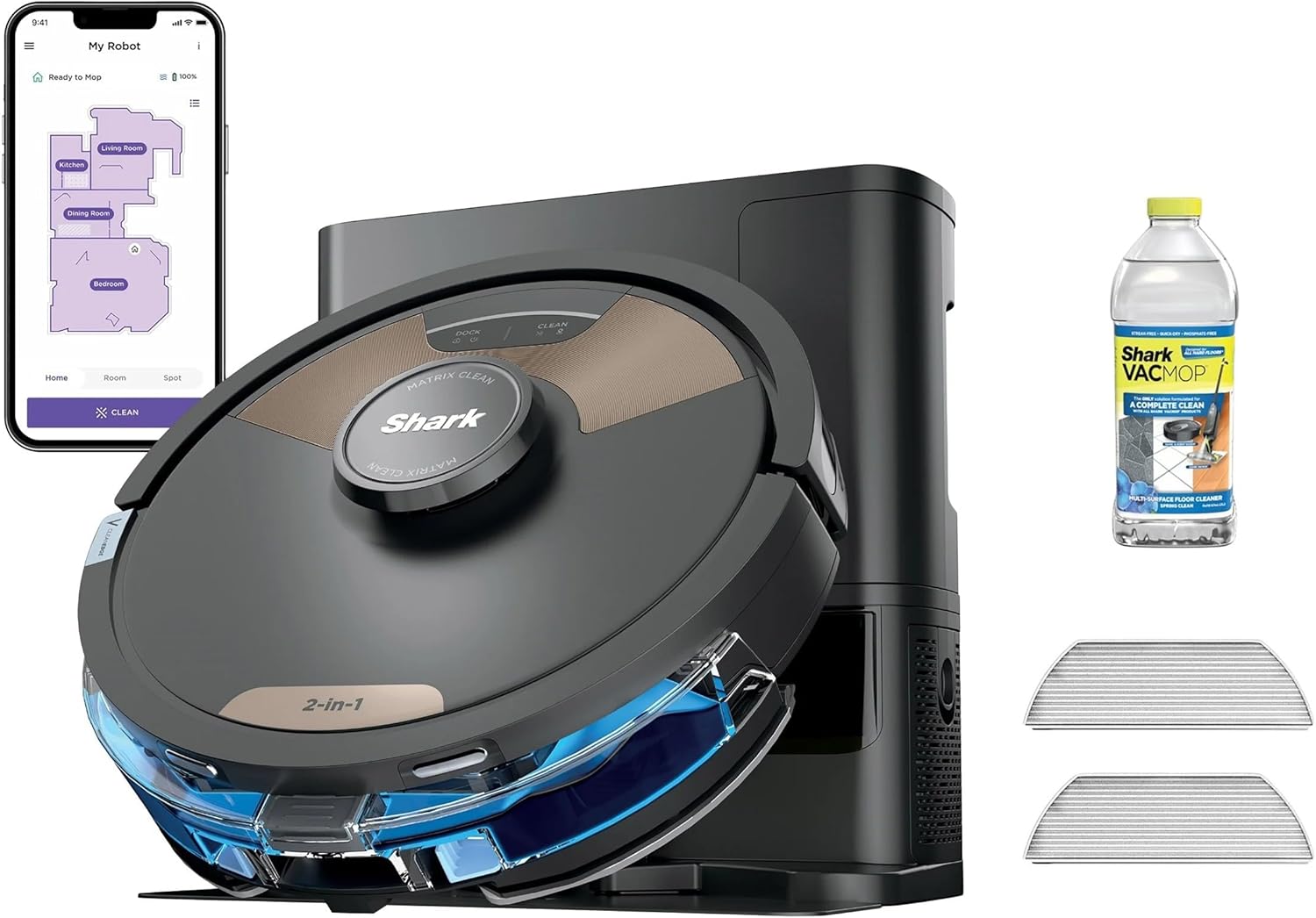
How Do I Set Up Room Mapping on My Shark Matrix Robot?
- Doors closed during mapping, so whole rooms were never seen
- Robot got stuck or ran low on battery before the map finished
- Clutter (cables, shoes, toys) made the robot detour and mis-map
Problem Description
You want to set up room mapping on your Shark Matrix robot vacuum for room-specific cleaning. Prepare your floor plan first by clearing temporary obstacles (shoes, cables, small items) so the robot can fully explore every room. The Shark Matrix creates the map during its first full cleaning run. This guide covers preparation, running the mapping pass, and editing rooms.
Why This Happens in Real Homes
The Matrix builds its map on the first full run, and the quality of that first pass sets up everything afterward: rooms, schedules, and no-go zones all hang off it. The biggest mistakes are closing doors and leaving clutter down. A room behind a closed door simply never gets mapped, and cables or shoes make the robot detour so the walls end up in the wrong place. Let it do one complete, uninterrupted pass from the dock with every interior door open and the floor cleared. Starting from the dock matters because that is the anchor point the robot measures everything from; start it mid-room or move it during the run and the map can come out distorted or reset. Keep it on 2.4GHz WiFi through the whole run so the finished map actually syncs to the SharkClean app, since a mid-run WiFi drop is a common reason a map vanishes after a clean. Once you have a clean map, then split and name rooms and add zones.
Symptoms
- Robot never finishes the mapping run
- Map comes out incomplete or missing whole rooms
- Rooms merged together that should be separate
- Map looks distorted or rooms end up in the wrong place
- Map disappears or resets after a run
- Robot maps but you cannot edit or name rooms
- Robot re-maps from scratch every clean instead of keeping the map
- A furniture area maps as a wall, blocking access
Recognize these? Here's what usually causes it.
Common Causes
- Doors closed during mapping, so whole rooms were never seen
- Robot got stuck or ran low on battery before the map finished
- Clutter (cables, shoes, toys) made the robot detour and mis-map
- Robot picked up or moved mid-map, losing its position
- Started mapping away from the dock, so it cannot anchor the map
- WiFi dropped mid-run, so the finished map never synced to the app
- Reflective or very dark surfaces confusing the navigation
- Robot firmware or app out of date with mapping bugs
Most fixes happen in the first 3 steps.
Keep small objects, loose cables, and thin rugs with fringe off the floor before running the vacuum. These can tangle in the brush roll and damage the motor. Do not use the vacuum to pick up liquids, sharp objects, or fine construction dust as this can permanently damage internal components.
Tools & Requirements
Step-by-Step Solution
Prepare floor plan by clearing temporary obstacles
Remove movable clutter and open key doorways before mapping runs, because inconsistent obstacle layout can fragment room boundaries in generated maps.
Run first mapping cycle on full battery
Start mapping with a high charge and uninterrupted route, since low battery interruptions frequently produce incomplete room segmentation.
Improve lighting and sensor cleanliness for mapping pass
Clean sensors and map in consistent lighting, because poor optical input can reduce navigation confidence and distort room outlines.
Split or merge rooms carefully in app editor
Use app tools to correct obvious boundary errors after baseline map creation, because small manual adjustments often improve cleaning logic substantially.
Validate room-select cleaning on two test zones
Run targeted cleaning in selected rooms and verify route compliance before relying on full-house scheduled room workflows.
Quick Solutions
Still having issues? This is usually the deeper cause below.
If the robot returns to the dock mid-clean, moved furniture may have invalidated its map — a fresh floor scan resolves the majority of navigation failures.
["Complete mapping takes 2-3 runs", "Edit rooms anytime in app", "Use room names for Alexa/Google commands"]
Battery-related failures are almost always flagged too late — the device degrades silently for days before the app catches up to what's actually happening.
- Doors closed during mapping, so whole rooms were never
- Robot got stuck or ran low on battery before
- Clutter (cables, shoes, toys) made the robot detour and
- Robot picked up or moved mid-map, losing its position
- Started mapping away from the dock, so it cannot
Before you go — try one of these (they fix most cases).
Official Manufacturer Manual
Shark provides official product documentation through their online manual rather than downloadable PDF. Access setup guides, troubleshooting steps, and product specifications for your Shark Matrix.
Source: sharkclean.com
Need More Help? Shark Support
Note: The contact information below connects you directly to Shark's official customer support team, not Trunetto. They can help with warranty claims, device replacements, and advanced technical issues.
How Does Shark Compare?
Before replacing your Shark device, see how it stacks up against alternatives in our full comparison guides.
Accessories owners commonly pair with Shark Matrix.

Amazon Basics 20-Pack AA Alkaline High-Performance Batter...

Amazon Basics CR2032 3V Lithium Coin Cell Batteries for K...

Duracell Coppertop Double AA Batteries with Power Boost I...
As an Amazon Associate we earn from qualifying purchases.