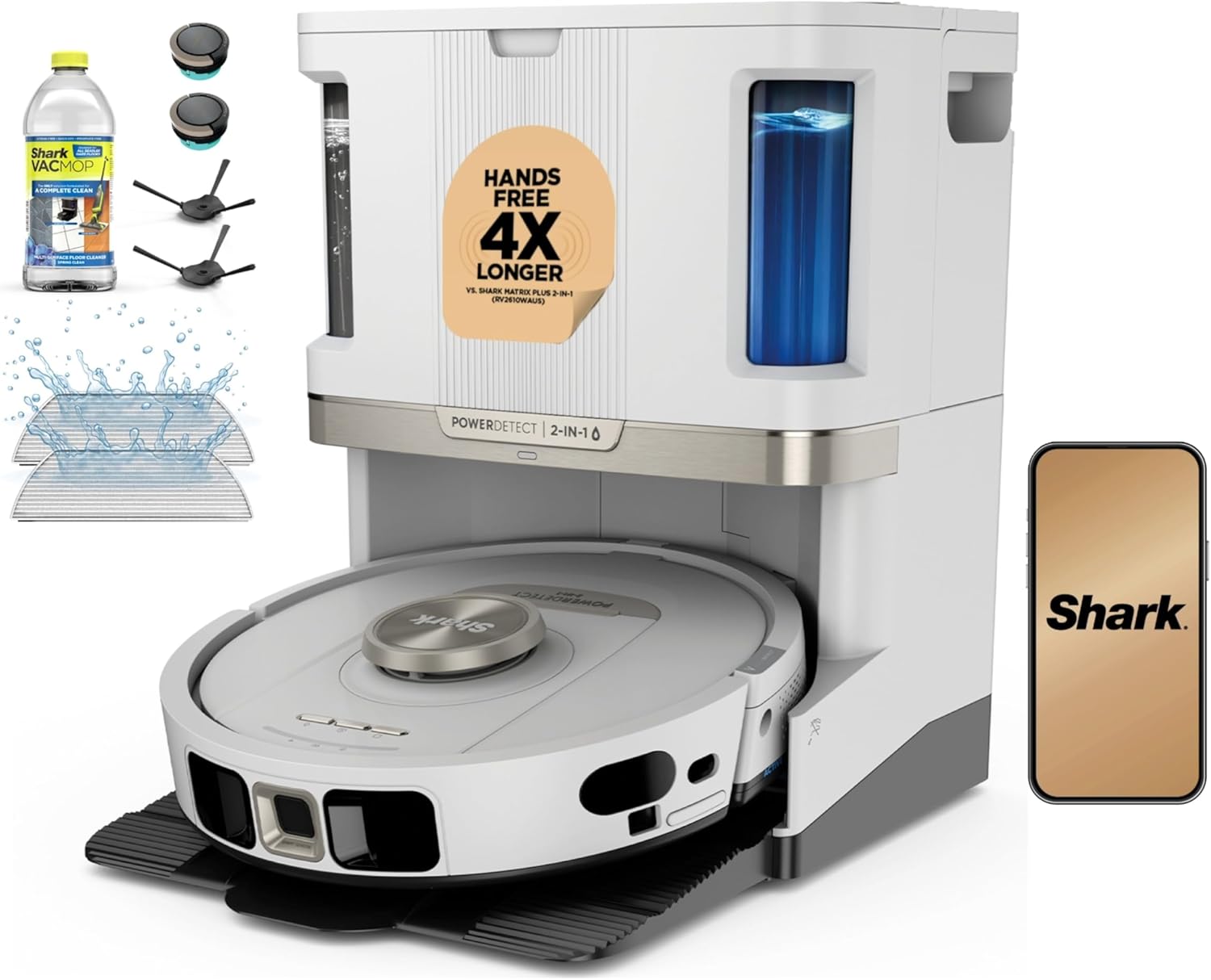
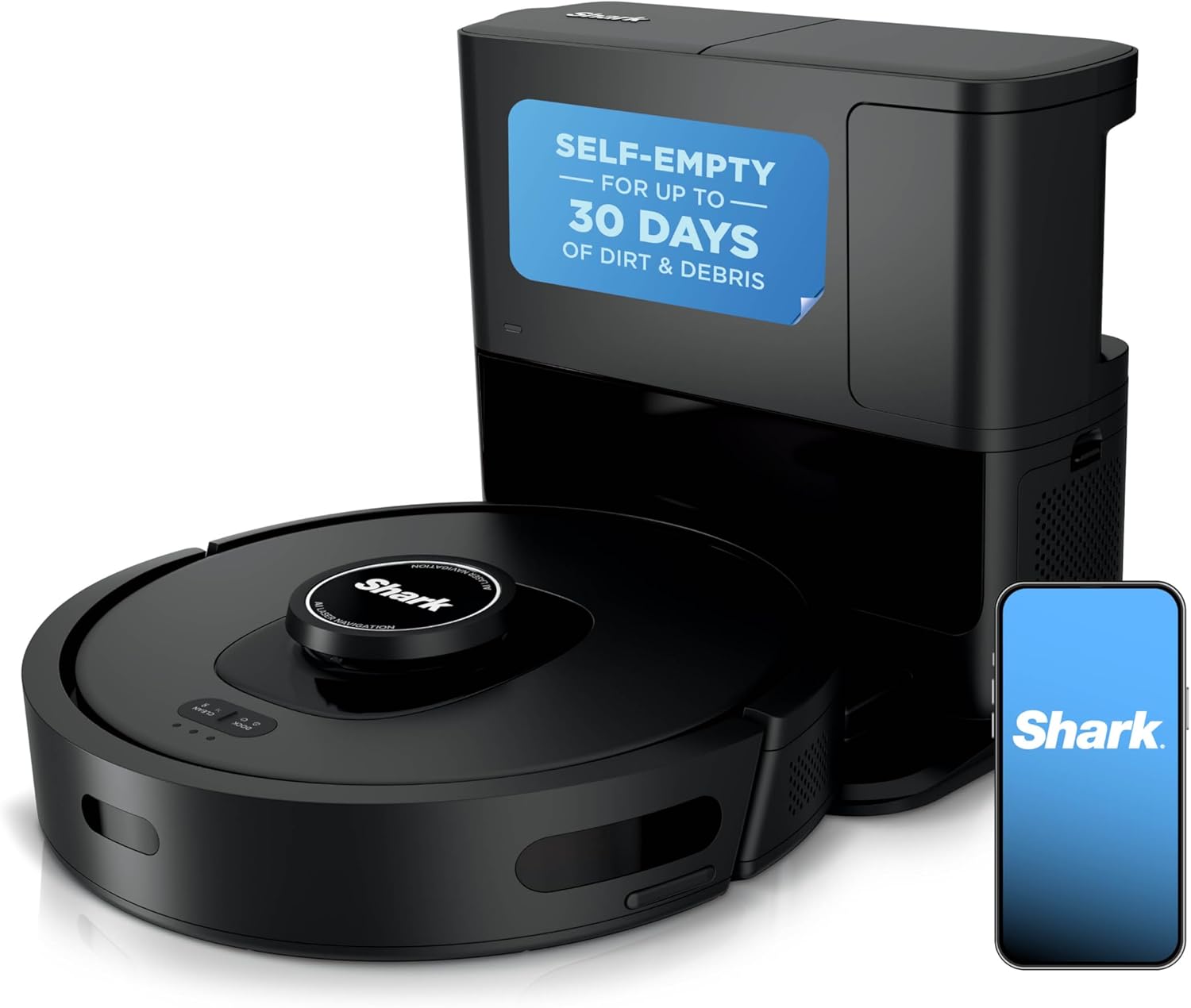
Why Is My Shark Robot Vacuum Not Returning to the Dock?
- Dock location obstructed or moved
- Dock IR beacon lens dirty or blocked
- Robot's own sensors need cleaning
Problem Description
Your Shark robot vacuum finishes cleaning or gets low battery but cannot find or return to its dock. It may wander aimlessly, stop in a random location, or spin in circles. The robot needs to reliably dock for charging between cleanings and to empty its dustbin on self-empty models.
Why This Happens in Real Homes
A Shark robot finds its dock two ways: it navigates back to the dock's location on its map, then homes in on the dock's infrared beacon for the final approach. That is why the two big fixes are keeping the map accurate and keeping the IR path clean. If you moved the dock, the robot still drives to where the dock used to be on the map, so send it home from the new dock location or remap so the map matches reality. If it gets close and then circles or bumps without seating, the culprit is usually the short-range IR: a dirty lens on the dock's beacon or on the robot's receiver, or clutter in front of the dock breaking the line of sight. Give the dock a flat wall and the clearance the manual asks for on the sides and front so the robot has room to line up straight, and wipe the metal charging contacts on both the dock and the robot, because a robot that parks but shows no charge is landing crooked or sitting on dirty contacts, not failing to navigate.
Symptoms
- Robot cannot find the dock
- Stops randomly instead of docking
- Circles near the dock but will not connect
- Docked reliably before, now fails
- Only docks when placed there manually
- Robot reports it cannot reach the dock
- Robot returns to the wrong spot where the dock used to be
- Robot reaches the dock but does not seat on the charging contacts
Recognize these? Here's what usually causes it.
Common Causes
- Dock location obstructed or moved
- Dock IR beacon lens dirty or blocked
- Robot's own sensors need cleaning
- Poor WiFi affecting navigation and return
- Dock not placed flat against a wall
- Map corrupted or outdated
- Not enough clearance around the dock for a clean approach
- Charging contacts on the dock or robot dirty or corroded
Most fixes happen in the first 3 steps.
Never pick up the robot and manually place it on the dock repeatedly as a workaround. This prevents the robot from learning proper navigation and worsens the underlying issue. Fix the root cause.
Tools & Requirements
These tools will help you complete this fix.
As an Amazon Associate we earn from qualifying purchases.
Step-by-Step Solution
Clean the Dock IR Sensor Windows
The Shark charging dock has two dark infrared sensor windows on the front face of the dock base, one on each side of the charging contacts. These sensors emit an IR beam that guides the robot during its final approach. Wipe both sensor windows with a dry microfiber cloth. Dust, pet hair, or cobwebs on these windows block the IR signal and prevent the robot from locating the dock.

Needed for this step
BELLEMOND「Samurai Cloth」Japanese Microfiber Cle...
This helps complete the fix you are currently reading.
$18.99Clean Robot Underside Sensors
Flip the robot over. Along the front edge of the underside, locate the 4-6 cliff sensors — small clear or dark plastic windows recessed into the bottom panel. Wipe each one with a dry cloth. Also clean the two metal charging contacts on the underside (rear center) that connect to the dock pins. On the right side of the robot, there is a wall-following sensor — clean this small window too.
Verify Dock Placement Requirements
Place the dock flat against a wall on hard floor (not carpet or a rug). Leave at least 3 feet of clear space on each side of the dock and 6 feet of open floor directly in front. No furniture legs, shoes, or objects should be within this clearance zone. The dock must not be on thick carpet, in a closet, or tucked under a cabinet — the robot needs an unobstructed approach path.
Delete Map and Remap
If the dock was moved to a new location, the saved map still shows the old dock position. In the SharkClean app, go to your robot > Map > Delete Map. Place the robot on the dock in its permanent location and start a new mapping clean with all doors open. The robot will build a fresh map with the correct dock position. Do not interrupt the mapping run.
Update Firmware
In the SharkClean app, go to your robot settings and check for firmware updates. Firmware updates improve dock-finding navigation algorithms. The robot must be docked and have strong WiFi signal during the update. Updates typically take 15-30 minutes to download and install.
Quick Solutions
Still having issues? This is usually the deeper cause below.
If the robot returns to the dock mid-clean, moved furniture may have invalidated its map — a fresh floor scan resolves the majority of navigation failures.
Place the dock where the robot cleans most often. If the dock is in a room the robot rarely visits it may not find its way back efficiently.
Robot vacuums that 'stop working' are usually fighting a corrupted map from moved furniture — a fresh floor scan fixes the majority of reported failures.
- Dock location obstructed or moved
- Dock IR beacon lens dirty or blocked
- Robot's own sensors need cleaning
- Poor WiFi affecting navigation and return
- Dock not placed flat against a wall
Before you go — try one of these (they fix most cases).
Most popular upgrades chosen by Shark Robot Vacuum owners.
As an Amazon Associate we earn from qualifying purchases.
Official Manufacturer Manual
Shark provides official product documentation through their online manual rather than downloadable PDF. Access setup guides, troubleshooting steps, and product specifications for your Shark Robot Vacuum.
Source: sharkclean.com
Need More Help? Shark Support
Note: The contact information below connects you directly to Shark's official customer support team, not Trunetto. They can help with warranty claims, device replacements, and advanced technical issues.
How Does Shark Compare?
Before replacing your Shark device, see how it stacks up against alternatives in our full comparison guides.