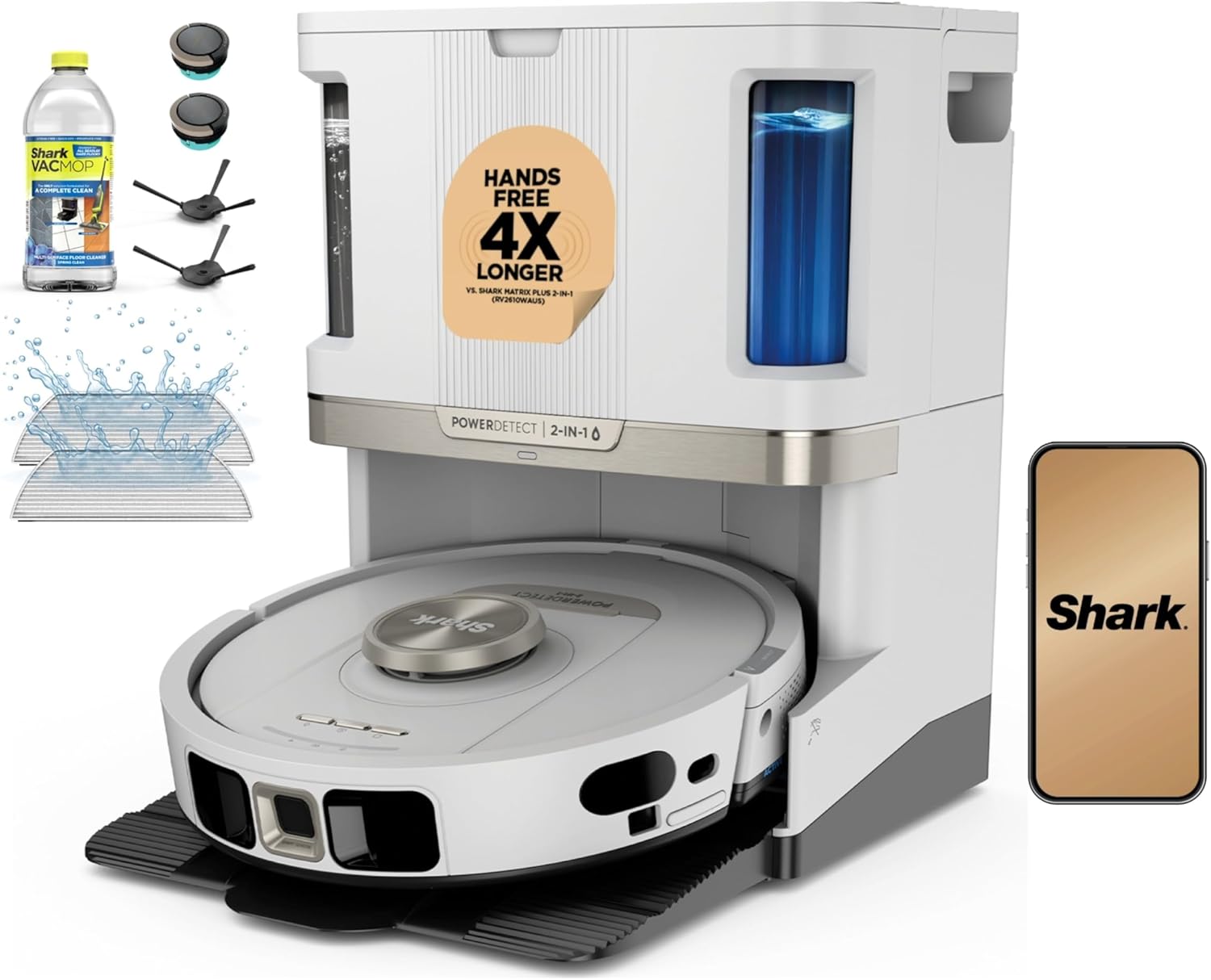
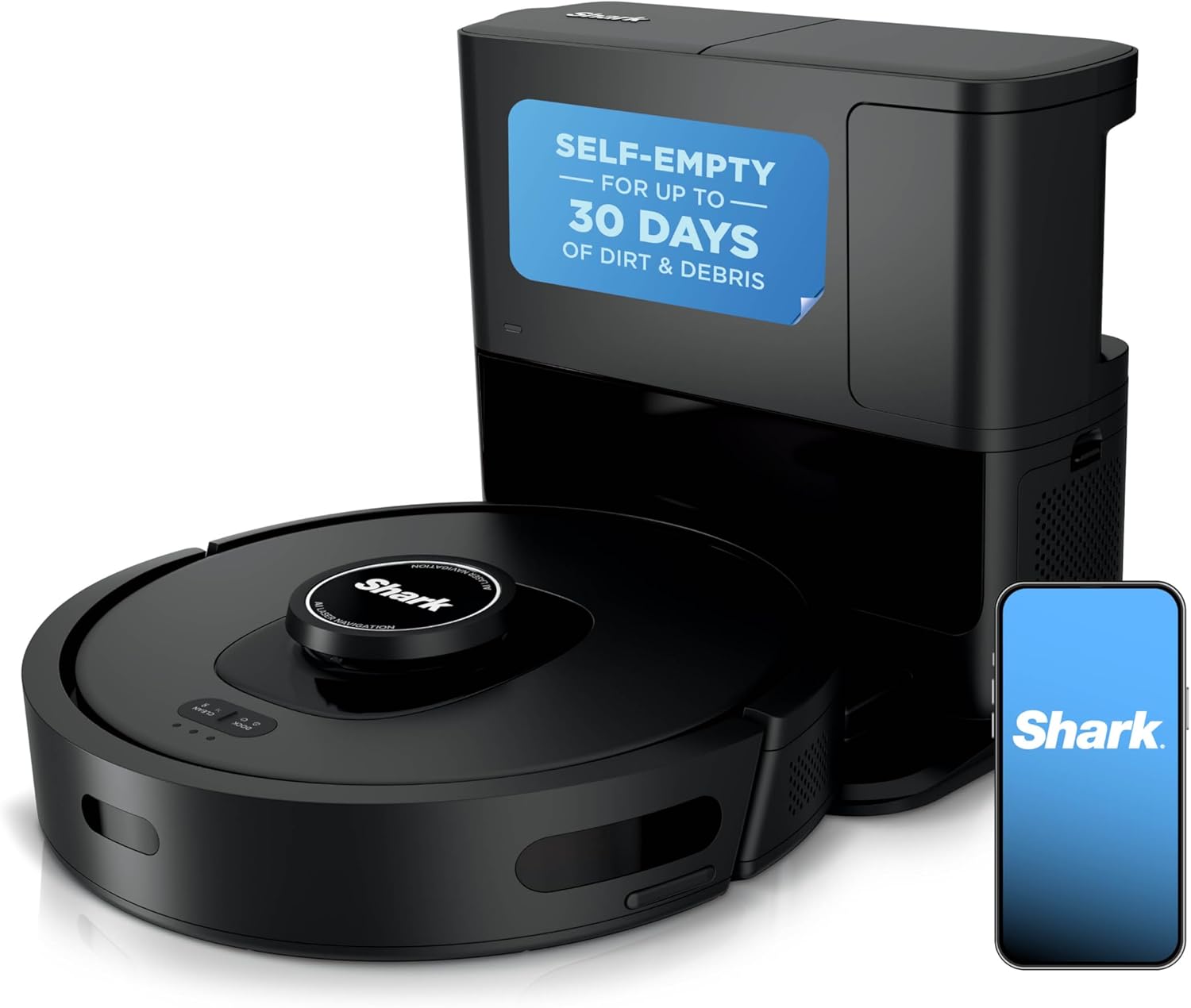
Why Won't My Shark Robot Vacuum Connect to WiFi or the App?
- Router broadcasting only 5GHz, but the robot needs 2.4GHz
- WiFi password contains special characters the robot cannot process
- Router firmware update changed the security settings
Problem Description
Your Shark robot vacuum will not connect to WiFi during setup or has lost its connection and shows offline in the SharkClean app. Without WiFi you cannot schedule cleanings control the robot remotely or view the map. The Shark may still operate from physical buttons but all smart features are unavailable. This is commonly caused by WiFi band issues or router incompatibilities.
Why This Happens in Real Homes
Every SharkClean robot connects on 2.4GHz WiFi only, since it has no 5GHz radio, and nearly all setup failures trace back to that. The catch is that your phone has to be on the 2.4GHz network too during setup, because the app hands the robot the credentials of the network the phone is currently using; if the phone is on the 5GHz half of a combined-SSID router, it passes the robot a network it cannot join. The cleanest fix is a dedicated 2.4GHz SSID with its own name, so there is no ambiguity and band-steering cannot shove the robot toward 5GHz. Two smaller things trip people up: the SharkClean app needs Bluetooth and Location permission to discover the robot during setup, and special characters in the WiFi password can choke the robot's parser, so simplify the password temporarily if setup stalls at the connecting step. If it was working and dropped after a router reboot or firmware update, the robot is usually too far for a stable signal or the router changed its security mode; move the robot near the router to re-add it, and reserve its IP so a reboot does not knock it offline.
Symptoms
- SharkClean app cannot find the robot during WiFi setup
- Robot shows offline in the app despite being powered on
- WiFi setup process times out during the connection step
- Robot was connected but lost WiFi after a router restart
- App says the robot is connected but commands do not execute
- WiFi indicator on the robot flashes instead of staying solid
- Setup fails right at the connecting-to-WiFi step
- Robot connects but drops offline within minutes
Recognize these? Here's what usually causes it.
Common Causes
- Router broadcasting only 5GHz, but the robot needs 2.4GHz
- WiFi password contains special characters the robot cannot process
- Router firmware update changed the security settings
- Robot too far from the router for a stable 2.4GHz signal
- SharkClean app not granted Bluetooth and Location permission for setup
- Two WiFi networks share the same name, confusing the robot
- Phone joined 5GHz during setup, so it cannot hand the robot 2.4GHz credentials
- Router band-steering pushing the robot toward 5GHz under one SSID
Most fixes happen in the first 3 steps.
A WiFi factory reset only clears network settings. It does not delete maps schedules or preferences. Those sync back from the cloud after reconnecting.
Tools & Requirements
Step-by-Step Solution
Confirm setup is on supported 2.4GHz network
Use a compatible 2.4GHz SSID and avoid guest isolation during onboarding, because Shark setup frequently fails on segmented or unsupported WiFi policies.
Reset robot WiFi and enter pairing mode cleanly
Perform full network reset and confirm pairing indicator before app add flow, because stale credentials commonly block reconnect attempts.
Keep phone near robot during credential exchange
Stay close to the robot and maintain stable phone connectivity while adding device, since dropouts during key exchange can leave setup incomplete.
Verify router DHCP and DNS service health
Make sure router issues leases reliably and resolves DNS correctly, because local association without stable DHCP/DNS still appears as app connection failure.
Update firmware and run first command test
After successful join, update firmware and confirm basic remote command execution, so you can validate end-to-end control path before full mapping runs.
Quick Solutions
Still having issues? This is usually the deeper cause below.
This usually happens right after a router reboot or ISP change — the device rejoins the network but drops its cloud session silently.
After successful WiFi setup assign a static IP to the Shark in your router settings. This prevents the router from changing the robot IP which causes intermittent disconnections after reboots.
Most WiFi drop-offs happen right after a router reboot or ISP swap — the device reconnects to the network but silently loses its cloud registration.
- Router broadcasting only 5GHz, but the robot needs 2.4GHz
- WiFi password contains special characters the robot cannot process
- Router firmware update changed the security settings
- Robot too far from the router for a stable
- SharkClean app not granted Bluetooth and Location permission for
Before you go — try one of these (they fix most cases).
Most popular upgrades chosen by Shark Robot Vacuum owners.
As an Amazon Associate we earn from qualifying purchases.
Official Manufacturer Manual
Shark provides official product documentation through their online manual rather than downloadable PDF. Access setup guides, troubleshooting steps, and product specifications for your Shark Robot Vacuum.
Source: sharkclean.com
Need More Help? Shark Support
Note: The contact information below connects you directly to Shark's official customer support team, not Trunetto. They can help with warranty claims, device replacements, and advanced technical issues.
How Does Shark Compare?
Before replacing your Shark device, see how it stacks up against alternatives in our full comparison guides.