Shark Robot Vacuum Self-Empty Base Not Emptying or Clogged
- Clog in the suction pathway between the robot and base
- Base bin full and needs emptying (bagless, no bag involved)
- Robot dustbin not fully seated, so the base port cannot align
Problem Description
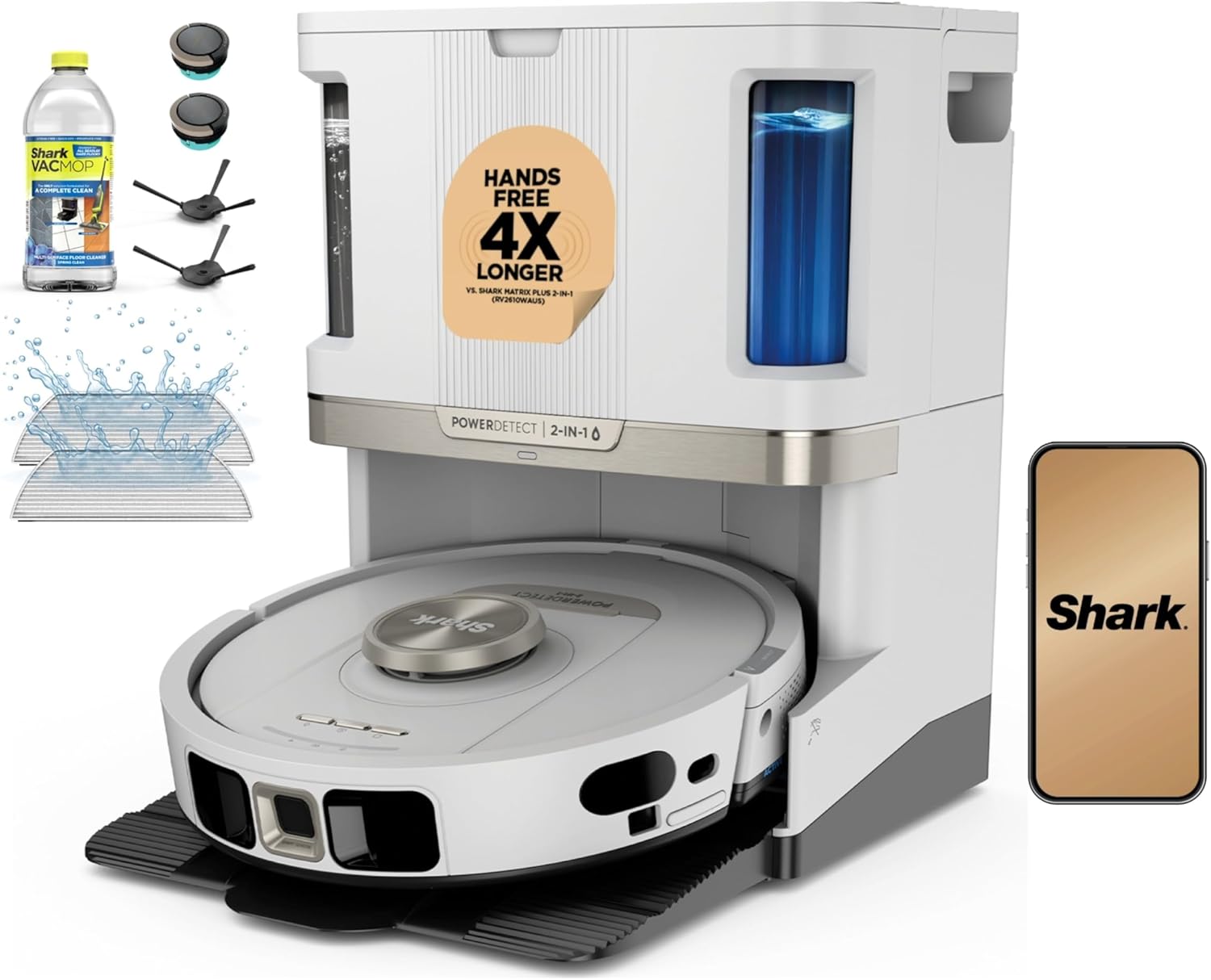
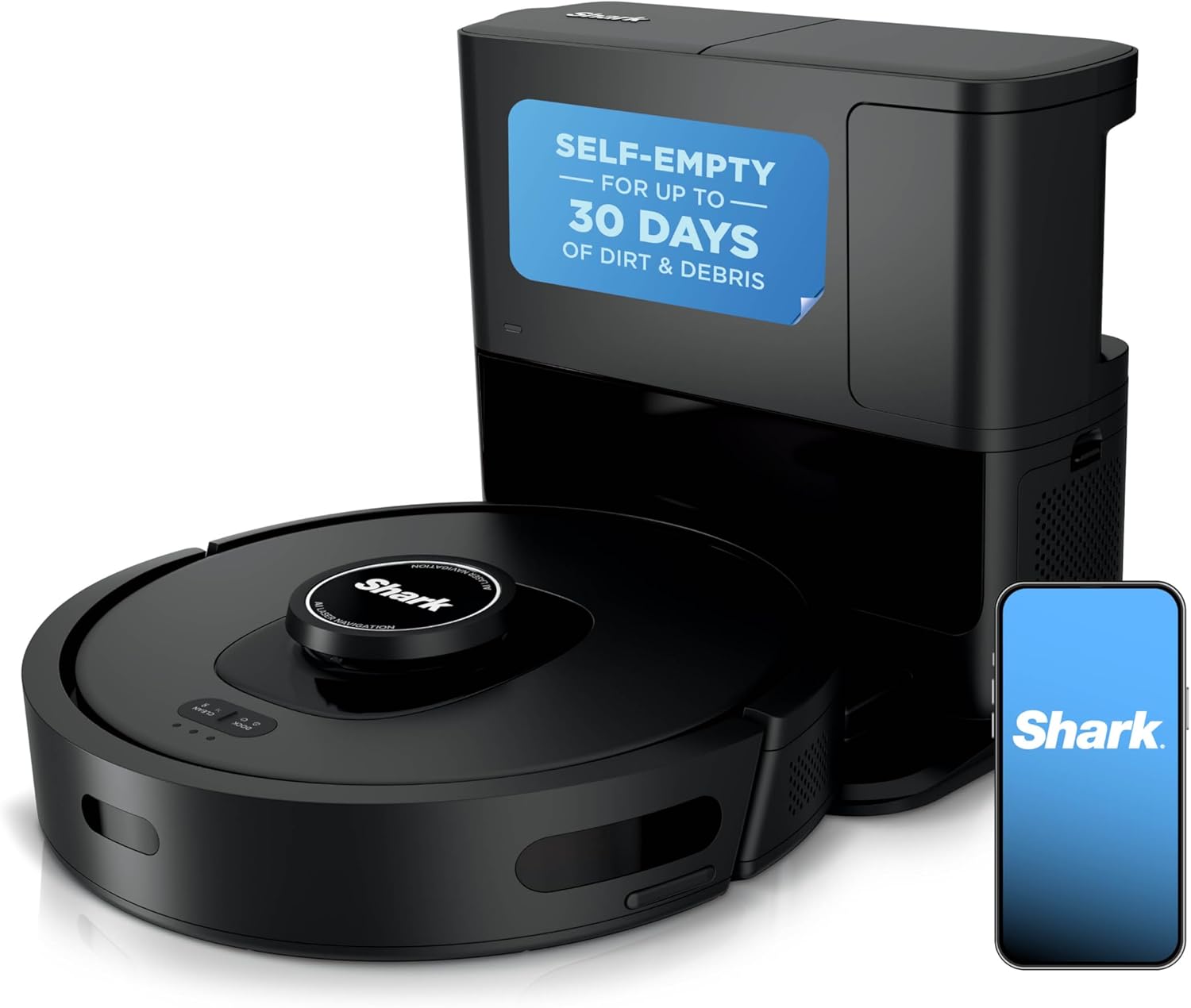
Your Shark robot vacuum self-empty base runs but fails to empty the dustbin, makes a loud suction noise without pulling debris from the robot, the bin stays full after docking, or the base shows an error. Shark self-empty bases are bagless, so a self-empty failure is almost always a clog in the base suction path, a full base bin, a choked base filter, or the robot not seating squarely on the docking contacts.
Why This Happens in Real Homes
Shark self-empty bases are bagless, so if you are hunting for a replacement bag to fix a base that will not empty, stop, because there is not one and the real problem is airflow or alignment. The base has its own suction motor that pulls debris out of the robot into a bin behind a filter; when that stops working, trace the whole path. The bin may be packed solid, the base filter choked with fine dust (clean it and let it dry fully, since a damp filter kills suction), or the short channel between the robot and base clogged. Just as often the base motor runs fine but the robot is not seated square: the empty cycle only fires when the robot's underside evac port lines up with the base intake, so a crooked park charges but never empties. Wipe the charging contacts on both sides, reseat the robot, and flip it over to clear hair from its own empty port, which people almost always overlook. A whistling base with weak pickup means a clog or a leaky seal, not a dead motor.
Symptoms
- Robot docks and the base makes suction noise but the dustbin is still full
- Base does not activate at all when the robot docks
- Loud rattling or whistling from the base during the empty cycle
- Base full indicator stays on even after emptying the bin
- Debris scattered around the base after the empty cycle
- Error light or app notification about a self-empty failure
- Fine dust blowing out of the base during the empty cycle
- Suction weak at both the robot and the base
Recognize these? Here's what usually causes it.
Common Causes
- Clog in the suction pathway between the robot and base
- Base bin full and needs emptying (bagless, no bag involved)
- Robot dustbin not fully seated, so the base port cannot align
- Base motor filter clogged with fine dust
- Debris stuck in the robot's empty port on the underside
- Base power cord not fully connected
- Charging contacts dirty, so the empty cycle never triggers
- Hair wound around the robot's evac port flap
Most fixes happen in the first 3 steps.
{"Never put your hand inside the base suction port while it is plugged in — the motor can activate unexpectedly","Do not use the base without a bag installed as this will damage the motor filter"}
Tools & Requirements
These tools will help you complete this fix.

Compressed air
WOLFBOX MegaFlow 50 Compressed Air Duster-110000RPM ...

Dry microfiber cloth
WHOOSH! Pro 16.9 fl oz Refillable TV Screen Cleaner ...
As an Amazon Associate we earn from qualifying purchases.
Step-by-Step Solution
Clear the Suction Pathway
Remove the robot from the base. On the robot, locate the self-empty port — it is a rubber-sealed opening on the back or underside of the robot. Check for debris clogging this port. Use a dry cloth or compressed air to clear it. On the base, look inside the docking port where the robot connects. Remove any visible debris or clumps. Check the tube inside the base that connects to the bag compartment. If clogged, use a long thin object to gently push debris through. Reseat the robot on the base and test the empty cycle.
Needed for this step
WOLFBOX MegaFlow 50 Compressed Air Duster-11000...
This helps complete the fix you are currently reading.
$39.99Replace the Base Bag
Open the top lid of the self-empty base. Remove the full bag by pulling it straight up. The bag has a self-sealing flap that closes when removed. Insert a new genuine Shark replacement bag. Make sure the cardboard collar sits flat in the slot. Close the lid firmly. The full indicator should clear after bag replacement. If it does not, press the reset or power button on the base.
Clean the Base Filter
Some Shark self-empty bases have a small filter near the motor exhaust. Locate the filter (check the user manual for your specific model location). Remove the filter and tap it over a trash can to dislodge fine dust. If the filter is washable, rinse under water and let it air dry completely for 24 hours before reinstalling. A clogged exhaust filter reduces suction power and prevents the base from fully emptying the robot.
Fix Base Not Activating
Check that the base is plugged in and the power indicator light is on. Make sure the robot is fully seated on the dock with the two metal charging contacts on the robot's underside (near the front edge) aligned with the two metal pins on the dock base. The self-empty cycle typically triggers automatically after the robot docks from a completed cleaning run. If it does not trigger automatically, check the Shark app for a manual empty option. Power cycle the base by unplugging for 30 seconds and plugging back in. Then redock the robot.
Quick Solutions
Still having issues? This is usually the deeper cause below.
If the robot returns to the dock mid-clean, moved furniture may have invalidated its map — a fresh floor scan resolves the majority of navigation failures.
{"Use only genuine Shark replacement bags as third-party bags may not seal properly and cause dust leaks","The self-empty base is loud — schedule cleaning to finish during times when the noise is acceptable","Empty the robot dustbin manually if the base is clogged to prevent overflow during the next cleaning run","Clean the suction pathway monthly to prevent chronic clogging"}
Robot vacuums that 'stop working' are usually fighting a corrupted map from moved furniture — a fresh floor scan fixes the majority of reported failures.
- Clog in the suction pathway between the robot and
- Base bin full and needs emptying (bagless, no bag
- Robot dustbin not fully seated, so the base port
- Base motor filter clogged with fine dust
- Debris stuck in the robot's empty port on the
Before you go — try one of these (they fix most cases).
Most popular upgrades chosen by Shark AI Ultra / IQ Self-Empty Robot Vacuum owners.

As an Amazon Associate we earn from qualifying purchases.
Official Manufacturer Manual
Shark provides official product documentation through their online manual rather than downloadable PDF. Access setup guides, troubleshooting steps, and product specifications for your Shark AI Ultra / IQ Self-Empty Robot Vacuum.
Source: sharkclean.com
Need More Help? Shark Support
Note: The contact information below connects you directly to Shark's official customer support team, not Trunetto. They can help with warranty claims, device replacements, and advanced technical issues.
How Does Shark Compare?
Before replacing your Shark device, see how it stacks up against alternatives in our full comparison guides.