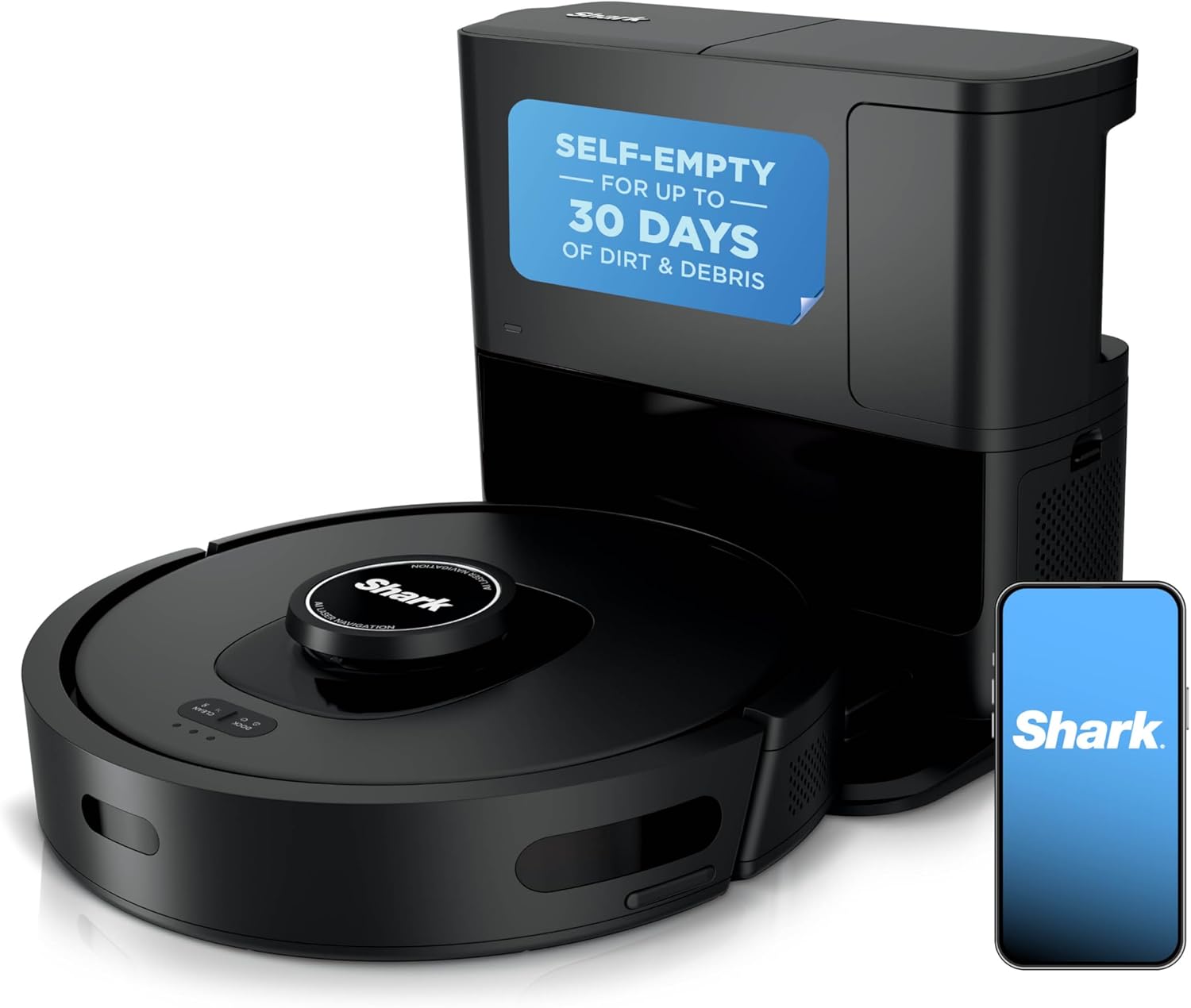
What Does Shark Robot Vacuum Error 23 Mean and How Do I Fix It?
- Robot parked crooked on the base
- Dirty charging contacts on the robot or base
- Base on carpet or an uneven floor
Problem Description
The SharkClean app shows Error 23 (robot not placed correctly on the base). Shark is on the dock but its charging contacts aren't lining up with the base contacts, so it can't charge. Dirty contacts or a crooked park are the usual causes.
Why This Happens in Real Homes
Error 23 is Shark telling you it reached the base but isn't seated right, so its charging contacts never meet the base plate. The two everyday causes are dirty contacts - a thin film of dust is enough to break the low-voltage connection - and a base that's on carpet, in open space, or not flat against a wall, which makes the robot dock crooked.
Wipe both sets of contacts, set the base on flat hard floor with its back to a wall, and clear anything under or in front of it. Place the robot on by hand once to confirm the charging light comes on. If it sits squarely with clean contacts on a powered base and still errors, the contacts or base are damaged and need Shark service.
Symptoms
- SharkClean app shows Error 23
- Voice says it's not on the base correctly
- Robot docks but doesn't charge
- Charging light doesn't come on
- Robot parks crooked on the base
- Battery stays low despite docking
- Error 23 after moving the dock
- Charging contacts look dirty
Recognize these? Here's what usually causes it.
Common Causes
- Robot parked crooked on the base
- Dirty charging contacts on the robot or base
- Base on carpet or an uneven floor
- Base not against a wall so the robot mis-docks
- Debris under the base tilting it
- Base power cord loose or unplugged
- Obstacle stopping a full dock
- Worn or damaged contacts
Most fixes happen in the first 3 steps.
If the robot sits square with clean contacts on a confirmed-powered base and still shows Error 23, the contacts or base may be damaged - contact Shark.
Tools & Requirements
These are for the steps in this guide, prioritized by fit, rating, availability, and current value.
As an Amazon Associate we earn from qualifying purchases.
Step-by-Step Solution
Understand the Error
Error 23 means the robot is at the base but its charging contacts aren't meeting the base contacts, so no charge flows. The fix is getting the robot to sit squarely with clean contacts touching.
Check the Charging Contacts
Flip the robot over and find the metal charging contacts (strips or pads) on the underside. Wipe them with a dry cloth, then wipe the matching contacts on the base's charging plate. A film of dust breaks the connection.

Needed for this step
BELLEMOND「Samurai Cloth」Japanese Microfiber Cle...
This helps complete the fix you are currently reading.
$19.99Reposition the Base
Set the base on flat, hard floor with its back flat against a wall. On carpet or in open space the robot docks crooked and misses the contacts. Leave clear space on either side as the manual specifies.
Clear Under and Around the Base
Remove any debris under the base that tilts it, and clear obstacles in front of the dock so the robot can drive all the way on and seat its contacts.
Still stuck? Ask Trunetto about this exact issue.
Line the Robot Up
Place the robot on the base by hand, squared up so its underside contacts sit directly on the base contacts. You should see the charging indicator come on when they meet.
Confirm Base Power
Make sure the base power cord is firmly plugged into the base and a live wall outlet that isn't switched. A dead base reads the same as a mis-docked robot.
Reboot and Redock
Turn the robot's side power switch off and on, then send it to dock from the app and watch it park. It should drive straight onto the base and settle square.
When to Escalate
If the robot sits squarely with clean contacts on a powered base and still shows Error 23, the charging contacts or base may be damaged. Contact Shark support.
Quick Solutions
Still having issues? This is usually the deeper cause below.
If the robot returns to the dock mid-clean, moved furniture may have invalidated its map — a fresh floor scan resolves the majority of navigation failures.
Decision point
If the fix does not hold, check the matching replacement before another reset cycle.
This is the most relevant replacement path for this Shark Robot Vacuum guide. Use it only if the steps above failed, the issue returns, or the part cost is too close to replacing the device.
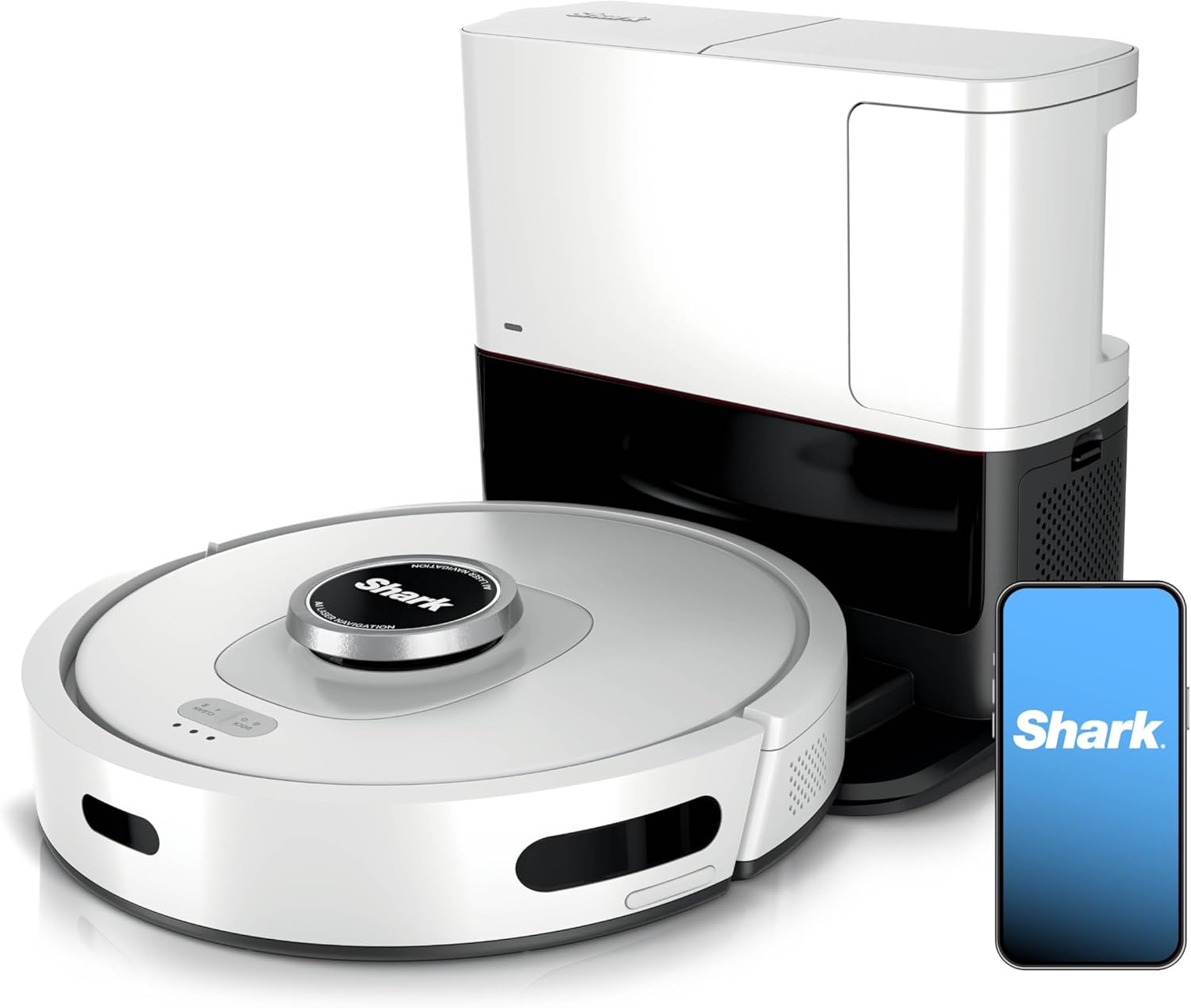
Prime · in stock · standard · 8.3k reviews
Check Replacement PriceDo you work with smart-home systems?
Create a Trunetto business profile, list the brands and services you support, and make it easier for customers to find your business.
List Your BusinessMove the base off carpet and flat against a wall - a base in open space or on rugs is the top reason Shark parks crooked and throws Error 23.
Robot vacuums that 'stop working' are usually fighting a corrupted map from moved furniture — a fresh floor scan fixes the majority of reported failures.
- Robot parked crooked on the base
- Dirty charging contacts on the robot or base
- Base on carpet or an uneven floor
- Base not against a wall so the robot mis-docks
- Debris under the base tilting it
Before you go — try one of these (they fix most cases).
Most popular upgrades chosen by Shark Robot Vacuum owners.
As an Amazon Associate we earn from qualifying purchases.
Official Manufacturer Manual
Shark provides official product documentation through their online manual rather than downloadable PDF. Access setup guides, troubleshooting steps, and product specifications for your Shark Robot Vacuum.
Source: sharkclean.com
Need More Help? Shark Support
Note: The contact information below connects you directly to Shark's official customer support team, not Trunetto. They can help with warranty claims, device replacements, and advanced technical issues.
How Does Shark Compare?
Before replacing your Shark device, see how it stacks up against alternatives in our full comparison guides.
Compatible accessories that support the setup in this guide, not random checkout recommendations.

As an Amazon Associate we earn from qualifying purchases.