

Why Won't My Wyze Robot Vacuum Return to Its Charging Dock?
- Dock moved from original position invalidating LiDAR map dock location
- IR beacon on dock blocked by an object placed in front of it
- Vacuum battery depleted before docking sequence can complete
Problem Description
Your Wyze Robot Vacuum completes its cleaning run but fails to return to the charging dock. The vacuum may stop in the middle of the floor, get stuck, or navigate to the wrong location. The dock homing sequence uses infrared beacon signals emitted by the charging dock and LiDAR-based map navigation. Dock homing failures are caused by the dock being moved, the IR beacon being blocked, or the LiDAR map not accurately reflecting the dock position.
Why This Happens in Real Homes
A vacuum that can't find its dock has usually lost the dock's place on its map — the dock was moved from where it was when the map was made, or something is blocking the dock's IR beacon or the approach to it.
Start by putting the dock back in its original mapped position, with clear space on both sides and in front (a couple of feet), and nothing blocking the charging contacts or the IR signal. If the dock genuinely moved, remap so the vacuum learns the new location; a clear, fixed dock is what makes auto-return reliable.
Symptoms
- Vacuum stops mid-room after cleaning without returning to dock
- Vacuum navigates near the dock but misses it repeatedly
- Vacuum shows Returning to Dock in app but never arrives
- Dock relocated and vacuum cannot find it anymore
- Vacuum returns to dock on some runs but fails on others
- Vacuum gets stuck in same location each time it attempts to dock
Recognize these? Here's what usually causes it.
Common Causes
- Dock moved from original position invalidating LiDAR map dock location
- IR beacon on dock blocked by an object placed in front of it
- Vacuum battery depleted before docking sequence can complete
- LiDAR map corrupted or not updated after room layout change
- Docking approach path blocked by furniture or cables
- Dock placed near a reflective surface confusing IR navigation
Most fixes happen in the first 3 steps.
Do not place the Wyze Robot Vacuum dock in a corner. The docking approach requires forward clearance and placing the dock in a corner limits the approach angle causing the vacuum to miss the contacts repeatedly.
Step-by-Step Solution
Return Dock to Its Original Position
The Wyze Robot Vacuum LiDAR map records the dock position when the floor plan was first created. If the dock has been moved the vacuum navigates to the original map position and finds nothing there. Return the dock to its exact original position or delete the current map and create a new one with the dock in its new location. To delete the map open the Wyze app then the vacuum device then Map Management and delete the existing map before running a fresh full-room scan.
Clear the Docking Approach Zone
The dock requires a clear approach path of at least 0.5 metres in front and 0.3 metres on each side for the vacuum to align with the charging contacts. Remove any cables, rugs, or furniture that may be in this approach zone. Also make sure the dock is placed on a flat hard floor surface. Carpet under the dock can cause the vacuum to slightly miss the contacts when attempting to dock because the charging contacts sit at a different height.
Check the IR Beacon Is Unobstructed
The charging dock emits infrared signals that the vacuum uses for final approach alignment. Objects placed directly in front of or beside the dock block these IR signals causing the vacuum to lose alignment in the last 30 centimetres before contact. Remove any objects within 0.5 metres of the front of the dock. Also make sure the dock is not placed near highly reflective surfaces such as mirrors or stainless steel appliances that can scatter the IR signal and confuse the vacuum sensor.
Delete and Re-Create the Floor Map
In the Wyze app tap the Robot Vacuum device then Map then Delete Map. Place the dock in its permanent location against a wall with the approach zone clear. Start a new Auto Clean from the Wyze app which will generate a new LiDAR map with the dock position accurately recorded. After the first full map scan is complete the vacuum should reliably return to the dock on all subsequent cleaning runs.
Manually Charge Before Testing
If the vacuum battery is very low during a cleaning run it may not have enough power to complete the full docking approach sequence and may stop before reaching the dock. Remove the vacuum from the floor, place it manually on the dock, and allow it to charge to 100 percent. After a full charge start a new cleaning run and observe whether the dock return succeeds. A full battery eliminates low-power docking failures.
Quick Solutions
Still having issues? This is usually the deeper cause below.
If drain continues after replacing batteries, check the event history — a stuck-open sensor or rapid polling loop burns through batteries in days.
After creating a fresh map for your Wyze Robot Vacuum use the room divider feature in the app to create separate cleaning zones. Segmented zones allow the vacuum to clean one room at a time and return to the dock between zones for more reliable docking.
Robot vacuums that 'stop working' are usually fighting a corrupted map from moved furniture — a fresh floor scan fixes the majority of reported failures.
- Dock moved from original position invalidating LiDAR map dock
- IR beacon on dock blocked by an object placed
- Vacuum battery depleted before docking sequence can complete
- LiDAR map corrupted or not updated
- Docking approach path blocked by furniture or cables
Before you go — try one of these (they fix most cases).
Most popular upgrades chosen by Wyze Robot Vacuum owners.
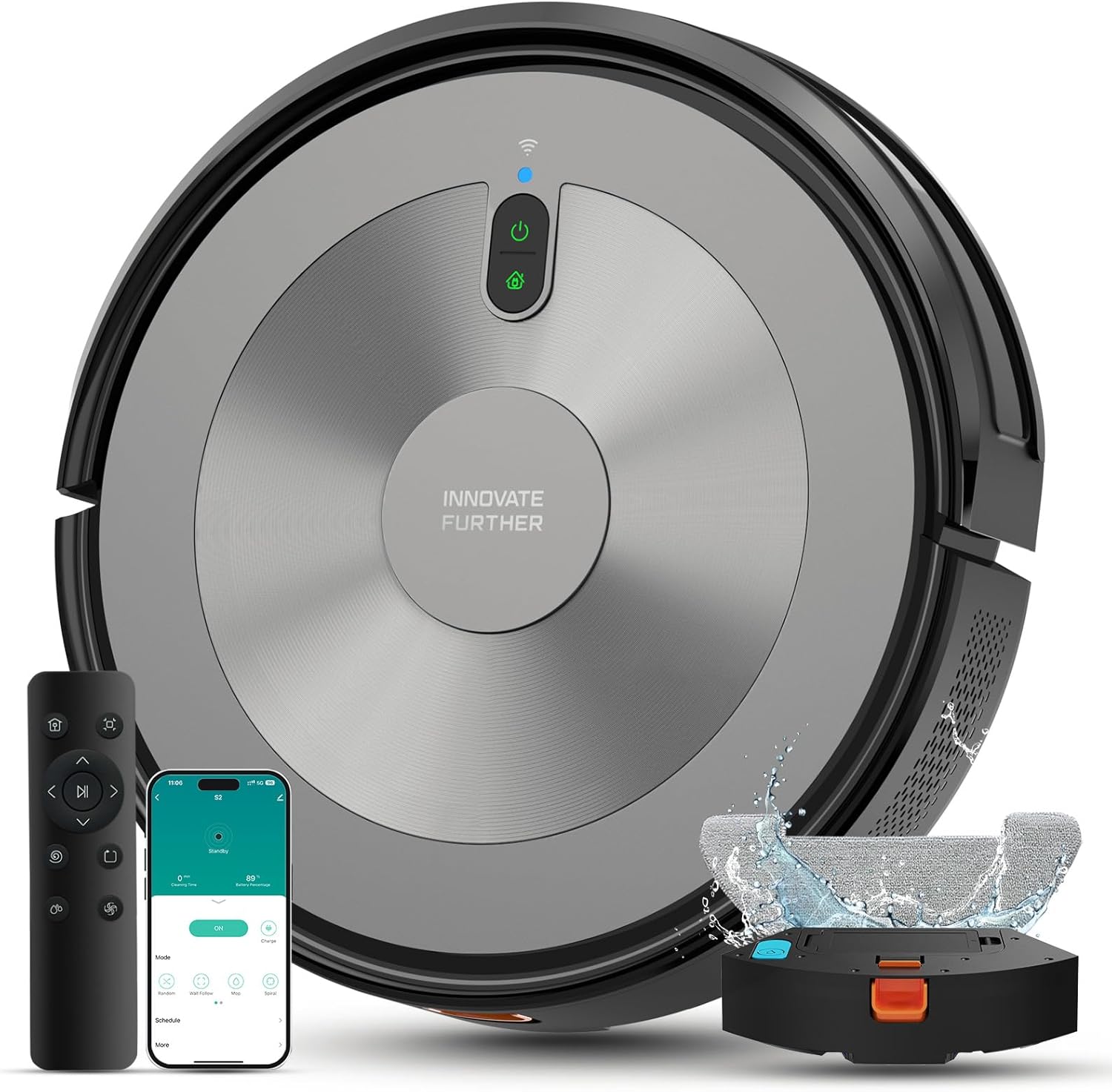
Robot Vacuum and Mop Combo, 5000Pa 3-in-1 Robotic Vacuum ...

Robot Vacuum and Mop Combo, 90 Days Self-Emptying, 6000Pa...
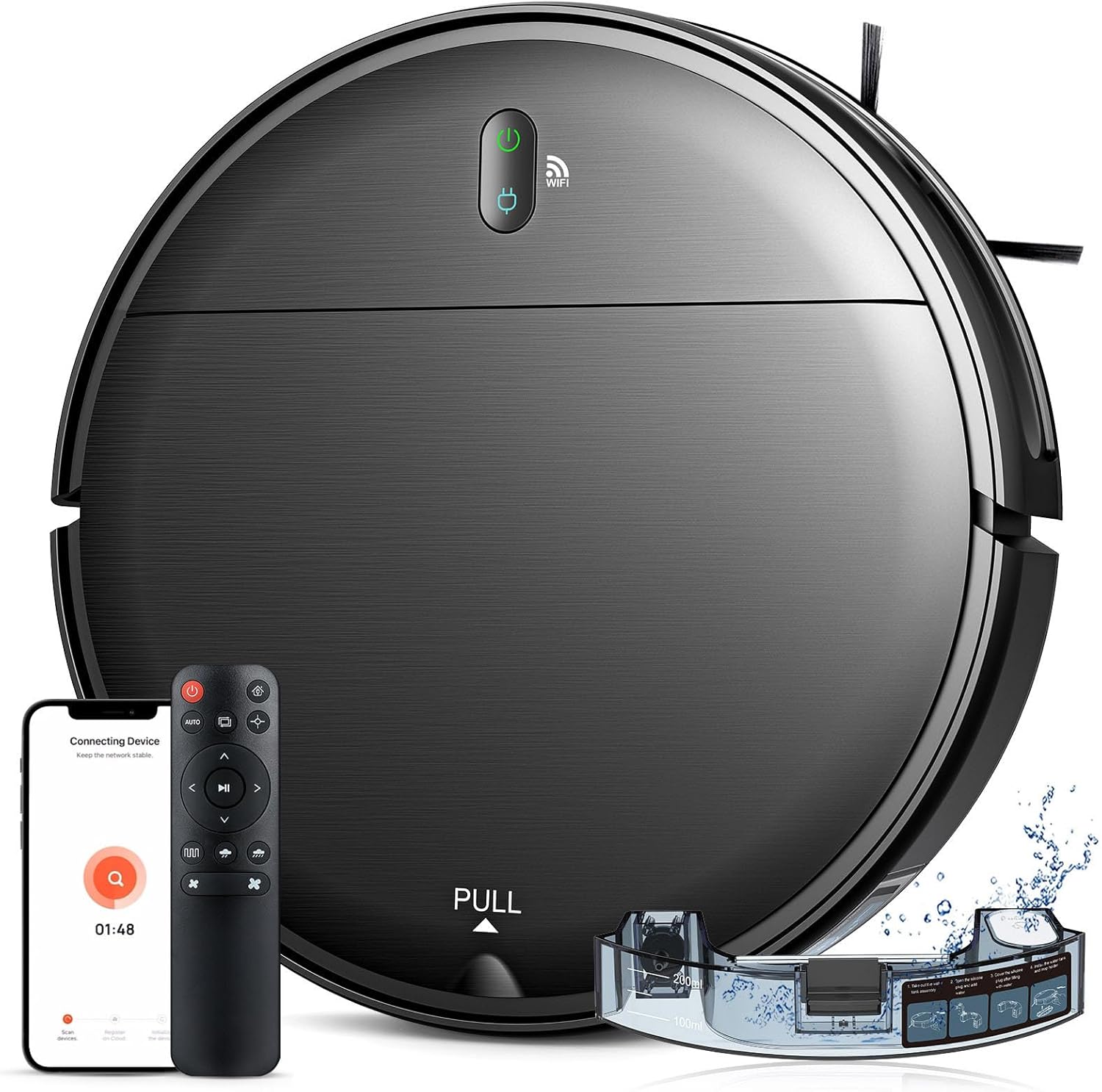
Robot Vacuum and Mop Combo, 2 in 1 Robotic Vacuum Cleaner...
As an Amazon Associate we earn from qualifying purchases.
Official Manufacturer Manual
Wyze provides official product documentation through their online manual rather than downloadable PDF. Access setup guides, troubleshooting steps, and product specifications for your Wyze Robot Vacuum.
Source: support.wyze.com
Need More Help? Wyze Support
Note: The contact information below connects you directly to Wyze's official customer support team, not Trunetto. They can help with warranty claims, device replacements, and advanced technical issues.
How Does Wyze Compare?
Before replacing your Wyze device, see how it stacks up against alternatives in our full comparison guides.


