

Why Won't My Wyze Robot Vacuum v2 Return to Its Dock?
- Dock moved from its original map-calibrated position
- Objects placed in front of dock blocking the approach path
- Dock infrared beacon dirty or covered preventing vacuum detection
Problem Description
Your Wyze Robot Vacuum v2 cannot find its charging dock after a cleaning run or when sent to dock manually from the Wyze app. The vacuum wanders around the room and eventually stops with a low battery rather than returning home. Return-to-dock failures are caused by the dock being moved from its original position, the dock area being blocked, the vacuum map becoming corrupted, or the dock infrared beacon being obstructed.
Why This Happens in Real Homes
Same story on the v2: auto-return depends on the dock sitting exactly where it was during mapping, with a clear path and unobstructed sensors. Move the dock and the vacuum drives to an empty spot on the map looking for it.
Start by returning the dock to its original map-calibrated position and clearing objects from in front of and beside it, then wipe the dock's contacts and sensors. If you've rearranged the room, run a new map so the dock's location updates — the vacuum navigates to the remembered spot, not by seeing the dock from across the house.
Symptoms
- Robot vacuum cannot find its dock after completing a cleaning run
- Vacuum stops in the middle of the room with low battery
- App shows Returning to Dock but vacuum wanders randomly
- Vacuum finds dock sometimes but fails on most attempts
- Dock was moved and vacuum now cannot locate it
- Vacuum approaches dock area then turns away without charging
Recognize these? Here's what usually causes it.
Common Causes
- Dock moved from its original map-calibrated position
- Objects placed in front of dock blocking the approach path
- Dock infrared beacon dirty or covered preventing vacuum detection
- Vacuum map corrupted after a collision or firmware update
- Dock placed against furniture blocking the 50cm clearance zone
- Vacuum battery so low it runs out before reaching dock
Most fixes happen in the first 3 steps.
Do not place the dock on thick rugs or carpet. The dock must be on hard floor for reliable electrical contact between the vacuum charging pins and the dock contacts.
Step-by-Step Solution
Keep Dock in Its Original Position
The Wyze Robot Vacuum v2 builds a map of your home including the dock location during its first cleaning run. If the dock is moved to a new position the vacuum uses the map to go to where the dock used to be and fails to locate it. Always keep the dock in the exact same position against the same wall. If you must move the dock you must also remap your home from the Wyze app for the vacuum to successfully return.
Clear the Dock Approach Zone
The dock requires 50 centimetres of clear open floor space directly in front of the charging contacts and 30 centimetres of clear space on each side. Move any furniture, shoes, bags, or obstacles from the approach zone. The vacuum approaches the dock in a straight line from directly in front and cannot dock if any object is within the clearance zone. Avoid placing the dock in corners or alcoves where the approach angle is limited.
Clean Dock Infrared Sensors
The dock emits an infrared homing beacon that the vacuum detects to navigate home. Dust and debris on the dock sensor window reduce the beacon range significantly. Use a clean dry cloth to wipe the infrared window on the front face of the dock. Also clean the corresponding IR receiver on the front of the vacuum. If the dock is in a bright sunny area direct sunlight can overpower the IR beacon making it impossible for the vacuum to detect it.
Remap the Home After Dock Move
If the dock was moved or the map shows incorrect room boundaries delete the existing map in the Wyze app and allow the vacuum to create a new map. Go to Wyze app then the vacuum device then Map Management and delete the current map. Place the dock in its new permanent position and run a full home cleaning. The vacuum creates a new map on this run with the correct dock location embedded.
Start Cleaning Runs When Battery Is High
If the vacuum runs a full cleaning cycle on a low initial charge it may exhaust the battery before completing the return journey. Always dock and fully charge the vacuum before starting a cleaning run. A fully charged Wyze v2 has approximately 110 minutes of run time. For large homes split the cleaning into zones using the Wyze app room cleaning feature so each zone run starts from or near the dock.
Quick Solutions
Still having issues? This is usually the deeper cause below.
If the robot returns to the dock mid-clean, moved furniture may have invalidated its map — a fresh floor scan resolves the majority of navigation failures.
Place a strip of white tape on the floor directly in front of the dock as an additional visual landmark. The Wyze v2 uses both IR and floor pattern recognition during docking.
Robot vacuums that 'stop working' are usually fighting a corrupted map from moved furniture — a fresh floor scan fixes the majority of reported failures.
- Dock moved from its original map-calibrated position
- Objects placed in front of dock
- Dock infrared beacon dirty or covered preventing vacuum detection
- Vacuum map corrupted after a collision or firmware update
- Dock placed against furniture blocking the 50cm clearance zone
Before you go — try one of these (they fix most cases).
Most popular upgrades chosen by Wyze Robot Vacuum v2 owners.
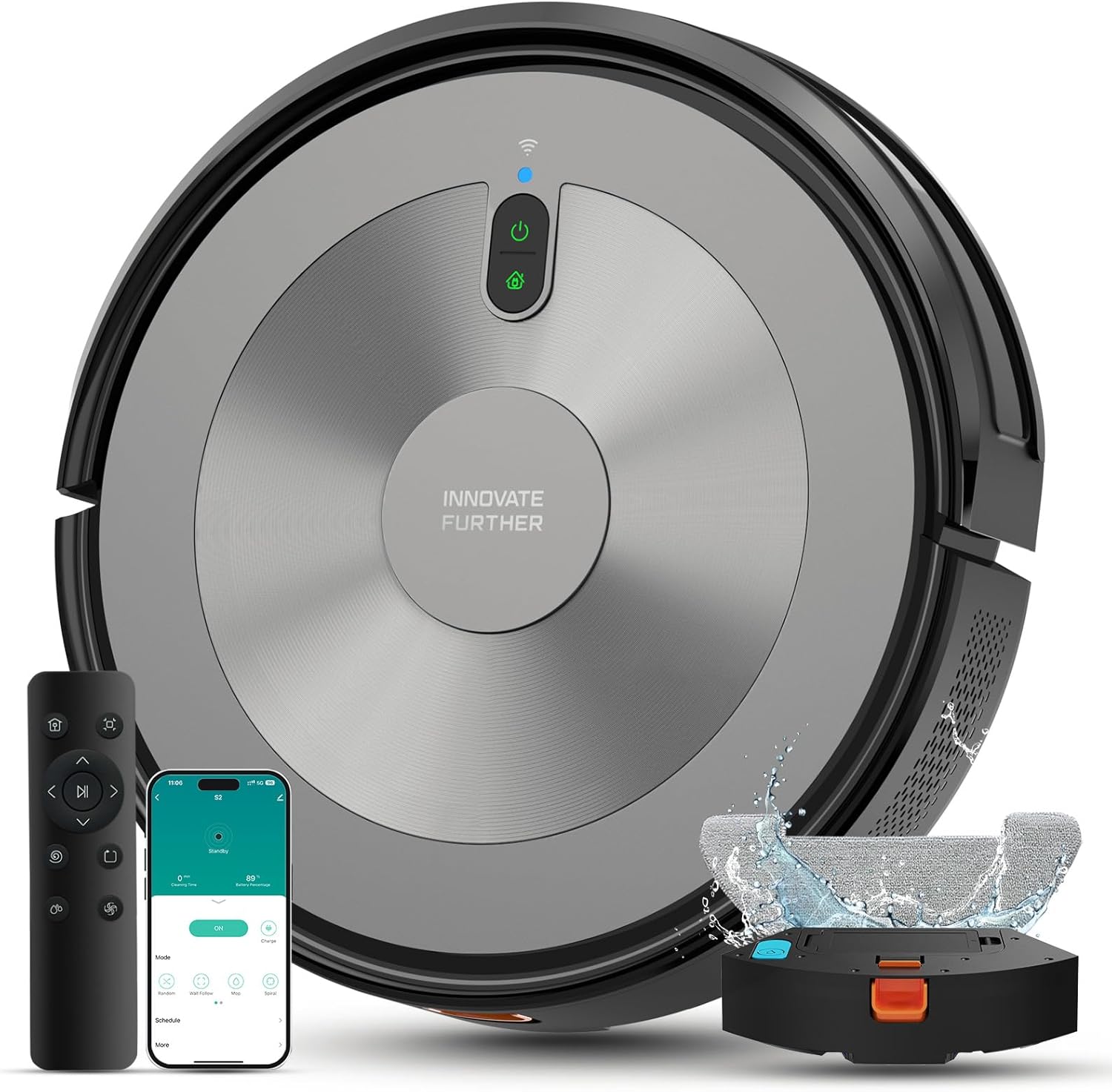
Robot Vacuum and Mop Combo, 5000Pa 3-in-1 Robotic Vacuum ...

Robot Vacuum and Mop Combo, 90 Days Self-Emptying, 6000Pa...
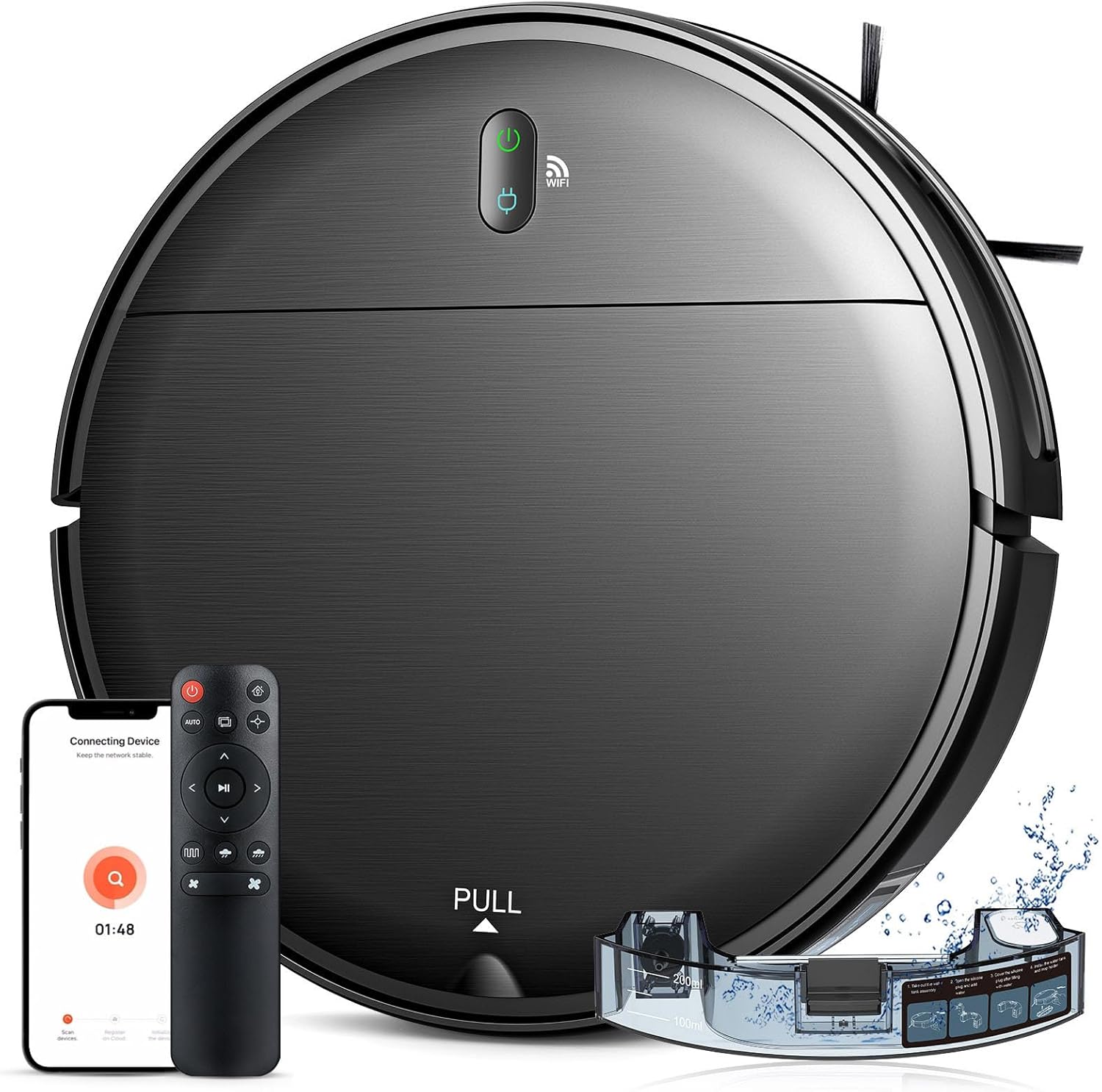
Robot Vacuum and Mop Combo, 2 in 1 Robotic Vacuum Cleaner...
As an Amazon Associate we earn from qualifying purchases.
Official Manufacturer Manual
Wyze provides official product documentation through their online manual rather than downloadable PDF. Access setup guides, troubleshooting steps, and product specifications for your Wyze Robot Vacuum v2.
Source: support.wyze.com
Need More Help? Wyze Support
Note: The contact information below connects you directly to Wyze's official customer support team, not Trunetto. They can help with warranty claims, device replacements, and advanced technical issues.
How Does Wyze Compare?
Before replacing your Wyze device, see how it stacks up against alternatives in our full comparison guides.
Accessories owners commonly pair with Wyze Robot Vacuum v2.

Amazon Basics 20-Pack AA Alkaline High-Performance Batter...

Amazon Basics CR2032 3V Lithium Coin Cell Batteries for K...

Duracell Coppertop Double AA Batteries with Power Boost I...
As an Amazon Associate we earn from qualifying purchases.


