

Why Is My Amcrest Camera Not Connecting to the NVR and Showing No Video Signal
- Insufficient PoE power / switch budget
- Bad or too-long Ethernet cable
- IP conflict between camera and NVR
Problem Description
Your Amcrest IP camera is connected to the NVR via Ethernet or PoE but shows no video signal on the monitor. The NVR channel displays a black screen with a no video or no signal message. The camera may have power and IR LEDs active but the NVR refuses to recognize or display the camera feed.
Why This Happens in Real Homes
An Amcrest camera that won't show a video signal on the NVR is usually a power, cabling, or configuration issue rather than a dead camera. On a PoE NVR, the camera draws power over the same Ethernet run, so insufficient PoE, a bad or over-length cable, or a faulty port leaves the channel blank — and on the config side, an IP conflict, wrong protocol, or wrong credentials stops the NVR from pulling the stream.
Check that the camera is getting adequate PoE (some 4K models need PoE+), and replace a suspect Ethernet cable (runs over ~100m fail). Then confirm the camera has a unique IP within the NVR's PoE range with no conflict, and that the channel is configured with the correct protocol (Amcrest/Dahua/ONVIF) and the camera's actual username and password. Re-add the camera to the channel, keep camera and NVR firmware compatible, and try another PoE port to isolate a hardware fault.
Symptoms
- Camera won't connect to the NVR
- No video signal on the channel
- Channel shows blank/no signal
- Camera not detected by the NVR
- Connected but no image
- Intermittent on the NVR
- Channel offline
- No feed from a camera
Recognize these? Here's what usually causes it.
Common Causes
- Insufficient PoE power / switch budget
- Bad or too-long Ethernet cable
- IP conflict between camera and NVR
- Wrong protocol (Amcrest/Dahua/ONVIF) or credentials
- Camera not added to the channel correctly
- NVR channel/config issue
- Camera firmware mismatch
- Faulty PoE port
Most fixes happen in the first 3 steps.
Do not perform firmware updates during thunderstorms or unstable power conditions. A power loss during firmware update can permanently brick the camera or NVR.
Tools & Requirements
These tools will help you complete this fix.
As an Amazon Associate we earn from qualifying purchases.
Step-by-Step Solution
Check Physical Cable Connection
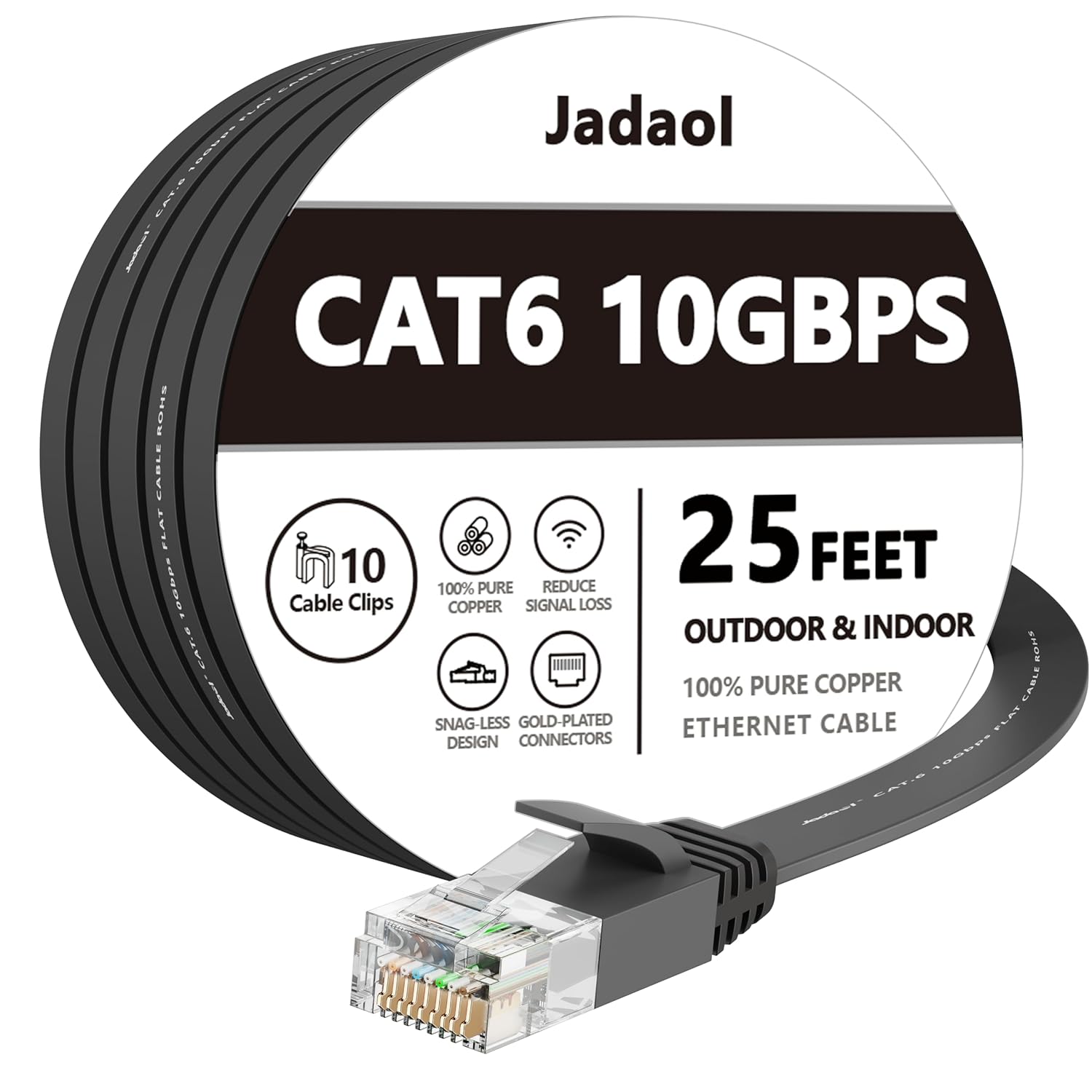
Disconnect the Ethernet cable from both the camera and the NVR PoE port. Inspect the cable connectors for bent pins, corrosion, or damage. Reconnect firmly at both ends ensuring you hear a click on the RJ45 connectors. Try a different PoE port on the NVR. If using a PoE switch instead of the NVR's built-in PoE, verify the switch port is active and providing power. Test with a known-good short Ethernet cable to rule out cable damage from outdoor runs.
Needed for this step
Jadaol Cat 6 Ethernet Cable 25 ft, 10Gbps Suppo...
This helps complete the fix you are currently reading.
$9.99Verify IP Address Configuration
Access the NVR main menu and go to Camera or Remote Device settings. Check the list of detected cameras and their IP addresses. The camera must be on the same subnet as the NVR, typically 192.168.1.x. If the camera has a different subnet like 192.168.0.x, you need to change either the camera or NVR IP range to match. Use the Amcrest IP Config Tool software on a PC connected to the same network to find and modify camera IP addresses.
Re-enter Camera Credentials on NVR
On the NVR, go to Camera settings and select the channel where the camera should appear. Check the username and password fields. The default Amcrest username is admin. If you changed the camera password through the web interface or Amcrest View Pro app, the NVR channel still has the old password saved. Update the password on the NVR channel to match the current camera password. Save and the video should appear within 10 seconds.
Update Firmware on Both Devices
Download the latest firmware for both your camera model and NVR model from the Amcrest website support section. Update the NVR first by copying the firmware file to a USB drive, inserting it into the NVR, and navigating to System, Upgrade. After the NVR reboots, update each camera through the NVR camera management menu or through the camera web interface directly. Firmware mismatches between cameras and NVRs are a common cause of connection failures.
Assign Static IP and Test
Once the camera is visible, assign it a static IP address to prevent future DHCP conflicts. Access the camera web interface by typing its IP address in a browser. Go to Network settings and change from DHCP to Static. Assign an IP address within the NVR subnet but outside the DHCP range, for example 192.168.1.200. Save the settings and verify the NVR channel still shows the camera feed after the IP change.
Quick Solutions
Still having issues? This is usually the deeper cause below.
This usually happens right after a router reboot or ISP change — the device rejoins the network but drops its cloud session silently.
Download the free Amcrest IP Config Tool from their website. It scans your network and shows all Amcrest cameras with their IP addresses, making subnet issues easy to identify and fix.
Most WiFi drop-offs happen right after a router reboot or ISP swap — the device reconnects to the network but silently loses its cloud registration.
- Insufficient PoE power / switch budget
- Bad or too-long Ethernet cable
- IP conflict between camera and NVR
- Wrong protocol (Amcrest/Dahua/ONVIF) or credentials
- Camera not added to the channel correctly
Before you go — try one of these (they fix most cases).
Most popular upgrades chosen by Amcrest IP Camera owners.
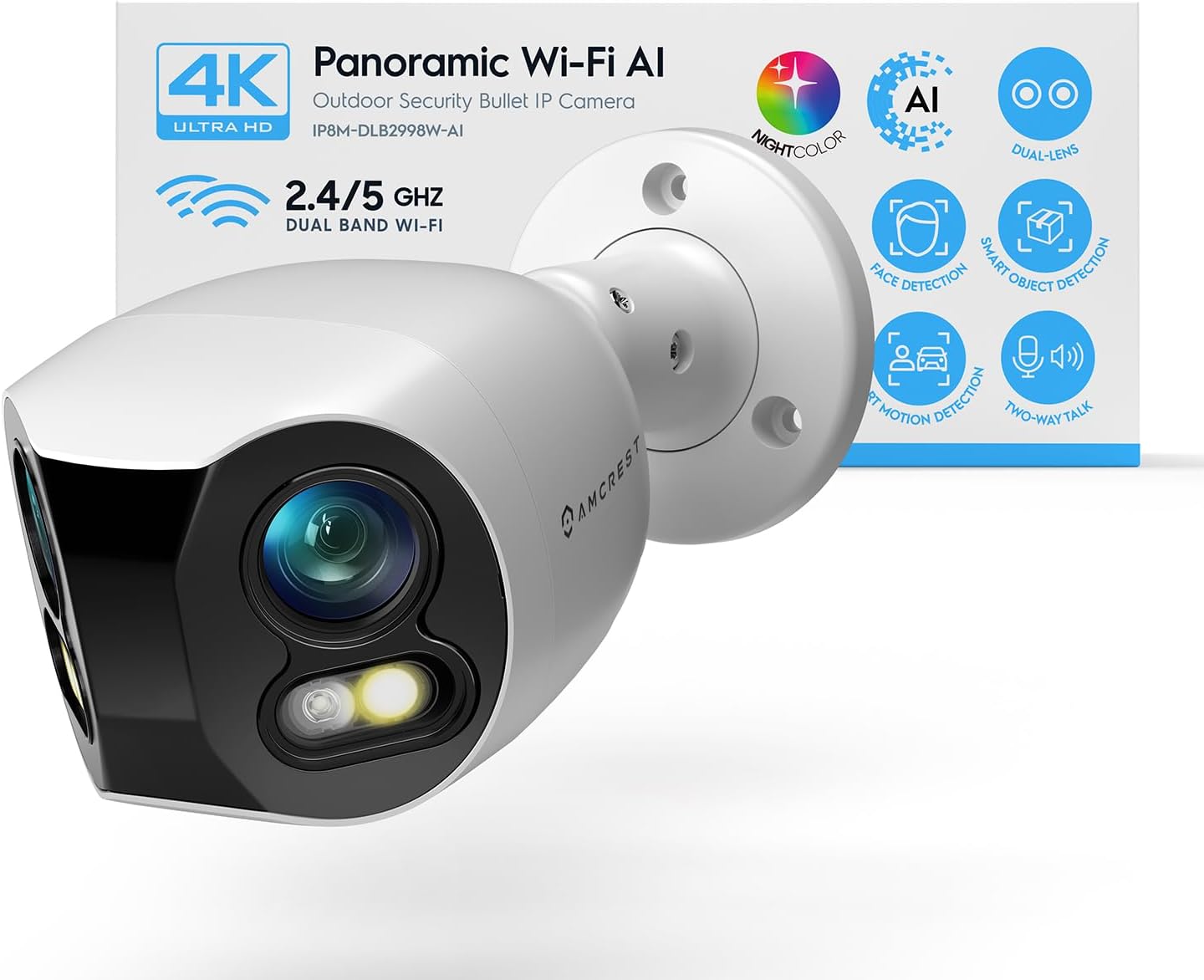
Amcrest Dual-Lens 4K (8MP) Outdoor Security WiFi Camera, ...

Amcrest 4MP ProHD Indoor WiFi Camera, Security IP Camera ...
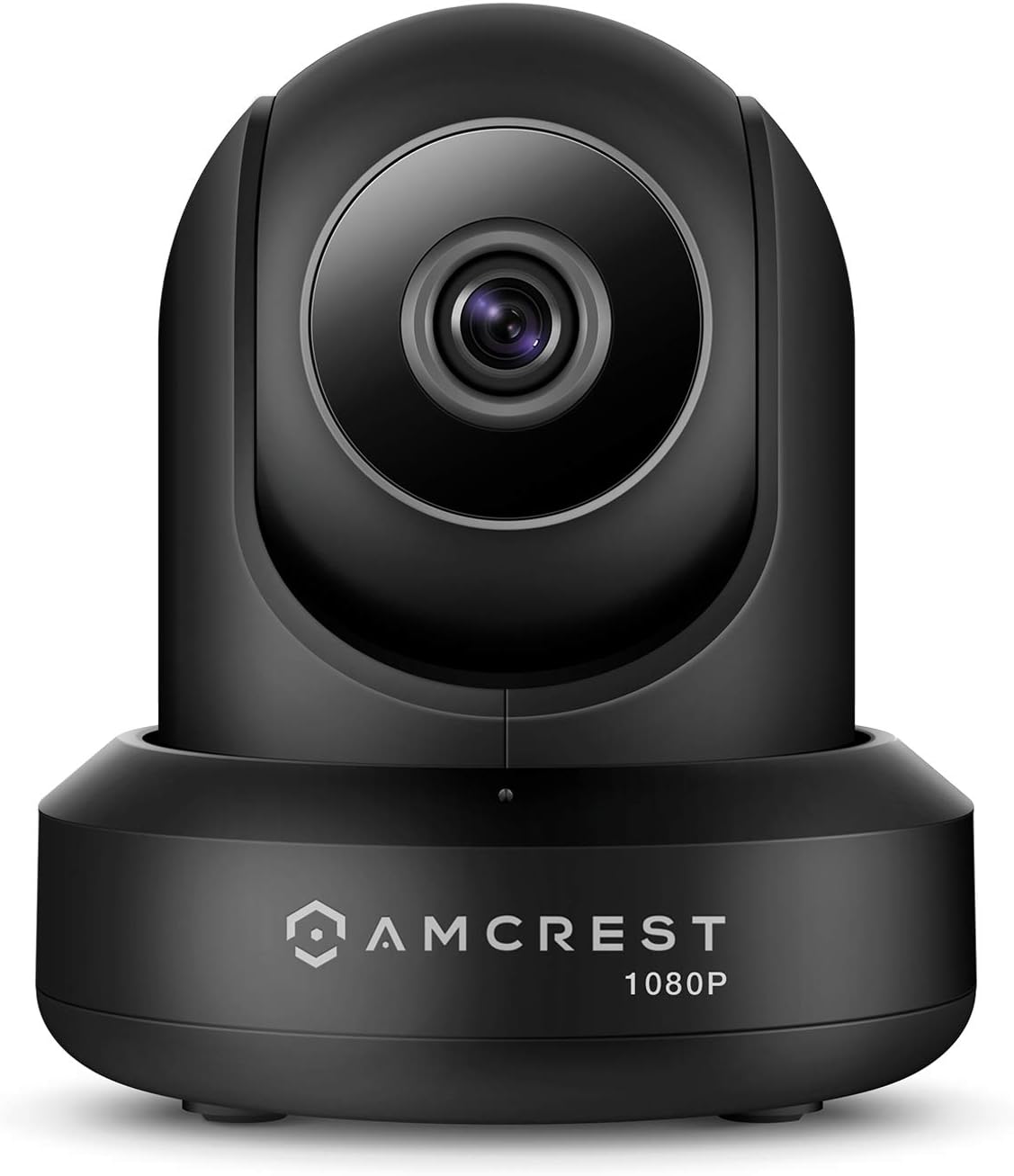
Amcrest ProHD 1080P WiFi 2MP (1920TVL) Indoor Pan/Tilt Se...
As an Amazon Associate we earn from qualifying purchases.
Official Manufacturer Manual
Amcrest provides official product documentation through their online manual rather than downloadable PDF. Access setup guides, troubleshooting steps, and product specifications for your Amcrest IP Camera.
Source: support.amcrest.com
Need More Help? Amcrest Support
Note: The contact information below connects you directly to Amcrest's official customer support team, not Trunetto. They can help with warranty claims, device replacements, and advanced technical issues.
Accessories owners commonly pair with Amcrest IP Camera.

SANDISK 64GB Extreme microSDXC UHS-I Memory Card with Ada...

SANDISK 128GB Ultra microSDXC UHS-I Memory Card with Adap...

SANDISK 64GB Ultra microSDXC UHS-I Memory Card with Adapt...
As an Amazon Associate we earn from qualifying purchases.


