

Why Is My Amcrest NVR Not Recording Footage and Missing Motion Events
- HDD not installed/initialized or full
- Recording schedule not set/enabled
- Motion detection zones/sensitivity off
Problem Description
Your Amcrest NVR is not recording video footage even though cameras are connected and showing live video. Playback shows gaps or completely empty timelines. Motion-triggered recording is not capturing events that you know occurred. The hard drive may appear to have space but no new recordings are being saved.
Why This Happens in Real Homes
An Amcrest NVR not recording or missing motion events usually comes down to storage or recording configuration. If the hard drive isn't installed, isn't initialized, is full with overwrite disabled, or is failing, there's nowhere to save footage — and on the settings side, a missing recording schedule, a channel not set to record, or motion zones/sensitivity not configured means nothing gets captured.
Start with the drive: confirm an HDD is installed and initialized, isn't full (enable overwrite so the oldest footage clears automatically), and passes a SMART health check. Then set a recording schedule and make sure each channel's recording mode is enabled (continuous or motion-triggered). For missing motion events specifically, configure the motion detection zones and sensitivity per camera so real movement triggers recording. A healthy drive plus a proper schedule and motion setup captures reliably.
Symptoms
- NVR not recording
- Missing footage
- No motion events recorded
- Recording gaps
- Motion not captured
- Playback empty
- Schedule not recording
- No clips saved
Recognize these? Here's what usually causes it.
Common Causes
- HDD not installed/initialized or full
- Recording schedule not set/enabled
- Motion detection zones/sensitivity off
- Recording mode not set (continuous/motion)
- HDD failing (SMART errors)
- Overwrite disabled (full disk stops recording)
- Channel not set to record
- Firmware issue
Most fixes happen in the first 3 steps.
Never use desktop-grade hard drives in NVR systems. They are not designed for 24/7 recording workloads and will fail much sooner than surveillance-rated drives. Always use WD Purple, Seagate SkyHawk, or Toshiba S300 series.
Tools & Requirements
Step-by-Step Solution
Verify Recording Schedule
On the NVR, go to Main Menu, then Storage, then Record Schedule. Select each camera channel and verify the recording type. Green indicates continuous recording, yellow indicates motion recording, and red indicates alarm recording. Make sure the time blocks cover the periods you expect recordings. If the schedule is blank, set all time blocks to either continuous recording or motion detection based on your preference. Apply the settings to all channels.
Configure Motion Detection
If using motion-triggered recording, go to Main Menu, then Events, then Motion Detection. Select each camera channel and enable motion detection. Draw the detection zones on the camera preview, covering the areas where you want motion to trigger recording. Set the sensitivity level, starting at 3 out of 6 and adjusting based on false alarm frequency. Under the Trigger tab, make sure Record Channel is checked for the corresponding camera channel.
Check Hard Drive Health
Go to Main Menu, then Storage, then HDD Management. Verify the hard drive status shows Normal and not Error or Uninitialized. Check the total and used capacity. If the drive shows Error, it may have failed and needs replacement. If it shows Uninitialized, select the drive and click Init to format it for the NVR. Use surveillance-rated drives like Western Digital Purple or Seagate SkyHawk which are designed for continuous recording workloads.
Enable Overwrite and Check Capacity
In HDD Management or Storage settings, find the Overwrite option and set it to Automatic. This tells the NVR to automatically overwrite the oldest recordings when the drive is full. Without this enabled, recording stops when the drive reaches capacity. Calculate your storage needs: a single 4K camera at 8Mbps uses about 80GB per day of continuous recording. A 2TB drive gives approximately 25 days of continuous recording for one 4K camera.
Verify Recording and Test Playback
After configuring all settings, look for the red recording indicator icon on the live view for each channel. If visible, the NVR is actively recording. Walk in front of a camera to trigger motion detection and wait 30 seconds. Go to Playback and search for the current time period on that camera channel. You should see the motion event recorded. If recordings still do not appear, try a lower camera resolution like 1080p instead of 4K to reduce the processing load on the NVR.
Quick Solutions
Still having issues? This is usually the deeper cause below.
If the sensor still misses events after repositioning, check whether a scheduled 'home' or 'away' mode is overriding the sensitivity setting silently.
Enable email alerts for hard drive errors in the NVR event settings. This way you will be notified immediately if the drive fails rather than discovering missing recordings weeks later.
Missed motion events are almost always a zone coverage problem, not hardware failure — zone placement accounts for 90% of these complaints.
- HDD not installed/initialized or full
- Recording schedule not set/enabled
- Motion detection zones/sensitivity off
- Recording mode not set (continuous/motion)
- HDD failing (SMART errors)
Before you go — try one of these (they fix most cases).
Most popular upgrades chosen by Amcrest NVR owners.
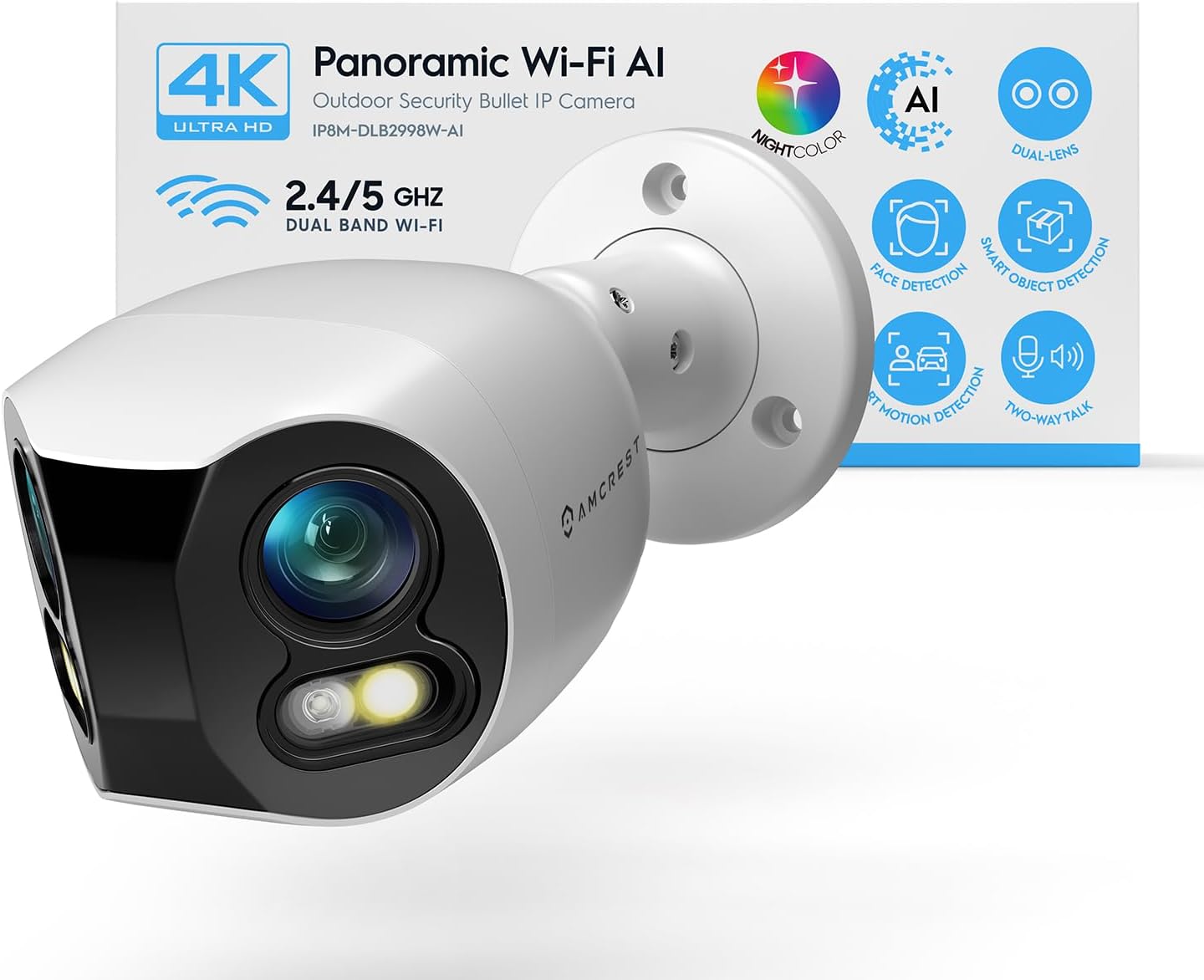
Amcrest Dual-Lens 4K (8MP) Outdoor Security WiFi Camera, ...

Amcrest 2-Pack 1080p WiFi Camera Indoor, 2MP Pan/Tilt Hom...

Amcrest 4MP ProHD Indoor WiFi Camera, Security IP Camera ...
As an Amazon Associate we earn from qualifying purchases.
Official Manufacturer Manual
Amcrest provides official product documentation through their online manual rather than downloadable PDF. Access setup guides, troubleshooting steps, and product specifications for your Amcrest NVR.
Source: support.amcrest.com
Need More Help? Amcrest Support
Note: The contact information below connects you directly to Amcrest's official customer support team, not Trunetto. They can help with warranty claims, device replacements, and advanced technical issues.


