

Why Is My Amcrest Camera Stuck on Connecting and Won't Show Live View?
- Wrong camera password (post-firmware strong-password requirement)
- Weak network / bandwidth to the camera
- P2P/remote path offline
Problem Description
Your Amcrest camera shows Connecting indefinitely in the Amcrest View Pro app but never displays the live video feed. According to Amcrest official support this commonly happens after changing internet service providers, router changes, or when the camera IP address has changed. The camera may be powered on with LEDs lit but the app cannot establish a connection because it is trying to reach an old IP address.
Why This Happens in Real Homes
An Amcrest camera stuck on "Connecting" with no live view usually can't complete the stream handshake — the two most common reasons are an incorrect password (newer Amcrest firmware forces a strong password, and an outdated saved credential leaves the app stuck) and a network or bandwidth problem between the viewing device and the camera. Remotely, it's often the P2P path being offline.
Start by confirming the camera's password is correct and current in the app, since a stale password is a leading cause. Then address the connection: make sure the camera has a solid network link, and for remote viewing that P2P is online (or port forwarding is set). Lowering the viewing stream to the sub-stream or a lower resolution helps on a weak link, and rebooting the camera clears a stuck state. Reduce the number of simultaneous connections and confirm the router isn't blocking the stream.
Symptoms
- Stuck on Connecting
- No live view
- Spinning connect indefinitely
- Won't load the stream
- Connecting then times out
- Live view never starts
- App stuck connecting
- Stream won't open
Recognize these? Here's what usually causes it.
Common Causes
- Wrong camera password (post-firmware strong-password requirement)
- Weak network / bandwidth to the camera
- P2P/remote path offline
- High stream resolution over a weak link
- Camera needs a reboot
- Firmware issue
- Too many simultaneous connections
- Network/router blocking
Most fixes happen in the first 3 steps.
Always ensure your camera and computer are connected to the same network when using the IP Config Tool or accessing the web interface. Cameras on a different subnet or VLAN will not be accessible.
Tools & Requirements
Step-by-Step Solution
Download Amcrest IP Config Tool
Per Amcrest support download the Amcrest IP Config Tool from support.amcrest.com. This tool scans your network and displays the current IP address of all Amcrest devices. Your camera IP may have changed from what the app expects. The tool is available for Windows and Mac.
Find Camera Current IP Address
Run the IP Config Tool on a computer connected to the same network as the camera. The tool will show the camera model serial number MAC address and current IP address. If the camera does not appear make sure it is connected via Ethernet or that your computer and camera are on the same network segment.
Access Camera Web Interface
Enter the IP address shown in IP Config Tool into a web browser. Log in with your camera credentials. The default password is admin per Amcrest documentation. If the web interface loads the camera is working and the issue is with app connectivity to the old IP address.
Remove and Re-add Camera in App
Per Amcrest it is highly recommended to remove the camera from Amcrest View Pro app and add it back using the current IP address. This clears cached connection data. Follow the app add device process using the new IP address or scan the QR code on the camera.
Set Static IP Address
In the camera web interface go to Network then TCP/IP. Set the Mode to Static and configure an IP address within your network range but outside the router DHCP pool. Click Save. This prevents the IP from changing after future router reboots. Amcrest recommends this step to maintain consistent connectivity.
Quick Solutions
Still having issues? This is usually the deeper cause below.
Camera issues that start suddenly almost always trace back to an upload bandwidth drop — run a speed test before assuming hardware failure.
If you change internet service providers or routers Amcrest recommends connecting the camera via Ethernet cable first then using the IP Config Tool and web interface to update WiFi settings before removing the Ethernet cable.
Most WiFi drop-offs happen right after a router reboot or ISP swap — the device reconnects to the network but silently loses its cloud registration.
- Wrong camera password (post-firmware strong-password requirement)
- Weak network / bandwidth to the camera
- P2P/remote path offline
- High stream resolution over a weak link
- Camera needs a reboot
Before you go — try one of these (they fix most cases).
Most popular upgrades chosen by Amcrest IP Camera owners.
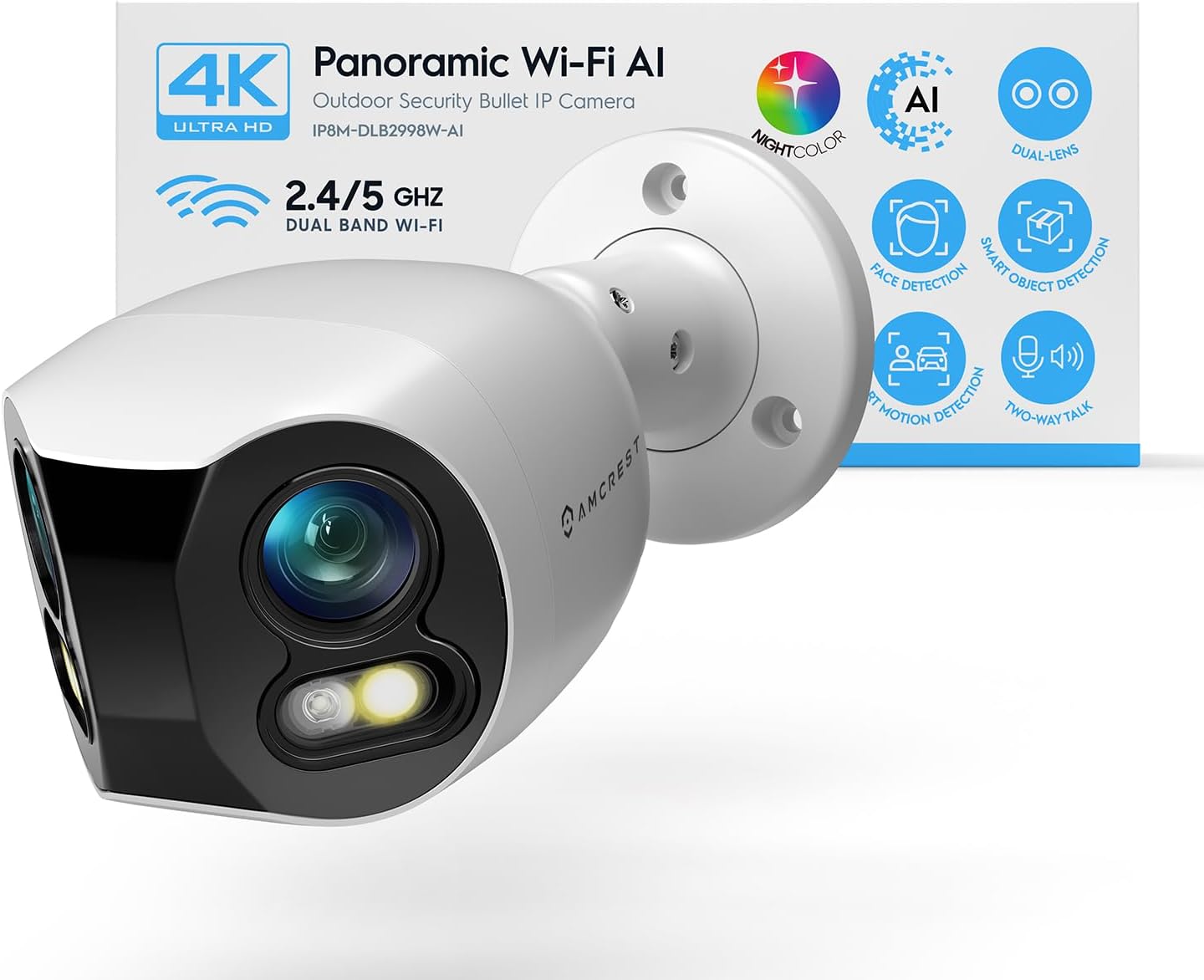
Amcrest Dual-Lens 4K (8MP) Outdoor Security WiFi Camera, ...

Amcrest 4MP ProHD Indoor WiFi Camera, Security IP Camera ...
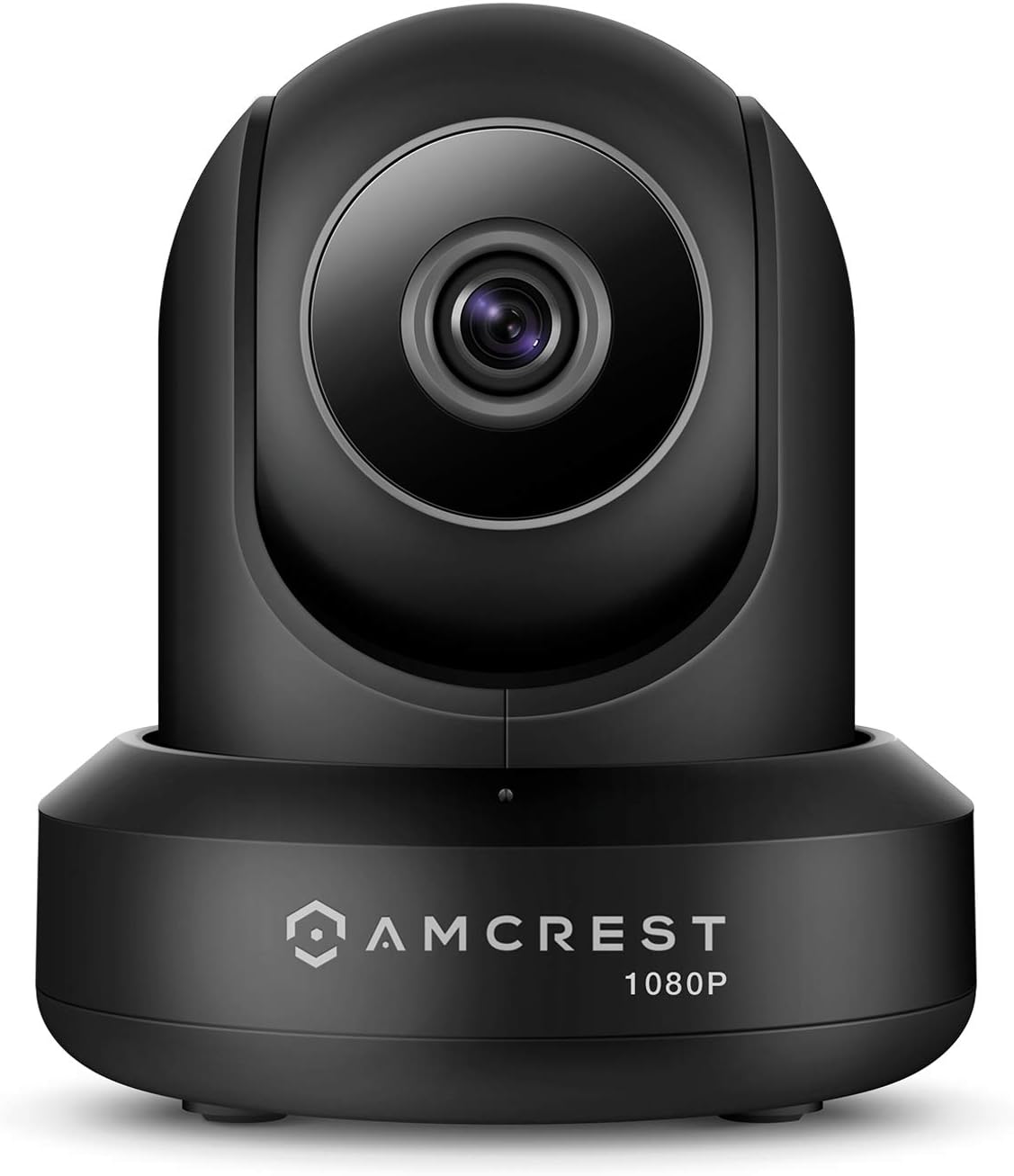
Amcrest ProHD 1080P WiFi 2MP (1920TVL) Indoor Pan/Tilt Se...
As an Amazon Associate we earn from qualifying purchases.
Official Manufacturer Manual
Amcrest provides official product documentation through their online manual rather than downloadable PDF. Access setup guides, troubleshooting steps, and product specifications for your Amcrest IP Camera.
Source: support.amcrest.com
Need More Help? Amcrest Support
Note: The contact information below connects you directly to Amcrest's official customer support team, not Trunetto. They can help with warranty claims, device replacements, and advanced technical issues.


