

Why Does My Amcrest WiFi Camera Keep Disconnecting and Going Offline
- Weak 2.4GHz signal at the camera
- Too far from the router / obstructions
- 2.4GHz interference/congestion
Problem Description
Your Amcrest WiFi camera repeatedly disconnects from the network and goes offline in the Amcrest View Pro app. The camera may work for hours or days then suddenly drop its WiFi connection requiring a power cycle to reconnect. The issue may occur more frequently during certain times of day or weather conditions.
Why This Happens in Real Homes
An Amcrest WiFi camera that keeps dropping offline is almost always fighting a weak or unstable 2.4GHz connection — these cameras are 2.4GHz devices, and an outdoor or far-room camera at the edge of coverage, fighting interference or a band-steering router, connects but can't hold. Cameras are bandwidth-hungry, so a marginal link that's fine for a plug drops a video stream.
Improve the signal where the camera is mounted: move it closer to the router, add a mesh node or extender toward it, or reduce obstructions, and change the 2.4GHz channel to dodge interference. Keep the camera on the 2.4GHz band (disable band steering), reserve a DHCP IP so the router stops churning its address, and confirm the power adapter is the correct one and firmly connected — an underpowered camera drops too. Update firmware and rule out scheduled router reboots.
Symptoms
- WiFi camera keeps disconnecting
- Goes offline repeatedly
- Drops then reconnects
- Intermittent connection
- Offline in the app
- Only online when near the router
- Drops at certain times
- Won't stay connected
Recognize these? Here's what usually causes it.
Common Causes
- Weak 2.4GHz signal at the camera
- Too far from the router / obstructions
- 2.4GHz interference/congestion
- Band steering / 5GHz push
- Router IP/DHCP churn
- Underpowered/loose power adapter
- Firmware issue
- Router reboots/instability
Most fixes happen in the first 3 steps.
Using a power adapter with incorrect voltage can permanently damage the camera. Always match the voltage exactly and ensure the amperage meets or exceeds the camera requirement.
Tools & Requirements
Step-by-Step Solution
Check WiFi Signal Strength
Access the camera web interface and go to Network, then WiFi status. Check the signal strength or RSSI value. A signal below minus 70 dBm is too weak for reliable video streaming. If the signal is weak, the camera needs to be closer to the router or you need to add a WiFi extender. For outdoor cameras, walls, metal siding, and brick can significantly reduce WiFi signal. A WiFi signal survey app on your phone at the camera location can confirm the issue.
Optimize WiFi Channel
Download a WiFi analyzer app on your phone and scan for nearby networks at the camera location. Identify which channels are most congested. Log into your router and manually set the 2.4GHz channel to 1, 6, or 11 depending on which has the least interference. Avoid auto channel selection as the router may switch channels and temporarily disconnect the camera. If the camera supports only 2.4GHz, make sure you are not accidentally connecting it to a 5GHz SSID.
Set DHCP Reservation
In your router admin panel, find the camera in the connected devices list and note its MAC address. Create a DHCP reservation that assigns the same IP address to the camera every time. DHCP lease expirations can cause cameras to briefly go offline while they renegotiate a new IP address. A reservation ensures the camera always gets the same address without renegotiation. Set the DHCP lease time to 24 hours or longer.
Check Power Supply
Amcrest WiFi cameras draw more power during night vision and active streaming. If the included power adapter is borderline or degrading, the camera may brown-out and reboot. Check the camera power requirements, typically 12V 1A or 12V 2A. Replace the adapter with one that meets or slightly exceeds the rated amperage. For PoE-capable WiFi cameras, switching to a wired PoE connection eliminates both WiFi and power issues simultaneously.
Reduce Network Load and Test
If multiple cameras disconnect simultaneously, the router may be overloaded. Check how many devices are connected to your router. Consumer routers typically handle 20 to 30 WiFi clients well but degrade above that. Consider a dedicated WiFi access point for cameras only, or move cameras to wired PoE connections. After making changes, monitor the camera uptime in the Amcrest View Pro app over 48 hours to confirm stability.
Quick Solutions
Still having issues? This is usually the deeper cause below.
This usually happens right after a router reboot or ISP change — the device rejoins the network but drops its cloud session silently.
For the most reliable Amcrest camera setup, use PoE wired connections instead of WiFi whenever possible. PoE eliminates both WiFi dropout and power supply issues in one cable.
Most WiFi drop-offs happen right after a router reboot or ISP swap — the device reconnects to the network but silently loses its cloud registration.
- Weak 2.4GHz signal at the camera
- Too far from the router / obstructions
- 2.4GHz interference/congestion
- Band steering / 5GHz push
- Router IP/DHCP churn
Before you go — try one of these (they fix most cases).
Most popular upgrades chosen by Amcrest WiFi Camera owners.
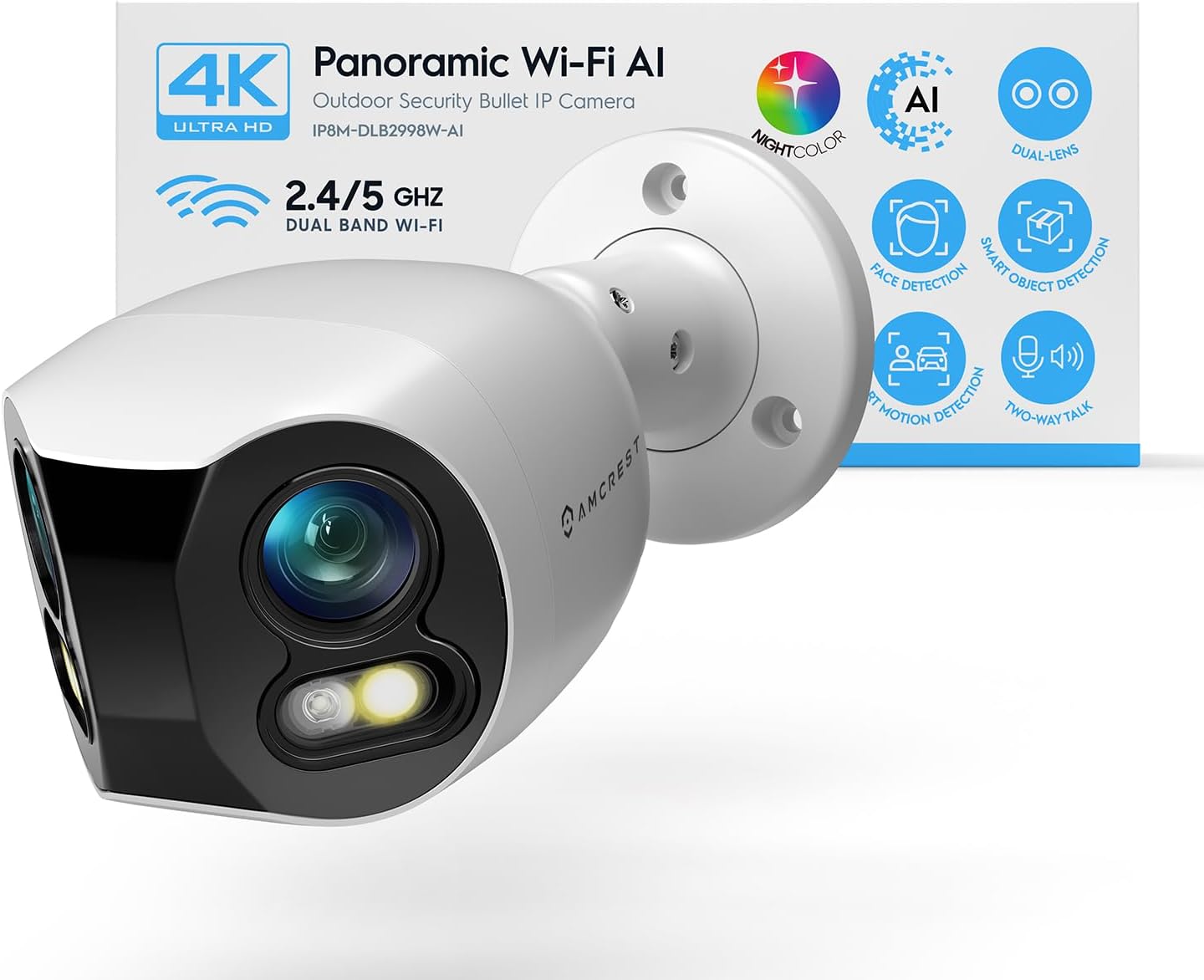
Amcrest Dual-Lens 4K (8MP) Outdoor Security WiFi Camera, ...

Amcrest 2-Pack 1080p WiFi Camera Indoor, 2MP Pan/Tilt Hom...

Amcrest 4MP ProHD Indoor WiFi Camera, Security IP Camera ...
As an Amazon Associate we earn from qualifying purchases.
Official Manufacturer Manual
Amcrest provides official product documentation through their online manual rather than downloadable PDF. Access setup guides, troubleshooting steps, and product specifications for your Amcrest WiFi Camera.
Source: support.amcrest.com
Need More Help? Amcrest Support
Note: The contact information below connects you directly to Amcrest's official customer support team, not Trunetto. They can help with warranty claims, device replacements, and advanced technical issues.


