

How to Install Tapo C210 Pan Tilt Camera
- C210 Upgrade Features
- Enhanced Mounting Setup
- Improved Startup Process
- Advanced App Configuration
- Motion Tracking Zones
- Enhanced Night Vision
Most users complete this in under 35 minutes
Overview
Tapo Tapo C210 Pan Tilt Camera setup takes under 15 minutes for most users — if you're stuck, the steps below target the specific points where installs stall.
This guide covers the installation and configuration of the TP-Link Tapo C210 1080p indoor pan-tilt camera, including motorized rotation calibration, Tapo app pairing, privacy mode setup, and two-way audio configuration. The C210 provides 360-degree horizontal and 114-degree vertical rotation with motion tracking and supports microSD or Tapo Care cloud recording.
Why This Happens in Real Homes
The C210 is the sharper pan-tilt indoor model, adding motion tracking on top of the C200's motorized head, and tracking is a setting rather than a default, so turn it on and set sensitivity high enough that the camera actually follows a person across the room. As with any motorized camera, give the head clearance to sweep its full 360-degree pan and 114-degree tilt or the motor strains against a wall or shelf. It is a 2.4GHz-only camera, so pair with your phone on the 2.4GHz network and hold the app's QR steady in front of the lens for the camera to read. Placement rules carry over: keep it off windows so infrared does not glare back at night, and if you record locally, format the microSD inside the Tapo app first or the camera will report the card as unrecognized.
What's Included
- C210 will not pair during Tapo app setup
- Camera will not pan or tilt from the app
- Motion tracking does not follow movement
- Pan/tilt is noisy or does not reach full range
- Weak or dropping signal after placement
- microSD card not recognized for recording
- Night image glares off a nearby window
- Camera does not appear in Alexa or Google Home
Got your materials ready? Here's what to check first.
Before You Start
- Phone on 5GHz; the C210 needs a 2.4GHz network
- Pan/tilt head boxed in against a wall or object
- Motion tracking disabled or sensitivity too low
- WiFi password with special characters, or WPA3/band-steering/AP isolation
- Camera placed beyond usable 2.4GHz range
- microSD over the supported size or not formatted in the app
- Camera aimed at a window, bouncing IR at night
- Tapo account not linked in the Alexa or Google skill
Don't skip this step — it breaks everything if you do
Enhanced features require updated Tapo app. Motion tracking can be disabled if not needed. Smart detection requires good Wi-Fi connection.
Tools & Requirements
These tools will help you complete this fix.

Drill optional
DEWALT 20V MAX Cordless Drill and Impact Driver, Pow...

Level
9 Inch Torpedo Level Magnetic, Shock-Proof Small Lev...

Screwdriver
STREBITO 155 in 1 Electric Screwdriver Set, Small El...
As an Amazon Associate we earn from qualifying purchases.
Installation Steps
C210 Upgrade Features
C210 offers improvements over C200 including better motion tracking and improved night vision. Review new features before setup.
Enhanced Mounting Setup
Mount C210 considering improved detection range and tracking capabilities. Position for best motion tracking coverage.
Improved Startup Process
C210 has faster calibration than C200. Self-test movement should complete more quickly during initial power-up.
Advanced App Configuration
C210 setup includes additional options in Tapo app. Configure improved motion tracking sensitivity and tracking zones.
Motion Tracking Zones
Set up specific tracking zones where C210 should follow motion. Can exclude areas where tracking not desired.
Enhanced Night Vision
Configure improved night vision with better range and clarity than previous models. Adjust IR intensity for room size.
Smart Detection Features
Enable person detection and other smart recognition features available in C210 firmware.
Tracking Performance Test
Test motion tracking in various lighting conditions and with different moving objects to optimize tracking sensitivity.
Installation Tips
Still stuck? This is usually the deeper cause below.
C210 provides enhanced motion tracking and better night vision compared to C200. Supports smart detection features.
Before you go — these Tapo guides fix most remaining issues.
Most popular upgrades chosen by Tapo C210 Pan Tilt Camera owners.
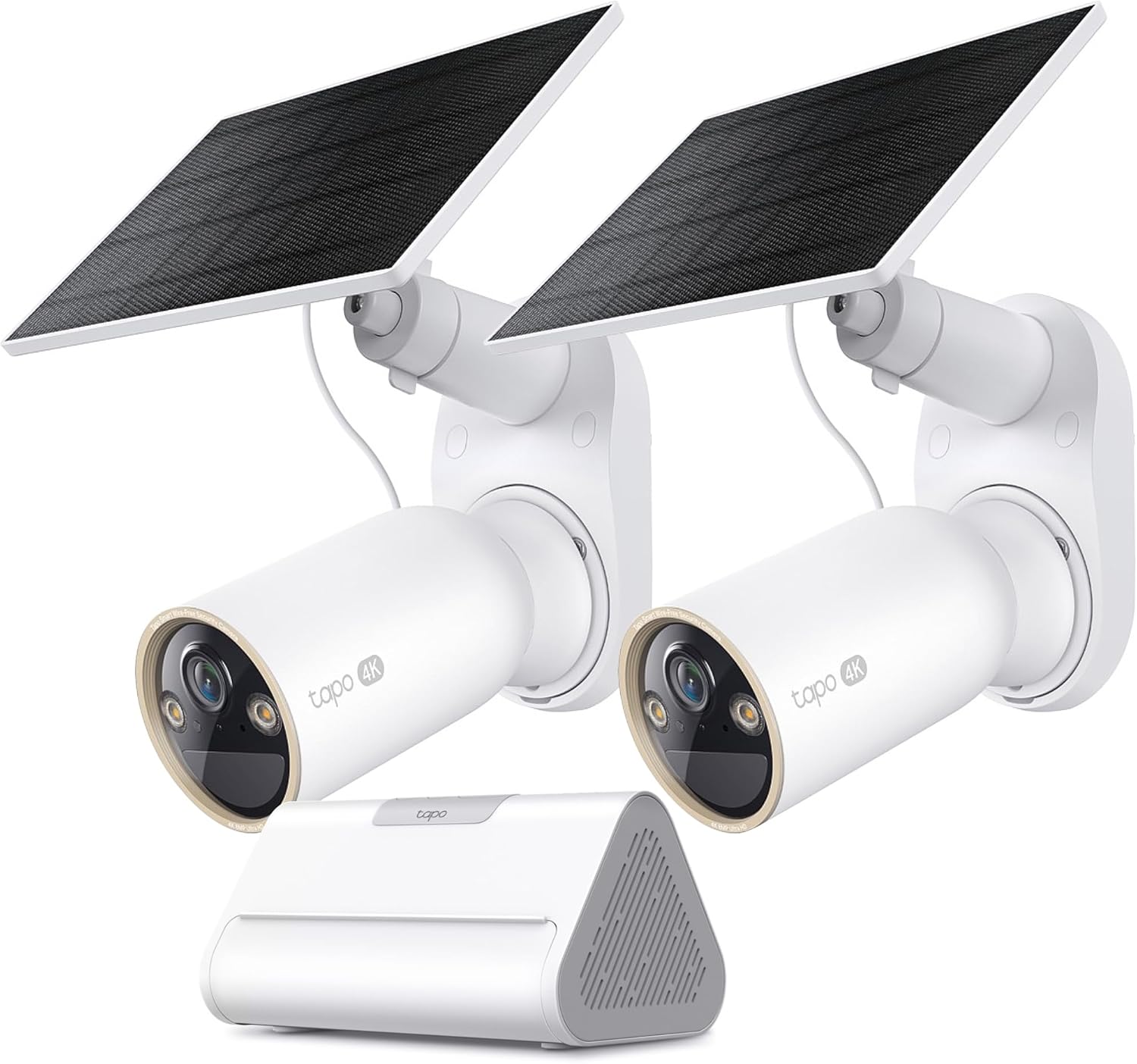
Tapo 4K Outdoor Solar-Powered Cameras C460 KIT x 2-Camera...

Tapo TP-Link 2K Pan/Tilt Security Camera for Baby Monitor...
As an Amazon Associate we earn from qualifying purchases.
Official Manufacturer Manual
Tapo provides official product documentation through their online manual rather than downloadable PDF. Access setup guides, troubleshooting steps, and product specifications for your Tapo C210 Pan Tilt Camera.
Source: tapo.com
Need More Help? Tapo Support
Note: The contact information below connects you directly to Tapo's official customer support team, not Trunetto. They can help with warranty claims, device replacements, and advanced technical issues.


